Configure Search Spaces
Configure search space visibility and versions, search targets, and target value sets. For the basic Wikimedia walkthrough, see Create Your First Search Space. For sign-in options, roles, and user access, see Authentication and Authorization. To review and improve query matches, see Administrator Feedback.
Search Space Configuration
Configure Search Space Visibility
Search spaces support Public and Private visibility settings.
-
Public: Search does not require a search-space-specific user grant. The authentication and access controls of the application and endpoint still apply. Only authorized administrators and experts can modify the configuration.
-
Private: Users, including users authenticated through SSO, must be explicitly granted access by a Search Administrator through User Management in the Admin application. Signing in through SSO alone does not grant access to a private search space.
Manage Search Space Versions
Review a draft before promoting it to the published version. A populated Wikimedia search space can have more targets and changes than the single-target setup in Getting Started; your version list and diff will reflect your own catalog.
-
From Search Spaces, locate the search space you are working on, in this example,
WIKIMEDIA. The row shows the search space visibility, number of versions, published version, and associated search target count. Use this page to confirm that you are working with the intended search space before reviewing version changes. -
Select WIKIMEDIA to open the versions dashboard. The version list and version tree show the currently published version, the active draft version, and any unpublished versions. Verify that the draft version is present before generating diffs or publishing changes.
If no draft version exists, open the action menu (three dots) next to the published version and select Clone to create a draft.
-
Select See Diffs to open the Diff Generator. Select the currently published version as the base version and the draft version as the new version, then select Generate. The Diff Generator groups changes into search target changes, target value set changes, and feedback changes.
Review the additions, removals, and modifications in each group before deciding whether the draft is ready to publish.
-
Return to the Search Space versions view. Use the action menu (three dots) next to the draft version and select Regressions to inspect whether previously answered queries would map to different search targets after publishing. Review any changes shown for your draft.
-
Run a representative evaluation set against the draft version and review the results. Then return to the Search Space versions view, open the action menu (three dots) next to the draft version again, and select Publish to promote the draft. Publishing makes the search space version available to end-users.
Clone, Export, and Import Search Spaces
On Search Spaces, use Clone Search Space in a search space’s row actions. Enter a Clone Name and select Clone to create a separate copy for reuse. Review the cloned space’s settings and versions before making it available to users.
On a search space’s versions page, select Export, choose the Search Space Version, and select Export in the dialog to download its data. Import accepts Search Targets and Target Value Sets files for a selected version. When importing, choose the intended Search Space Version and review the import status. The dialog offers Delete Existing Search Targets & Target Value Sets?; selecting it removes existing catalog content in that version. Leave it unselected when you intend to retain that content. Review the resulting targets and value sets before publishing a draft.
Search Target Configuration
Choose how each Search Target matches a query. A Text Target matches queries using its title, description, and sample queries. A Regex Target matches queries against regular-expression rules. Both types have a target action, such as a report URL or SQL query, and can use target inputs mapped to Target Value Sets.
The following procedures cover both types. For a complete Wikimedia example, see Add a Search Target.
Add a Search Target
Use Text Target when users should find a report through natural-language queries. Write a description that explains what the report shows and add sample queries that reflect how users would ask for it.
- Select the search space and draft version, then open Search Targets > Create Target.
- Enter the Search Target Title and Search Target Description. Describe the report’s purpose and the information users can find in it.
- Under Step 2: Select Target Action, select URL or SQL and enter the action. If the action contains target input placeholders, select a Target Value Set for each input. See Map Target Value Sets to Target Inputs.
- Select Text Target as the target type. Under Add Sample Queries, enter a query and select Add Sample Query. Repeat for other representative queries.
- Optionally add tags, then select Create Search Target.
- Use Query Tester to check that representative queries retrieve the target and resolve its inputs correctly. Review the draft before publishing it.
For example, the Wikimedia target Total Page Views - All Projects represents a report whose URL accepts a time period and a daily or monthly frequency. Queries such as Show monthly page views for all Wikimedia projects. identify the report, while the mapped Target Value Sets supply the input values. See the Getting Started walkthrough for its description, URL, and screenshots.
Create a Regex Search Target
Use a Regex Target when a user query must match a defined pattern, such as an identifier format, rather than relying on the semantic match used by a Text Target.
- Select the search space and draft version, then open Search Targets > Create Target.
- Enter the target title and description, and select the URL or SQL target action. Configure any target inputs needed by that action.
- Select Regex Target as the target type. Under Add Regex Rules, enter a regular expression and select Add Regex Rule. Add further rules if the target needs them.
- Optionally add tags, then select Create Search Target.
- Use Query Tester to check representative queries that should and should not match. Review the draft before publishing it.
Regex rules on a Search Target and a Regex-Based Target Value Set serve different purposes. The target rules determine whether a query matches a Search Target. A Regex-Based Target Value Set is used for a mapped target input; see Create Regex-Based Target Value Sets.
Organize Search Targets with Tags
Tags help organize and find Search Targets within a search space. While creating or editing a target, use Add Tags to select an available tag or enter a New Tag and select Add Tag. The form also offers Auto Generate Tags. Review generated tags before using them.
On the Search Targets catalog, select a tag filter to show associated targets. To manage the tags for a search space, open Search Spaces, select that search space, and select Tags on its versions page. The All Tags dialog lists each tag and its Search Target count. Deleting a tag removes its assignments from Search Targets, so review the affected count first.
Target Value Set Configuration
A Target Value Set supplies a value for a mapped target input. Choose its Source according to how the value should be obtained:
| Source | Use when |
|---|---|
| Manual | You enter the allowed values and optional synonyms yourself. |
| Column-Based | Allowed values come from a registered table-column source. |
| Regex-Based | Regular-expression rules identify a value in the query. |
| LLM-Based | An LLM extracts a value from the query using your instructions. |
Create the set in the intended draft version, then map it to the appropriate target input. The following sections cover all four sources. For a complete example using manual sets, see Add and Map Target Value Sets.
Create a Manual Target Value Set
Use Manual when you want to enter and maintain the allowed values yourself. Optional synonyms let users refer to a value with alternative words.
- Open Target Value Sets, select the intended draft search space version, and select Create Target Value Set.
- Enter a Name and Description, then select Manual as the Source.
- Enter an allowed Value. Optionally enter alternative wording in Synonym(s), separated by commas. Select + Add and repeat for each value.
- Enter the required Default Value to use when the query does not supply a matching value.
- Select Save, then map the set to a target input.
For the Wikimedia report, a FREQUENCY set can contain daily and monthly, with by month, month as synonyms for monthly. Set the default to monthly. A query that asks for monthly page views supplies that frequency; a query that omits the frequency uses the default.
Create Table-Column Target Value Sets
Use a Column-Based Target Value Set when the valid values for a target input come from an application table or view. Register the table-column source first, then select that source when creating the value set.
Register a Table-Column Source
The Sources page under Target Value Sets manages registered table-column sources across search spaces. To register one, select Sources > Add Source, then choose a search space and enter a source name unique within it. Select the schema, table, and column. For a remote source, select a database link; leave this field blank for a local source. You can also select optional Synonym Columns from the same table. Select Add after completing the form.
Create the Target Value Set
- Return to Target Value Sets, select the intended draft search space version, and select Create Target Value Set.
- Enter a Name and Description, then select Column-Based as the Source.
- Choose the Registered Source and provide the required default value. A display value is optional. Review the optional Use Username as default, Stemming, Use Matched Synonym, and Add Exceptions controls for your use case.
- Select Save. The set appears in the Target Value Sets catalog and can be selected in a target input’s Target Value Set dropdown.
At search time, usage is the same as a manual set. Map a target input placeholder such as :frequency or :period to the table-column Target Value Set. Trusted Answer Search resolves the user’s words to one of the collected values, then substitutes that value into the target URL or SQL action.
Table-column sets can also be synchronized. Use sync when the source table or view has changed and the Target Value Set should be refreshed from the current source contents. Sync rereads the configured schema, source object, column, database link, and synonym columns; adds new source values; removes values no longer present; and updates derived synonyms. If values or synonyms changed, Trusted Answer Search refreshes the supporting vocabulary and recomputes dependent embeddings.
Create Regex-Based Target Value Sets
Use a Regex-Based Target Value Set when a mapped target input depends on regular-expression rules matched against user queries. This is distinct from the Regex Target type, which matches a query to a Search Target.
- Open Target Value Sets, select the intended search space version, and select Create Target Value Set.
- Enter a Name and Description, then select Regex-Based as the Source.
- Enter a Regex Rule and select Add. The form lists the added rules. Rules must be unique within the Target Value Set.
- Complete the required Default Value field and select Save.
- Map the set to the appropriate target input and test queries that match and do not match its rules before publishing the version.
Create LLM-Backed Target Value Sets
Before creating an LLM-backed value set, configure a credential and Cloud AI profile, select the profile for the search space, and enable Use LLM?. See Cloud AI Configuration for the setup steps.
Use an LLM-backed Target Value Set when the target input is not a fixed enumeration. Instead of matching against stored values, Trusted Answer Search asks the configured LLM model to extract the value from the user’s query according to the instruction you provide. In the Wikimedia search space, a PERIOD input can use an extraction instruction if the time range cannot be represented adequately by a curated value list.
-
Open Target Value Sets and select Create Target Value Set on a draft search space version.
-
Enter Name and Description.
-
For Source, select LLM-Based.
-
Complete the LLM fields:
-
LLM Presets: Select a preset such as
DATE,PERSON,NUMBER,CURRENCY, orPERCENTAGE, or selectCustom. Presets populate the instruction and output format with seeded responses. -
Default Value: Fallback value used when extraction fails or the query does not provide a usable value.
-
LLM Instruction: Instruction that tells the LLM what to extract from the query. This field is required for LLM-backed sets.
-
LLM Output Format: Optional formatting guidance for the extracted value, such as returning only a number or returning a date in a specific format.
-
-
Select Save and map the Target Value Set to a target input just as you would with a manual set.
LLM-backed sets do not store a list of values or synonyms. During search, Trusted Answer Search sends the user query and the LLM-backed Target Value Set instructions to the configured LLM profile, parses the extracted value, and uses it as the target input value. Table-column source fields and manual values are not used for LLM-backed sets.
Wikimedia PERIOD Example
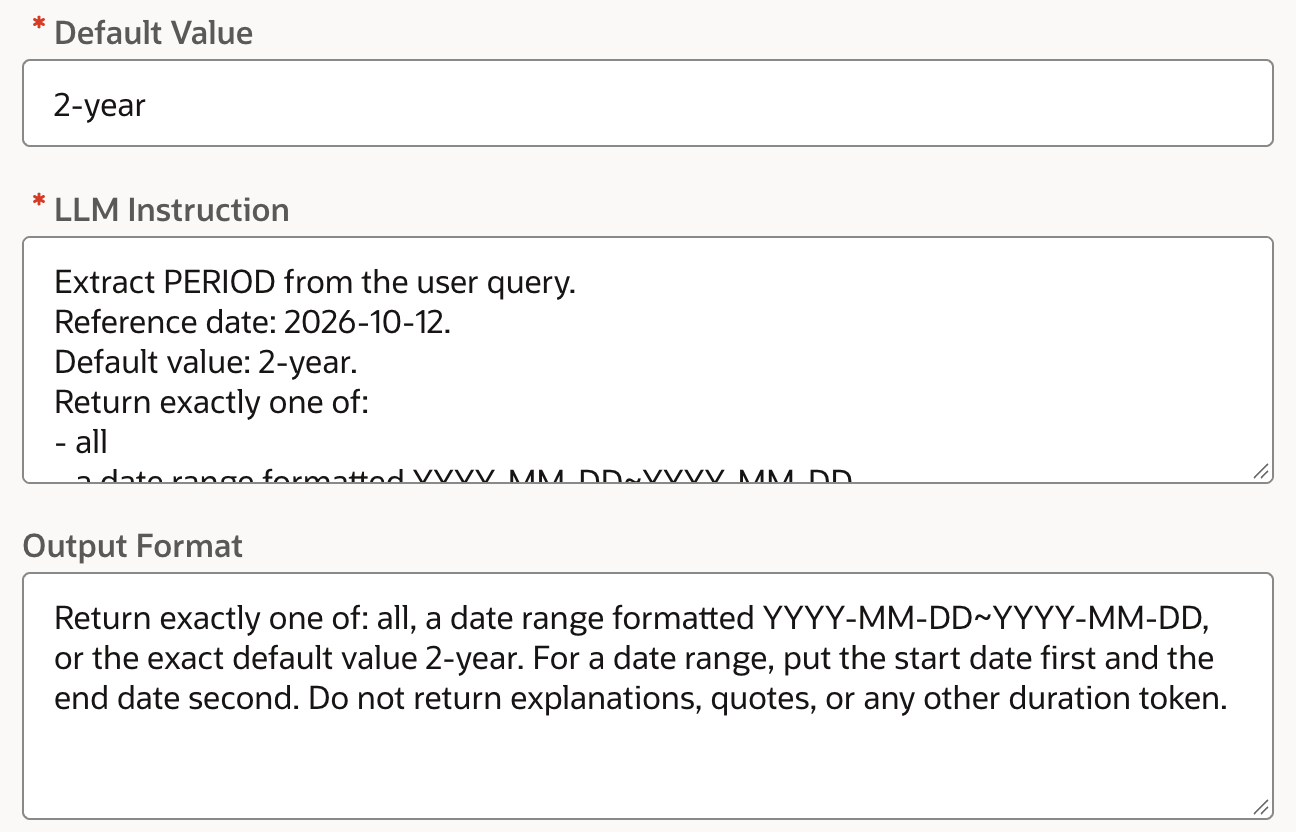
Use an LLM-backed PERIOD value set to extract a requested time window from a Wikimedia query. The following example returns all, an absolute date range, or the default 2-year. This is an alternative to the manual PERIOD value set used in Getting Started.
This example uses a fixed reference date of 2026-10-12 so that its expected date ranges are repeatable when testing. Replace that date with the appropriate reference date when adapting the instruction; it is not updated automatically by this example.
Set Default Value to 2-year and use the following LLM Instruction:
Extract PERIOD from the user query.
Reference date: 2026-10-12.
Default value: 2-year.
Return exactly one of:
- all
- a date range formatted YYYY-MM-DD~YYYY-MM-DD
- 2-year
Do not return explanations or quotes. Do not return duration tokens such as "21-month"; the only duration token allowed is the exact default value "2-year".
Rules:
1. For "all available history", return all.
2. For an explicit calendar year, return January 1 through December 31 of that year.
3. For explicit start and end dates, return those dates.
4. For "past N months" or "last N months":
   - Interpret N whether written as digits or words.
   - End date = reference date.
   - Start date = reference date minus exactly N calendar months.
   - Preserve the day of month; if unavailable, use the destination month's final day.
   - Do not approximate months as 30 days.
5. A rolling quarter means 3 months; half a year means 6 months; one year means 12 months.
6. When comparing a requested period against a one-year baseline, extract the requested period, not the baseline.
7. If no time window or "all available history" can be inferred from the query, return the default value exactly as written: 2-year. Do not convert it to a date range.
Before returning a relative-month range, verify that:
(end_year - start_year) * 12 + end_month - start_month = N.
Examples using reference date 2026-10-12:
past six months -> 2026-04-12~2026-10-12
past twenty months -> 2025-02-12~2026-10-12
past twenty-one months -> 2025-01-12~2026-10-12
during 2025 -> 2025-01-01~2025-12-31
all available history -> all
Show total page views for all Wikimedia projects -> 2-year
For LLM Output Format, use:
Return exactly one of: all, a date range formatted YYYY-MM-DD~YYYY-MM-DD, or the exact default value 2-year. For a date range, put the start date first and the end date second. Do not return explanations, quotes, or any other duration token.The screenshot shows the example fields in the Edit Target Value Set dialog, where the output-format field is labeled Output Format. The instruction continues beyond the visible portion of its field; the complete text is provided above.
Description of the illustration target-value-set-llm-period.png
After configuring the target inputs, test representative queries and review the draft search space version before publishing it.
Map Target Value Sets to Target Inputs
- Create or edit the Search Target in the intended draft version.
- In the target action, enter the URL or SQL containing the required input placeholders. For example, the Wikimedia URL uses
:periodand:frequency. - For each input, select its set from the Target Value Set dropdown. If the set does not exist, select Create New Target Set, create and save it, then select it in the mapping.
- Complete and save the Search Target. Use Query Tester to check both queries that provide input values and queries that rely on defaults before publishing the draft.
For example, map :frequency to FREQUENCY and :period to PERIOD. The resolved values are substituted into the target action. See Add and Map Target Value Sets for the full Wikimedia URL and mapping screenshots.