Authentication and Authorization
Authentication verifies who a user is. Authorization determines what that user can do in Trusted Answer Search and which search spaces the user can access.
Authentication
The following sections describe Admin application sign-in and an OCI IAM sign-in example for an application that hosts the search widget. The widget example configures sign-in for the host application separately from Admin application authentication.
Admin Application Authentication
The guided installation configures the Admin application to use Database Accounts authentication, with TASADMIN as the initial Search Administrator.
Use this default configuration to follow Create Your First Search Space.
Database Accounts
Sign in to the Admin application as TASADMIN, using the password you set during installation. The guided installer configures this authentication scheme automatically.
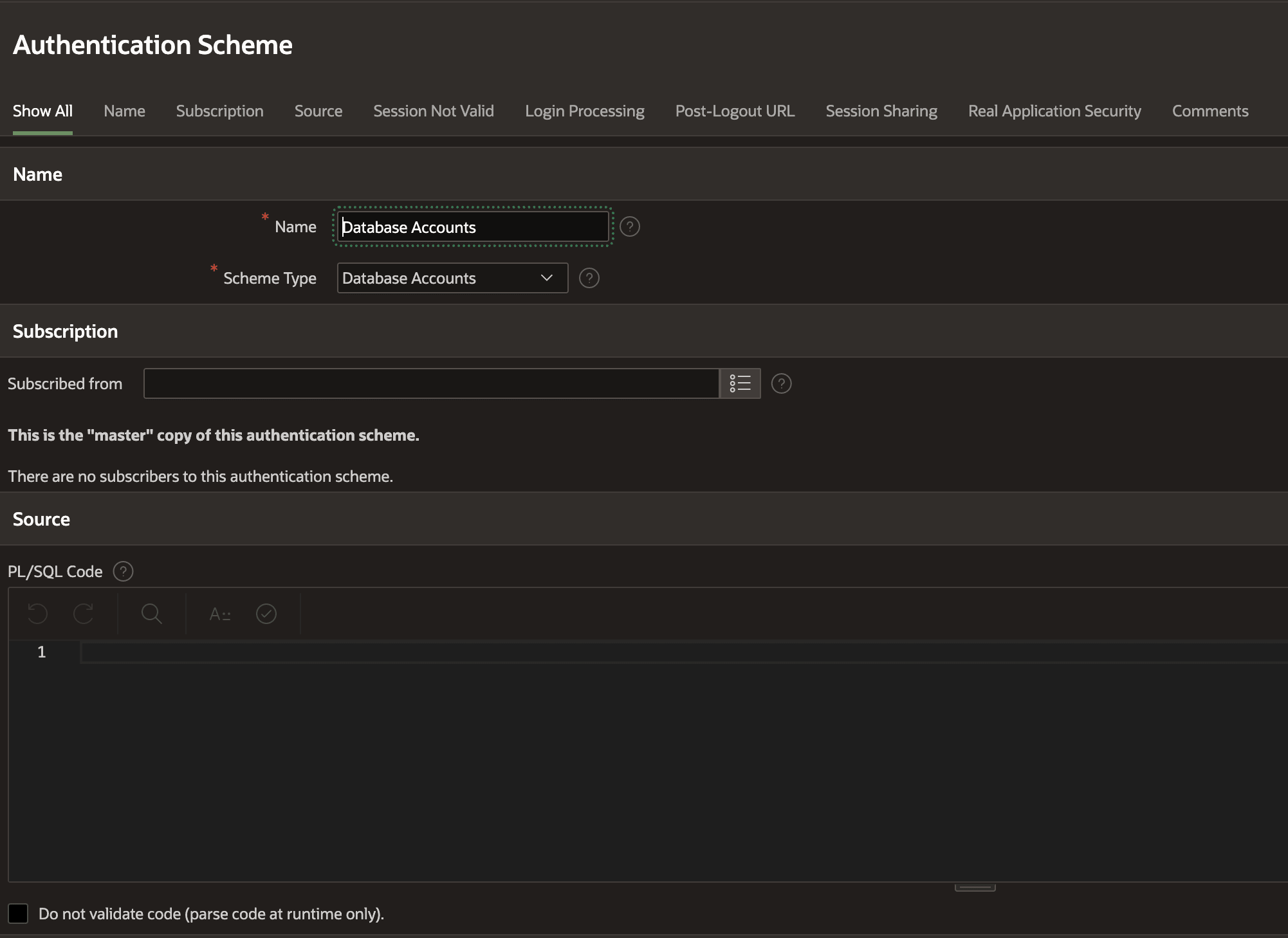
Description of the illustration authentication-scheme-database-accounts.png
Social Sign-In
Social Sign-In authenticates users through an external identity provider. It requires separate configuration in Oracle APEX and the identity provider. See Social Sign-In in the Oracle APEX App Builder User’s Guide.
Users also require Trusted Answer Search roles and search space access. See Managing User Access.
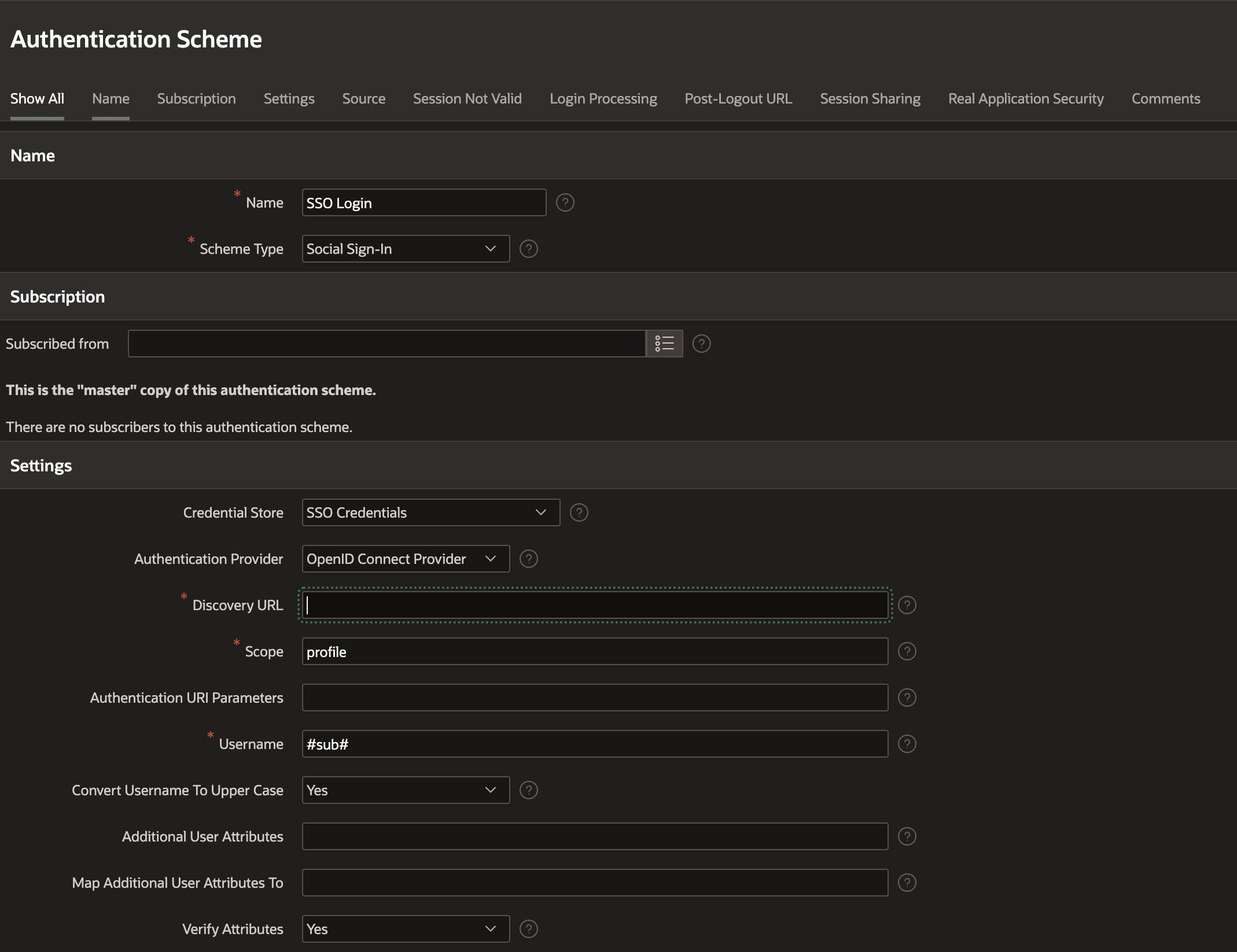
Description of the illustration authentication-scheme-social-sign-in.png
Configure SSO for an Application Hosting the Search Widget
Configure Oracle Cloud Infrastructure Identity and Access Management (OCI IAM) to authenticate users of a local Trusted Answer Search widget example.
The example uses an OCI IAM identity domain, a Trusted Answer Search database with Oracle REST Data Services (ORDS), and a locally hosted web page. The host page signs in the user and obtains an access token. ORDS validates the access token before processing requests to the Trusted Answer Search REST API.
The browser uses the OAuth 2.0 Authorization Code flow with Proof Key for Code Exchange (PKCE). Database credentials remain in the installation environment; the browser does not connect directly to the database.
Before You Begin
Prepare the following:
- An installed Trusted Answer Search back end and administration application. See Get Started with Oracle Trusted Answer Search.
- ORDS configured for the database and reachable from the browser.
- The
widget_ship.zippackage from the Trusted Answer Search release archive. - An OCI IAM identity domain and permission to configure applications and CORS settings in that domain.
- A published
wikimediaSearch Space and an end user with access to it. This SSO example uses Wikimedia for its search queries. - SQL*Plus on the widget installation computer and Python 3 on the computer that hosts the local example.
- An installer account with
CREATE ANY PROCEDUREandEXECUTE WITH GRANT OPTIONonORDS_METADATA.ORDS. Have a database administrator provide the required privileges for your environment.
The local page uses these values:
| Setting | Value |
|---|---|
| Redirect URL | http://localhost:8080/widget-example.html |
| Browser origin | http://localhost:8080 |
| API application name | TAS Widget API |
| Browser application name | TAS Widget Client |
| API scope suffix | search_access |
Use localhost consistently in the redirect URL and browser origin. Replace the example database and identity-domain values with values from your environment.
TAS Widget Client is the name of the OCI IAM browser client in this example.
The screenshots illustrate the example configuration. Use your own API audience and application values rather than copying environment-specific values from an image.
Note: HTTP is used only for the local example. Use HTTPS for a deployed application. This example does not implement automatic token refresh or identity-provider logout; see Session Handling and Limitations.
Register the TAS API in OCI IAM
Create a resource application to represent the TAS ORDS API.
- Open your identity domain in the OCI Console and select Integrated applications.
-
Select Add application, Confidential Application, and Launch workflow.
The Confidential Application option is selected for the TAS API registration.
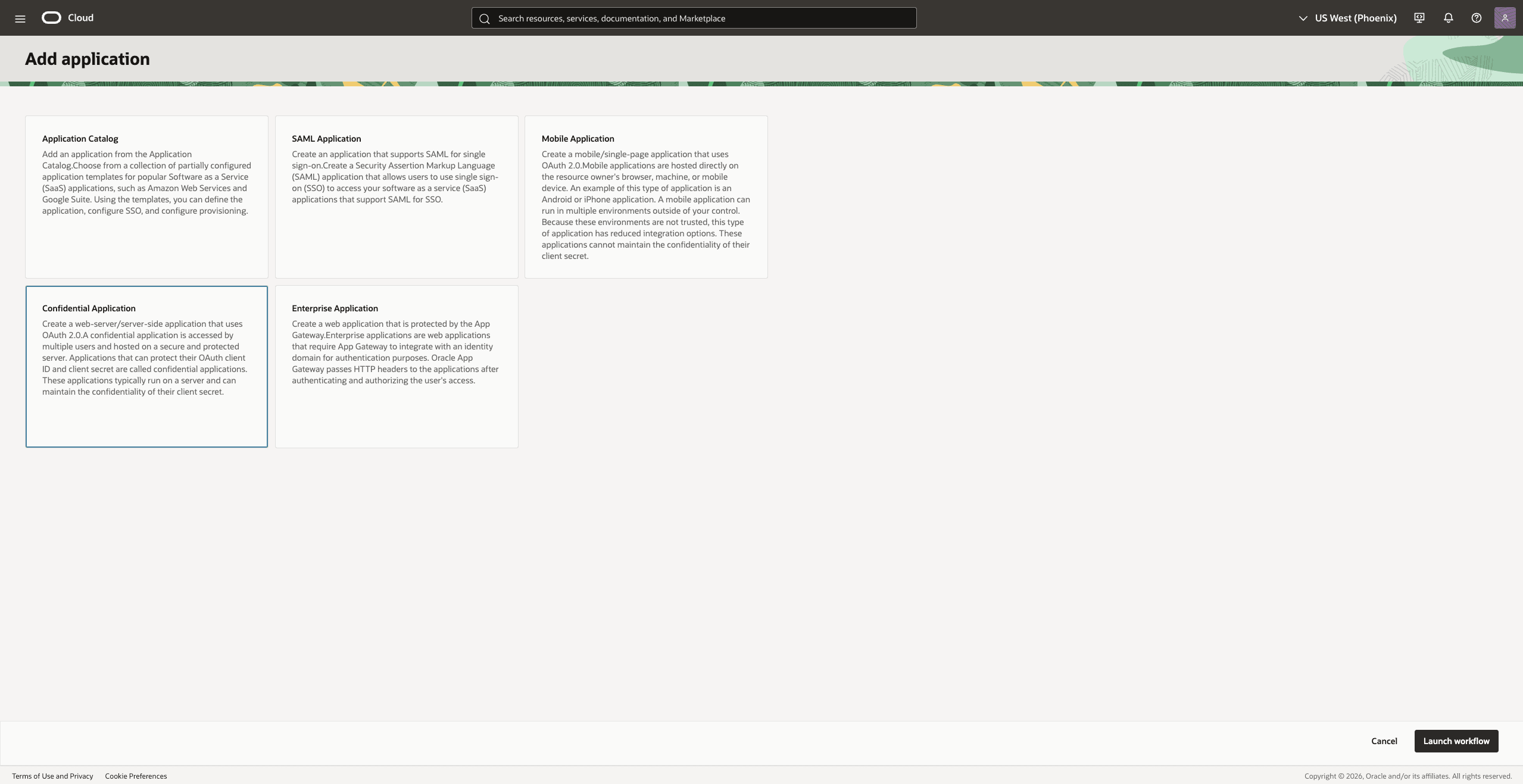
Description of the illustration widget-sso-confidential-application.png
Name the application
TAS Widget APIand enter a description for the TAS ORDS registration.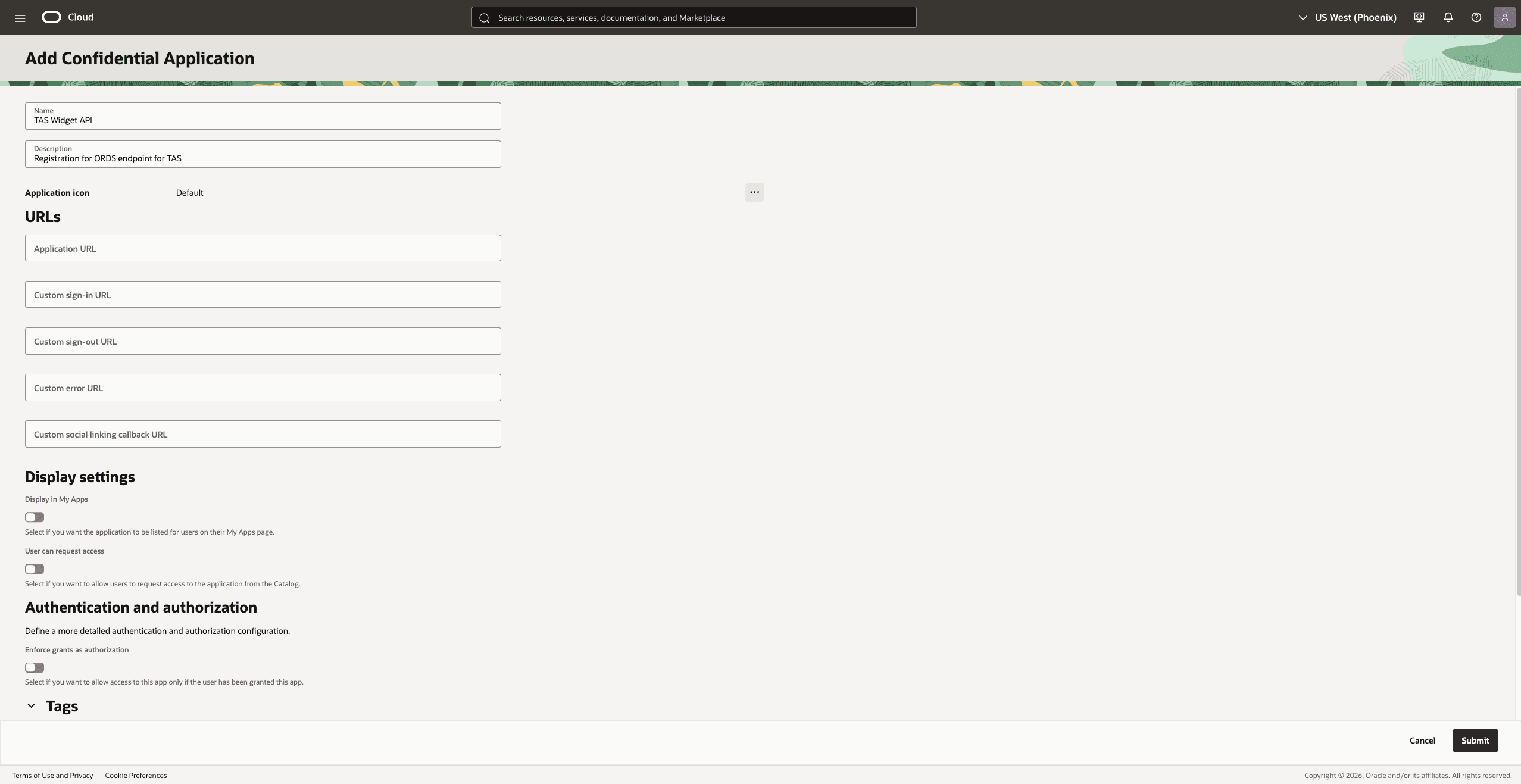
Description of the illustration widget-sso-resource-details.png
- Configure the application as a resource server. For this example, set the access-token lifetime to
3600seconds and leave token refresh disabled. - Set Primary audience to the value that you will configure as
JWT_AUDIENCEin the widget installer. For example, usehttps://<public-ords-host>/ords/trusted-search/. Preserve the exact path, capitalization, and trailing slash. -
Add the scope suffix
search_accessand enable user consent for this example. Record the full scope value from the registration for use by the browser application. - Leave client configuration disabled for this API registration. Save and activate the application.
Confirm activation of
TAS Widget APIin the Activate application dialog.
For OCI IAM field descriptions, see Adding a Confidential Application.
Register the Browser Application
Create a separate public client for the page that hosts the widget.
-
From Integrated applications, select Add application, Mobile Application, and Launch workflow. Name the application
TAS Widget Client.Select Mobile Application for the public browser client.
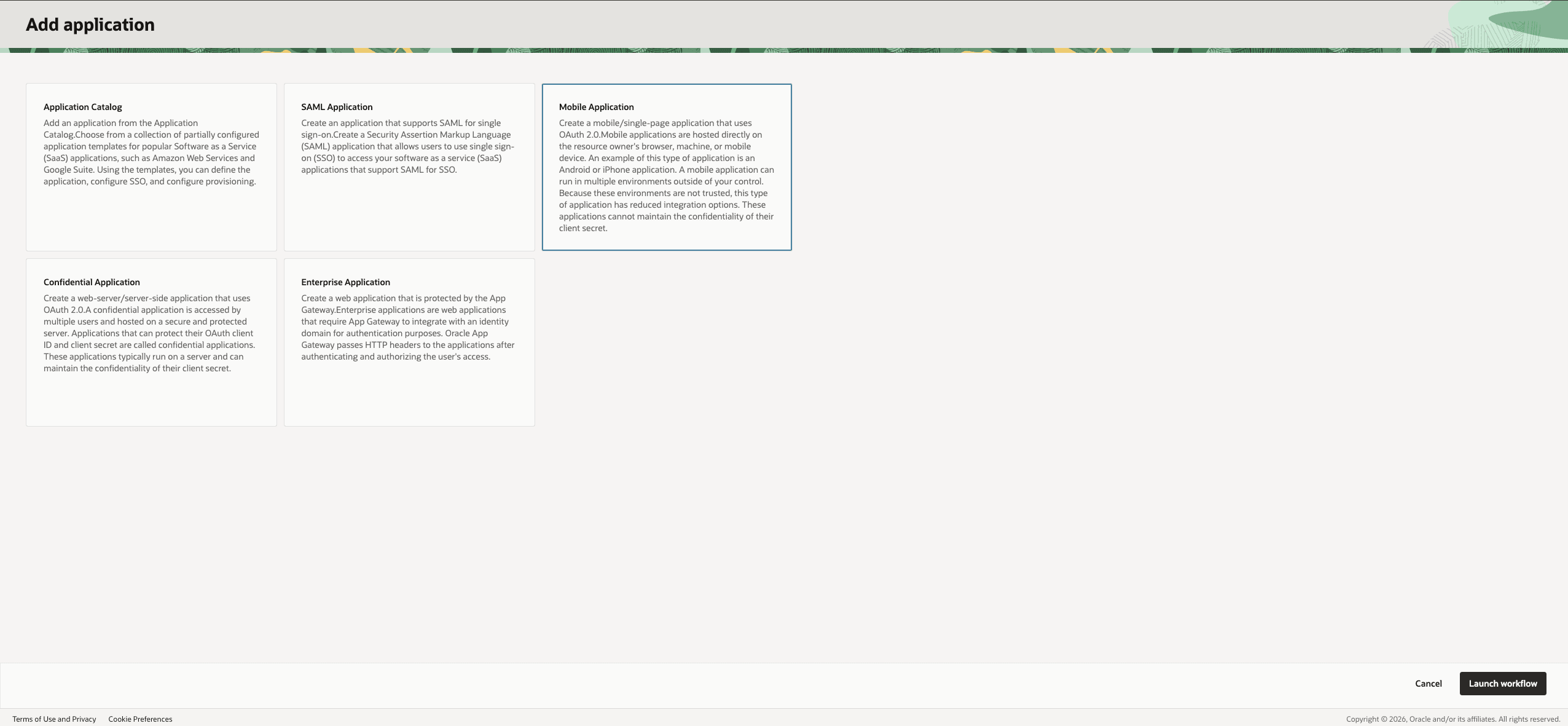
Description of the illustration widget-sso-mobile-application.png
- Enable the Authorization code grant. Leave the Implicit, Device code, and Refresh token grants disabled for this example.
-
For local development, enable Allow non-HTTPS URLs. Register
http://localhost:8080/widget-example.htmlas the exact Redirect URL.The client configuration shows the Authorization code grant selected and the localhost redirect URL entered for this example.
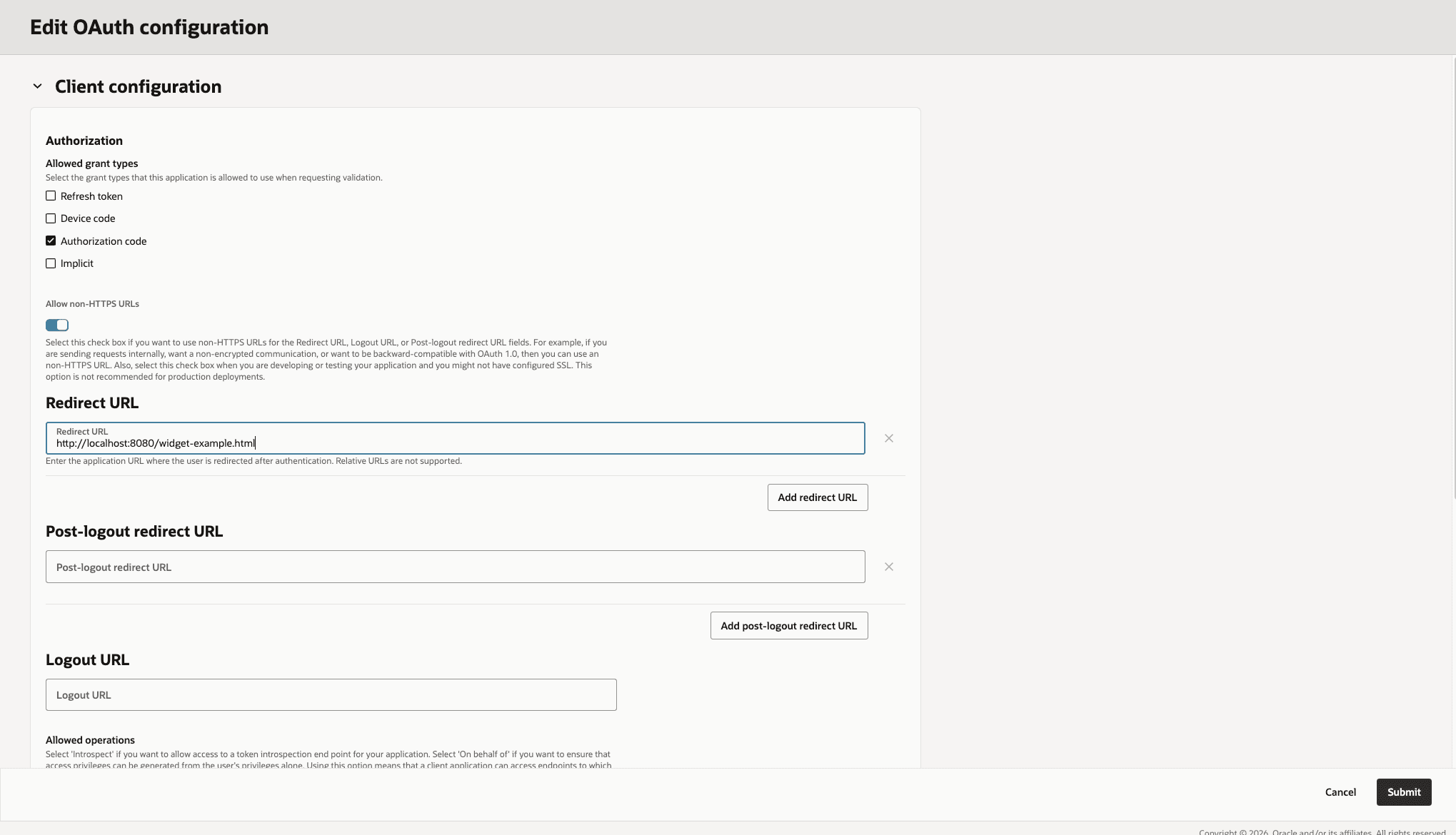
Description of the illustration widget-sso-code-redirect.png
- Leave logout URLs empty for this local-session example and keep Bypass consent disabled. Select a client IP policy that permits requests from the example host.
- In the Token issuance policy section, use Add scope to associate the TAS API scope created in the previous section. Creating the API scope alone does not associate it with this client. Do not grant IAM administrator application roles to this browser client.
- Finish and activate the application. Assign the intended users or groups if application grants are enforced, and record the browser application’s Client ID.
OCI IAM uses the Mobile Application type for a public client that cannot keep a client secret. Do not add a client secret to the web page. See Adding a Mobile Application.
The browser example uses Authorization Code with PKCE S256. See Authorization Code Grant Type.
Configure IAM Browser Access and Collect Metadata
Allow the local page to call IAM and obtain the values needed by the widget installer and browser application.
-
In the identity domain’s session settings, enable Allow cross-origin resource sharing (CORS) and add
http://localhost:8080to the allowed origins. Preserve existing entries and save the change. See Changing Data Sharing Settings.The Data sharing settings section shows CORS enabled and
http://localhost:8080in Allowed CORS domain names.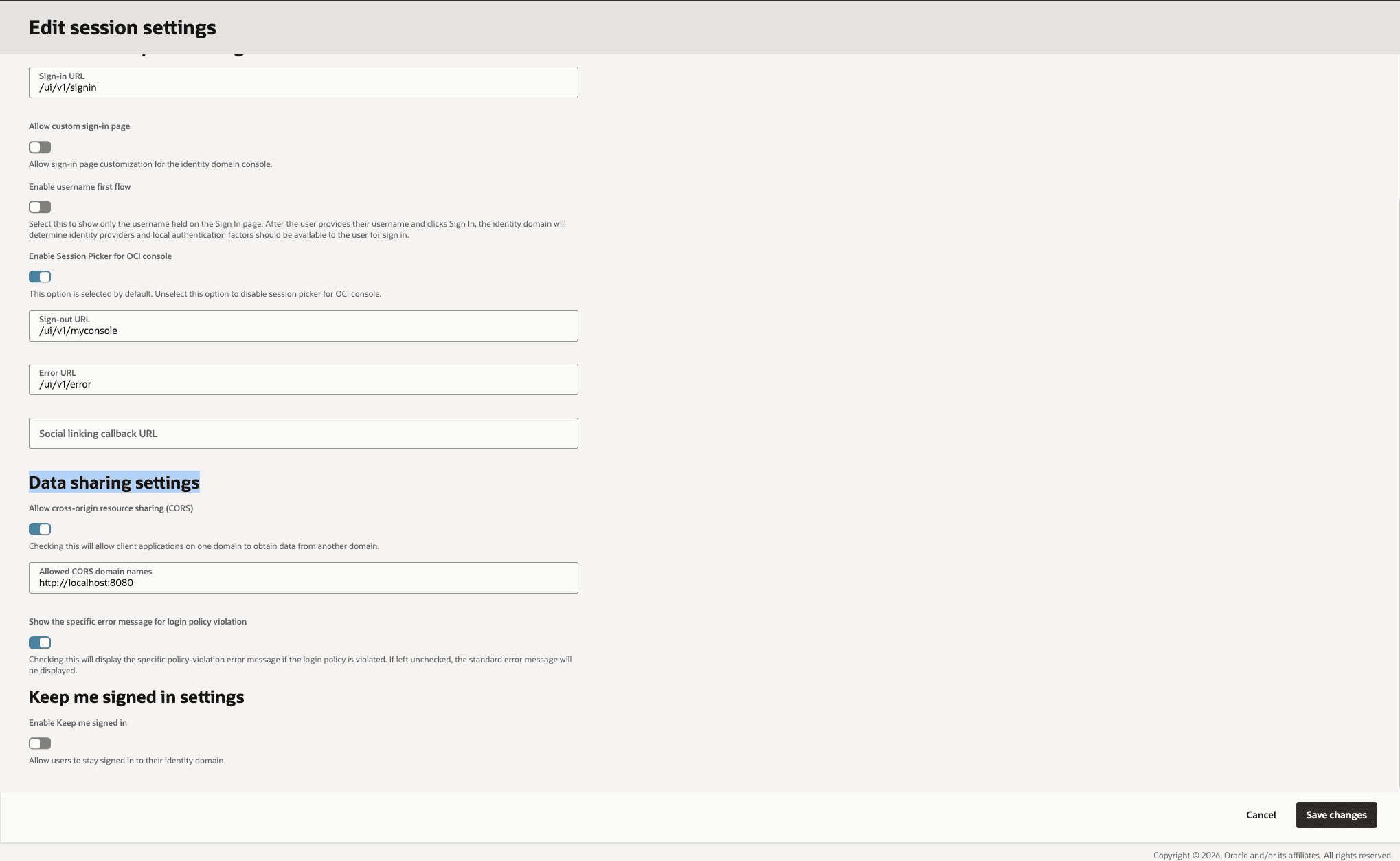
-
Read the identity domain’s OpenID Connect discovery document. Replace
<identity-domain-host>with your domain host. This command requirescurlandjq.curl -sS \ -H 'Accept: application/json' \ 'https://<identity-domain-host>/.well-known/openid-configuration' | jq '{issuer, jwks_uri, authorization_endpoint, token_endpoint}' - Record the returned values without changing their paths or trailing slashes.
- Verify that the JWK Set URL can be read without interactive login and is reachable from the database/ORDS environment. Browser access alone does not verify this connectivity.
| Discovery or registration value | Where to use it |
|---|---|
issuer |
Widget installer JWT_ISSUER |
jwks_uri |
Widget installer JWT_JWK_URL |
| API primary audience | Widget installer JWT_AUDIENCE |
API scope suffix search_access |
Widget installer JWT_SCOPE_NAME |
| Full API scope from the registration | Browser authorization request, together with openid profile |
authorization_endpoint |
Browser sign-in request |
token_endpoint |
Browser authorization-code exchange |
| Browser application Client ID | Browser authorization and token requests |
Install the Widget Endpoints with JWT Authentication
Extract widget_ship.zip and configure install_widget.conf using values collected in the preceding sections.
DB_CONNECT_STRING='<database-connect-string>'
INSTALLER_USER='<installer-user>'
INSTALLER_USER_PASSWORD='<installer-password>'
TASADMIN_PASSWORD='<tasadmin-password>'
JWT_AUTHENTICATION_ENABLED=TRUE
JWT_ISSUER='<issuer-from-discovery>'
JWT_AUDIENCE='<api-primary-audience>'
JWT_JWK_URL='<jwks-uri-from-discovery>'
JWT_SCOPE_NAME='search_access'
Set JWT_AUTHENTICATION_ENABLED=TRUE for this SSO example and supply JWT_ISSUER, JWT_AUDIENCE, and JWT_JWK_URL together. The installer rejects incomplete JWT configuration. Keep the configuration file outside the web directory and source control because it contains database passwords.
From the extracted widget directory, run:
./install_widget.sh --config install_widget.confReview the installation output and install_widget.log for failures. Record the actual API base URL, including its trailing slash, for example:
https://<public-ords-host>/ords/trusted-search/search-api/For installer prerequisites and the identity response fields, see Administrator Setup.
Allow the Local Origin in TAS
Configure CORS separately for the TAS API. The IAM setting in the preceding section permits calls to IAM; it does not configure browser access to ORDS.
Connect as TASADMIN and update TRUSTED_SEARCH_WIDGET_ALLOWED_ORIGINS. When other origins are already configured, include them in the comma-separated value to retain their access.
BEGIN
  dbms_trusted_search.update_config_parameter(
    p_name  => 'TRUSTED_SEARCH_WIDGET_ALLOWED_ORIGINS',
    p_value => 'http://localhost:8080'
  );
END;
/
COMMIT;
An origin contains the scheme, host, and optional port, without a path. Use exact origins rather than a wildcard. The browser’s preflight request must permit the headers used by the API, including Authorization, X-Q, X-N, and Content-Type.
Create the Example Website
Create a separate website directory with the following layout. Copy search_bar_widget.js from the matching release’s widget package into assets. Create the other three files using the code in this section.
website/
  widget-example.html
  auth.js
  serve.py
  assets/
    search_bar_widget.js
Keep database configuration files, passwords, and wallets outside this directory. The local server serves files from the directory that contains serve.py.
Create the Host Page
Save the following as widget-example.html. The page loads auth.js, which completes sign-in and calls identity/ before loading the widget.
<!doctype html>
<html lang="en">
<head>
<meta charset="utf-8"><meta name="viewport" content="width=device-width, initial-scale=1">
<meta name="referrer" content="no-referrer">
<title>Wikimedia | Trusted Answer Search</title>
<style>
:root{font-family:system-ui,sans-serif;color:#252a2c;background:#f5f4f0}body{margin:0}header{background:#183b38;color:white;padding:24px 7%;display:flex;justify-content:space-between;align-items:center}header span{font-size:13px;letter-spacing:.1em}main{max-width:880px;margin:70px auto;padding:0 24px}h1{font-size:44px;letter-spacing:-.04em;margin-bottom:12px}p{line-height:1.6}button{background:#bf4938;color:white;border:0;border-radius:7px;padding:12px 20px;font:inherit;cursor:pointer}button:disabled{opacity:.6;cursor:wait}.card{background:white;padding:28px;border:1px solid #ddd;border-radius:12px;margin-top:30px}#status{padding:14px 0}#status[data-error=true]{color:#a3261d}pre{white-space:pre-wrap;overflow-wrap:anywhere;font-size:13px}#widget-container{min-height:90px}footer{color:#656a69;font-size:13px;margin-top:32px}
</style>
<script src="/auth.js" defer></script>
</head>
<body>
<header><span>ORACLE TRUSTED ANSWER SEARCH</span><button id="session-button">Sign in with OCI IAM</button></header>
<main><h1>Explore Wikimedia</h1><p>Sign in with your OCI IAM account, then search the Wikimedia Search Space.</p>
<div id="status" role="status" aria-live="polite">Ready to sign in.</div>
<section class="card"><div id="widget-container">Search will appear after sign-in and the TAS identity check.</div></section>
<details id="identity-panel" hidden><summary>TAS identity response</summary><pre id="identity"></pre></details>
<footer>Demo: access tokens remain in memory. When the session expires, sign in again. Clearing this page’s session does not sign you out of OCI IAM.</footer>
</main></body></html>
Add the Authentication Code
Save the following as auth.js. Replace each placeholder in CONFIG before running the example.
| Setting | Value to supply |
|---|---|
clientId |
Client ID of the TAS Widget Client public application. |
authorizationEndpoint |
authorization_endpoint from your identity domain’s discovery document. |
tokenEndpoint |
token_endpoint from the same discovery document. |
redirectUri |
Exact registered redirect URL; retain the supplied localhost URL for this example. |
scope |
openid profile followed by the full TAS API scope associated with the public client. Replace <scope> with the full registered scope, not just its suffix. |
apiBase |
Installed API base URL ending in /trusted-search/search-api/, including the trailing slash. |
searchSpace |
The published wikimedia Search Space that the signed-in user can access. |
The example stores the access token in memory. Session storage holds only the temporary PKCE transaction. The synchronous getAuthHeaders function supplies the current bearer token to widget requests.
'use strict';
const CONFIG = Object.freeze({
  clientId: '<client-ID>',
  authorizationEndpoint: '<AuthorizationEndpoint>',
  tokenEndpoint: '<TokenEndpoint>',
  redirectUri: 'http://localhost:8080/widget-example.html',
  scope: 'openid profile <scope>',
  apiBase: '<ORDS_ENDPOINT>',
  searchSpace: 'wikimedia'
});
const statusElement = document.querySelector('#status');
const button = document.querySelector('#session-button');
const container = document.querySelector('#widget-container');
const transactionKey = 'tas-demo-pkce';
let accessToken = '';
let expiresAt = 0;
let expiryTimer;
function status(message, error = false) { statusElement.textContent = message; statusElement.dataset.error = String(error); }
function base64url(bytes) { return btoa(String.fromCharCode(...bytes)).replaceAll('+', '-').replaceAll('/', '_').replace(/=+$/, ''); }
function random() { return base64url(crypto.getRandomValues(new Uint8Array(32))); }
function clearSession() {
  accessToken = ''; expiresAt = 0; clearTimeout(expiryTimer);
  sessionStorage.removeItem(transactionKey);
  location.replace(CONFIG.redirectUri);
}
async function signIn() {
  if (`${location.origin}${location.pathname}` !== CONFIG.redirectUri) throw new Error('Open http://localhost:8080/widget-example.html to sign in.');
  button.disabled = true;
  const verifier = random();
  const state = random();
  const challenge = base64url(new Uint8Array(await crypto.subtle.digest('SHA-256', new TextEncoder().encode(verifier))));
  sessionStorage.setItem(transactionKey, JSON.stringify({ verifier, state, createdAt: Date.now() }));
  const url = new URL(CONFIG.authorizationEndpoint);
  url.search = new URLSearchParams({client_id: CONFIG.clientId, response_type: 'code', redirect_uri: CONFIG.redirectUri,
    scope: CONFIG.scope, state, nonce: random(), code_challenge: challenge, code_challenge_method: 'S256'}).toString();
  location.assign(url.href);
}
function showError(error) {
  status(error instanceof TypeError ? 'Network request failed. Check IAM or TAS CORS settings and browser Network details.' : error.message, true);
  button.disabled = false;
}
button.addEventListener('click', () => {
  if (accessToken) clearSession();
  else signIn().catch(showError);
});
function expire() {
  accessToken = ''; expiresAt = 0;
  container.replaceChildren(document.createTextNode('Session expired. Sign in again to continue searching.'));
  button.textContent = 'Sign in with OCI IAM'; button.disabled = false;
  document.querySelector('#identity-panel').hidden = true;
  document.querySelector('#identity').textContent = '';
  status('Session expired. Sign in again.');
}
function getAuthHeaders() {
  if (!accessToken || Date.now() >= expiresAt) { if (accessToken) expire(); return {}; }
  return { Authorization: `Bearer ${accessToken}` };
}
async function initialize() {
  const params = new URLSearchParams(location.search);
  const code = params.get('code');
  const oauthError = params.get('error');
  if (!code && !oauthError) return;
  const saved = sessionStorage.getItem(transactionKey);
  sessionStorage.removeItem(transactionKey);
  history.replaceState({}, '', CONFIG.redirectUri);
  const transaction = saved ? JSON.parse(saved) : null;
  if (!transaction || transaction.state !== params.get('state') || Date.now() - transaction.createdAt > 600000) {
    throw new Error('Login response is missing a valid, recent state. Please sign in again.');
  }
  if (oauthError) {
    const detail = (params.get('error_description') || '').slice(0, 1200);
    throw new Error(`OCI sign-in was not completed (${oauthError}). ${detail || 'Check that TAS Widget Client is active and permits the Authorization code grant.'}`);
  }
  button.disabled = true; status('Completing OCI sign-in…');
  const response = await fetch(CONFIG.tokenEndpoint, {
    method: 'POST', credentials: 'omit', cache: 'no-store',
    headers: { 'Content-Type': 'application/x-www-form-urlencoded' },
    body: new URLSearchParams({grant_type: 'authorization_code', client_id: CONFIG.clientId,
      redirect_uri: CONFIG.redirectUri, code, code_verifier: transaction.verifier})
  });
  if (!response.ok) throw new Error(`Token exchange failed (HTTP ${response.status}). Check the client registration, redirect URL and scope.`);
  const tokens = await response.json();
  const lifetime = Number(tokens.expires_in);
  if (!tokens.access_token || !Number.isFinite(lifetime) || lifetime <= 30) throw new Error('IAM did not return a usable access token and lifetime.');
  accessToken = tokens.access_token;
  expiresAt = Date.now() + (lifetime - 30) * 1000;
  expiryTimer = setTimeout(expire, Math.min(expiresAt - Date.now(), 2147483647));
  button.textContent = 'Clear local session'; button.disabled = false;
  status('Signed in to OCI IAM. Checking TAS identity…');
  const identityResponse = await fetch(`${CONFIG.apiBase}identity/`, { headers: getAuthHeaders(), credentials: 'omit', cache: 'no-store' });
  if (!identityResponse.ok) throw new Error(`TAS identity check failed (HTTP ${identityResponse.status}). Check JWT audience, issuer, scope and key access.`);
  const identity = await identityResponse.json();
  document.querySelector('#identity').textContent = JSON.stringify(identity, null, 2);
  document.querySelector('#identity-panel').hidden = false;
  window.SEARCH_WIDGET_CONFIG = {placeholder: 'Search Wikimedia…', debounceMs: 300, telemetryEnabled: true, getAuthHeaders};
  container.replaceChildren();
  const script = document.createElement('script');
  script.src = 'assets/search_bar_widget.js';
  script.dataset.ordsSearchUrl = `${CONFIG.apiBase}search/`;
  script.dataset.ordsPreviewUrl = `${CONFIG.apiBase}preview/`;
  script.dataset.ordsSelectionUrl = `${CONFIG.apiBase}selection/`;
  script.dataset.searchSpace = CONFIG.searchSpace;
  script.addEventListener('load', () => status('TAS accepted your token. Search Wikimedia below; expand the identity response to verify your user.'));
  script.addEventListener('error', () => status('The widget script failed to load.', true));
  container.append(script);
}
initialize().catch(showError);
The widget uses data-ords-search-url, data-ords-preview-url, and data-ords-selection-url for search, preview, and selection requests. This example sets all three explicitly from apiBase.
Add the Local Server
Save the following as serve.py. It binds to the loopback interface, suppresses request logging, and adds headers to prevent caching and referrer transmission.
from http.server import ThreadingHTTPServer, SimpleHTTPRequestHandler
from pathlib import Path
class DemoHandler(SimpleHTTPRequestHandler):
    def __init__(self, *args, **kwargs):
        super().__init__(*args, directory=str(Path(__file__).parent), **kwargs)
    def log_message(self, *args):
        pass
    def end_headers(self):
        self.send_header('Cache-Control', 'no-store')
        self.send_header('Referrer-Policy', 'no-referrer')
        super().end_headers()
server = ThreadingHTTPServer(('127.0.0.1', 8080), DemoHandler)
print('TAS demo ready at http://localhost:8080/widget-example.html', flush=True)
server.serve_forever()
Run and Verify the Example
-
From the
websitedirectory, start the server:python3 serve.py - Open
http://localhost:8080/widget-example.html. Uselocalhost, rather than127.0.0.1, so that the URL matches the registered redirect. - Select Sign in with OCI IAM and complete sign-in and consent.
- After returning to the page, expand TAS identity response. Verify that
remote_identand the resolved TAS identity identify the intended end user. - Search for a query supported by your Search Space. For Wikimedia, try
italian page viewsand verify the results against your configured targets. - Verify preview and result-selection responses. Successful sign-in alone does not verify these operations or access to a Search Space.
- Verify that requests with expired tokens or insufficient scope are rejected, and that an unapproved browser origin cannot read API responses.
If port 8080 is already in use, stop the conflicting local server before starting this example. Changing the port also requires updating the redirect URL and the IAM and TAS allowed origins.
Note: CORS controls browser access to responses. It does not replace token validation or authorization.
Session Handling and Limitations
This example demonstrates the login handoff. It does not implement automatic token refresh or identity-provider logout.
- The local session expires 30 seconds before the reported access-token lifetime ends. The user must sign in again to continue.
- Clear local session clears this page’s session and reloads the page. It does not end the OCI IAM SSO session.
- The host page supplies the access token; ORDS validates it. The example does not use the ID token as proof of identity.
- For a production application, use the host application’s authentication library to manage login, token renewal, and logout. Load the widget only after an access token is available.
Troubleshoot the Example
| Symptom | Check |
|---|---|
unauthorized_client with a scope error |
Associate the correct TAS API scope with the public client. Compare the full requested scope and API audience with the registration. |
Other unauthorized_client errors |
Check the application activation, Authorization code grant, Client ID, and exact redirect URL. |
| Token exchange fails with a browser network error | Check IAM CORS settings and the token request in the browser’s network tools. |
identity/ returns HTTP 401 or 403 |
Check the access token’s issuer, audience, scope, and expiry, along with signing-key reachability and the ORDS scope-to-privilege mapping. |
| TAS requests are blocked by the browser | Check the exact origin in TRUSTED_SEARCH_WIDGET_ALLOWED_ORIGINS and the preflight response. |
| Search does not return expected results | Check the Search Space name, published version, configured targets, and end-user access. |
| Widget script fails to load | Verify that assets/search_bar_widget.js is present and comes from the matching TAS release. |
Do not include access tokens or database passwords when sharing diagnostic information.
Authorization
Grant Trusted Answer Search roles and search space access through Users in the Admin application. See Personas and Access for the Search Administrator, Search Space Expert, and Search Space User roles.
Users who sign in through SSO must also be explicitly granted access to private search spaces by a Search Administrator. SSO authentication alone does not grant that access. See Configure Search Space Visibility.
Managing User Access
Trusted Answer Search user access depends on the Admin application’s authentication scheme. For Database Accounts deployments, each user must exist as a database account before you authorize that user to access the Trusted Answer Search application. For Social Sign-In deployments, users authenticate through your SSO provider, and you grant the appropriate Trusted Answer Search roles and search space access in the admin app.
The following steps add a Search Space User called tasuser for a Database Accounts deployment. Ask your database administrator (DBA) to provision the database account with a strong password, or create it if you have the required privileges. Replace the password placeholder before running this example:
CREATE USER tasuser IDENTIFIED BY "<strong-password>";-
Sign in to the admin app as
tasadmin, select Users in the left navigation, and confirm that you are managing access for the Wikimedia search space. The report lists existing administrators, experts, and search-only users. -
Select Add User to open the drawer. Enter
tasuser, select only the User role, and select wikimedia from the Search Space list so the new account is scoped to the intended search space. Finish by selecting Add. -
The Users table immediately shows
TASUSER. Select the username to review the access drawer. The Search Space Access region confirms that the account has User access towikimedia; add or revoke other spaces here as needed.
After adding the search space user, configure the host application to authenticate that user and embed the widget as described in Search Widgets. Search italian page views and review the returned Wikimedia targets and resolved inputs against the version you published.