Configure Admin Settings
Open Settings in the Admin application to review deployment-wide options under Global Settings and options for an individual search space under Search Space Settings. Select the intended search space before changing its settings.
Global Settings
System Defaults displays the configured Embedding Model and Schema Version for the current installation. These values are displayed for reference.
Log Level, under Custom Settings, controls diagnostic logging and is primarily intended for developer troubleshooting.
Cloud AI Configuration
Cloud AI Configuration manages the credentials and profiles used by TAS LLM features. A credential stores authentication information. A profile identifies the provider and model, together with the configuration needed to use them. Create the credential first, then create a profile that uses it.
-
Open Credentials and select + Create Credential. Enter a Credential Name and choose the Credential Type:
- OCI Native: Provide the User OCID, Tenancy OCID, Private Key, and Fingerprint.
- Username / Password: Provide the User and Password.
- Select Save. Private keys and passwords are not displayed after saving; store them securely before submitting the credential.
-
Open Profiles and select + Create Profile. Choose the Profile Type:
- Basic OCI Profile: Enter the Profile Name, select the Credential, and provide the Model, Region, and Compartment ID.
- Custom Profile: Enter the Profile Name and Provider. Select a credential if required by the provider. Add its required attributes using Attribute name, Attribute value, and Type, then select + Add for each attribute.
- Save the profile. Use Test in the profile list to check it.
- Under Search Space Settings, select the intended search space, choose the profile in Select LLM Profile, set Use LLM? to Yes, and select Save.
Search Space Settings
- Select the intended search space in the Search Space dropdown in the application header.
- Review its controls under Search Space Settings and make the required changes.
- Select Save in that section.
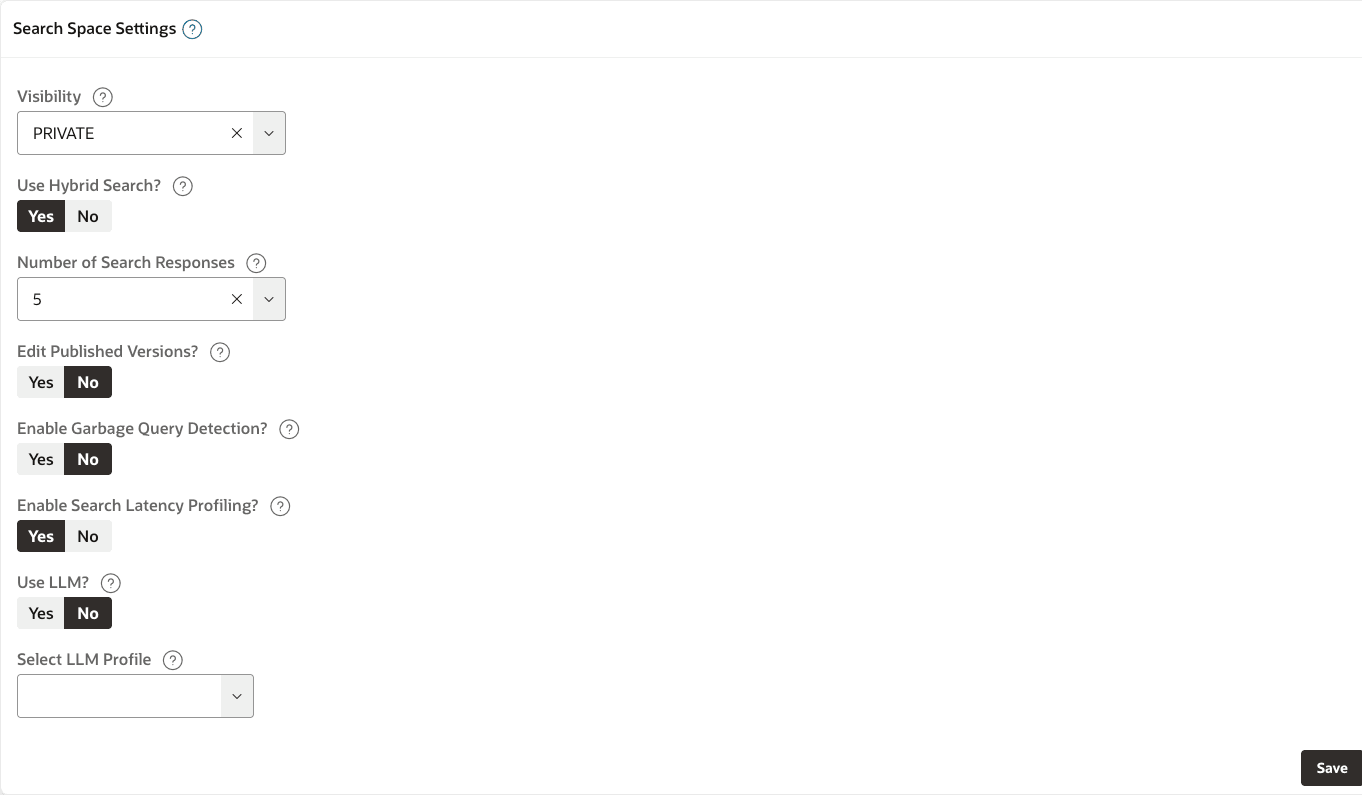
The following screenshot shows Wikimedia’s current search-space settings. The displayed values are an example, not installation defaults.
Description of the illustration admin-settings-wikimedia.png
| Setting | What it controls |
|---|---|
| Visibility | Whether the search space is public or restricted. See Configure Search Space Visibility. |
| Use Hybrid Search? | Set to Yes to combine keyword and semantic matching, including queries worded differently from target descriptions and sample queries. Set to No for keyword-only matching. |
| Number of Search Responses | Select how many ranked search results to return, from 1 to 10. A lower number shows a more focused list; a higher number shows more candidates. |
| Edit Published Versions? | Whether edits can be made against a published version. For a staged change, use a draft version. |
| Enable Garbage Query Detection? | Set to Yes to reject queries that do not match the search space’s vocabulary before ranking. Set to No to send every query to ranking. |
| Enable Search Latency Profiling? | Set to Yes to record detailed search-phase timings when investigating performance. Leave it set to No for ordinary searches. |
| Use LLM? | Enables features that use the configured Cloud AI profile. |
| Select LLM Profile | Selects the Cloud AI profile for LLM features. |
| Rerank Results With LLM? | Enables optional LLM reranking of retrieved candidates. |
| ReRanking Candidate Pool Size | Sets how many retrieved candidates are passed to reranking. |
| Custom LLM Instructions | Supplies instructions for the configured LLM behavior. |
The available LLM controls depend on the installation and selected options. Configure a profile and enable Use LLM? before using LLM re-ranking.
Configure LLM Re-ranking for a Search Space
If LLM support is installed, a Search Administrator can enable LLM-assisted re-ranking for each search space. First configure the credential and profile as described in Cloud AI Configuration. Then configure the search method and LLM profile under Search Space Settings. When hybrid search is enabled, LLM re-ranking can reorder candidates returned by keyword and semantic retrieval.
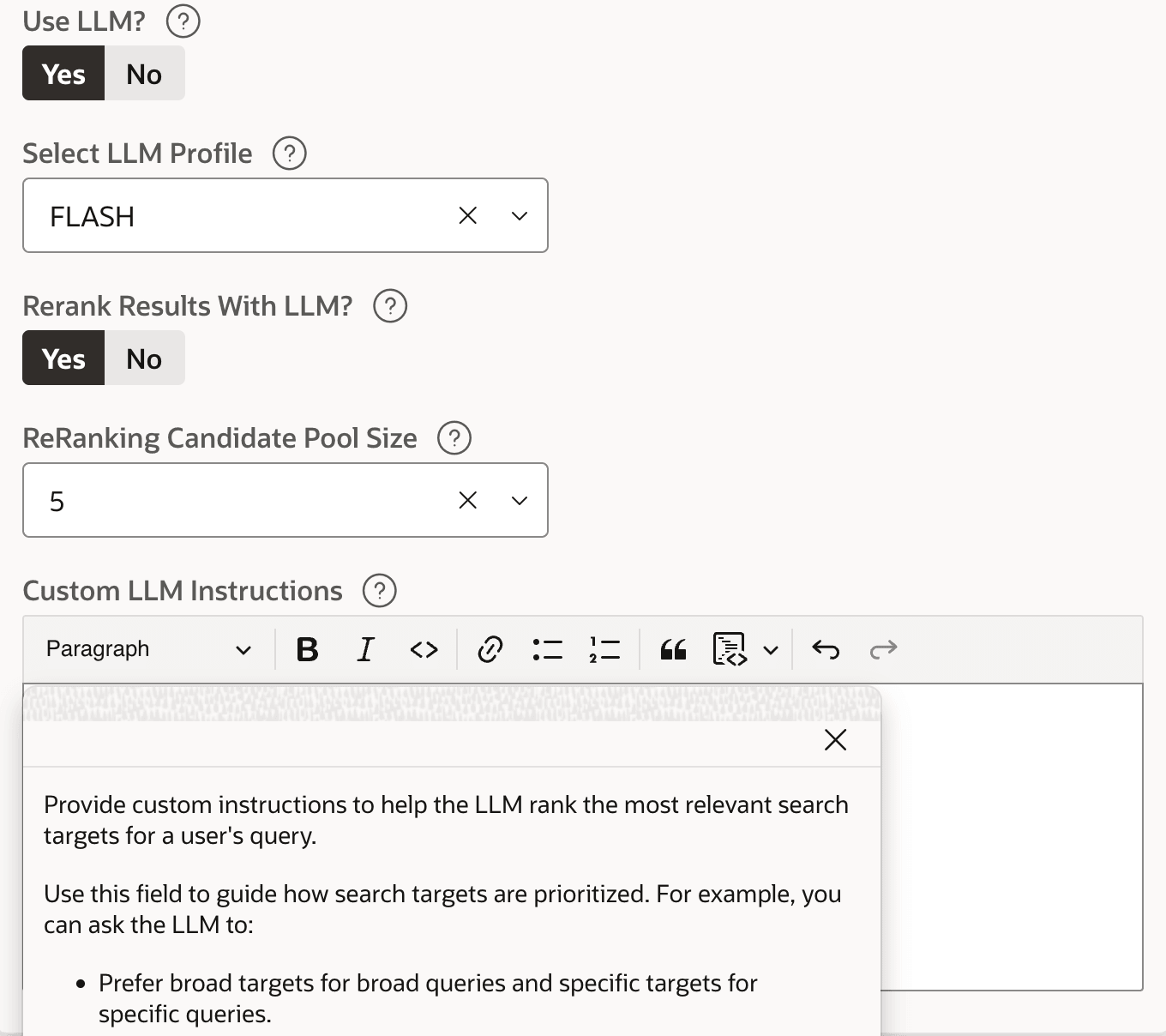
Use the following fields when configuring the search space:
-
Use LLM?: Select Yes to enable LLM features for the search space.
-
Select LLM Profile: Select the LLM profile to use for search-space LLM operations.
-
Rerank Results With LLM?: Select Yes to apply LLM-assisted re-ranking to retrieved candidates.
-
ReRanking Candidate Pool Size: Specify how many retrieved candidate targets are passed to the LLM re-ranking step. A smaller pool limits the number of candidates evaluated by the LLM, while a larger pool gives the LLM more candidates to reorder.
-
Custom LLM Instructions: Optionally provide instructions that guide how the LLM should prioritize candidate targets. For example, you can instruct the LLM to prefer broad targets for broad queries and more specific targets for specific queries.
Description of the illustration search-space-llm-reranking.png