Data Sources Page
The Data Sources page enables you to manage your data sources.
The Data Sources page allows you to create different types of data sources. Only administrator users can manage data sources. The RDF store can be linked to an Oracle AI Database or to an external RDF data provider. For Oracle data sources, there are three types of connections:
-
JDBC data source defined with database parameters
-
JDBC data source defined on an application server
-
Oracle wallet connection defined in a zip file
These database connections must be available in order to link the RDF web application to the data source.
To create a data source, click Data Sources, then Create.
Figure: Data Sources Page
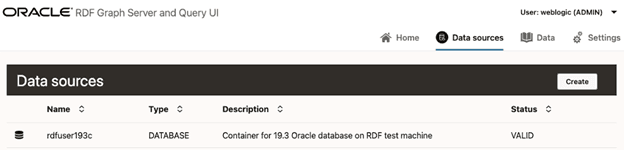
Description of the illustration data_sources_page.png
Creating a JDBC URL Data Source
Oracle JDBC URL is defined using the standard database parameters with user credentials.
You can perform the following steps to create a JDBC URL data source:
-
Click JDBC URL in Figure: Data Sources Page.
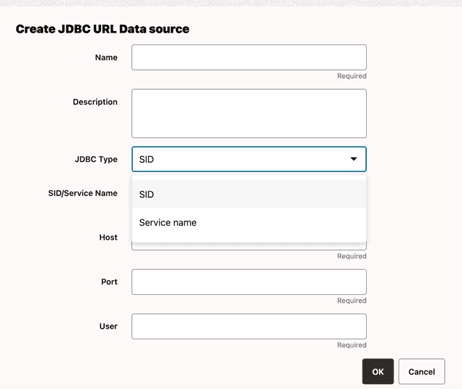
Create JDBC URL Data source dialog opens as shown:
Figure: Creating a JDBC URL Data Source
-
Enter the Name of the data source.
-
Optionally, enter Description.
-
Select the JDBC Type.
-
Enter SID/Service Name as appropriate.
-
Enter the Host and Port details.
-
Enter the User and Password credentials.
-
Click OK to create the data source.
Creating an Oracle Container Data Source
As a prerequisite to create a container data source in the RDF Graph Server and Query UI application, the JDBC data source must exist in the application server. See Creating a JDBC Data Source in WebLogic Server and Creating a JDBC Data Source in Tomcat for more information.
You can then perform the following steps to create an Oracle Container data source:
-
Click Container in Figure: Data Sources Page.
Create Container Data source dialog opens as shown:
Figure: Create Container Data Source
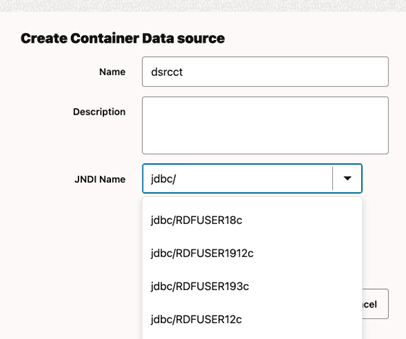
Description of the illustration create_data_source_container.png
-
Enter the Name of the data source.
-
Optionally, enter Description.
-
Select the JNDI Name that exists on the application server.
-
Click OK to create the data source.
Creating a JDBC Data Source in WebLogic Server
To create a JDBC data source in WebLogic Server:
-
Start WebLogic Remote Console and connect to your WebLogic Server instance using your administrative credentials.
-
Expand Edit Tree -> Services -> Data Sources.
-
Click New to create a JDBC data source.
Figure: Generic Data Source
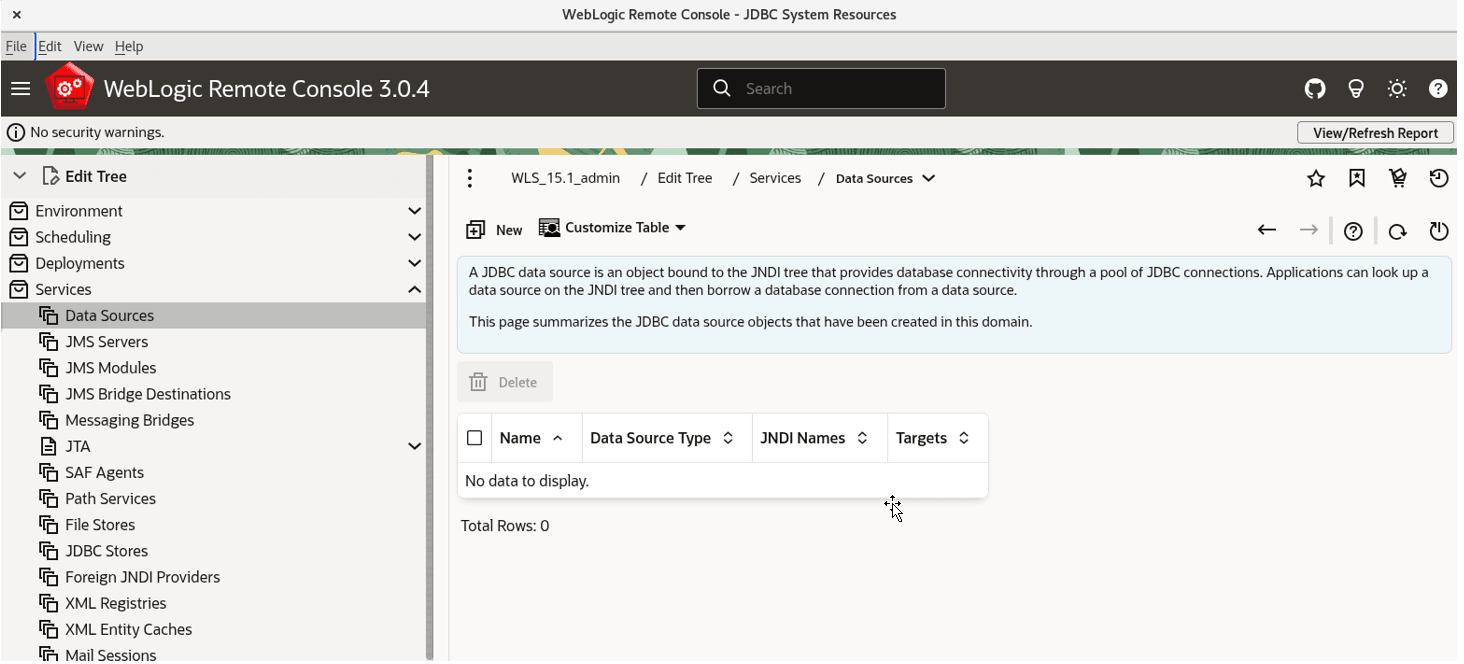
Description of the illustration oracle_container_generic_data_source.png
-
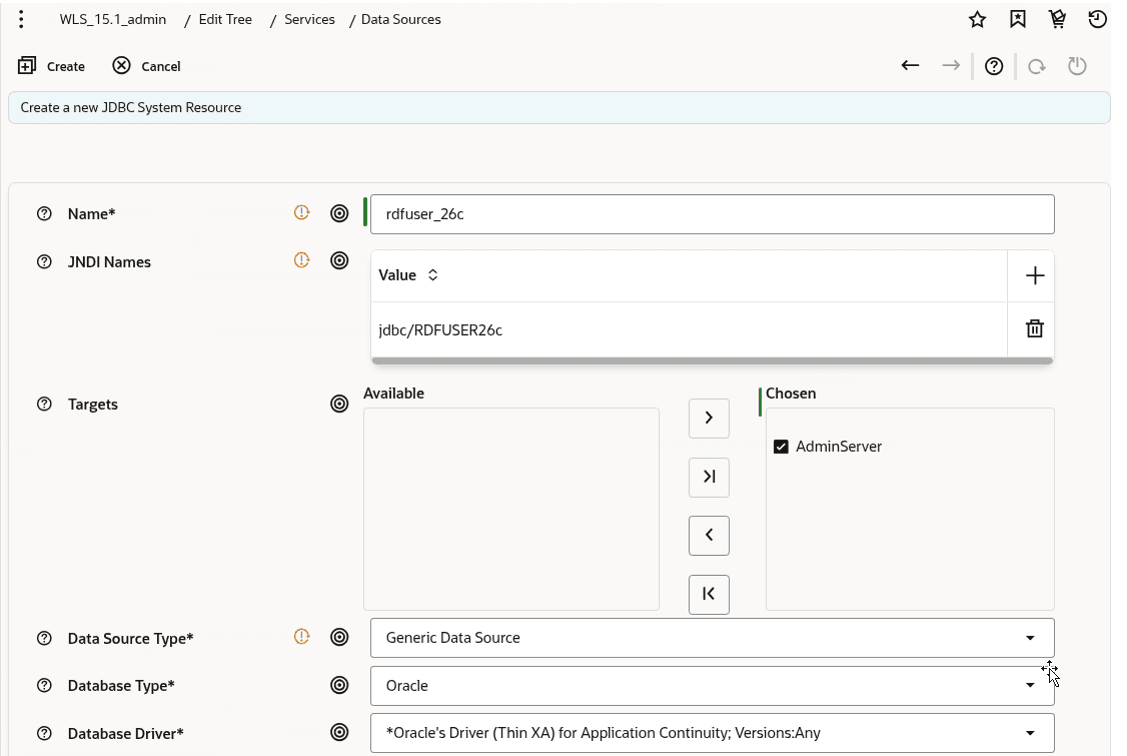
Enter the JDBC data source information (name and JNDI name), server target, Oracle Database Generic Data Source type, and Oracle Thin XA Driver.
Figure: JDBC Data Source and JNDI
-
Enter the database connection information: service name, host, port, and user credentials.
Figure: Create JDBC Data Source
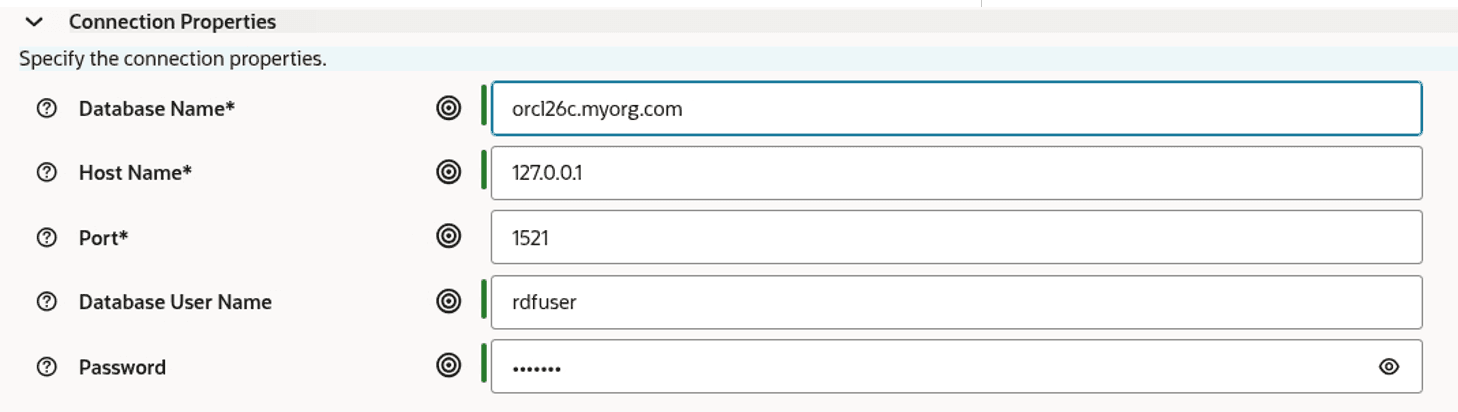
Description of the illustration oracle_container_jdbc_data_source.png
-
Click Create to continue.
-
Click the Test Configuration button to validate the connection.
Figure: Validate connection
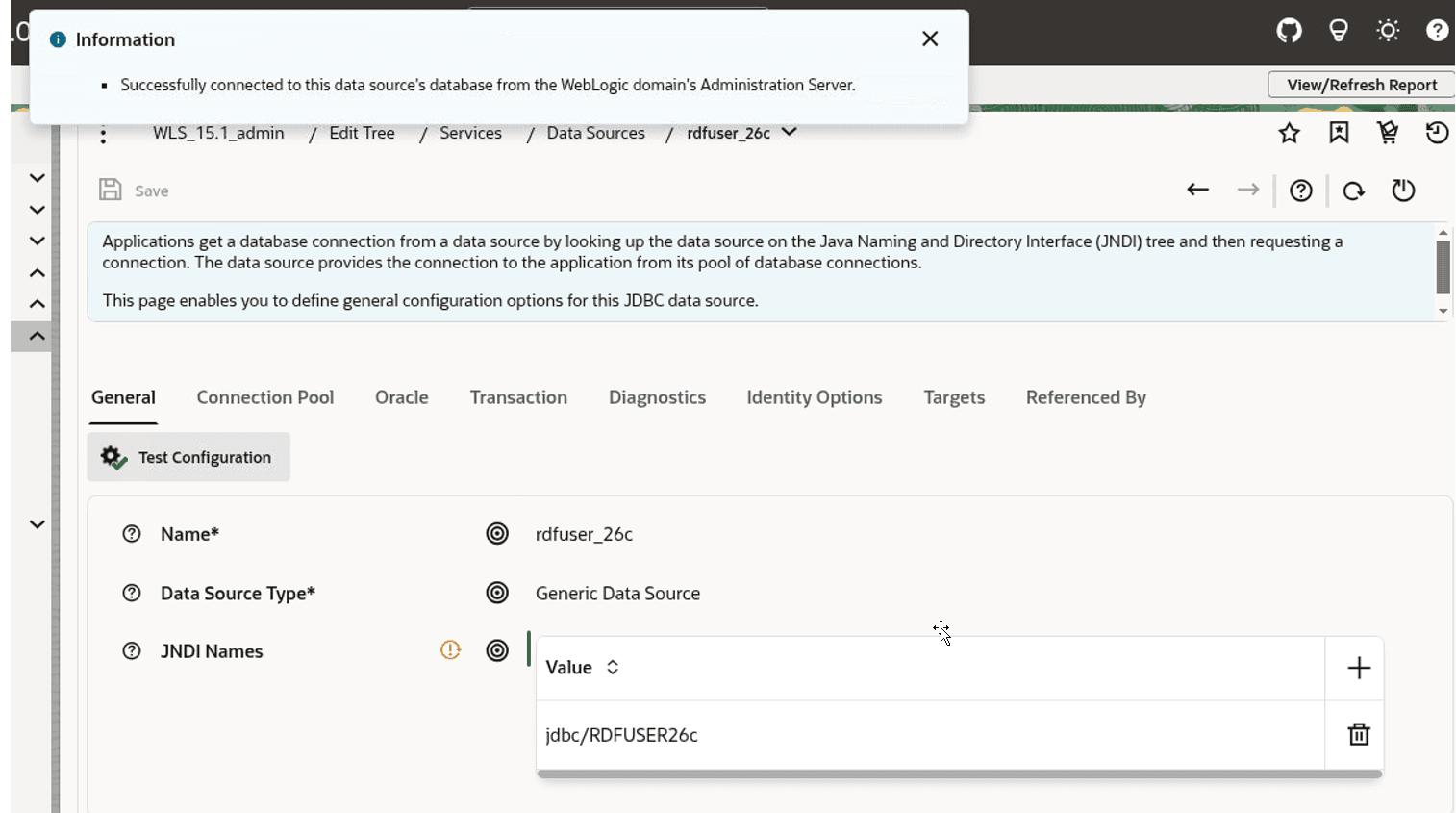
Description of the illustration oracle_container_test_configuration.png
-
Click the shopping cart and choose Commit Changes.
Figure: Commit Changes
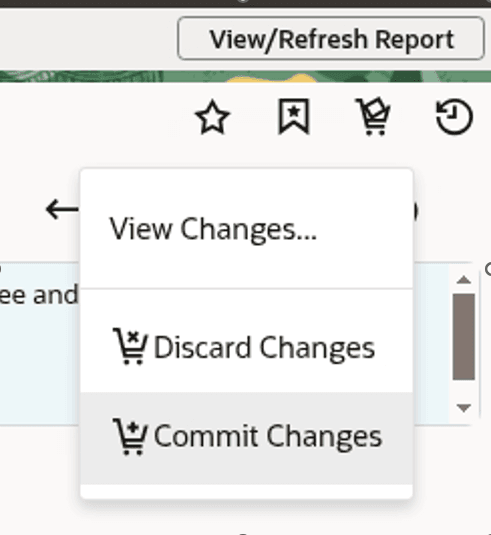
The JDBC data gets added to the data source table and the JNDI name is added to the combo box list in the create container dialog.
Creating a JDBC Data Source in Tomcat
There are different ways to create a JDBC data source in Tomcat. See Tomcat documentaion for more details.
The following examples denote creation of JDBC data source in Tomcat by modifying the configuration files conf/server.xml and conf/content.xml.
-
Add global JNDI resources on
conf/server.xml.<GlobalNamingResources> <Resource name="jdbc/RDFUSER19c" auth="Container" global="jdbc/RDFUSER19c" type="javax.sql.DataSource" driverClassName="oracle.jdbc.driver.OracleDriver" url="jdbc:oracle:thin:@host.name:db_port_number:db_sid" username="rdfuser" password="<password_for_rdfuser>" maxTotal="20" maxIdle="10" maxWaitMillis="-1"/> </GlobalNamingResources> -
Add the resource link to global JNDI’s on
conf/context.xml:<Context> <ResourceLink name="jdbc/RDFUSER19c" global="jdbc/RDFUSER19c" auth="Container" type="javax.sql.DataSource" /> </Context>
Creating an Oracle Wallet Data Source
To create a wallet data source in the Query UI application, you must have a wallet zip file. It can be a simple wallet zip file created with Oracle orapki utility, or a wallet downloaded from Oracle Autonomous AI Database.
In general, wallets are obtained from the Autonomous AI Database. See Download Client Credentials (Wallets) for more information to download a wallet from Oracle Autonomous AI Database.
The following figure displays the contents of the wallet zip file:
Figure: Cloud Wallet
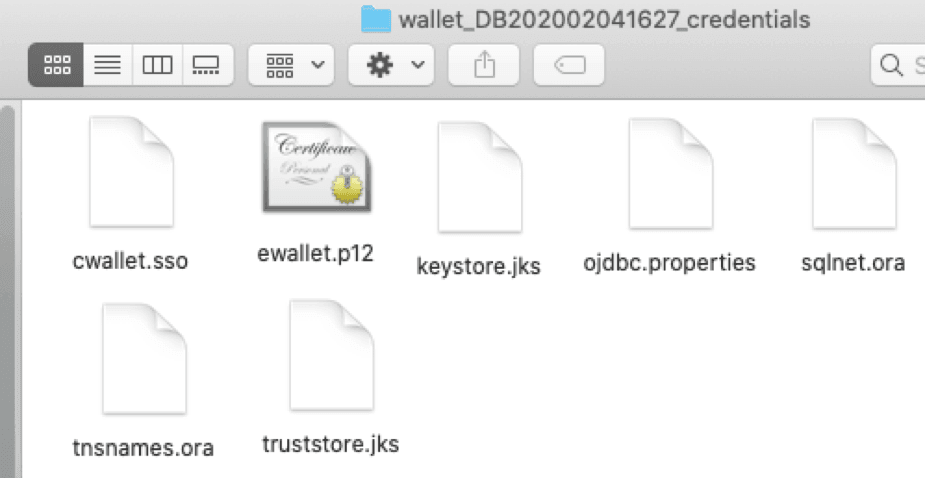
Description of the illustration cloud_wallet_dir.png
Note that the tnsnames.ora file in the wallet zip file contains the wallet service alias names, and TCPS information. It does not contain the user credentials for each service.
Using this wallet zip file, you can define an RDF wallet data source in the Query UI web application by directly entering the user credentials. Optionally, you can also have the user credentials stored inside the wallet for each desired service. If you choose to store the user credentials in the wallet, then see Storing User Credentials in a Wallet for more information.
The following describes the steps to create a wallet data source:
-
Click Wallet in Figure: Data Sources Page.
Create Wallet Data source dialog opens as shown:
Figure: Wallet Data Source from cloud zip
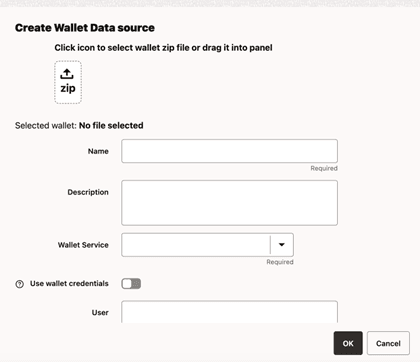
Description of the illustration wallet_data_source_cloud.png
-
Click the upload icon and select the wallet zip file.
The zip file gets uploaded to the server.
-
Enter the data source Name.
-
Optionally, enter the Description.
-
Select the required Wallet Service name.
-
Provide the user credentials using one of the following options as it applies to you.
-
Enable Use wallet credentials if you have stored the user credentials in the wallet.
-
Otherwise, enter directly the User and Password credentials.
-
-
Optionally, enter the proxy details.
Storing User Credentials in a Wallet
The following steps describe the process for adding the credentials to the wallet zip file. It is important that you store this wallet file along with the credentials in a safe location for security reasons.
-
Unzip the cloud wallet zip file in a temporary directory.
-
Use the service name alias in the tnsnames.ora to store credentials by running the following command:
For example, if the service name alias is db202002041627_medium:
${ORACLE_HOME}/bin/orapki secretstore create_credential -wallet /tmp/cloudwallet -connect_string db202002041627_medium -username username -password password -
Zip the cloud wallet files into a new zip file.
Creating an Endpoint URL Data Source
External data sources are connected to the RDF data store using the endpoint URL.
You can execute SPARQL queries and updates to the RDF data store using a base URL. In some cases, there are specific URLs based on the dataset name. For example:
DBpedia Base URL: http://dbpedia.org/sparql
The RDF web application issues SPARQL queries to RDF datasets. These datasets can be retrieved from provider if a get capabilities request is available. For DBpedia, there is a single base URL to be used, and therefore a default single dataset is handled in application.
You can perform the following steps to create an external RDF data source:
-
Click Endpoint in Figure: Data Sources Page.
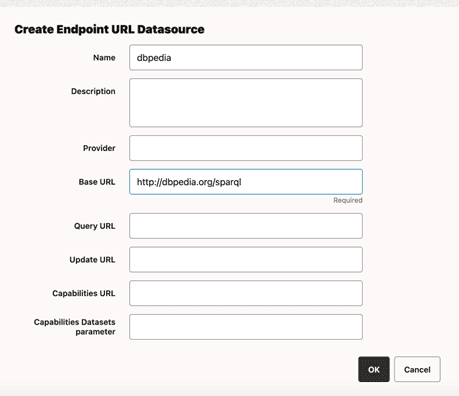
Create Endpoint URL Datasource dialog opens as shown. The following figure shows an example for creating a Dbpedia data source.
Figure: DBpedia Data Source
-
Enter the Name of the data source.
-
Optionally, enter Description.
-
Optionally, enter the Provider name.
-
Enter the Base URL to access the RDF service.
-
Optionally, enter the Query URL to run SPARQL queries.
Note that if the Query URL is not defined, then the Base URL is used.
-
Optionally, enter the Update URL to run SPARQL updates.
Note that if the Update URL is not defined, then the Base URL is used.
-
Provide the Capabilities Datasets parameter properties to retrieve the dataset information from the RDF server.
-
Enter the Get URL address that should return a JSON response with information about the dataset.
-
Enter the Datasets parameter property in JSON response that contains the dataset information.
-
Enter the Dataset name parameter property in datasets parameter that contains the dataset name.
-
Click OK to create the data source.