Managing User Roles for RDF Graph Query UI
Users will have access to the application resources based on their role level. In order to access the Query UI application, you need to enable a role for the user.
The following describes the different user roles and their privileges:
-
Administrator: An administrator has full access to the Query UI application and can update configuration files, manage RDF objects and can execute SPARQL queries and SPARQL updates.
-
RDF: An RDF user can read or write Oracle RDF objects and can execute SPARQL queries and SPARQL updates. But, cannot modify configuration files.
-
Guest: A guest user can only read Oracle RDF objects and can only execute SPARQL queries.
Figure: User Roles for RDF Graph Query
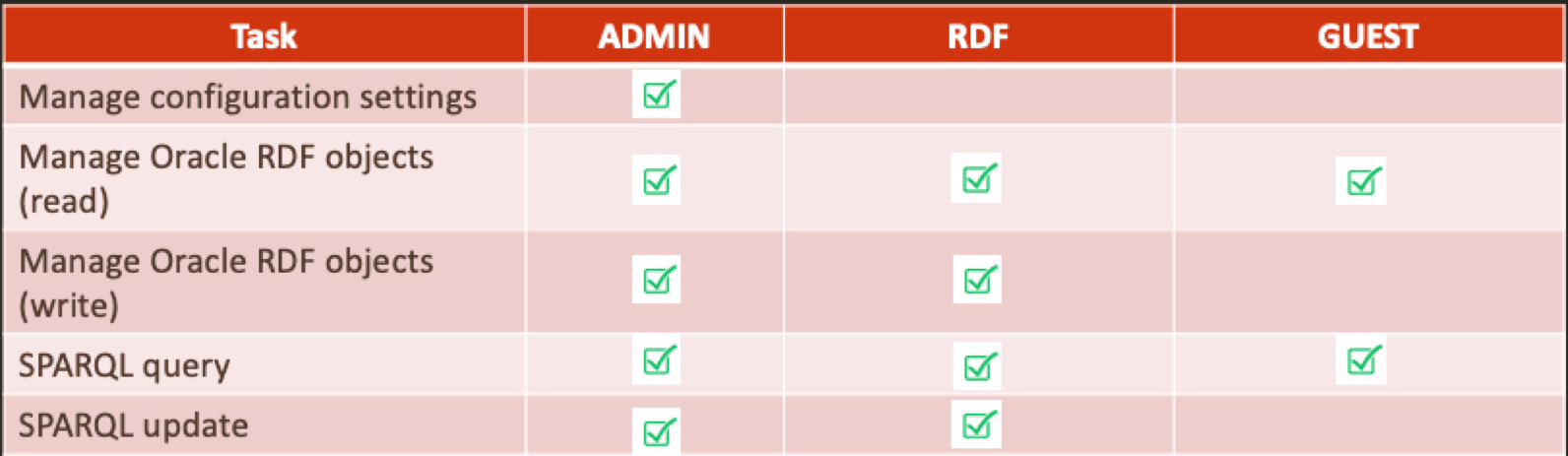
Description of the illustration user_roles.png
Application servers, such as WebLogic Server, Tomcat, and others, allow you to define and assign users to user groups. Administrators are set up at the time of the RDF Graph server installation, but the RDF and guest users must be created to access the application console.
Managing Groups and Users in WebLogic Server
The security realms in WebLogic Server ensures that the user information entered as a part of installation is added by default to the Administrators group. Any user assigned to this group will have full access to the RDF Graph Query UI application.
WebLogic Server 15.1.1.0.0 uses WebLogic Remote Console for administration tasks (https://oracle.github.io/weblogic-remote-console/).
Start WebLogic Remote Console and connect to your WebLogic Server instance using your administrative credentials. Open the Security Data Tree and click on Realms as shown in the following figure:
Figure: WebLogic Server Administration Console
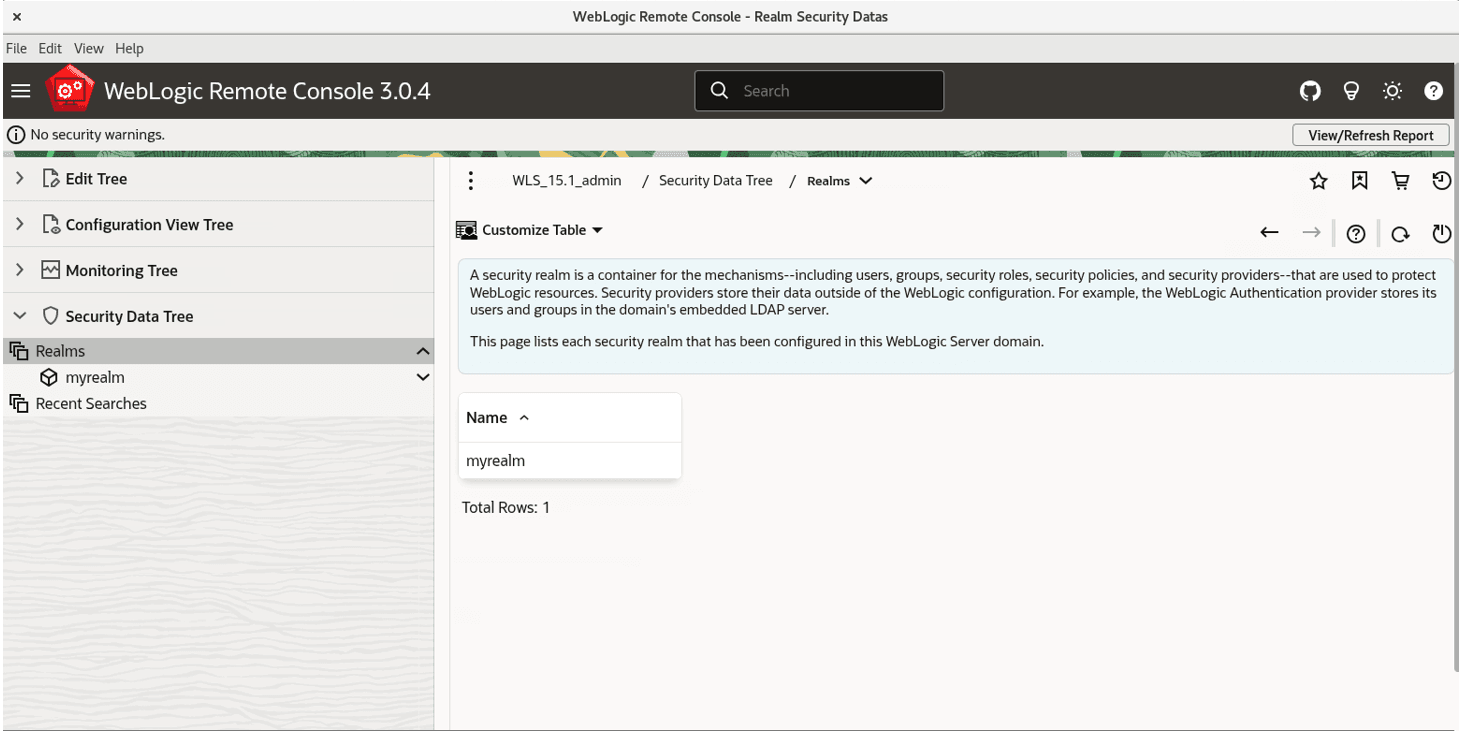
Description of the illustration user_admin_web_logic.png
Creating User Groups in WebLogic Server
To create new user groups in WebLogic Server:
-
Expand Realms -> myrealm -> Authentication Providers -> Default Authenticator in the Security Data Tree.
-
Select Groups.
-
Click New to create new RDF user groups in Weblogic as shown:
Figure: Creating new user groups in WebLogic Server
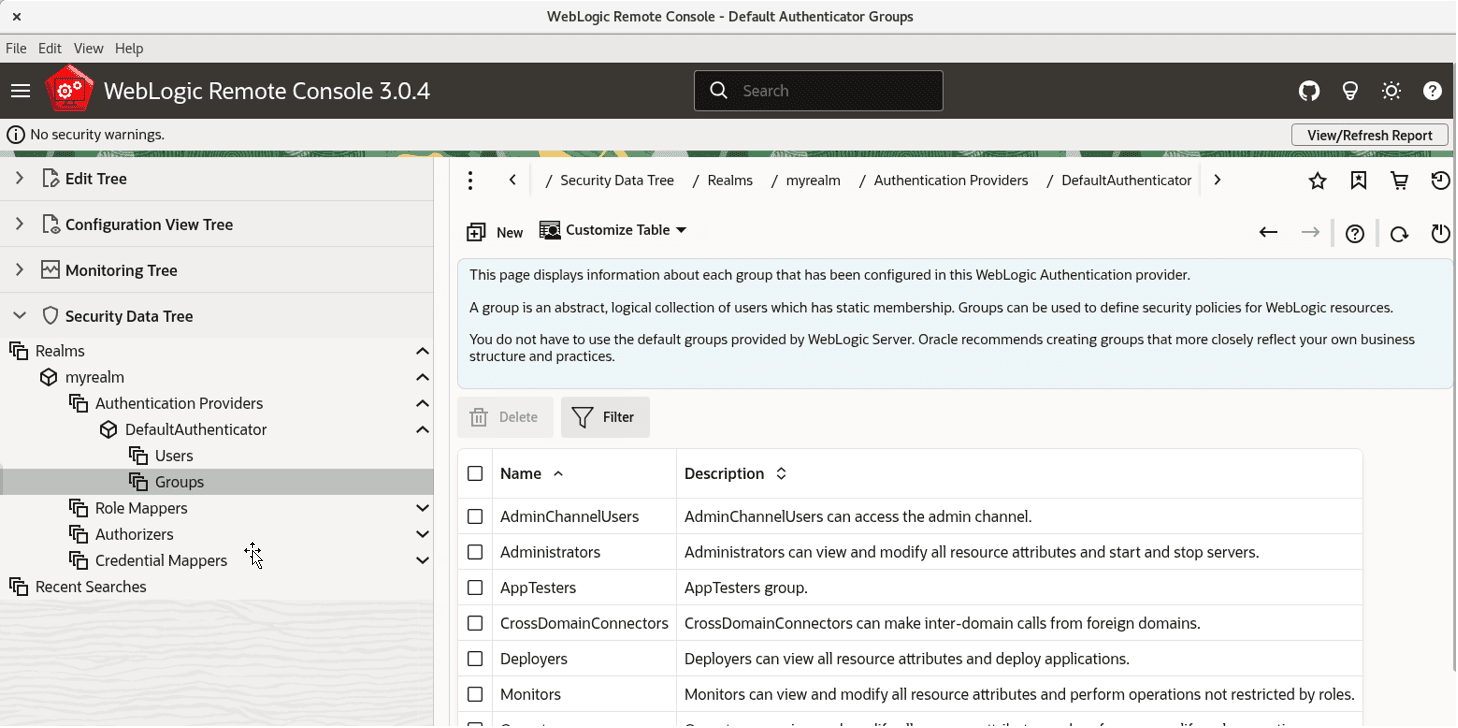
The following example creates two user groups:
-
RDFreadUser: For guest users with read-only access to the application.
-
RDFreadwriteUser: For users with read and write access to RDF objects.
Figure: Created User Groups in WebLogic Server

Description of the illustration create_groups.png
Creating RDF and Guest Users in WebLogic Server
In order to have RDF and guest users in the user groups you must first create the RDF and guest users and then assign them to their respective groups.
To create new RDF and guest users in WebLogic server:
Prerequisites: RDF and guest users’ groups must be available or they must be created. See Creating User Groups in WebLogic Server for creating user groups.
-
Expand Realms → myrealm → Authentication Providers in the Security Data Tree, then select Default Authenticator.
-
Click Users.
-
Click New to create the RDF and guest users.
Figure: Create new users in WebLogic Server
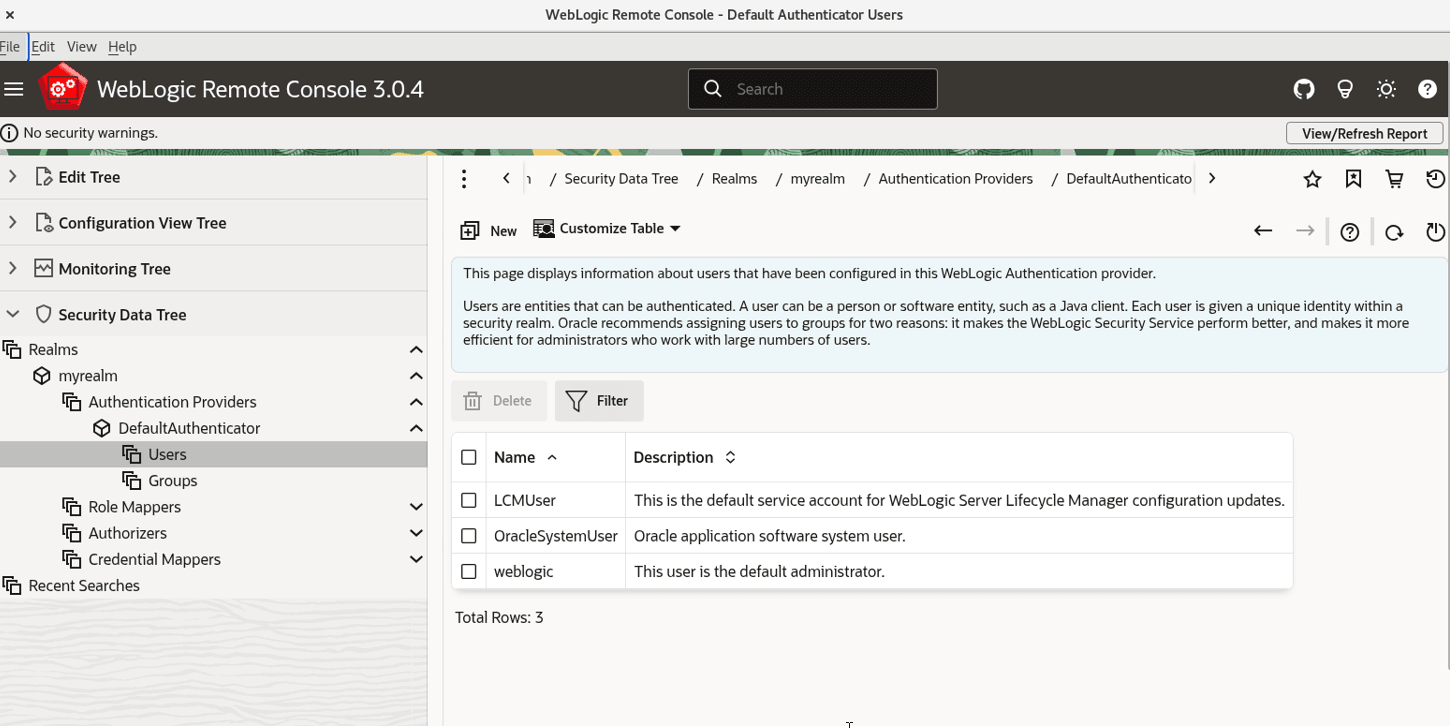
Description of the illustration user_tab.png
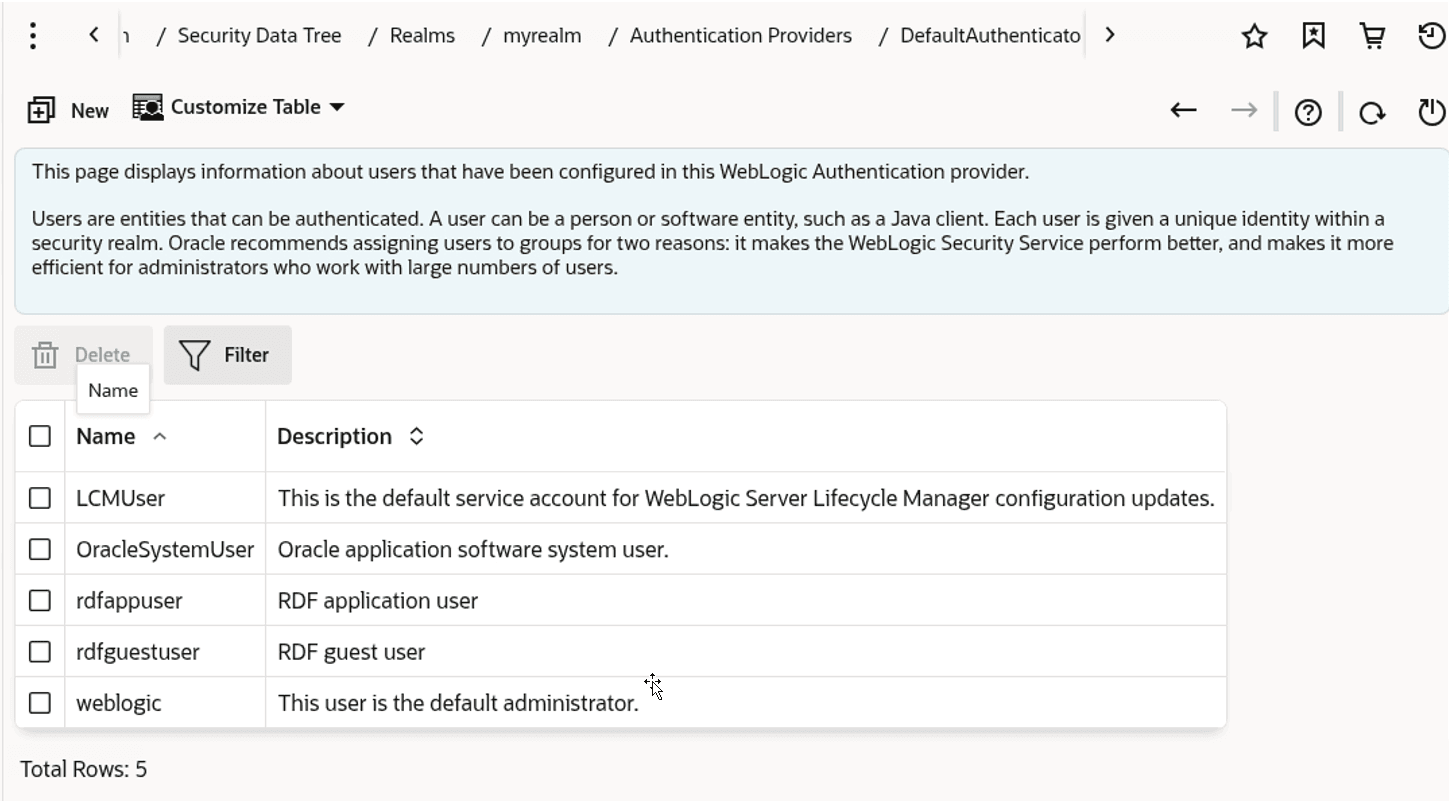
The following example creates two new users :
-
rdfappuser: A user assigned to a group with read and write privileges.
-
rdfguestuser: A guest user assigned to a group with read-only privileges.
Figure: RDF Application and Guest Users
-
-
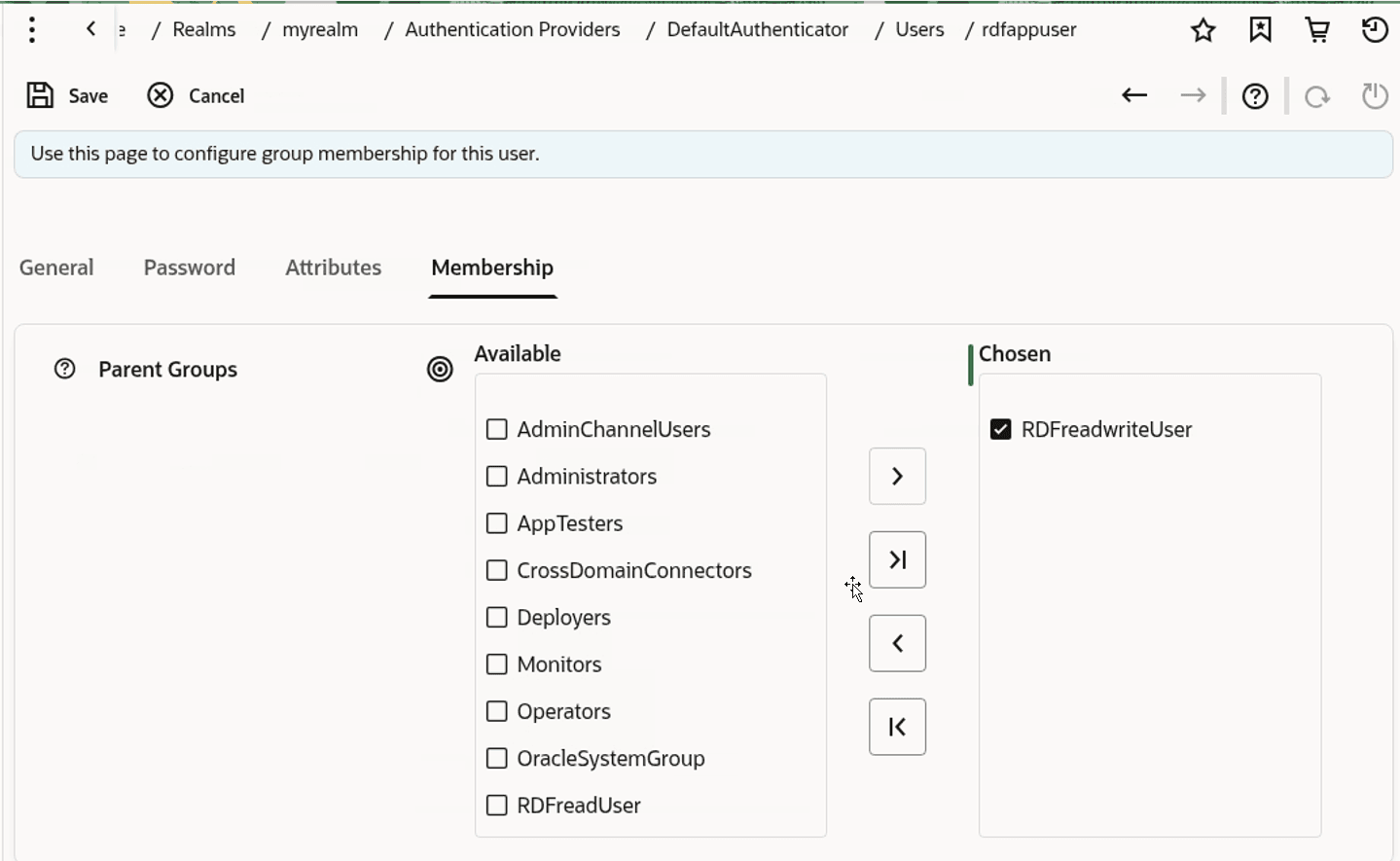
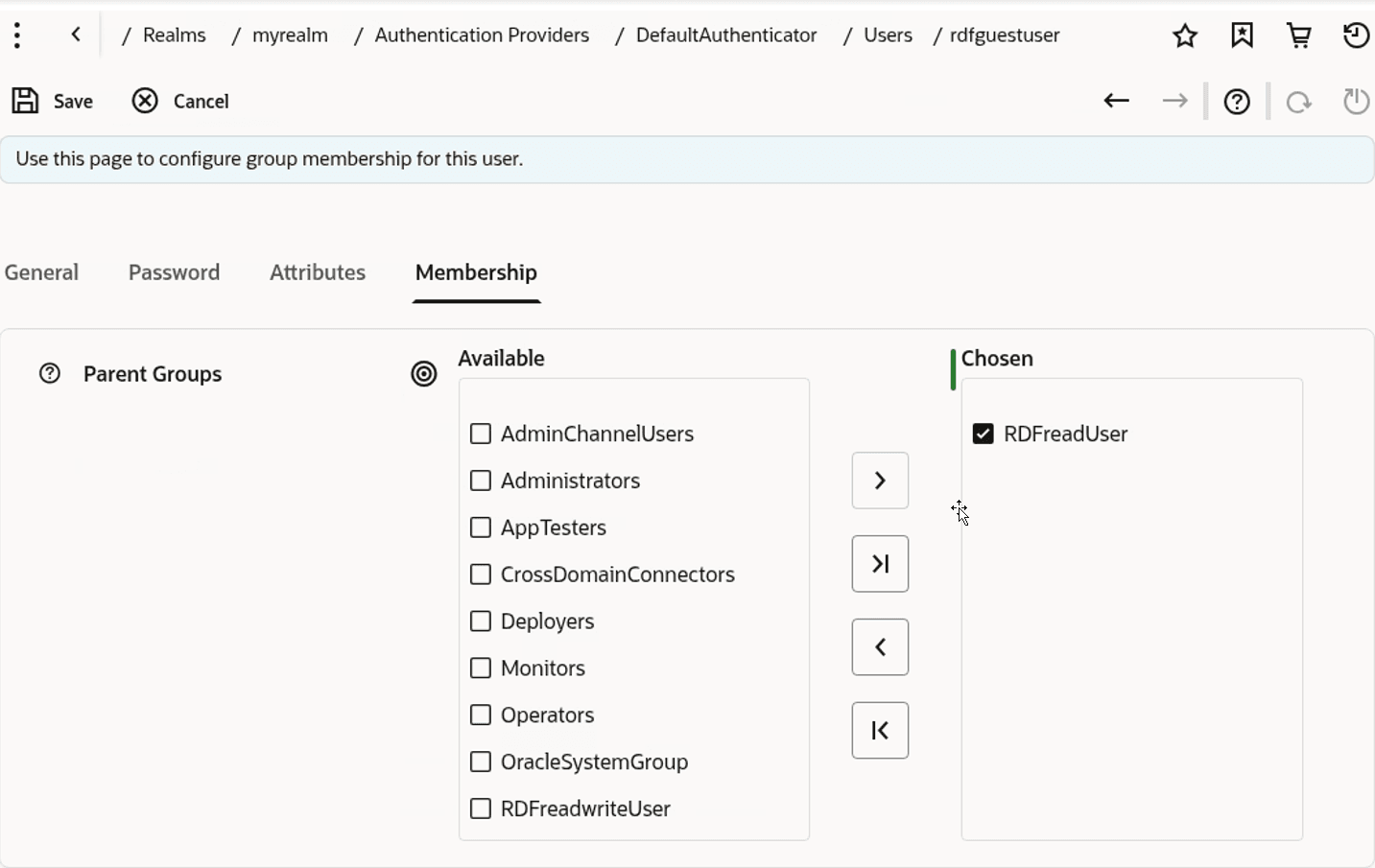
Select a user name and click Groups to assign the user to a specific group.
-
Assign rdfappuser to RDFreadwriteUser group and click Save.
Figure: RDF Application User
-
Assign rdfguestuser to RDFreadUser group and click Save.
Figure: RDF Guest User
Managing Users and Roles in Tomcat Server
For Apache Tomcat, edit the Tomcat users file conf/tomcat-users.xml to include the RDF user roles. For example:
<tomcat-users xmlns="http://tomcat.apache.org/xml" xmlns:xsi="http://www.w3.org/2001/XMLSchema-instance" version="1.0" xsi:schemaLocation="http://tomcat.apache.org/xml tomcat-users.xsd">

    <role rolename="rdf-admin-user"/>

    <role rolename="rdf-read-user"/>

    <role rolename="rdf-readwrite-user"/>

    <user password="<admin_password>" roles="manager-script,admin,rdf-admin-user" username="admin"/>

    <user password="<rdfappuser_password>>" roles="rdf-readwrite-user" username="rdfappuser"/>

    <user password="<rdfguestuser_password>" roles="rdf-read-user" username="rdfguestuser"/>

</tomcat-users>