Additional Client Tools for Querying PGQL Property Graphs
When working with PGQL property graphs in the database, you can use other supported client tools.
-
Using Oracle SQLcl
You can access the graph in the database using SQLcl. -
Using SQL Developer with PGQL Property Graphs
Starting from SQL Developer 23.1 or later, you can view all the PGQL property graphs existing in your database schema by expanding PGQL Property Graphs under the Property Graph node in the Connections navigator.
Using Oracle SQLcl
You can access the graph in the database using SQLcl.
You can run PGQL queries on the graph in SQLcl with a plug-in that is available with Oracle Graph Server and Client. See PGQL Plug-in for SQLcl in Oracle SQLcl User’s Guide for more information.
The example in this section helps you get started on executing PGQL queries on a graph in SQLcl. As a prerequisite, to perform the steps in the example, you must set up the bank graph data in your database schema using the sample data provided with the graph server installation. See Using Sample Graph Data for more information.
The following example creates a PGQL property graph using the PGQL CREATE PROPERTY GRAPH statement, executes PGQL queries against the graph and finally drops the graph using SQLcl.
-
Start SQLcl with your database schema credentials. In the following command, graphuser is the database user used to connect to SQLcl.
sql graphuser/<password_for_graphuser>@<tns_alias> SQLcl: Release 21.2 Production on Sun Jan 30 04:30:09 2022 Copyright (c) 1982, 2022, Oracle. All rights reserved. Connected to: Oracle Database 21c Enterprise Edition Release 21.0.0.0.0 - Production Version 21.3.0.0.0 -
Enable PGQL mode as shown:
SQL> pgql auto on;

PGQL Auto enabled for schema=[null], graph=[null], execute=[true], translate=[false]
Note that no arguments are used in the preceding PGQL command.
-
Create a PGQL property graph on the bank graph data tables.
PGQL> CREATE PROPERTY GRAPH bank_graph 2 VERTEX TABLES ( 3 bank_accounts 4 LABEL ACCOUNTS 5 PROPERTIES (id, name) 6 ) 7 EDGE TABLES ( 8 bank_transfers 9 SOURCE KEY (src_acct_id) REFERENCES bank_accounts (id) 10 DESTINATION KEY (dst_acct_id) REFERENCES bank_accounts (id) 11 LABEL TRANSFERS 12 PROPERTIES (src_acct_id, dst_acct_id, amount, description) 13* ) OPTIONS(PG_PGQL); Graph created -
Set
bank_graphas the default graph using thegraphargument when enabling PGQL mode.PGQL> pgql auto on graph bank_graph; PGQL Auto enabled for schema=[null], graph=[BANK_GRAPH], execute=[true], translate=[false] -
Execute PGQL queries against the default graph. For example, the following PGQL query retrieves the total number of vertices as shown:
PGQL> SELECT COUNT(*) AS num_vertices FROM MATCH(n);

   NUM_VERTICES
_______________
           1000
Note that in the preceding query, the graph name is not specified using the
ONclause as part of theMATCHclause. -
Reconnect to SQLcl as another schema user.
PGQL> conn system/<password_for_system>@<tns_alias>; Connected. -
Enable PGQL mode using the
schemaargument to set the default schema used for creating the graph. Also, setbank_graphas the default graph using thegraphargument :PGQL> pgql auto on schema graphuser graph bank_graph; PGQL Auto enabled for schema=[graphuser], graph=[BANK_GRAPH], execute=[true], translate=[false] -
Execute a PGQL query to retrieve all the edge properties on the graph as shown:
PGQL> SELECT e.* FROM MATCH (n:accounts) -[e:transfers]-> (m:accounts) LIMIT 10;

   AMOUNT    DESCRIPTION    src_acct_id    dst_acct_id
_________ ______________ _______________ _____________
     1000 transfer                   178           921
     1000 transfer                   178           462
     1000 transfer                   179           688
     1000 transfer                   179           166
     1000 transfer                   179           397
     1000 transfer                   179           384
     1000 transfer                   179           900
     1000 transfer                   180           855
     1000 transfer                   180           984
     1000 transfer                   180           352

10 rows selected.
Therefore, you can set a default schema and execute PGQL queries against a default graph in SQLcl.
-
Finally, drop the graph after executing the required graph queries.
PGQL> DROP PROPERTY GRAPH bank_graph;

Graph dropped
Using SQL Developer with PGQL Property Graphs
Starting from SQL Developer 23.1 or later, you can view all the PGQL property graphs existing in your database schema by expanding PGQL Property Graphs under the Property Graph node in the Connections navigator.
Figure: PGQL Property Graphs in SQL Developer
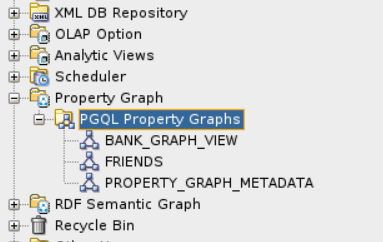
Description of the illustration property_graph_node.png
The following steps show a few examples for working with PGQL property graphs using SQL Developer.
-
Right-click the Property Graph node and select Open PGQL Worksheet.
PGQL Worksheet opens in a new tab and it supports the following actions:
-
Run Query: To run a single PGQL query
-
Run Script: To run multiple PGQL queries
-
-
Create a PGQL property graph by running a
CREATE PROPERTY GRAPHstatement in the PGQL Worksheet. For example:
Figure: Create a PGQL property graph
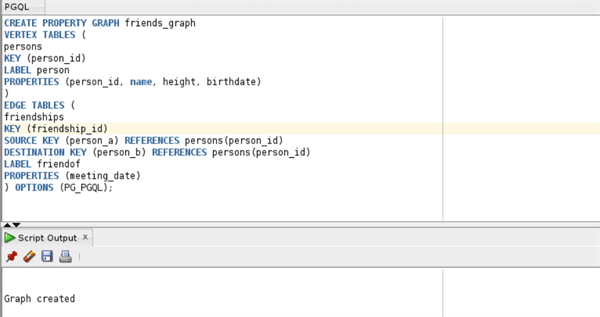
Description of the illustration sql_dev_create_pg_view.png
The result of the query execution is displayed in the bottom pane of the Editor. On successful query execution, you can right click and refresh the PGQL Property Graphs object to view the newly created graph under PGQL Property Graphs.
-
Click on the newly created graph.
This opens a PGQL Worksheet in a new tab with the following default query:
SELECT e, v, n FROM MATCH (v)-[e]-(n) ON <graph_name> LIMIT 100 -
Run one or more PGQL queries.
For example, the following shows the execution of PGQL INSERT and SELECT queries:
Figure: Running Multiple PGQL Queries
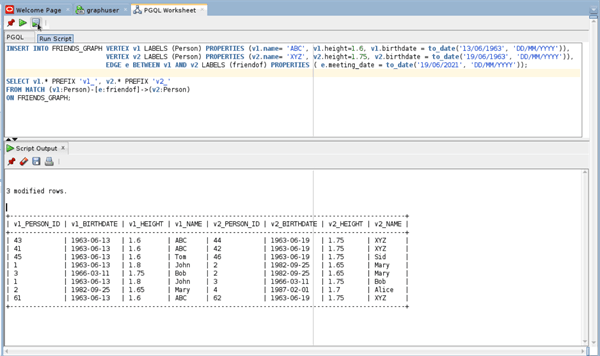
Description of the illustration sql_dev_insert_pg_view.png
You can view the results in the Script Output tab.
- Delete the PGQL property graph as shown:
Figure: Dropping a PGQL Property Graph
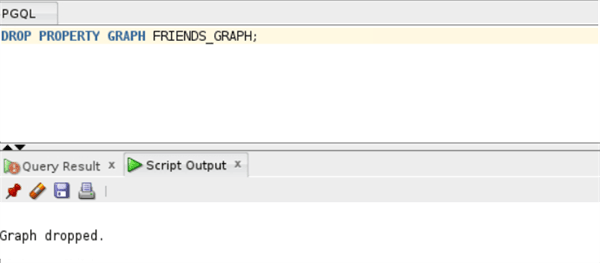
Description of the illustration sql_dev_drop_pg_view.png
The graph is dropped.