About User-Managed Graph Studio
The Graph Studio web interface provides graph tools for creating, exploring, visualizing, and interacting with your property graphs. It also enables the graph server administrator to efficiently track, manage, and monitor user sessions and memory consumption for graphs.
The user-managed version of Graph Studio requires the graph server (PGX). The graph server can be deployed in embedded mode or in Apache Tomcat or Oracle WebLogic Server.
-
Accessing Graph Studio
In order to access Graph Studio, you must install the graph server (PGX). -
Graph Studio User Interface
Learn about the Graph Studio user interface.
Accessing Graph Studio
In order to access Graph Studio, you must install the graph server (PGX).
The graph server can be deployed in embedded mode or in Apache Tomcat or Oracle WebLogic Server.
-
Start the graph server in your installation.
-
See Installing Oracle Graph Server for more information on using the rpm installation.
-
See Deploying Oracle Graph Server to a Web Server for more information on graph server deployment to a web server.
-
-
Launch Graph Studio using one of the following URLs.
-
For rpm installation:
https://localhost:7007/graphstudio/ -
For Apache Tomcat Server:
https://localhost:8080/graphstudio -
For Oracle WebLogic Server:
https://localhost:7001/graphstudio
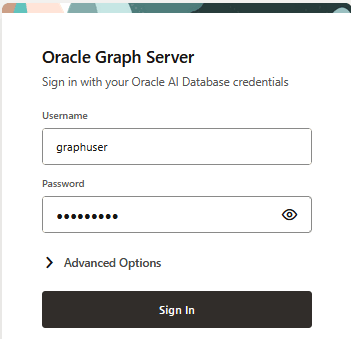
Oracle Graph Studio login screen opens as shown:
-
-
Enter your Username and Password.
-
Optionally, provide Session ID under Advanced Options.
-
Click Sign In.
The Graph Studio application opens and displays the Graph Explorer page by default.
Graph Studio User Interface
Learn about the Graph Studio user interface.
The user interface for Graph Studio comprises a header displayed at the top of the page and the page body for the chosen menu option.
The header displayed is as shown:

Description of the illustration graph_studio_header.png
-
Click
 to view the main navigation menu.
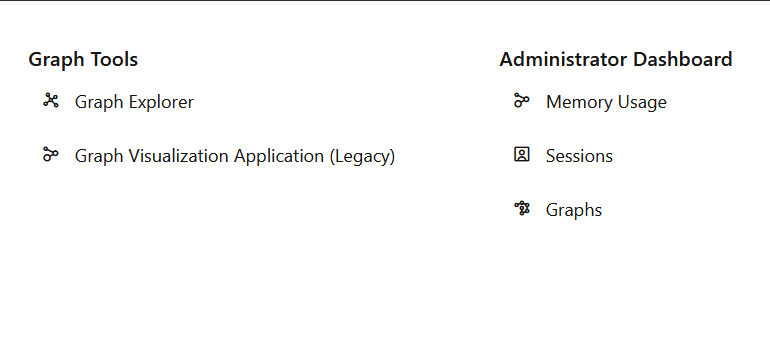
The main navigation menu is displayed as shown:
Description of the illustration graph_studio_selector_menu.png
-
Graph Tools
-
Graph Explorer: See Graph Explorer for more information.
-
Graph Visualization Application (Legacy): See Graph Visualization Application for more information.
-
-
Administrator Dashboard: The administrator dashboard options are available only if you are granted the
GRAPH_ADMINISTRATORrole having thePGX_GET_SERVER_INFOprivilege. See Using the Graph Server Administrator Dashboard for more information.
-
-
The user drop-down list on the right displays the signed in username and provides the following options:
-
About: Provides the version information for Database, Graph Server, and PGX Session, along with the copyright details.
-
Reset to Defaults: Allows you to reset visualization settings to default values.
-
Help: Opens the Books page for the property graph documentation.
-
Sign Out: Signs you out of the Graph Studio session.
-