Running the Graph Visualization Web Client
You require a running graph server (PGX) to use the Graph Visualization web application.
In addition, ensure that you have provided the JDBC URL for your database in the jdbc_url parameter in the /etc/oracle/graph/pgx.conf file.
To launch the graph visualization application:
-
Start the graph server on your installation.
-
See Installing Oracle Graph Server for more information on using the rpm installation.
-
See Deploying Oracle Graph Server to a Web Server for more information on graph server deployment to a web server.
-
-
Connect to your browser for running the Graph Visualization application.
-
For rpm installation:
https://localhost:7007/graphstudio/ -
For Apache Tomcat Server:
https://localhost:8080/graphstudio -
For Oracle WebLogic Server:
https://localhost:7001/graphstudio
Note:
-
The Graph Visualization application which runs on
https://<server_host>:7007/dash/is deprecated. Instead, use the Graph Explorer interface in Graph Studio by opening the URLhttps://<server_host>:7007/graphstudioin your browser. See Accessing Graph Studio for more information. -
If you access the old URL
https://<server_host>:7007/dash/, you will be automatically redirected to the new URLhttps://<server_host>:7007/graphstudio/.
If
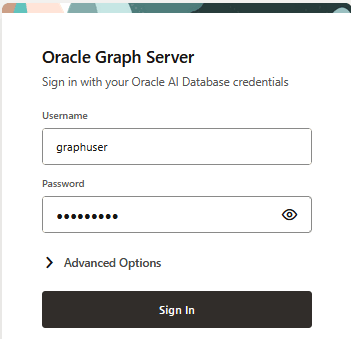
localhostin the preceding application URLs does not resolve correctly in your system, then this can lead to errors when you attempt to run the Graph Visualization application. To avoid this issue, it is recommended that you add entries for yourlocalhostin the/etc/hostsfile in your system. For example:127.0.0.1 localhost ::1 localhostOracle Graph Studio screen opens as shown:
-
-
Enter your Username and Password.
-
Optionally, provide Session ID under Advanced Options.
-
Click Sign In.
The Graph Studio application opens and displays the Graph Explorer page by default.
-
Click the hamburger icon in the top left of the page to open the navigation menu.
The Graph Studio application menu is displayed, showing Graph Tools and Administrator Dashboard.
-
Click Graph Visualization Application under Graph Tools.
The Graph Visualization page opens and the default Graph Server tab is displayed. See Using the Graph Visualization Application for more information on how to visualize graphs using this web application.