Querying and Visualizing Graphs Loaded Into the Graph Server (PGX)
In Graph Explorer, you can create or load a graph into the graph server (PGX) and then query the graph using PGQL graph queries.
-
Expand Graph Server in the left navigation pane.
-
Right click on a specific graph and click Generate Basic Query in the context menu.
The basic PGQL
SELECTquery is auto-generated in the query editor for the selected graph. You can edit the query, if required.Alternatively, you can directly enter the graph query in the query editor.
Graph Explorer allows you to run the following queries in the graph server (PGX) :
-
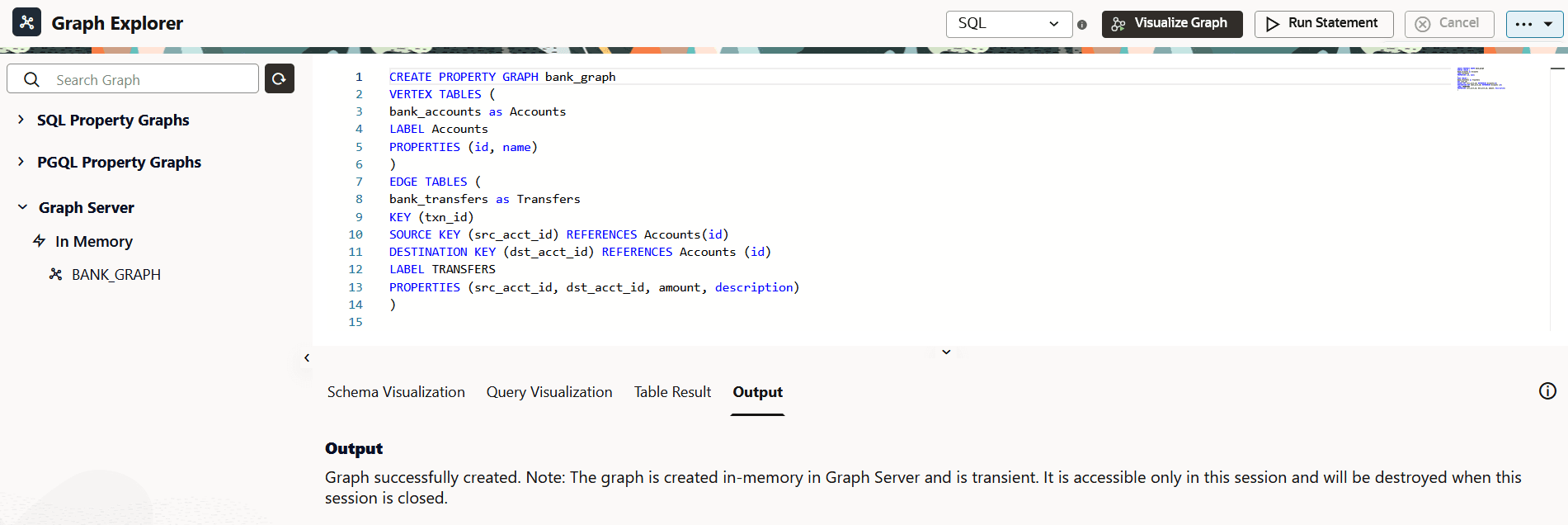
CREATE PROPERTY GRAPH: To create and load a new property graph in the graph server (PGX). Note that this is a transient graph which will be destroyed at the end of the session. -
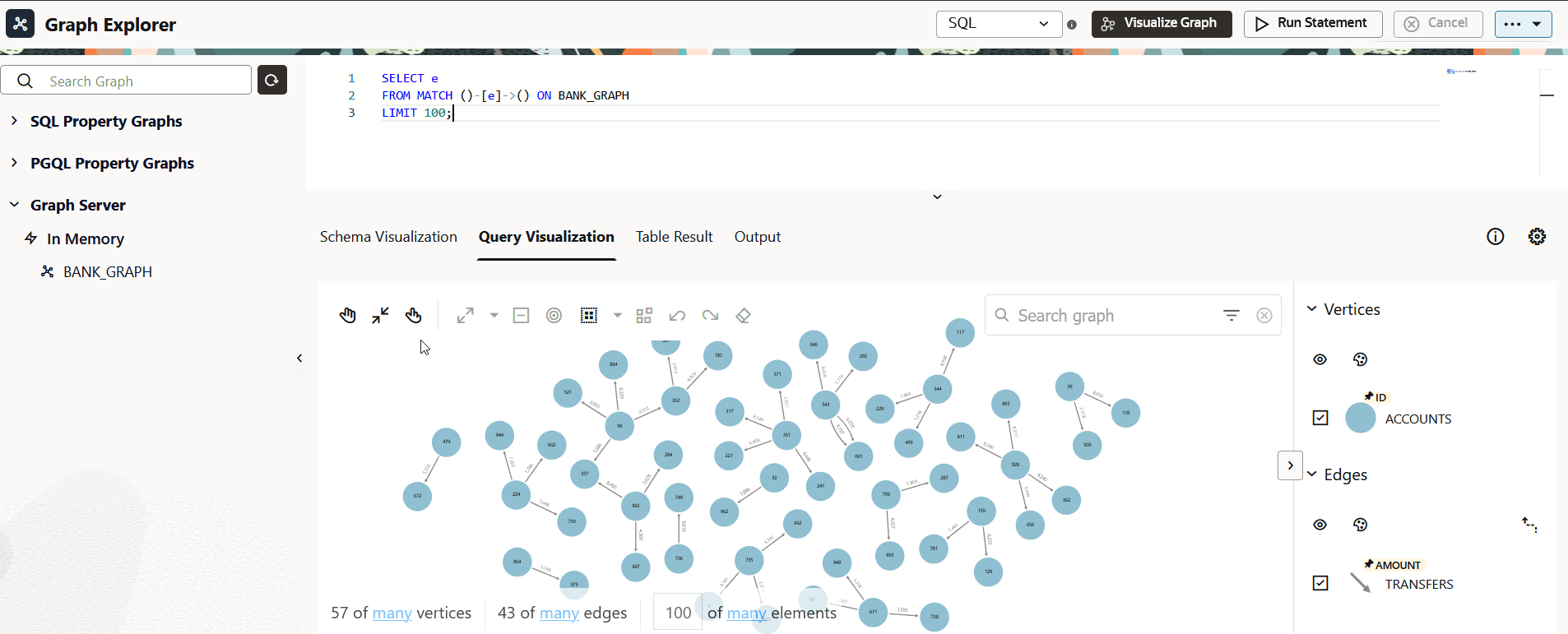
SELECT: To query a property graph.The name of the graph must be provided in the PGQL graph query. To copy the name of an existing graph, right click on the graph and select Copy Graph Name from the context menu.
-
-
Select Graph Server driver in the query actions panel at the top of the query editor.
-
Click Visualize Graph.
Example: Creating a PGQL Property Graph in the Graph Server (PGX)
The following example shows creating a new PGQL property graph using the CREATE PROPERTY GRAPH statement in the graph server (PGX).
Figure: Creating a Property Graph in the Graph Server (PGX)
 ”)
”)
Description of the illustration explorer_gs_create_pg.png
Example: Querying a PGQL Property Graph in the Graph Server (PGX)
The following example queries a property graph in the graph server (PGX) and displays the first 100 rows of the results as a graph visualization.
Figure: Querying a Property Graph in the Graph Server (PGX)
 ”)
”)
Description of the illustration explorer_gs_query_pg.png
- Loading or Unloading a Database Property Graph Into or From the Graph Server (PGX) Memory
You can load an existing SQL or PGQL property graph into graph server (PGX) memory, or unload the graph from memory.
Loading or Unloading a Database Property Graph Into or From the Graph Server (PGX) Memory
You can load an existing SQL or PGQL property graph into graph server (PGX) memory, or unload the graph from memory.
-
Expand SQL Property Graphs or PGQL Property Graphs in the left navigation pane.
-
Expand the desired schema to view the list of property graphs to which you have access.
-
Right-click a specific graph and click Load graph into memory from the context menu.
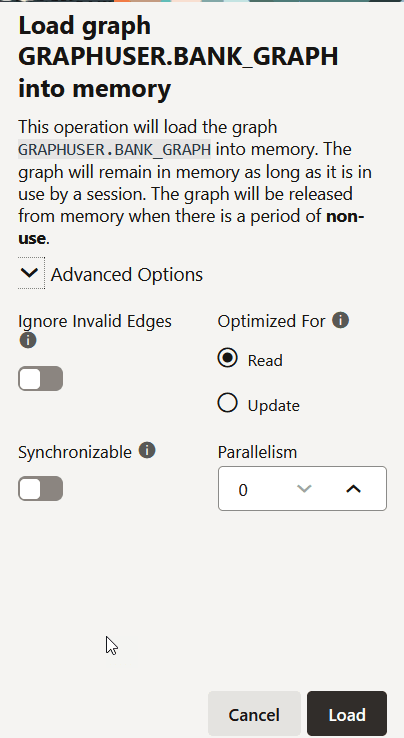
The confirmation slider for loading the graph into memory opens.
Figure: Loading a Graph Into the Graph Server (PGX)
 ”)
”)Description of the illustration graph_explorer_confirm_load_into_gs.png
-
Optionally, expand Advanced Options.
You can configure the following advanced options:
-
Ignore Invalid Edges Errors: Switch ON this toggle to ignore all edges that do not connect to a vertex.
-
Synchronizable: Switch ON this toggle to verify that the graph can be synchronized.
-
Optimized For: Select one of the following graph optimization strategies:
-
READ: Optimizes for read-intensive scenarios.
-
UPDATE: Optimizes for update-intensive scenarios.
-
-
Parallelism: Specify the degree of parallelism.
-
-
Click Load.
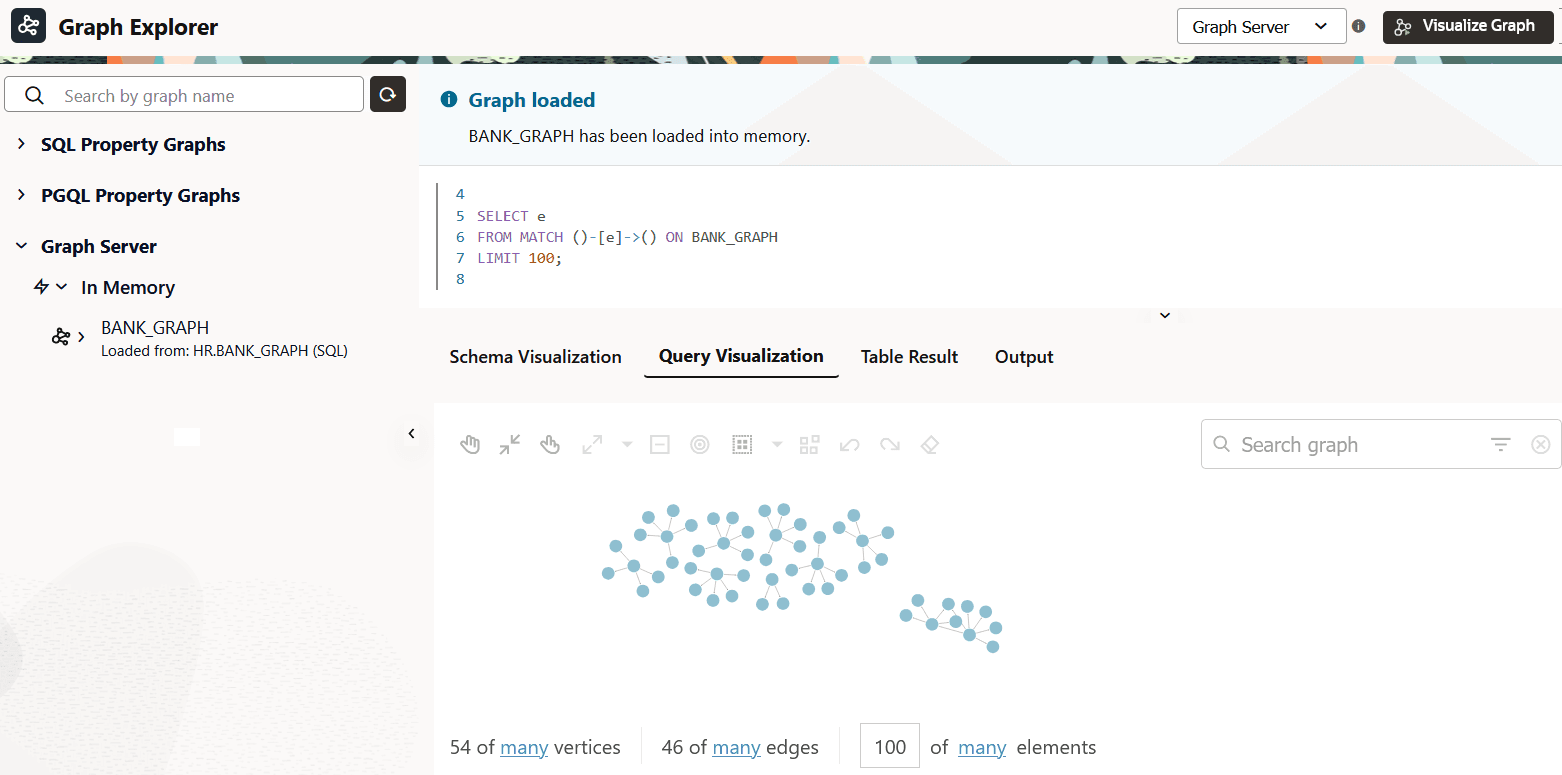
The Load In Progress status next to the graph indicates that the graph loading process has been initiated. Once the graph is successfully loaded into memory, it is displayed under the Graph Server tab.
You can then run and visualize the graph queries for the graph loaded into graph server memory.
Figure: SQL Property Graph Loaded into Memory
Description of the illustration explorer_load_sql_graph_into_memory.png
-
Optionally, if you wish to unload the graph from memory, then right-click the graph in the Graph Server tab and select Unload graph from memory from the context menu.
The graph is unloaded from memory.