Working with SQL Property Graphs in VS Code
You can use the SQL Developer extension for VS Code to browse SQL property graphs, inspect graph metadata, and build SQL graph queries.
The extension adds a Property Graphs node to each database connection in the Connections tree. Expand the node to view the SQL property graphs available in that connection. Expand a graph to see its vertex and edge labels.
Figure: SQL property graphs in the Connections tree
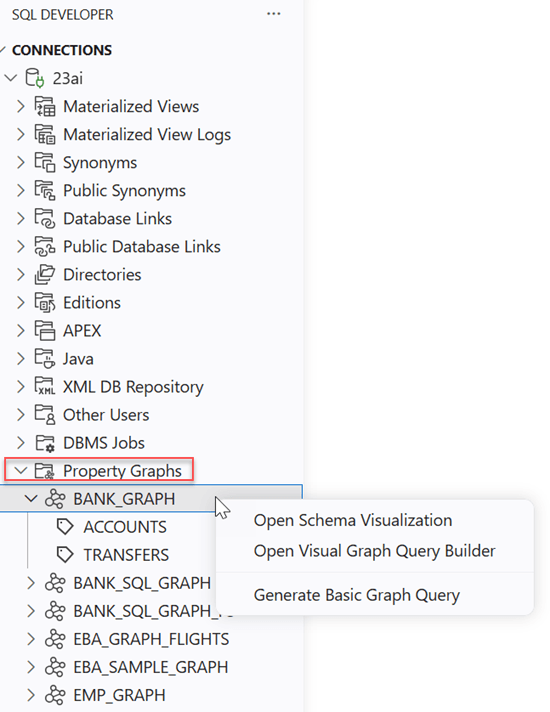
Description of the illustration vscode_propery_graphs_tab.png
You can perform the following actions on a graph:
-
Select a graph to display its metadata.
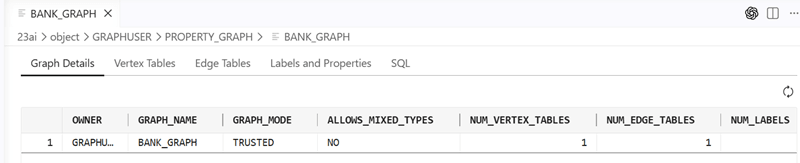
-
Right-click a graph and select Open Schema Visualization.
The schema appears in the bottom schema visualization panel.
-
Right-click a graph and select Open Visual Graph Query Builder to construct a graph pattern for a SQL graph query.
The Visual Graph Query Builder opens in a new tab, as shown:
Figure: Visual Graph Query Builder for BANK_GRAPH
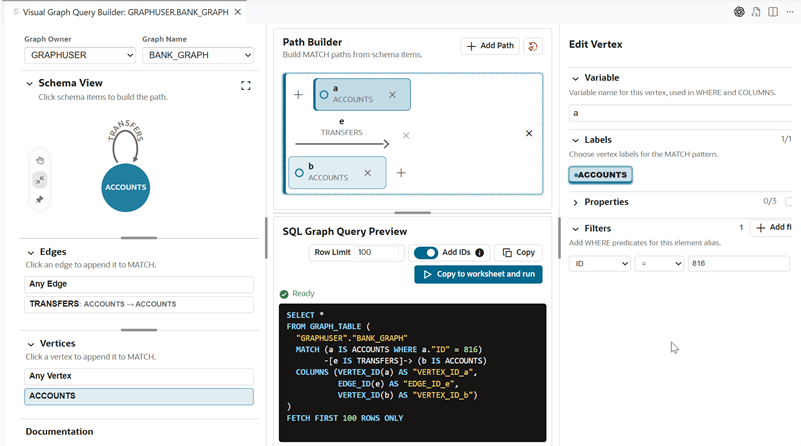
Description of the illustration vscode_visual_query_builder.png
In the Visual Graph Query Builder, use Schema View to inspect the graph schema. Add vertices and edges to Path Builder to define a graph pattern. SQL Graph Query Preview displays the query for the path. For a selected vertex, you can configure its variable, labels, properties, and filters.
See steps 2 through 7 in Constructing a Path Pattern in Visual Graph Query Builder for instructions on constructing the query pattern.
Select Copy to worksheet and run to copy the generated SQL graph query to a new tab in SQL Worksheet. Then run the query using Visualize SQL Graph.
-
Right-click a graph and select Generate Basic Graph Query to generate a basic query for the selected graph.
You can then run the query and visualize its results.