3.7 Spatial Studio Connections Page
The Connections page displays all the existing connections and also allows you to create a new connection.
The following figure shows a layout of the Connections page:
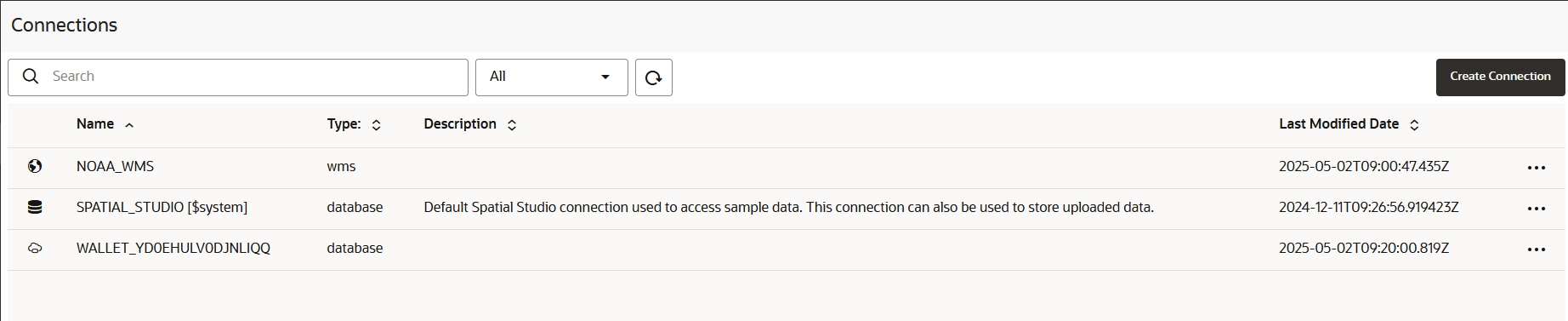
You can perform the following actions on the Connections page:
- You can create a new connection, by clicking Create
Connection.
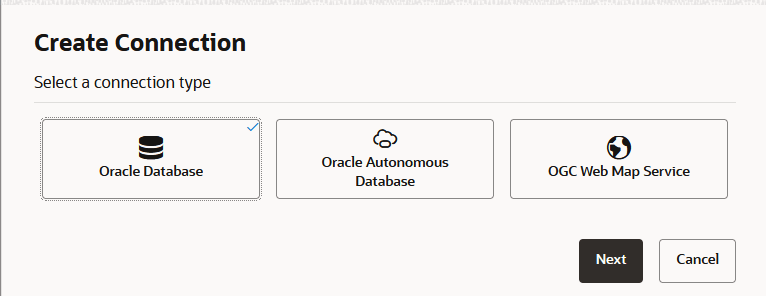
As seen in the preceding figure, you can create a connection to the following sources:
- Oracle Database: You must provide the host, port, schema, and other database authentication details.
- Oracle Autonomous Database: You can connect to the Autonomous AI Database either with a cloud wallet or without one, depending on your chosen authentication method.
- OGC Web Map Service: You must provide the URL to connect to the WMS service.
When a new data source connection is created, GeoRaster will be automatically enabled if it was not already enabled in the database schema.
- You can also perform the following actions by clicking the hamburger
icon against any displayed connection or by right-clicking a connection row:
- Properties: To view the properties of the connection in
the Overview tab.
Also, for a cloud connection to an Autonomous AI Database instance, you can control the generation of vector tiles and H3 hexagons with the Use on-DB Vector Tile Generation and Use on-DB H3 Generation toggles in the Settings tab.
Spatial Studio by default relies on the Autonomous AI Database server's built-in capabilities to generate the vector tiles and H3 hexagons. Therefore, you must typically keep these toggles ON. In rare situations, you may want to switch OFF these toggles in order to debug potential bugs introduced by a new Autonomous AI Database patch. When set to OFF, Spatial Studio generates vector tiles and H3 hexagons in the mid-tier instead of within the database server.
- Edit: To update the connection details
Note:
You cannot edit the SPATIAL_STUDIO connection on the Connections page. Instead, refer to If the Spatial Studio Repository Schema Password Has Been Changed section. - Migrate: To migrate the connection from one environment to another.
- Replace Cloud Wallet: To replace the cloud wallet for your Autonomous AI Database connection.
- Test Connection: To validate the connection.
- Delete: To delete the connection along with all its
datasets.
Note:
You cannot delete the SPATIAL_STUDIO connection.
- Properties: To view the properties of the connection in
the Overview tab.
- Creating an Oracle Database Connection
You can create a Spatial Studio connection to any Oracle Database schema. - Creating a Connection to an Autonomous AI Database Instance
You can create a Spatial Studio connection to an Autonomous AI Database instance. - Creating an OGC WMS Connection
You can create a new connection to an external OGC (Open Geospatial Consortium) WMS (Web Map Service) service. - Migrating Database Connections
You can migrate your connections in Spatial Studio between on-premises and cloud database environments.
Parent topic: Using Oracle Spatial Studio
3.7.1 Creating an Oracle Database Connection
You can create a Spatial Studio connection to any Oracle Database schema.
You can perform the following steps to setup a connection to the database:
- Select Oracle Database as the connection type and click
Next.
The Create Connection dialog open as shown:
Figure 3-50 Creating a Connection to the Oracle Database
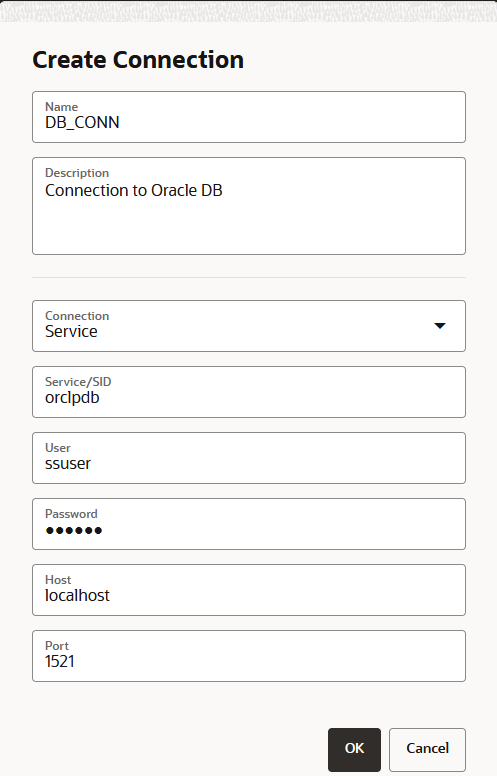
Description of "Figure 3-50 Creating a Connection to the Oracle Database"
Parent topic: Spatial Studio Connections Page
3.7.2 Creating a Connection to an Autonomous AI Database Instance
You can create a Spatial Studio connection to an Autonomous AI Database instance.
- Using a Wallet-Based mTLS Connection
You can create a Spatial Studio connection to an Autonomous AI Database instance using a wallet-based mutual Transport Layer Security (mTLS) authentication. - Using a Walletless TLS Connection
You can create a Spatial Studio connection to an Autonomous AI Database instance using a walletless Transport Layer Security (TLS) authentication.
Parent topic: Spatial Studio Connections Page
3.7.2.1 Using a Wallet-Based mTLS Connection
You can create a Spatial Studio connection to an Autonomous AI Database instance using a wallet-based mutual Transport Layer Security (mTLS) authentication.
Before you begin, ensure you meet the following prerequisites:
- Download and save the wallet for your Autonomous AI Database instance from the Oracle Cloud Infrastructure (OCI) console. See Download Client Credentials (Wallets) for more information.
- The instructions in this section assume that you have already performed the steps described in Creating a Connection to an Autonomous AI Database Instance and you chose to create a Wallet-based connection.
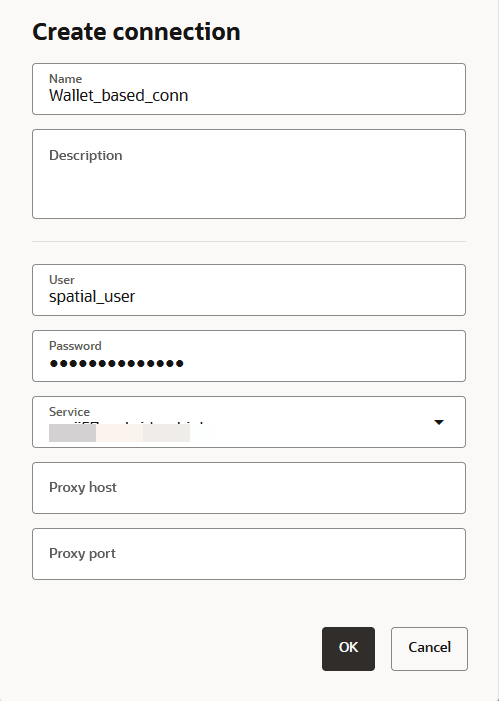
You can then continue to perform the following steps to set up a cloud connection to your Autonomous AI Database instance using the downloaded wallet.
- Click OK.The Create Connection dialog opens as shown:
3.7.2.2 Using a Walletless TLS Connection
You can create a Spatial Studio connection to an Autonomous AI Database instance using a walletless Transport Layer Security (TLS) authentication.
Before you begin, ensure you meet the following prerequisites:
- Obtain the connection string for your Autonomous AI
Database instance:
- Navigate to you Autonomous AI Database details page and locate the Network section.
- Specify an access control rule.
- Click Edit next to the Access Control List (ACL).
- Click Add access control and add the IP address of your client machine to configure an access control rule.
- Click Save.
- Disable Mutual TLS (mTLS) Authentication if it is not
already disabled.
- Click Edit next to the Mutual TLS (mTLS) Authentication.
- Uncheck Require mutual TLS (mTLS) authentication.
- Click Save.
- Obtain the database connection string.
- Click Database Connection on the Autonomous AI Database details page.
- Select TLS under TLS Authentication to view the list of connection strings.
- Copy the required Connection
String.
The connection string follows a format as shown:
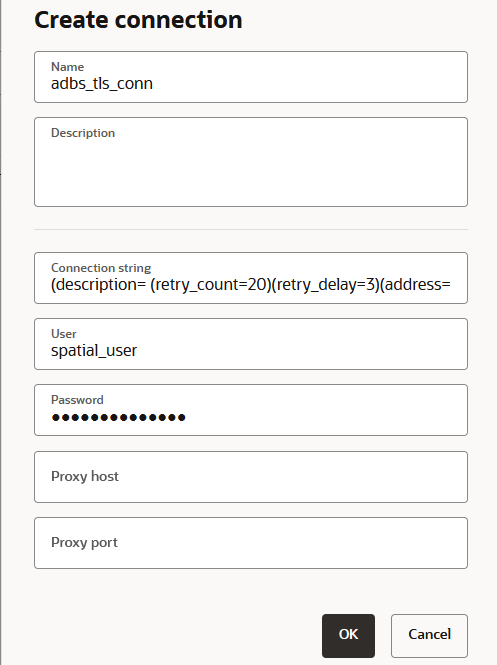
(description=(retry_count=20)(retry_delay=3)(address=(protocol=tcps)(port=1522)(host=<host_name>.oraclecloud.com))(connect_data=(service_name=<service_name>.adb.oraclecloud.com))(security=(ssl_server_dn_match=yes))
- The instructions in this section assume that you have already performed the steps described in Creating a Connection to an Autonomous AI Database Instance and you chose to create a Wallet-less (TLS) connection.
You can then continue to perform the following steps to set up a cloud connection to your Autonomous AI Database instance in the Create Connection dialog.
3.7.3 Creating an OGC WMS Connection
You can create a new connection to an external OGC (Open Geospatial Consortium) WMS (Web Map Service) service.
Note that a WMS service or server typically offers
many individual map layers that can be combined in different orders. The full list
of available map layers, as well as many other important supported functionalities
are all advertised by the WMS server through a standard WMS
GetCapabilities response.
When you create a
new WMS connection, Spatial Studio will be
querying such capabilities against the external WMS server using the standard
GetCapabilities call. Based on the result of such a query, you
will later be able to choose the required WMS map layers that must be included when
creating a new Spatial Studio WMS dataset.
You can perform the following steps to create an OGC WMS connection:
- Select OGC Web Map Service as the connection type and
click Next.
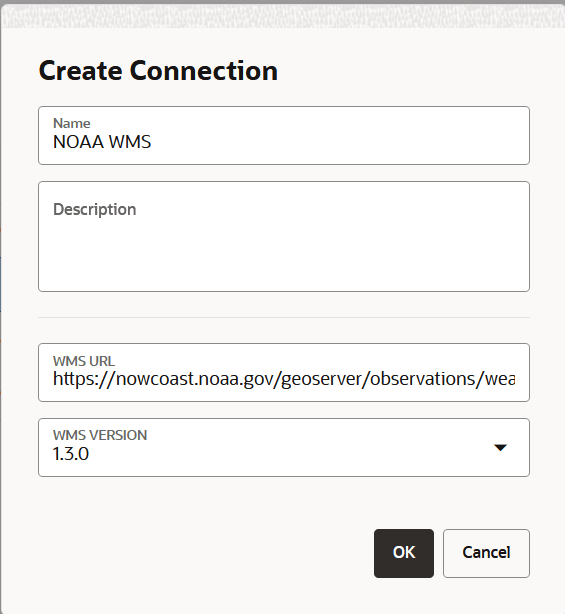
The Create Connection dialog open as shown:
Figure 3-51 Creating an OGC WMS Connection
Description of "Figure 3-51 Creating an OGC WMS Connection"
Related Topics
Parent topic: Spatial Studio Connections Page
3.7.4 Migrating Database Connections
You can migrate your connections in Spatial Studio between on-premises and cloud database environments.
You can perform the following steps to migrate a database connection.
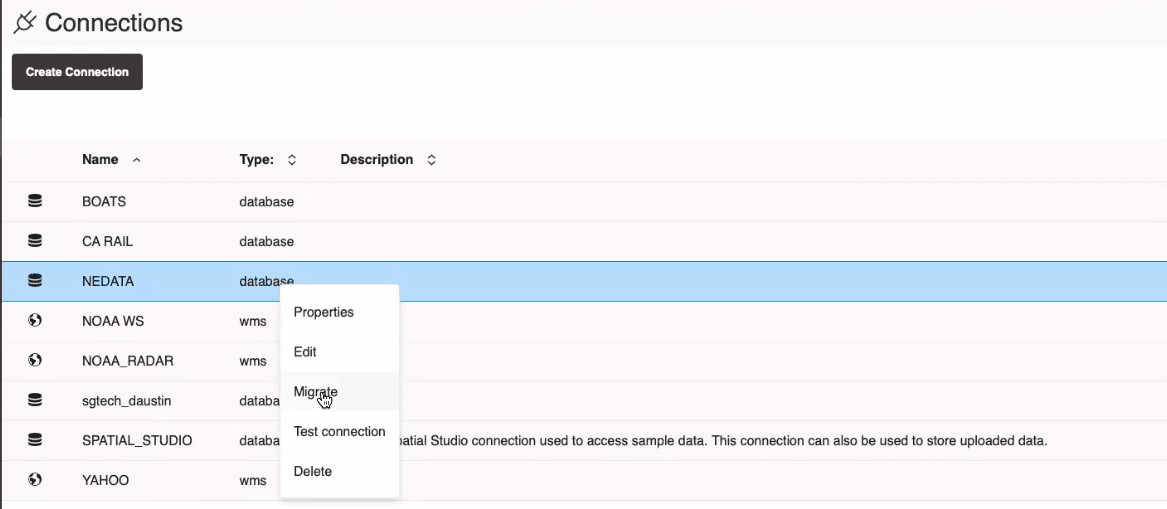
- Right-click on the required connection Name.The context menu for the database connection appears as shown:
Figure 3-52 Migrate Option for a Database Connection
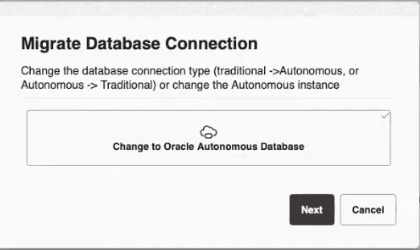
Description of "Figure 3-52 Migrate Option for a Database Connection" - Click Migrate.Migrate Database Connection is displayed as shown:
Note that in the preceding image, the target environment for migration may vary depending on the current source of the database connection. You can perform the following steps to configure the target environment that applies to you:
- Migrating from On-Premises Database to Oracle Autonomous AI Database:
- Click Next and provide the Upload Wallet details.
- Click OK and provide the database connection details.
- Migrating from Oracle Autonomous AI Database to On-Premises Database:
- Click Next and provide the database connection details.
- Click OK.
The connection gets updated to the new data source. - Migrating from On-Premises Database to Oracle Autonomous AI Database:
Parent topic: Spatial Studio Connections Page