2.2 Connecting to Your Database
A connection is a SQL Developer object that specifies the necessary information for connecting to a specific database as a specific user of that database. You must have at least one database connection (existing or created) to use SQL Developer for VS Code.
You can connect to any target Oracle database schema using standard Oracle database authentication. Once connected, you can perform operations on objects in the database.
The actions that you can perform for connections are:
-
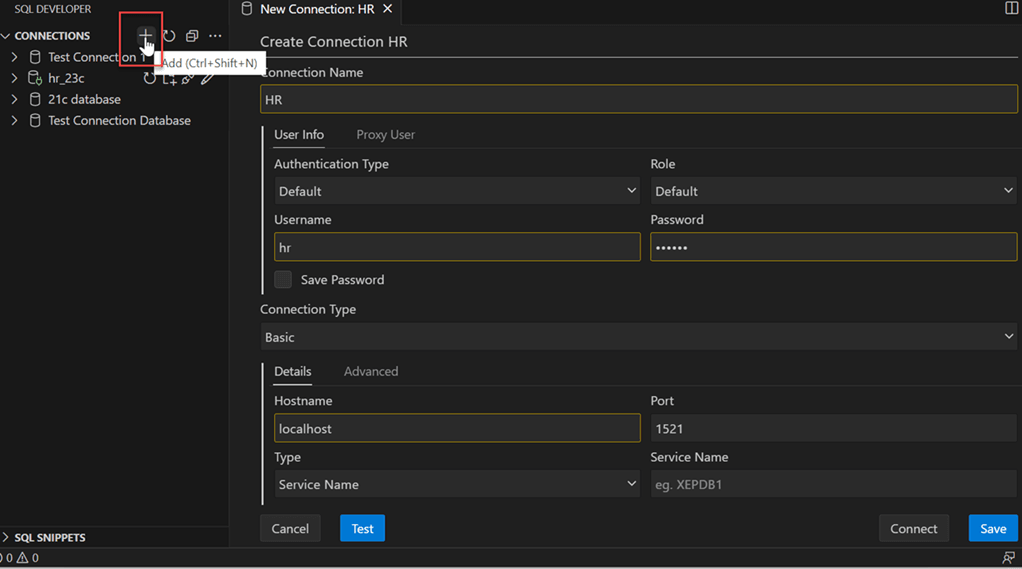
Add: To create a new connection. Click the Add icon next to Connections, enter the connection information and click Connect. For more information, see Creating a Connection.
-
Edit: To edit an existing connection. In the Connections panel, right-click the connection name and select Edit. Change any connection information except the connection name, and click Save or Connect.
-
Clone: To create a new connection when one or more connections already exist. In the Connections panel, select an existing connection, right-click and click Clone. Change the Connection name to the desired name, edit other connection information as needed, and click Save or Connect to create the new connection.
- Refresh: To update the connection to include any changes that were made. Click the Refresh icon next to the connection name to refresh the connection.
-
Open SQL Worksheet: To open a SQL Worksheet pane for the connection. Right-click the connection name, and select Open SQL Worksheet. See Using the SQL Worksheet
-
Open SQLcl: To start the SQLcl command line in the Terminal tab for the opened database connection. Right-click the connection name, and select Open SQLcl.
-
Reconnect: To reconnect to a connection where the session has been terminated. Right-click the name in the Connections panel, and select Reconnect.
-
Disconnect: To disconnect from the current connection. Right-click the name in the Connections panel, and select Disconnect.
-
Delete: To delete a connection (that is, delete it from SQL Developer, not merely disconnect from the current connection), right-click the connection name in the Connections panel display and select Delete. Deleting a connection does not delete the user associated with that connection.
2.2.1 Creating a Connection
- In the Connections panel, click the Add icon.
The Create Connection pane appears.
2.2.2 Entra ID Authentication
This section enables you to connect to an Oracle Database that is configured for Entra ID (Azure AD) authentication, using the SQL Developer Extension for VS Code.
You will learn how to set up the necessary tools, configure authentication, and establish a secure connection to your database.
Install the Azure SDK
Open a SQLcl terminal inside VS Code.
sdk install jdbc-azureOnce installation is complete, restart VS Code to load the newly installed JAR files.
Set up the tnsnames.ora Entry
tnsnames.ora file with the necessary parameters
for Entra ID
authentication:PDB1 =
(DESCRIPTION=
(ADDRESS=(PROTOCOL=TCPS)(HOST=xxxxx)(PORT=0000))
(SECURITY=
(SSL_SERVER_DN_MATCH=TRUE)
(WALLET_LOCATION=SYSTEM)
(TOKEN_AUTH=AZURE_INTERACTIVE)
(TENANT_ID=xxxxx)
(CLIENT_ID=xxxxx)
(AZURE_DB_APP_ID_URI=xxxxx)
)
(CONNECT_DATA=
(SERVER=DEDICATED)
(SERVICE_NAME=pdb1)
)
)- PROTOCOL: Must be set to
TCPSto ensure a secure connection for token transmission. - HOST: Specify the database host.
- PORT: Specify the database port.
- SSL_SERVER_DN_MATCH (optional): Enforces server-side certificate validation through distinguished name (DN) matching.
- WALLET_LOCATION: Use
SYSTEMfor public CA-signed certificates, or specify a local path if using a self-signed or private CA. When connecting to an OCI database that uses a wallet (such as Autonomous Database), ensure that it points to the extracted wallet location. - TOKEN_AUTH: Set to
AZURE_INTERACTIVEfor Entra ID authentication. - TENANT_ID: Set to
AZURE_INTERACTIVEfor Entra ID authentication. - CLIENT_ID: Specify the registered Entra ID web application for the database client.
- AZURE_DB_APP_ID_URI: Specify the URI of the registered Entra ID web application of the database server.
Create the Connection
Create a new connection using the SQL Developer Extension as you would for a standard
TNS connection. The username and password are not required, as authentication will be
completed through an interactive browser login prompted by the extension.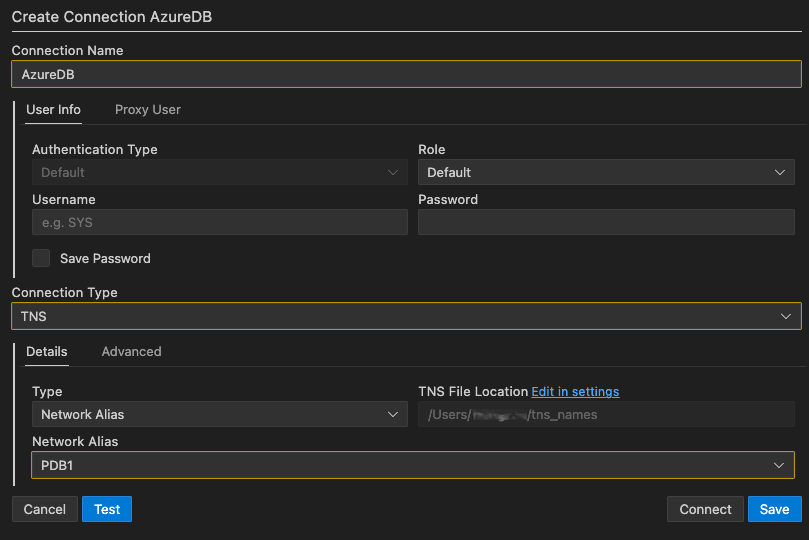
Description of the illustration entra_id_authentication.png
Once you open your connection, a browser window will launch prompting you to sign in with your Entra ID credentials. After you successfully authenticate, an authentication successful screen will be displayed. You can then close the browser and return to VS Code to proceed with your database connection.