3.3 Working with Tables
This section provides comprehensive guidance on creating, editing, and managing database tables efficiently.
It covers the following topics:
- Using Table Editor
Learn how to use the Table Editor to create new tables or modify existing ones. This topic walks you through specifying columns and constraints, managing keys and indexes, setting storage options, and applying table-level settings, all within an intuitive visual interface.
- Managing Data Import
Learn how to seamlessly import data into your tables. This topic explains the steps for bringing external data into your database, including mapping columns, handling data formats, and validating imported records to ensure data integrity.
3.3.1 Using Table Editor
The Table Editor provides users with an intuitive interface to create and modify database tables efficiently.
Users can define table structures by adding, editing, or deleting columns, specifying data types, and setting constraints such as primary keys and unique keys. Additional options, such as defining indexes, foreign keys, and storage parameters, allow for comprehensive table customization. With straightforward navigation, this feature streamlines the table management process, supporting both new table creation and the modification of existing tables to fit evolving data requirements.
To create a new table, right-click Tables in the Connections panel and select Create Table. The Table Editor: New window appears. From the drop-down list, select a Schema and enter the table name in the Name field. By default, the new table will be named NEW_TABLE.
To edit an existing table, right-click the table name in the Connections panel and select Edit.
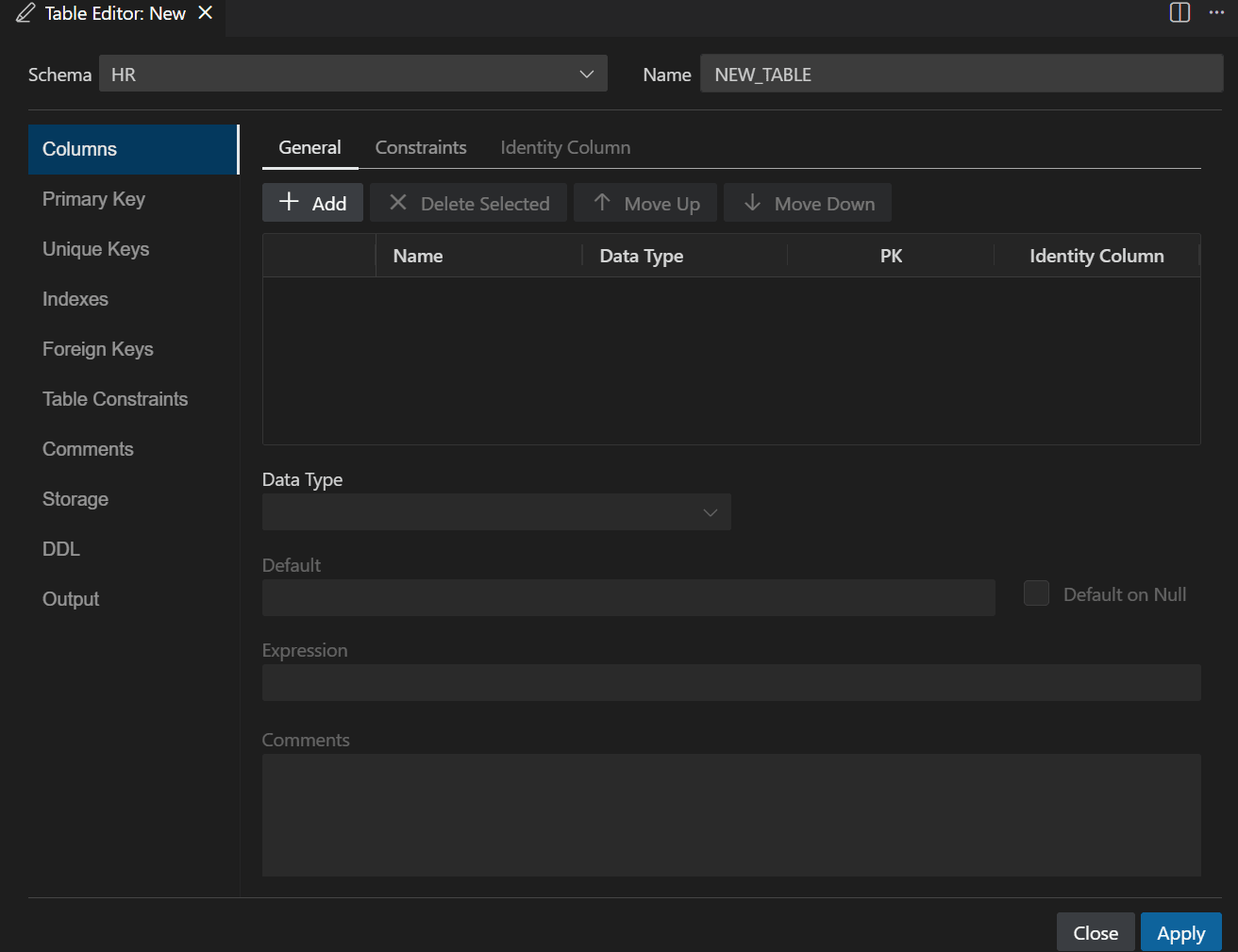
Description of the illustration table_editor_new.png
You can add or edit the table information in the following sections:
3.3.1.1 Columns
In this window, you can specify properties for each column in the table.
By default, the General tab is displayed.
General Tab
In this tab, you can add or delete a column. Click + Add to add a new column or click X Delete Selected to delete the selected column. You can also designate a column as a Primary Key by selecting the corresponding PK checkbox, or set it as an identity column by selecting the Identity Column checkbox. When you select a column from the list, you can customize its properties, such as data type, default value, expression, and comments, using the fields that appear below the column list.
- Name: The name of the column. By default, the new column is named as COLUMN_1. You can double-click the column cell to edit its value.
- Data Type: Data type of the column. Most of the remaining information depends on the specific type.
- Size: For character data, the maximum size of the column data. This field is displayed when VARCHAR2 data type is selected.
- Units: For character data, the units represented by the
Size:
BYTEfor bytes orCHARfor characters. This attribute is important if the database contains data in Unicode format, with multiple bytes for each character. This field is displayed when VARCHAR2 data type is selected. - Precision: For numeric data, the precision (total number of significant digits that can be represented) of the column data. This field is displayed when NUMBER data type is selected.
- Scale: For numeric data, the scale (number of digits after the decimal point) of the column data. This field is displayed when NUMBER data type is selected.
- Default: For relevant types, the default value inserted into the column if no value is specified when a row is inserted.
- Default on Null: If this option is selected, then the default value is inserted when no value is provided in the column.
- Expression: When an expression is specified, the column value is automatically generated according to the logic you provide, rather than being directly entered or modified by users.
- Comments: Optional descriptive comment about the column.
Click Apply to save your changes.
Constraints Tab
Select the Constraints tab to view and edit constraints for your table columns.
- Not Null Constraint
For each column, select the Not Null checkbox if the column should not allow NULL values. You can also provide a custom name for the NOT NULL constraint in the Not Null Name field.
- Check Constraint
To add additional validation rules, select a column and use the Check Constraint section to define custom constraints, such as specifying allowed value ranges or patterns. You can enter a constraint name and logic in the provided fields.
- Additional Constraint Options
At the bottom of the tab, you can further configure constraint behavior by enabling or disabling the constraint, setting it as deferrable, determining if it should be enforced immediately, and enabling validation. These options help you control how and when the constraints are applied to your table data.
Click Apply to save your changes.
Identity Column Tab
In this tab, you can configure automatic value generation for a specific column, typically used for unique identifiers like primary keys. In this tab, you can specify how the identity values should be generated, including options for the starting value, increment step, minimum and maximum values, caching behavior, cycling, and ordering.
- Generate: Options to set whether the value should be provided BY DEFAULT or ALWAYS.
- Start With: Initial value for the column.
- Increment By: Step size between generated values.
- Min Value -Max Value: Allowable range for generated numbers.
- Cache and Cache Size: Cache causes sequence values are preallocated in cache, which can improve application performance. Cache size indicates the number of sequence values preallocated in cache. No Cache causes sequence values not to be preallocated in cache.
- Cycle: Indicates whether the sequence wraps around to reuse numbers after reaching its maximum value or its minimum value. If cycling of values is not enabled, the sequence cannot generate more values after reaching its maximum or minimum value.
- Order: Indicates whether sequence numbers are generated in the order in which they are requested. If No Order is specified, sequence numbers are not guaranteed to be in the order in which they were requested.
Click Apply to save your changes.
3.3.1.2 Primary Key
In this window, you can define the primary key constraint for your table, ensuring that each row is uniquely identifiable.
- Name: The name of your primary key constraint.
- Enabled: If this option is selected, then the primary key constraint will be enabled.
- Rely: If this option is selected, then the constraint can be relied upon.
- Deferrable: If this option is selected, then the constraint check can be deferred until the transaction is committed.
- Initially Immediate: If this option is selected, then the constraint is enforced immediately.
- Validate: If this option is selected, then data in the table must comply with the primary key constraint.
- Index: This drop-down list allows you to select an existing index to associate with the primary key constraint.
- Tablespace: This drop-down list allows you to select a tablespace for storing the index.
- Available Columns and Selected Columns: These lists allow you to select one or more columns to be included in the primary key. Select columns from the Available Columns list and use the arrow buttons to move them to the Selected Columns list.
Once your primary key configuration is complete, click Apply to save your changes.
3.3.1.3 Unique Keys
In this window, you can define unique key constraints for your table, ensuring that the combination of values in the selected columns is always unique for every row. You can add or delete unique key constraints using the + Add and X Delete Selected buttons.
- Name: The name of the unique key. You can edit the name by double-clicking the cell.
- Enabled: If this option is selected, then the unique key constraint will be enabled.
- Rely: If this option is selected, then the constraint can be relied upon.
- Deferrable: If this option is selected, then the constraint check can be deferred until the transaction is committed.
- Initially Immediate: If this option is selected, then the constraint is enforced immediately.
- Validate: If this option is selected, then data in the table must comply with the unique key constraint.
- Index: This drop-down list allows you to select an existing index to associate with the unique key constraint.
- Tablespace: This drop-down list allows you to select a tablespace for storing the index.
- Available Columns and Selected Columns: These lists allow you to select one or more columns to be included in the unique key. Select columns from the Available Columns list and use the arrow buttons to move them to the Selected Columns list.
Once your unique key configuration is complete, click Apply to save your changes.
3.3.1.4 Indexes
In this section, you can manage indexes for your table to improve query performance. You can add new indexes or delete existing ones using the + Add and X Delete Selected buttons.
- Schema: The name of the schema under which the index is created.
- Name: The name of the index. You can edit the name by double-clicking the cell.
- Type: The type of index, such as UNIQUE, NON-UNIQUE, or BITMAP.
- Tablespace: Specifies the tablespace where the index is stored.
- Available Columns and Selected Columns: Select one or more columns to be included in the index. Use the Available Columns list and arrow buttons to move columns to the Selected Columns list and organize their order.
- Expression: Allows you to specify the expression that defines the index logic.
Once your index configuration is complete, click Apply to save your changes.
3.3.1.5 Foreign Keys
In this window, you can define foreign key constraints for your table, allowing you to establish relationships between columns in your table and columns in another table. You can add or delete foreign key constraints using the + Add and X Delete Selected buttons.
- Name: The name of the foreign key constraint. You can edit the name by double-clicking the cell.
- Enabled: If this option is selected, then the foreign key constraint will be enabled.
- Rely: If this option is selected, then the constraint can be relied upon.
- Deferrable: If this option is selected, then the constraint check can be deferred until the transaction is committed.
- Initially Immediate: If this option is selected, then the constraint is enforced immediately.
- Validate: If this option is selected, then data in the table must comply with the foreign key constraint.
- Referenced Constraint: Allows you to select the Schema, Table, and Constraint that you want to reference. You can also specify the On Delete action to define the behavior when referenced data is deleted, such as NO ACTION, CASCADE, or SET NULL.
- Associations: Allows you to map the Local Column(s) in your table to the corresponding Referenced Column(s) in the related table.
Once your foreign key configuration is complete, click Apply to save your changes.
3.3.1.6 Table Constraints
In this window, you can define table-level constraints, such as check constraints, to enforce complex rules and conditions on your data beyond what can be achieved with column-level constraints. You can add or delete table constraints using the + Add and X Delete Selected buttons.
- Name: The name of the table constraint key. You can edit the name by double-clicking the cell.
- Enabled: If this option is selected, then the table constraint will be enabled.
- Rely: If this option is selected, then the constraint can be relied upon.
- Deferrable: If this option is selected, then the constraint check can be deferred until the transaction is committed.
- Initially Immediate: If this option is selected, then the constraint is enforced immediately .
- Validate: If this option is selected, then data in the table must comply with the table constraint.
- Check Condition: Specify an expression or condition that
must be met for all rows in the table. For example, to indicate that the value
in a numeric column named
RATINGmust be from 1 to 10, you can specify: rating >=1 and rating <= 10.
Once your table constraint configuration is complete, click Apply to save your changes.
3.3.1.8 Storage
In this window, you can configure storage-related options for your table to optimize data management and performance.
- Organization: The organization type of the table, such as, Heap, Index, or External.
- Tablespace: Allows you to select the tablespace for the table.
- Logging: Enables or disables logging for the table, which determines whether changes to the table are recorded in the redo log for recovery purposes.
- Row Archival: Indicates whether row-level archival is enabled for the table.
Once your storage configuration is complete, click Apply to save your changes.
3.3.1.9 DDL
In this window, you can view and manage the Data Definition Language (DDL) statements associated with your table.
The DDL tab displays the SQL code required to create or modify the table structure, including all constraints and relationships. You can switch between the Create and Update tabs to see scripts for creating the table from scratch or updating it based on the current changes.
Any errors or missing definitions, such as those highlighted in the output, should be addressed before applying changes. Once you have reviewed the DDL statements and ensured they are correct, click Apply to implement the changes to your database.
3.3.1.10 Output
In this window, you can view the results of executed operations, including messages, errors, and logs generated when applying changes to the table.
The Output tab displays detailed error reports and Oracle error codes if an operation fails, along with references to relevant documentation links for troubleshooting. Any issues or syntax errors encountered during execution are shown here, making it easier to diagnose problems, understand the cause of errors, and take corrective action. Review these messages to resolve any issues before reapplying your changes. Once you have addressed any errors, click Apply to save your changes.
3.3.2 Configuring and Managing Data Import
This feature enables importing data from delimited files, such as Comma Separated Values (CSV), Tab Separated Values (TSV), or other similar formats into your database. You have the flexibility to either create new tables or populate existing ones, with a range of configuration options to suit your data import needs.
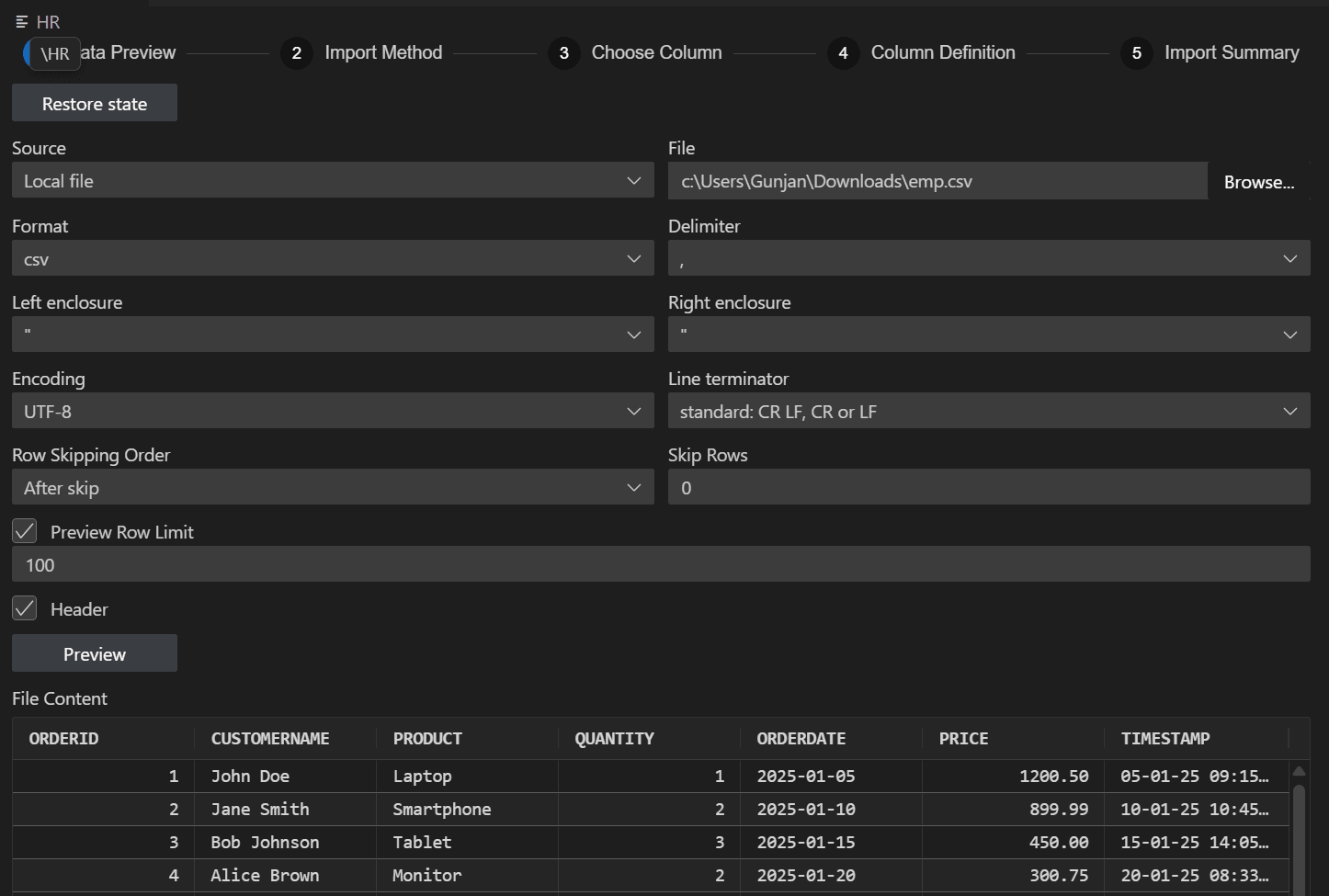
- Previewing Data: Review and validate the data from your source file before importing.
- Choosing Import Method: Select how the data will be imported.
- Choosing Columns: Select which columns from the source data should be imported.
- Defining Column Metadata: Specify or adjust column definitions, data types, and other attributes.
- Summarizing the Import: Review a summary of your selections and confirm the import configuration before proceeding.
3.3.2.1 Importing Data into Tables
Previewing Data
The Data Preview page enables you to specify preferences that affect the preview display of data to be imported.
Choosing Import Method
The Import Method page specifies methods for importing data from local files.
Choosing Columns
The Choose Column page lets you select the specific column from the data set and arrange them in the order you want.
Defining Column Metadata
The Column Definition page enables you to specify information about the columns in the database table for data import. If you are deriving the table definition from an external file, you can modify the attributes of any column in the destination table that will be created during the data import process. When importing data into an existing table, the Column Definition step is different from the process used for a new table. Each source column from the imported file must be mapped to a target column that already exists in the table.
Summarizing the Import
The Import Summary page provides a final overview of your import configuration before you execute the import process.