Using the Code Cell
In the code cell, you can enter one or more SQL, PL/SQL statements, or scripts that you intend to run.
You can run multiple queries sequentially in a single code cell, combine DDL and DML operations, and run setup scripts followed by data queries. You can also use bind variables and substitution variables for dynamic query execution. It also displays detailed output of the script execution.
When a cell contains multiple statements, terminate each SQL statement with a semicolon (;). For each PL/SQL block, terminate the statements within the block with semicolons, and place a slash (/) on a new line after the block. You can drag some kinds of objects such as tables or views from the Connections navigator and drop them into the code cell. When you do this, the following options appear: Object Name, Insert, Delete, Update, and Select. If you select SELECT, a SELECT statement is constructed with all columns in the table or view. You can then edit the statement.
To add a new code cell, click Code. Enter the statement that you want to run in the code cell. As you start typing, a context-sensitive pop up window appears to help you auto-complete the code. You can click Esc to close the pop up window.
Click Execute Cell (Ctrl+Alt+Enter).

Description of the illustration code_cell.png
The output is displayed in a grid format:
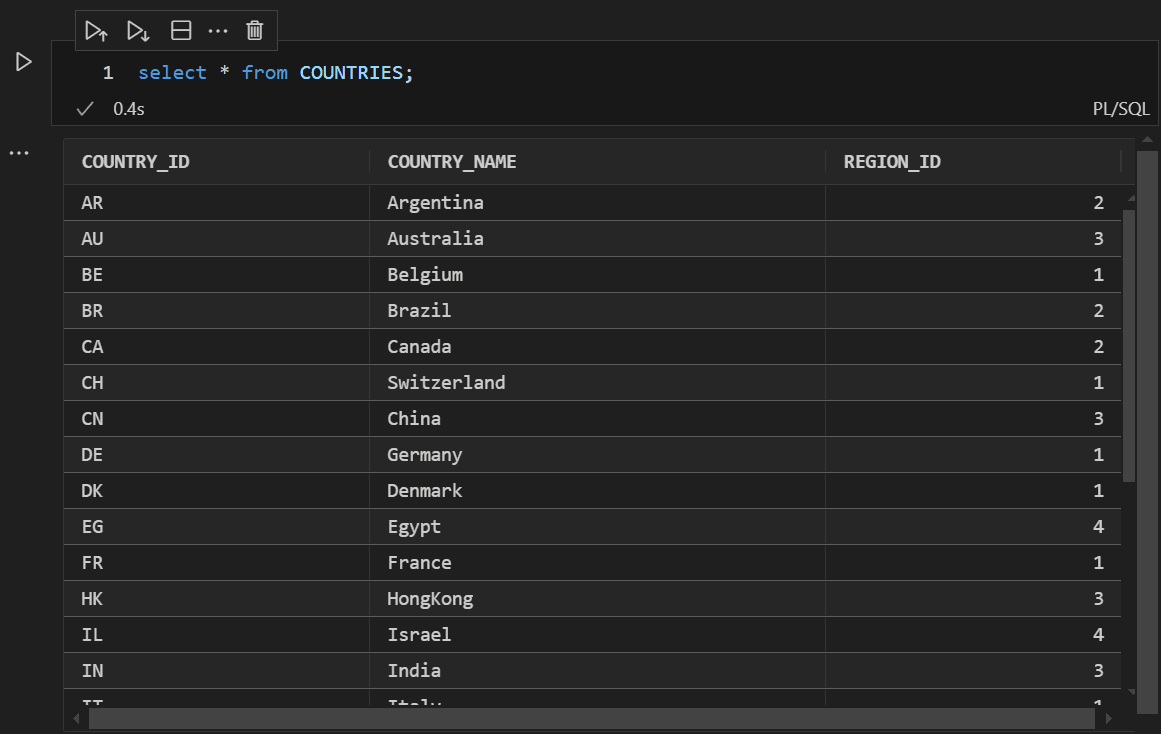
Description of the illustration code_cell_output.png
You can click on column headers to sort the data, drag to resize columns to fit the output, view the full details of a record, and export the output data. The main advantage of SQL Notebooks is that you can run a single code cell, a group of consecutive code cells, or the entire notebook.

Description of the illustration code_cell_icons.png
The following icons are available on a code cell:
-
Execute Above Cells runs all the preceding code cells.
-
Execute Cells and Below runs the current cell and all code cells below it.
-
Split Cell splits the current code cell into two separate cells.
-
Delete Cell deletes the selected code cell.
-
More Actions... provides additional options to perform common tasks. For more information, see Additional Cell Configuration Options.