Understanding the Connection Navigator and APEXlang Editor
For any APEXlang application, SQL Developer for VS Code provides editor and navigator features to help you develop and deploy APEXlang applications.
Connections Navigator
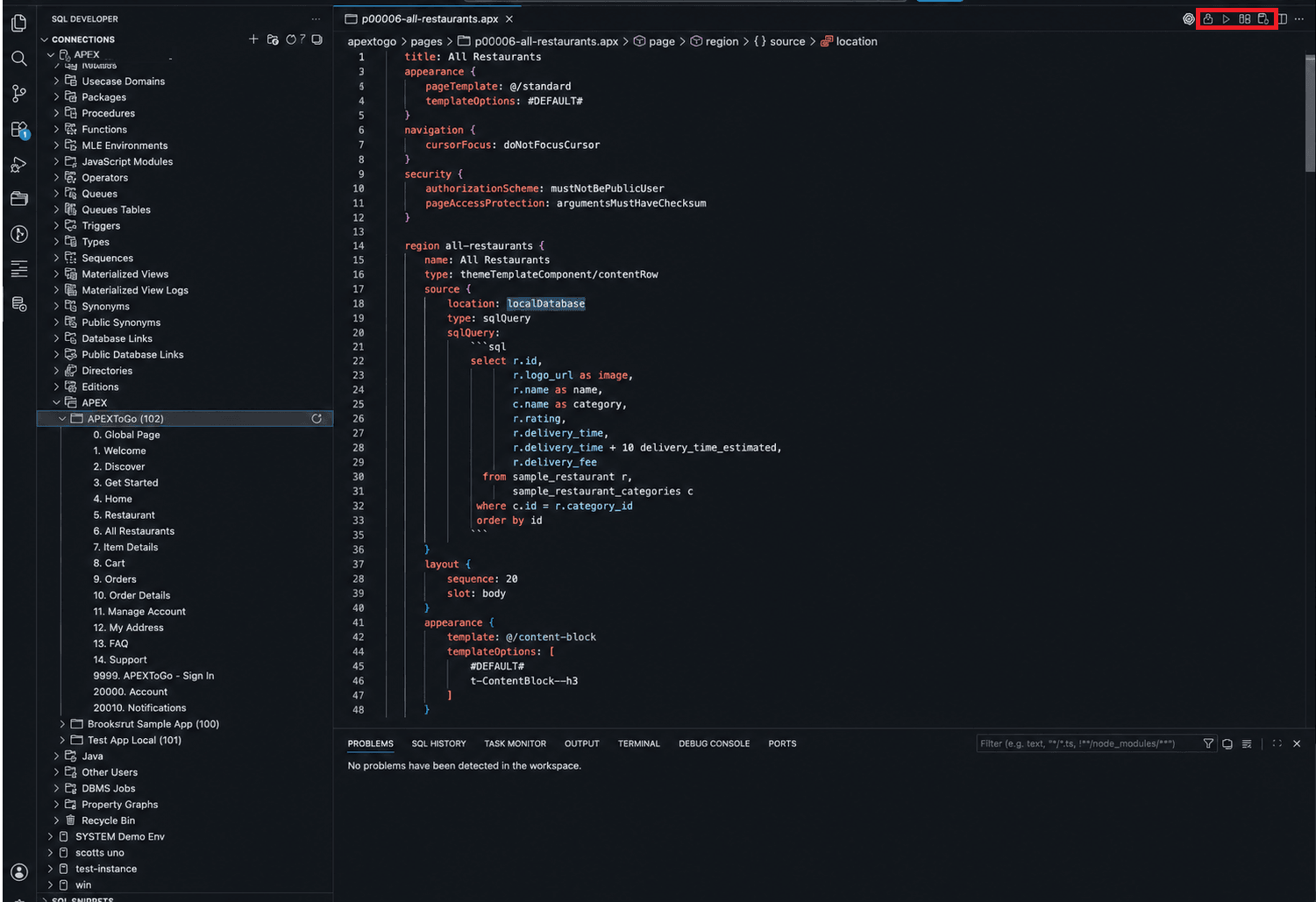
Description of the illustration apex_ui_elements_buttons.png
In the Connections navigator, APEX applications are available through APEX nodes, which provide context menu actions for creating or exporting APEXlang projects.
-
APEX node (Generate): When you right-click the APEX node in the Connections navigator, the context menu shows Generate…. Select it to create a new simple APEXlang application project in a local folder.
-
Application node (Export): When you right-click a specific APEX application node (for example, APEXTOGO), the context menu shows Export…. Select it to export the selected application to an APEXlang project on your local file system.
Editor toolbar
The editor toolbar provides APEXlang-specific actions for compiling and deploying an application, managing the attached database connection, and viewing page lock status.
Import (play icon)
The Import button (play icon) compiles the APEXlang application and deploys it to the attached database connection where APEX is installed.
Compare with APEX Application
The Compare with APEX Application button compares the APEXlang files in the local project with the target APEX application in the database. The editor connection and the application ID defined in deployments/default.json are used to identify the remote application to compare with the local files. If no connection is attached, you are prompted to connect. For more information, see Comparing with an APEX Application.
Attach/Detach Connection
When you open an APEXlang file (.apx) or a deployment file (.json), SQL Developer for VS Code displays APEXlang actions in the editor toolbar. These actions include Import (to compile and deploy the application) and Attach/Detach Connection (to associate a database connection with the current editor).
-
For APEXlang files and
deployments/default.json, the connection is shared across all open files in the same application. Attaching or detaching a connection in one file applies to the other open files in that application. -
For other JSON files under the deployments folder, the connection is not shared. This allows you to attach a different target connection for a specific deployment file.
Page Locked (padlock icon)
If the open document represents an APEX page and that page is locked in APEX, a padlock icon is displayed in the editor toolbar when a connection is established. Click the padlock icon to display a popup with details of the page lock.