Using the SQL Notebook
SQL Notebook is a powerful feature of the SQL Developer Extension for VS Code that provides an alternative to SQL Worksheets. It enables you to organize a series of SQL and PL/SQL queries in a structured notebook and supplement them with Markdown, similar to a user-defined report.
SQL Notebooks use a YAML-based structure, making them both human-readable and machine-parseable. They allow you to create, organize, and run SQL and PL/SQL code in a structured notebook format. You can also add Markdown cells, which help you organize reports, group related queries, and include meaningful descriptions and comments.
You can create a new SQL Notebook or open and edit an existing one.
Open a New SQL Notebook
From the File menu, select New File, and then select Oracle SQL Notebook.
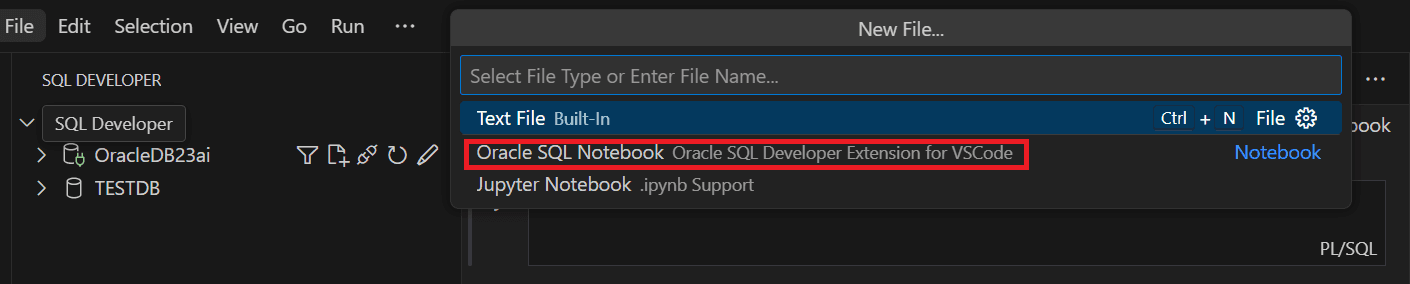
Description of the illustration sql_notebook.png
VS Code opens a new SQL Notebook editor with a code cell where you can enter your query. The default file extension for a SQL Notebook is .sqlnb. Before you can run the notebook, you must attach it to a database connection.
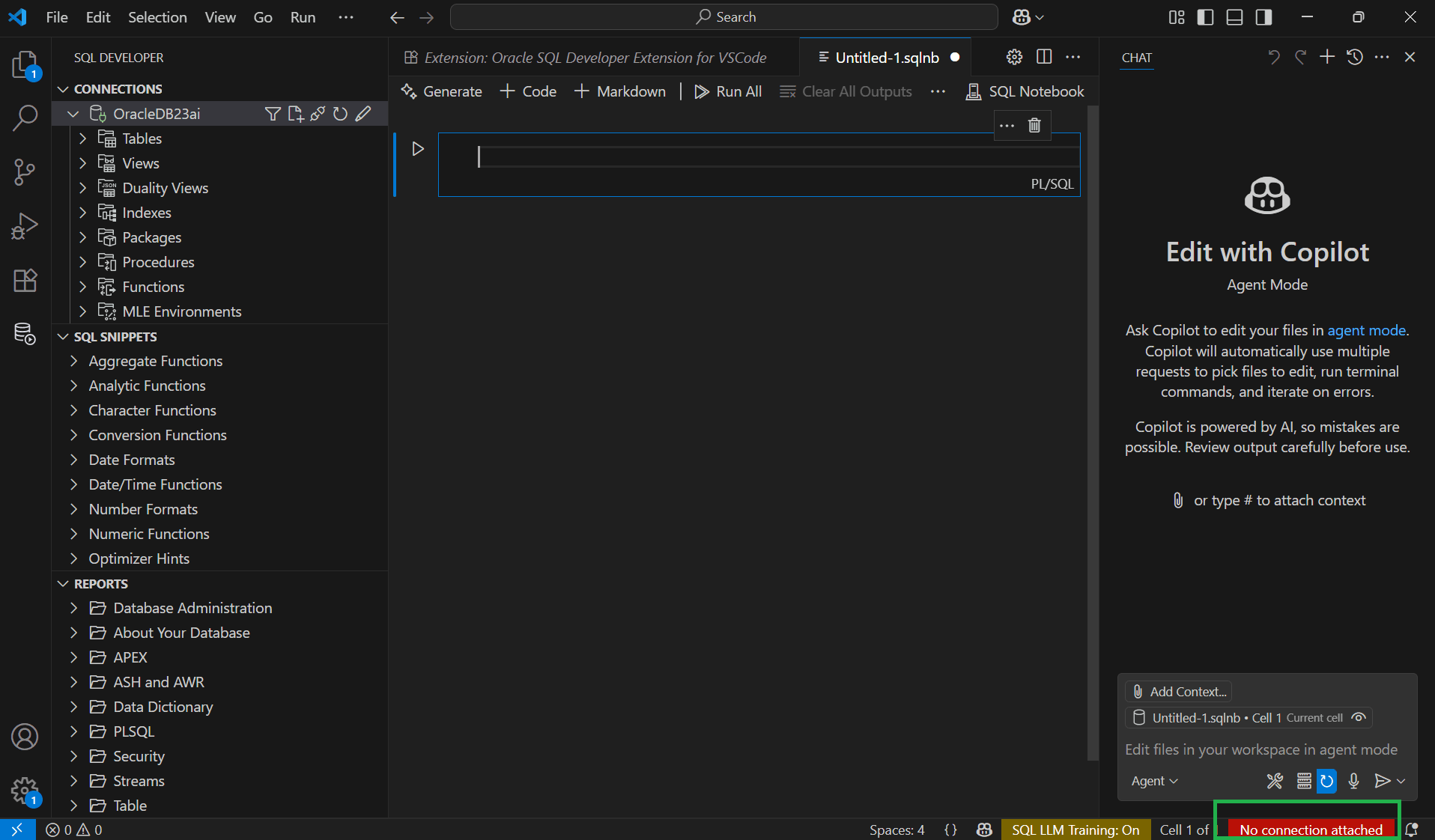
Description of the illustration new_sql_notebook_noconnection.png
Attach a SQL Notebook to a Connection
-
In the lower-right corner of the SQL Notebook editor, click the No connection attached label.
-
In the list of available connections, select a connection.
The SQL Notebook is attached to the selected connection, and the connection name is displayed in the lower-right corner of the editor.
Alternatively, right-click a connection in the Connections panel and select Open SQL Notebook. The notebook opens attached to the selected database connection by default.
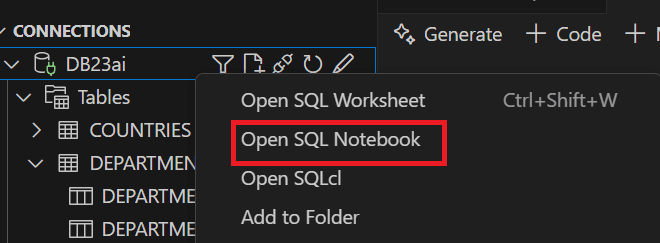
Description of the illustration open_sql_notebook_connection.png
Save the SQL Notebook
From the File menu, select Save As or press Ctrl+Shift+S. Enter a meaningful file name for the SQL Notebook and then save it. The notebook is saved as an .sqlnb file.
Open an Existing SQL Notebook
From the File menu, select Open File or press Ctrl+O . Browse to the file (.sqlnb) and open it. After the notebook opens, attach it to a database connection before running it.
The SQL Notebook enables you to perform the following operations using the buttons available in the editor:
-
Code (Ctrl+Enter) adds a new code cell. A code cell can contain one or more SQL statements, PL/SQL blocks, or scripts. For more information, see Using the Code Cell.
-
Markdown adds a new Markdown cell where you can enter Markdown-formatted text. For more information, see Using the Markdown Cell.
-
Run All runs all cells in the SQL Notebook sequentially.
-
Clear All Outputs clears the output from all cells.