19.13.7.3 Run Direct SQL Queries
Run SQL queries on your database directly from a spreadsheet and retrieve and manage your data using Spreadsheet Add-ins.
Use Direct SQL to perform various operations, for example, create tables and, where database privileges and object rules allow, run INSERT, UPDATE, DELETE, and other SQL statements. The add-in retrieves data from your database and displays the results in the spreadsheet. You can run many queries simultaneously and get their results in the same workbook by selecting different worksheets.
The time to display the results depends on the complexity of the query and the volume of data.
Run Queries from Direct SQL
The following example uses tables to run Direct SQL queries. You can run queries on views using similar steps.
Note:
Connect to your database from a spreadsheet to use the features of the add-in.
-
Start Microsoft Excel or Google Sheets and open a workbook.
-
From the Oracle Database menu select Direct SQL.
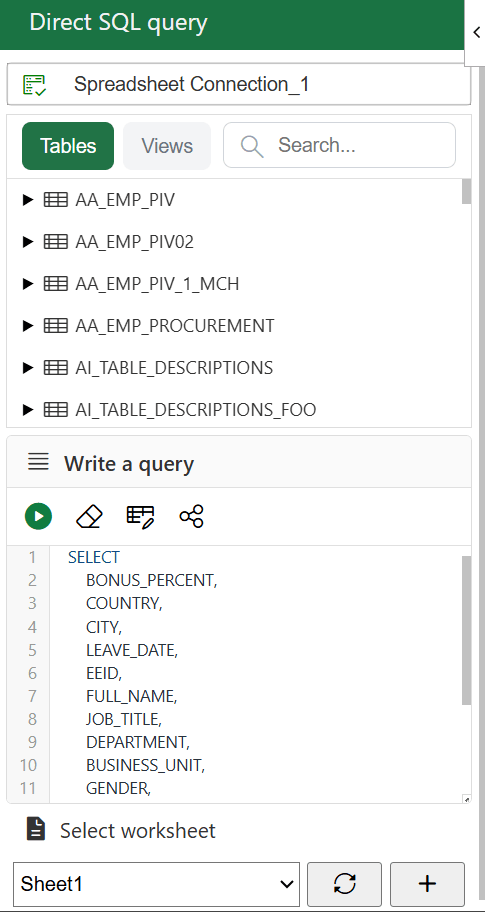
The Direct SQL window displays the existing tables in the schema by default. Click Views to display the existing views. You can select the object that you want to query, for example, query all columns from a table or query a specific column. Similarly, you can query all columns from a view or query a specific column. You can also use the search box to search for tables and views.
-
Right-click the object that you want to query and click Select.
To query all columns of a table, right-click the table under Tables and click Select. To query a specific column of a table, click the table to expand, right-click the column and click Select. Similarly, you can select views and its columns.
The query editor under the Write a query section gets automatically populated with the SQL query for the selected object. You can use the autogenerated query or modify it in the query editor.
If you select another table or object, it refreshes the SQL query in the query editor.
-
In the Select worksheet option, select the sheet where you want to retrieve and display the query results.
-
Click Run to run the SQL query.
Note:
You cannot run an empty query. If the query editor under Write a query is blank and you click Run, the add-in displays an error.
The add-in displays data from your query result in the selected sheet.