19.13.7.2 Run Natural Language Queries
Spreadsheet Add-ins provide a Natural Language option for running queries on Oracle Autonomous AI Database with Artificial Intelligence (AI) assistance.
You can enter a plain-language prompt, generate the equivalent SQL, review or edit the generated SQL, and run the query to display the results in a worksheet.
Prerequisites
To use the Natural Language panel in
Spreadsheet Add-ins configure an AI Profile using GUI options or the
DBMS_CLOUD_AI package. For more information, see
If an AI Profile is not available, the add-in does not open the Natural Language panel and displays instructions to configure an AI Profile. See Create an AI Profile.
After an AI Profile is ready, the Data Studio tool uses the profile in the Data Studio Settings menu to configure access to a Large Language Model (LLM) for generating, running, and explaining SQL from natural language prompts.
Note:
You can run Natural Language queries on tables and view, but not on Analytic Views.
Generate SQL Queries from Natural Language on Tables
Note:
Connect to your database from a spreadsheet to use the features of the add-in.
-
Start Microsoft Excel or Google Sheets and open a workbook.
-
From the Oracle Database menu select Natural Language.
-
From Select Objects, select one or more tables or views to use for the query and select the AI Profile from the list.
For example, to view details of the movie with highest sales, enter the following query in the query display area:
show movie with highest sales - Select Generate SQL from natural query
to produce the equivalent SQL query in the bottom query display area.
You will view the following code in the bottom SQL code area.
SELECT
    *
FROM
    "MOVIESTREAM"."MOVIESALES_WEEKEND_USA" MS
WHERE
    MS."SALES_AMT" = (
        SELECT
            MAX("SALES_AMT")
        FROM
            "MOVIESTREAM"."MOVIESALES_WEEKEND_USA"
    )
Note:
Review the generated SQL before running it. AI-generated SQL may not always reflect the intended query.
- Selecting the Generate SQL from natural
query icon also displays the result of the Natural Language query in the
worksheet.
You can click the + sign beside the Select worksheet drop-down to display the results in a new worksheet.
- Click Clear query content to clear the content displayed on the Natural Language query area and the SQL code query area.

Actions for Generated SQL
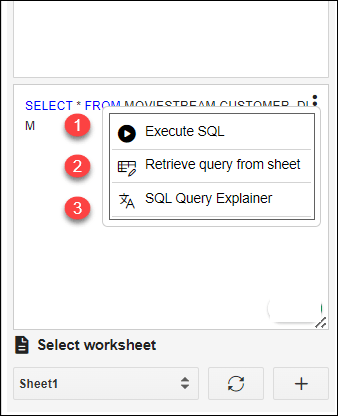
After you generate a SQL statement from a Natural Language query, click the three dots on the right to use the following options:
- Execute SQL: Runs the SQL statement and displays the query results in the worksheet.
-
Retrieve query from sheet: Copies the SQL statement from the query result and displays it in the SQL code area, where you can edit and run it again.
- SQL Query Explainer: Translates the SQL statement into a plain-language explanation and displays it in the Natural Language query area.
Ask Questions with Chats
Chats option in the Natural Language window refer to an interactive conversation between you and Spreadsheet Add-ins where the add-in uses Natural Language to query or interact with the Autonomous AI Database.
The data we use in this example
is of a company called Oracle MovieStream to analyze
movie sales data.
The Chats displays recommendations for the default table you select.
- Enter the following in the chat
window.
What are the top 5 movies by Weekend Gross? -
Press Enter.
-
The Chat displays top 5 movies by Weekend Gross.
It also displays equivalent SQL code of the result.
-
Click SQL to expand the SQL.
Click Copy to clipboard to copy the SQL.
Click Run SQL to run the generated SQL query and display the query result in the spreadsheet.
The Chats option remembers the context of previous chat history.
For example, if you enter
now show me
                                top 10
in the text field.It displays the top 10 movies by Weekend Gross. It remembers which metric top 10 to fetch without us having to type the whole thing.
Select New Chat for deleting the present conversation.
Select Home to go back to the main home page.


Note:
LLMs can infer intent from natural language but they are not perfect. Always review generated SQL and verify query results before using them.