19.13.2.1 Download Spreadsheet Add-ins from Database Actions
You can download Oracle Database for Spreadsheet Add-ins from Database Actions and install the add-in on a spreadsheet application.
Note:
The download option for Spreadsheet Add-ins in the Database Actions console is available only if a user has the ADPUSER role.
Prerequisites
To download, install, and use Spreadsheet Add-ins:
-
You must have an Oracle Cloud account to access the Database Actions console.
-
An
ADMINuser must grant theADPUSERrole to the user.
Grant the ADPUSER Role
Log in to the Database Actions console as an
ADMIN user in a web browser, if not already logged in.
-
From Database Actions Launchpad or the home page, go to the Development tab > SQL to open a worksheet.
-
Run the following to grant the role to specific users.
-
Grant
ADPUSERto a single user.Grant ADPUSER to USER_1; -
Grant
ADPUSERto multiple users.Grant ADPUSER to USER_1, USER_2, USER_3, USER_X;
-
The users can now download the Spreadsheet Add-ins from Database Actions and install the specific add-in for the corresponding spreadsheet application.
Steps to Download Spreadsheet Add-ins
Log in to the Database Actions console as the user who has the ADPUSER
role.
- From Database Actions Launchpad go to the Downloads tab.
- Under Download Microsoft Excel/Google Sheets Add-in,
click the Download button.
- On the Microsoft Excel tab click
Download Add-in to download the Add-in for Excel installer.
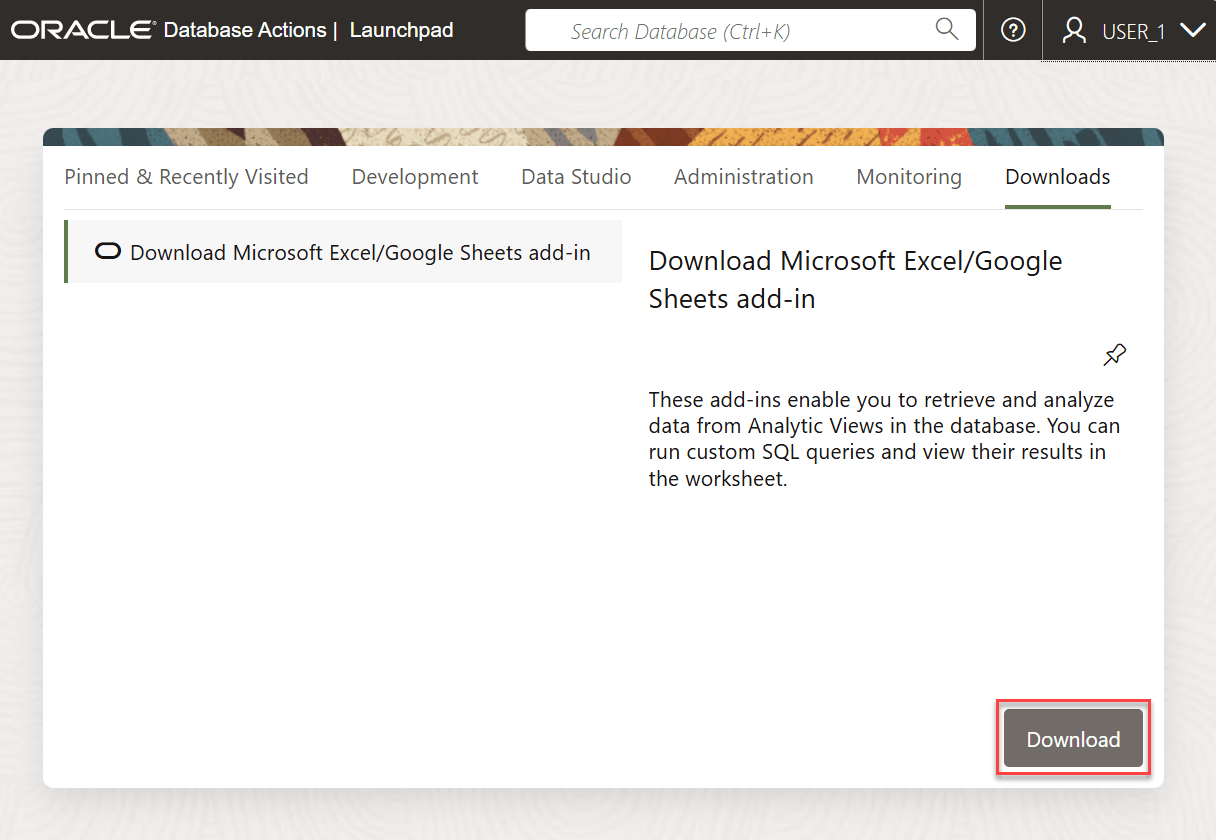
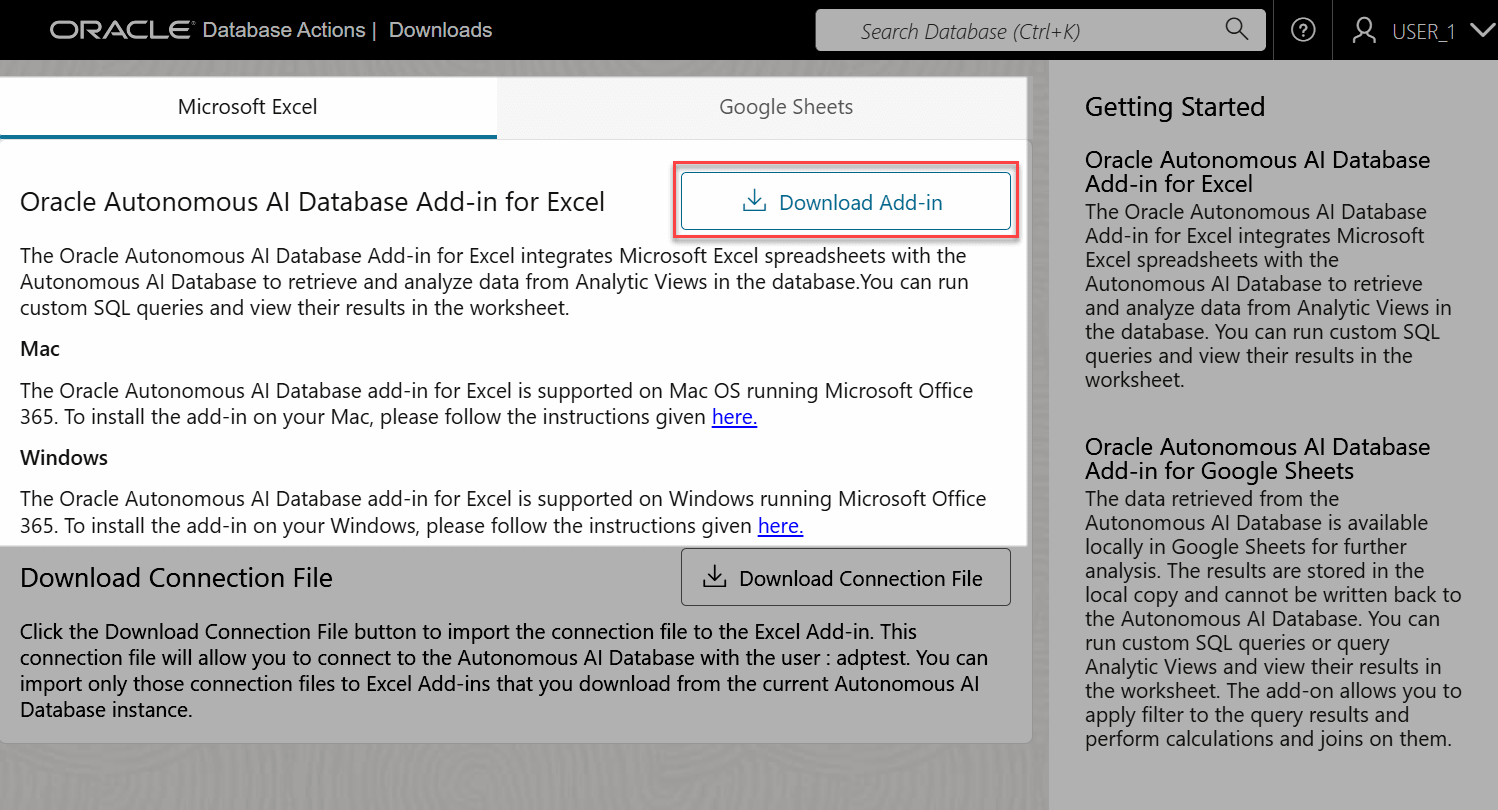
Save the compressed file containing the add-in installer on your system. Similarly, you can download Add-on for Google Sheets from the Google Sheets tab.
Extract the files from the add-in installer compressed file and install the add-in on your spreadsheet application.
The Spreadsheet Add-ins Installer
When you download a Spreadsheet Add-ins installer from Database Actions, the contents of the compressed file depend on the type of add-in, Microsoft Excel or Google Sheets and the operating system, Microsoft Windows or Apple Mac.
-
The installer file for Microsoft Excel is
oracleplugin.zip.The add-in installer for Microsoft Windows is
install.cmdand for Apple Mac isinstall.sh. The compressed file also contains additional files,manifest_HOSTNAME.xml, whereHOSTNAMEis the server name, and a readme file.For installation steps, see Install Add-in for Microsoft Excel from Trusted Catalogs.
-
The installer file for Google Sheets is
oracleGoogleAddin.zip. The compressed file contains the files required for installing Add-on for Google Sheets and a readme file.For installation instructions, see the readme file included in
oracleGoogleAddin.zip.