19.13.4 Manage Connections
Use the Connections options to manage the connections in Spreadsheet Add-ins.
The Connections panel provides complete control of connections in Spreadsheet Add-ins. It allows you to perform various administrative actions, such as:
-
View existing Connections in the add-in
-
Import and export Connections
-
Add a new connection manually
-
Modify, duplicate, and remove Connections
-
Connect to a database instance.
Note:
When you run a repair installation of Add-in for Excel, if it removes the existing connections from the add-in, import the connections again.
Import a Connection
You can import a connection file into Spreadsheet Add-ins that you downloaded using Connect to Autonomous AI Database from a Spreadsheet. It is a quick way to add a new connection in Spreadsheet Add-ins without manually entering the connection information.
-
Start Microsoft Excel or Google Sheets and open a workbook.
-
From the Oracle Database menu select Connections.
Note:
After installing Spreadsheet Add-ins, when you open Connections for the first time, it displays the Welcome panel. Click Get Started and start managing Connections.
The Connections panel displays if there are any existing connections.
-
Click Manage Connections and select Import Connection.
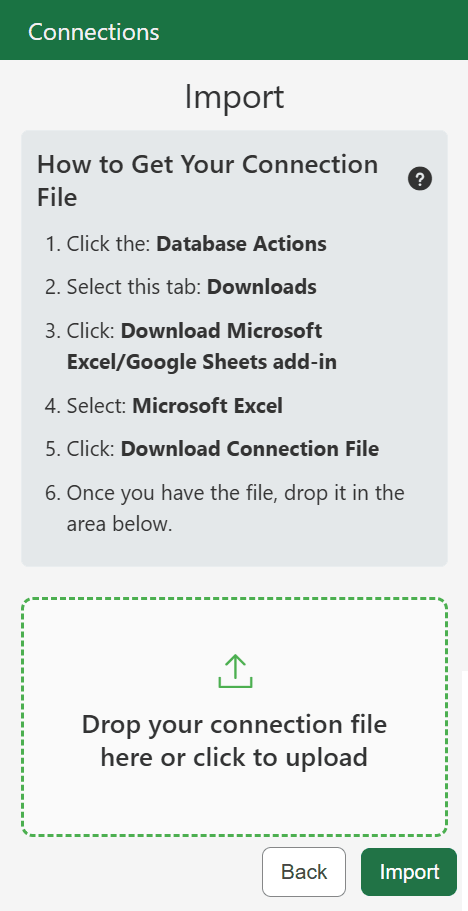
The Import panel displays instructions how to get a connection file.
-
Select the connection file to import. You can select multiple connection files and import them to the add-in.
You can either click the area below to browse your local system or drag and drop the connection file or files directly into this area. The Import panel displays all the connections you selected.
-
Select the connections that you want to import.
-
Click Import.
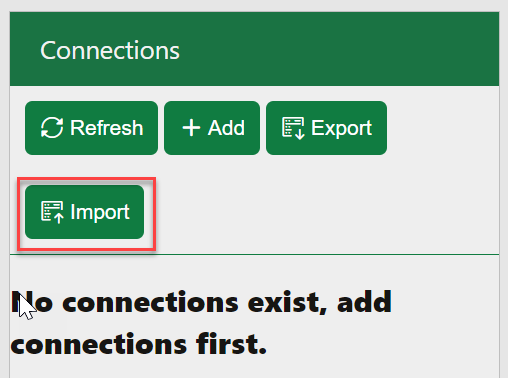
Spreadsheet Add-ins imports the selected connections and displays them in the Connections panel.
Note:
If you import a same connection file again, it does not overwrite the existing connection but creates a duplicate connection.Export a Connection
-
From the Oracle Database menu select Connections.
-
Click Manage Connections and select Export Connection. The Export panel displays the existing connections in the add-in.
Note:
The Manage Connections menu displays the export option if there are existing connections in the add-in.
-
Select the connections that you want to export. You can select multiple connections and export them to a JSON file.
-
Click Export.
The add-in exports the selected connections as a single JSON file, named
spreadsheet_addin_connections.json.
In Microsoft Excel, the connection file is saved to
the Downloads folder. In a web browser, the file is saved according to the
browser settings, usually in the Downloads folder, but you can select a
different location.
Spreadsheet Add-ins support the latest versions of Apple Safari, Google Chrome, Microsoft Edge, and Mozilla Firefox.
Add a New Connection
From the Manage Connections menu, you can select Add Connection and specify the following information to create a new connection manually. However, generating and importing a connection file is more convenient and helps minimize manual entry errors.
-
Connection Name: Enter a unique name. Two connections cannot have the same name.
-
Database URL: Enter the database URL.
-
Schema Name: Enter the schema or database user name.
-
OAuth Client ID: Enter the OAuth Client ID.
-
Connection Type: You can select from the following options:
-
Database: Select this if you want to use database user credentials.
-
OCI IAM: Select this if you want to use an Oracle Cloud Infrastructure authentication.
-
Click Save to create the connection.
Manage Connections
-
From the Oracle Database menu select Connections. The Connections panel displays the existing connections in the add-in.
-
Click the three vertical dots next to a connection name and select from the following options:
-
Connect: Connects to the database instance.
It opens a new window and prompts you to provide the login credentials. On successful connection, it displays a green tick next to the connection. The connection displays a cross when it is inactive or the information is incorrect. If you try to connect with incorrect information, the connection returns an error.
You can connect multiple databases and users simultaneously; however, only one connection can be active at a time. The Connections panel highlights the active connection in green. You can use the features of Spreadsheet Add-ins only if the database connection is active.
-
Disconnect: Disconnects the database connection.
The duration for a connection to remain connected is 60 minutes. After that, the add-in automatically disconnects the database. However, you can use this option at any time to manually disconnect from the database. To continue using the add-in features, you must reconnect to the database.
-
Reconnect: Reconnects to the database.
You can use this option after manual or automatic disconnection, or even for an active connection.
-
Activate: Activates a connection.
If multiple databases are connected simultaneously, you can use this option to switch the active connection. The database must be connected to activate a connection.
-
Edit: Modifies the connection information.
If the database is connected, you must disconnect to edit the connection.
-
Duplicate: Creates a copy of the connection.
-
Remove: Deletes the connection from the add-in.
You can remove a connection whether it is active or inactive and even if the database is connected. It displays a confirmation window before removing the connection.
-