19.13.3 Connect to Autonomous AI Database from a Spreadsheet
Connections are the means of communication with your database. They contain information that helps authenticate with database instances and access data from a spreadsheet.
About Connections
The Connections panel in Spreadsheet Add-ins enables you to create and manage database connections. Whenever you connect to a database, Spreadsheet Add-ins prompts you to authenticate. After you provide the login credentials, the add-in establishes the connection to the database and you can use the features of the add-in.
Note:
Spreadsheet Add-ins allow connections to multiple databases and users simultaneously; however, only one connection can be active at a time.
Types of Connections
Spreadsheet Add-ins provides the following types of connections:
-
Using Database Credentials
This is an OAuth2 implicit flow, managed by the ORDS security package. See Manage Connections.
-
Using IAM Connection
This type of connection uses IAM authentication or domain login. See Use Role-Based Access Control for IAM Authentication.
To use the Connections option in Spreadsheet Add-ins, you need a connection file that contains information about the database connection. You can download the connection file from Database Actions.
Note:
Connections that use database credentials require OAuth Client to implicitly sign-in to the database. Starting with ORDS 26.1.1, implicit OAuth is disabled by default. Therefore, existing connections in your add-in might fail to connect.
To resolve this, download the connection file from Database Actions and import it into the add-in. The first time you use the new connection, it may take up to 10 minutes to enable the connection. If you download the connection file again later, it connects to the database immediately.
Steps to Download Connection File
Log in to the Database Actions console as the user who has the ADPUSER
role.
-
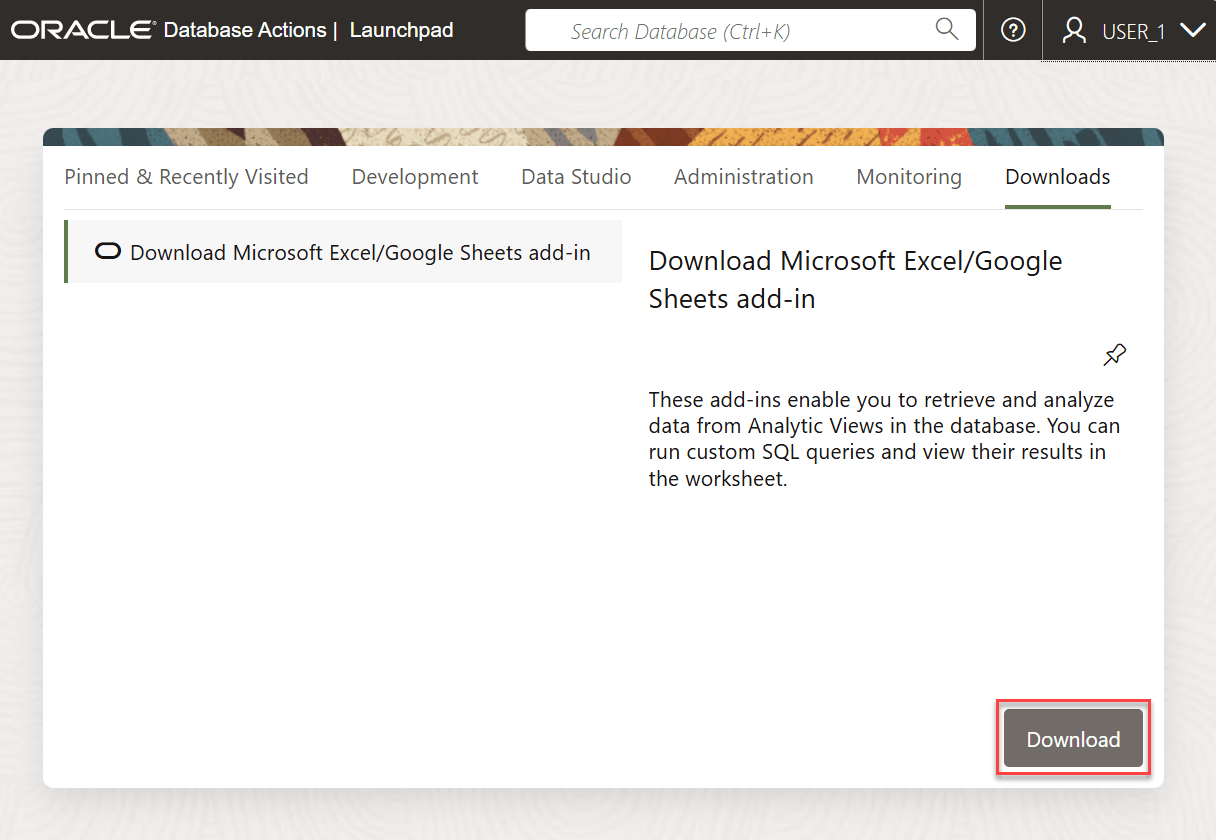
From Database Actions Launchpad go to the Downloads tab.
-
Under Download Microsoft Excel/Google Sheets Add-in, click the Download button.
-
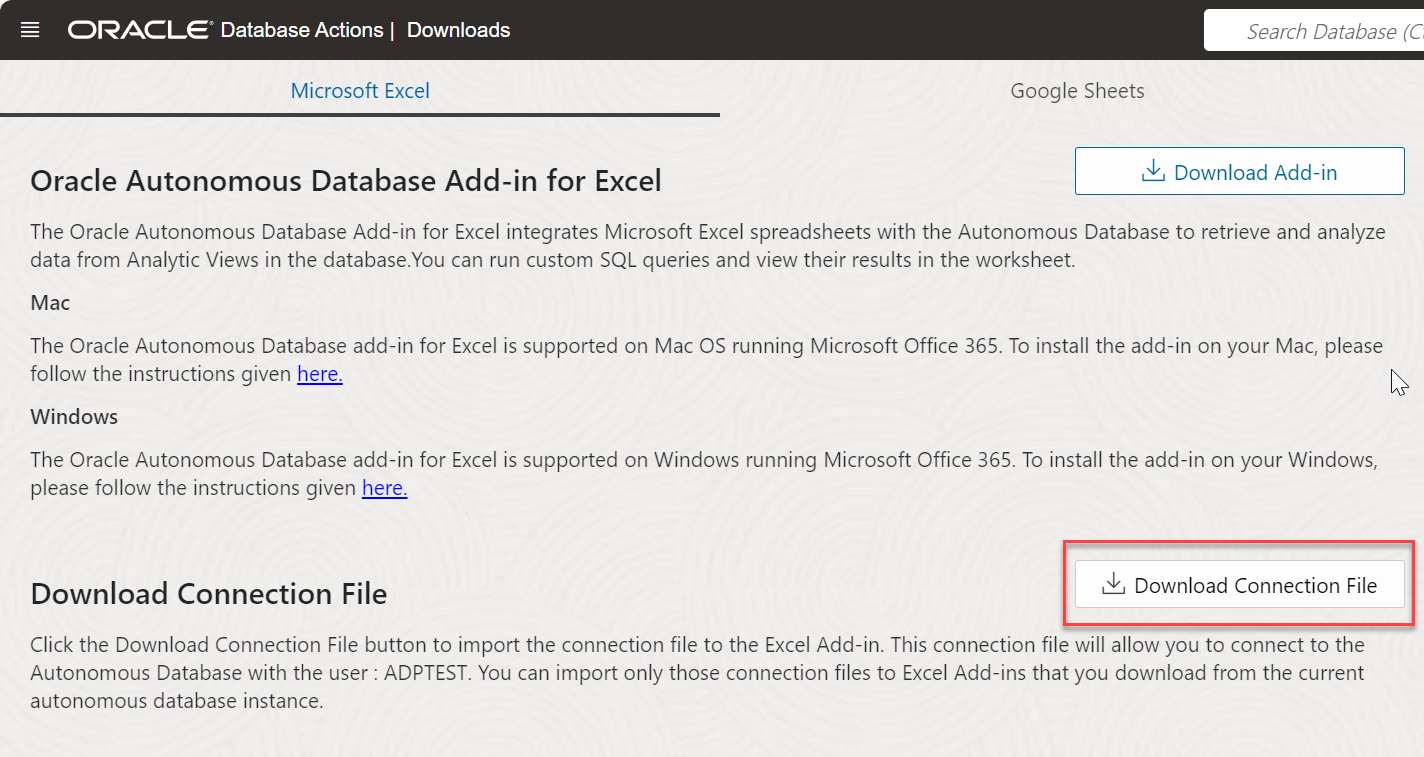
You can download the connections file from either tab, Microsoft Excel or Google Sheets.
Click Download Connection File to save the connection file in JSON format.
The connection file allows you to connect to the Autonomous AI Database with the logged-in user.
Save the connection file on your system and import it into a spreadsheet application. See Manage Connections.