19.13.2.4 Install Add-on for Google Sheets from Google Workspace Marketplace
Describes how to install Add-on for Google Sheets
 from Google Workspace Marketplace online
store.
from Google Workspace Marketplace online
store.
Note:
The add-on requires Google Workspace Marketplace permissions to function. If installation is blocked, contact your IT or system administrator.
Prerequisites
To install an add-on (or extension) on Google Sheets you must have an active Google account.
Installation Steps
Log in to your Google account in a web browser and open a Google Sheet.
Spreadsheet Add-ins support the latest versions of Apple Safari, Google Chrome, Microsoft Edge, and Mozilla Firefox.
-
Click the Extensions menu, select Add-ons and click Get add-ons.
-
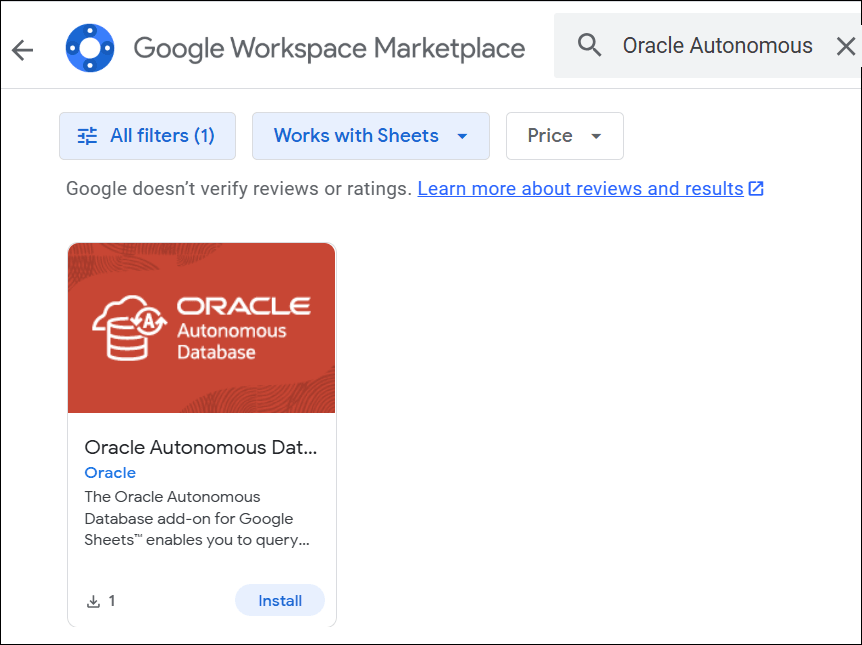
In the Search apps field next to the magnifier icon enter Oracle Database or Oracle and click the magnifier or press Enter.
Look for Oracle Database Add-on for Google Sheets in the search results.
-
Click Install on the add-on to start the installation.
-
Google Workspace Marketplace displays a message regarding terms of service and privacy policy. See Oracle's license terms and Privacy Policies and Contact Details.
If you agree click CONTINUE to proceed with the installation. It opens a new window for the sign in page with your Google account.
-
Optionally, the sign in page may automatically display your Google account or you can use another account for the installation. Click Continue.
-
Google asks permission to allow the add-on to access your Google account and perform various functions. Select the permissions that you want to grant to the add-on and click Continue.
Google displays a message window that the add-on has been installed. Close the message window and close Google Workspace Marketplace.
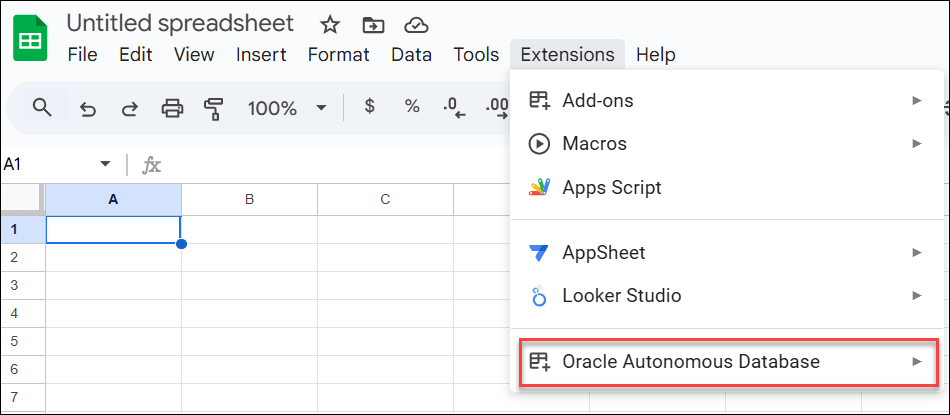
On successful installation, a new menu Oracle Database appears under Extensions in Google Sheets.
See Also:
To uninstall the add-on see Remove Spreadsheet Add-ins.