2.2.8.1 Identify Failed Tasks in a Workflow Execution
If a workflow execution fails, review the Timeline tab and status indicators to quickly locate failed tasks, then refer to the Summary or Task List tabs for more troubleshooting details.
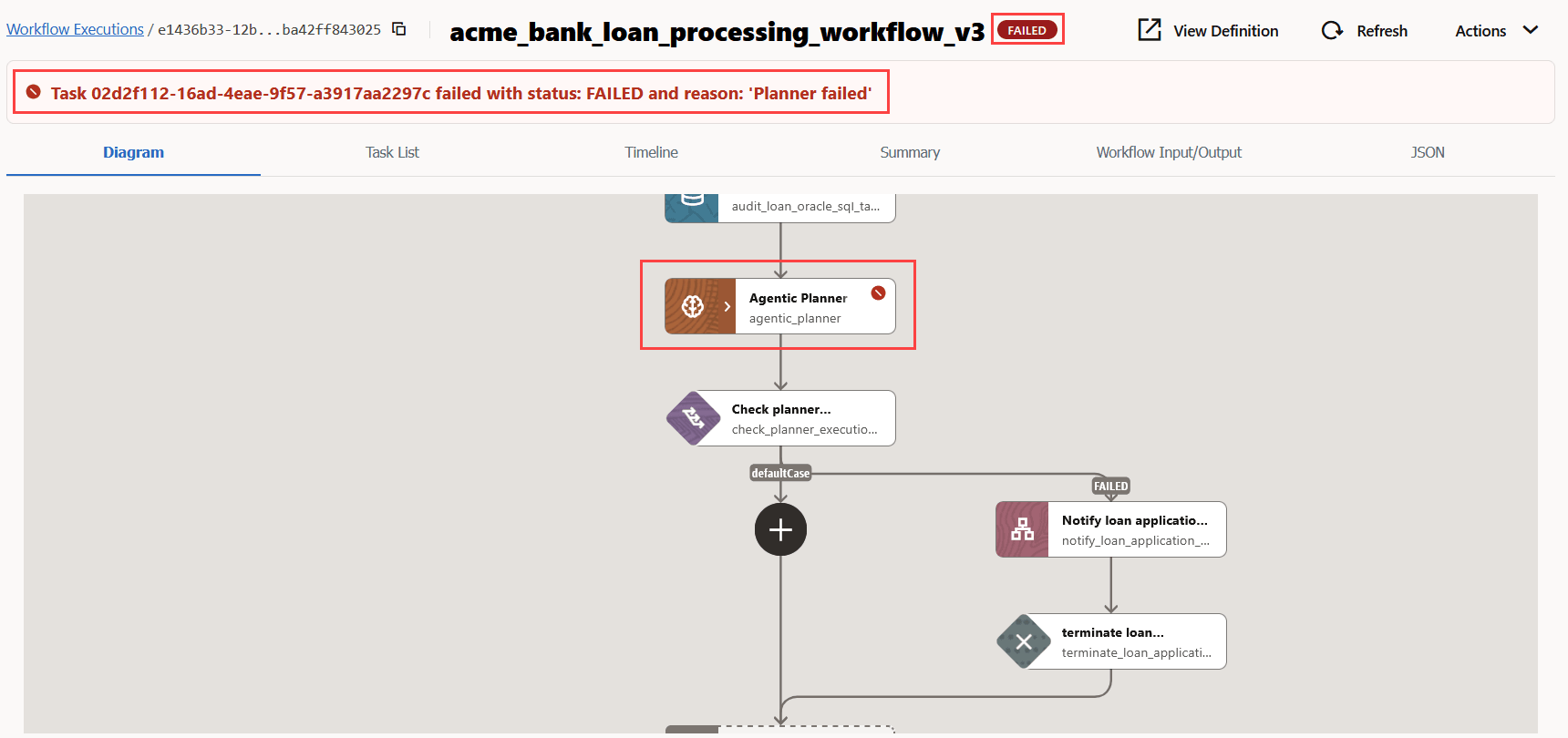
- Click the Workflow ID that you want to view.The status of the workflow execution and error message is displayed as shown in the following image for a sample workflow that validates documents and processes a bank loan. Note the status of the workflow execution and the error message. In the Diagram tab, you can identify the task that failed.
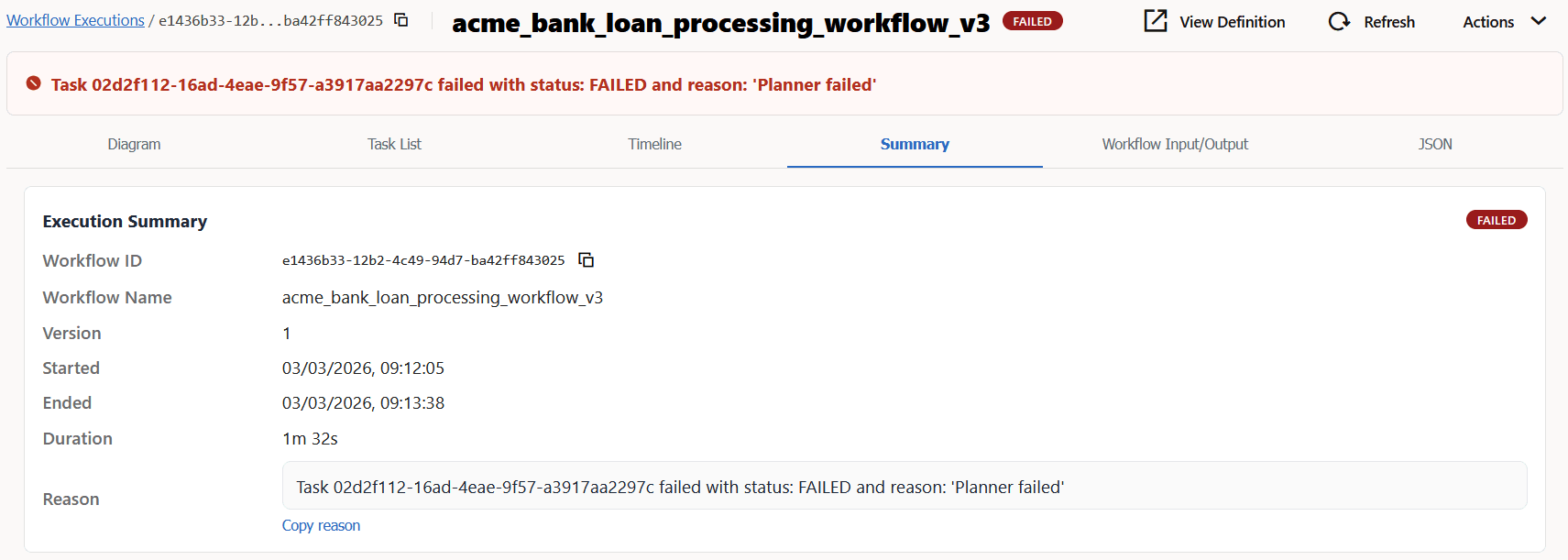
- Click the Summary tab. The Reason
field describes the cause for failure.
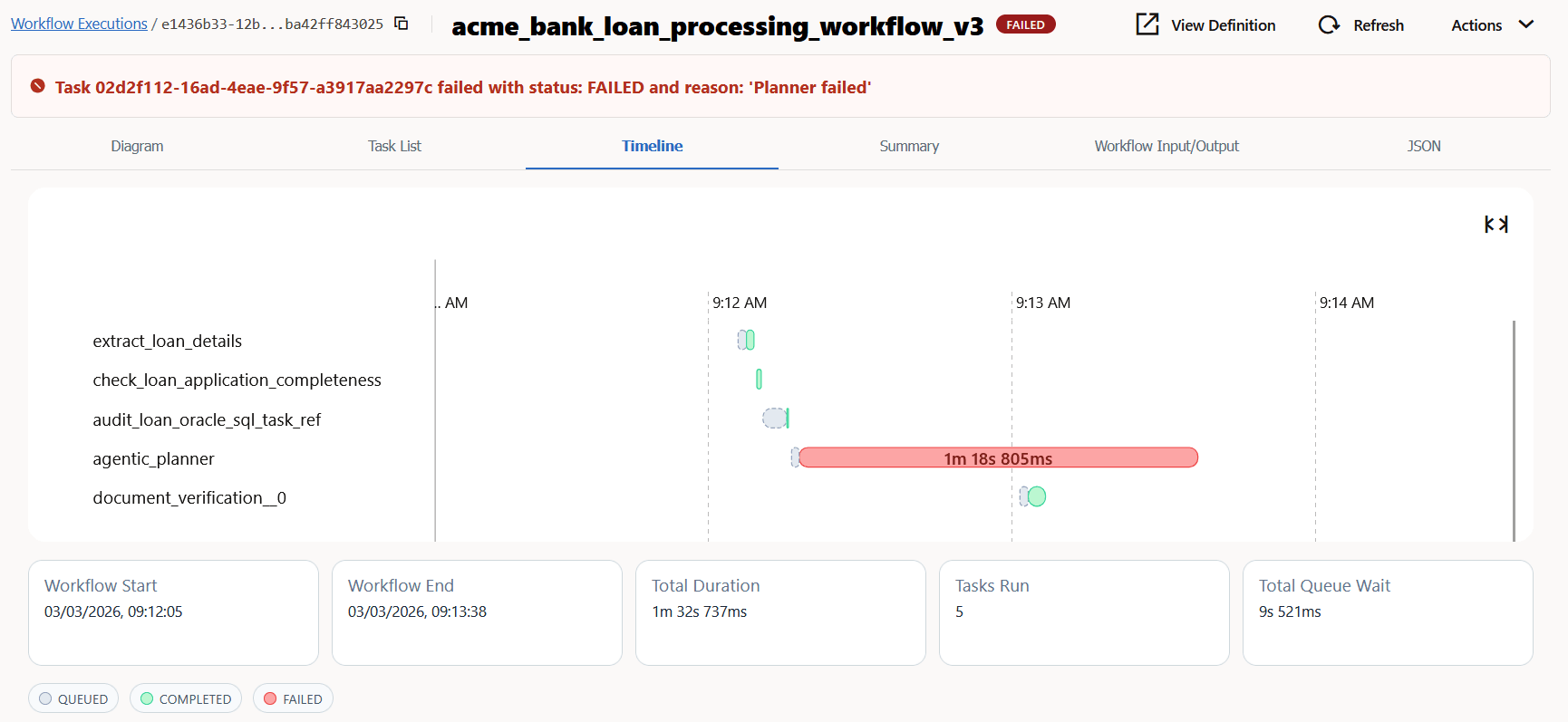
- Click the Timeline tab to see a visual representation of
the failed tasks on a timeline as shown in the following image.
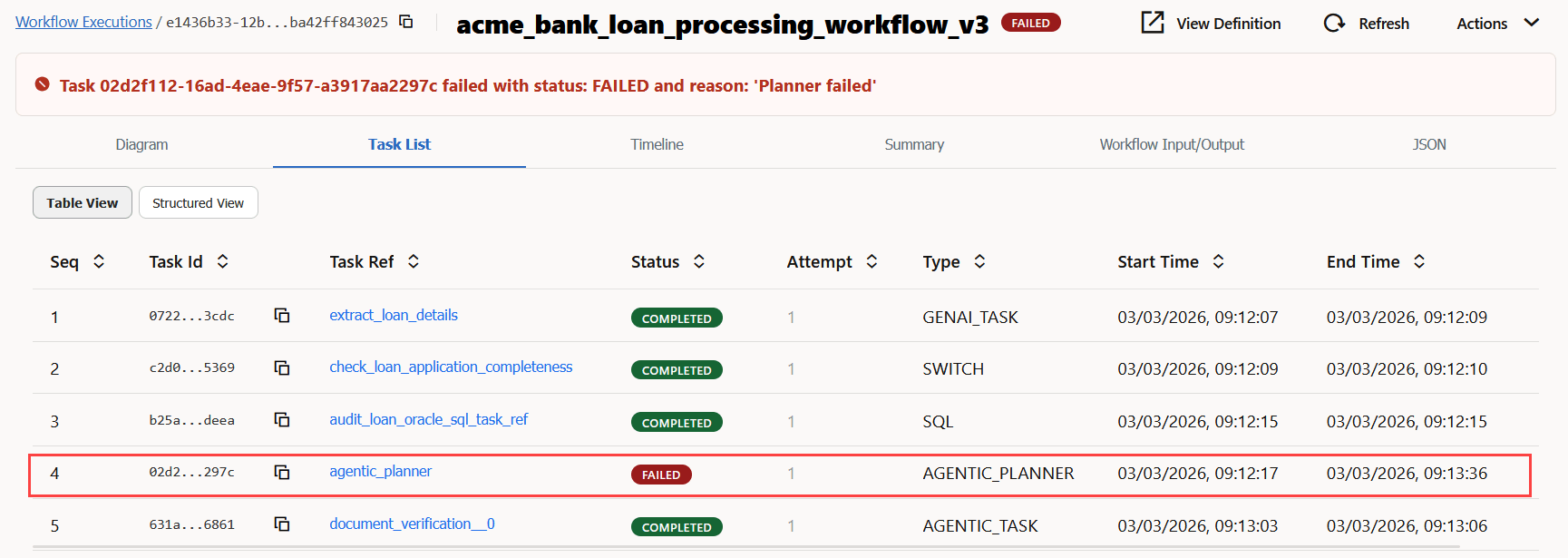
- Click the Task List tab to identify tasks in the failed
status as shown in the following image.
- Click the task reference for the failed task.
Details of the task are displayed in the right pane as shown in the following image.
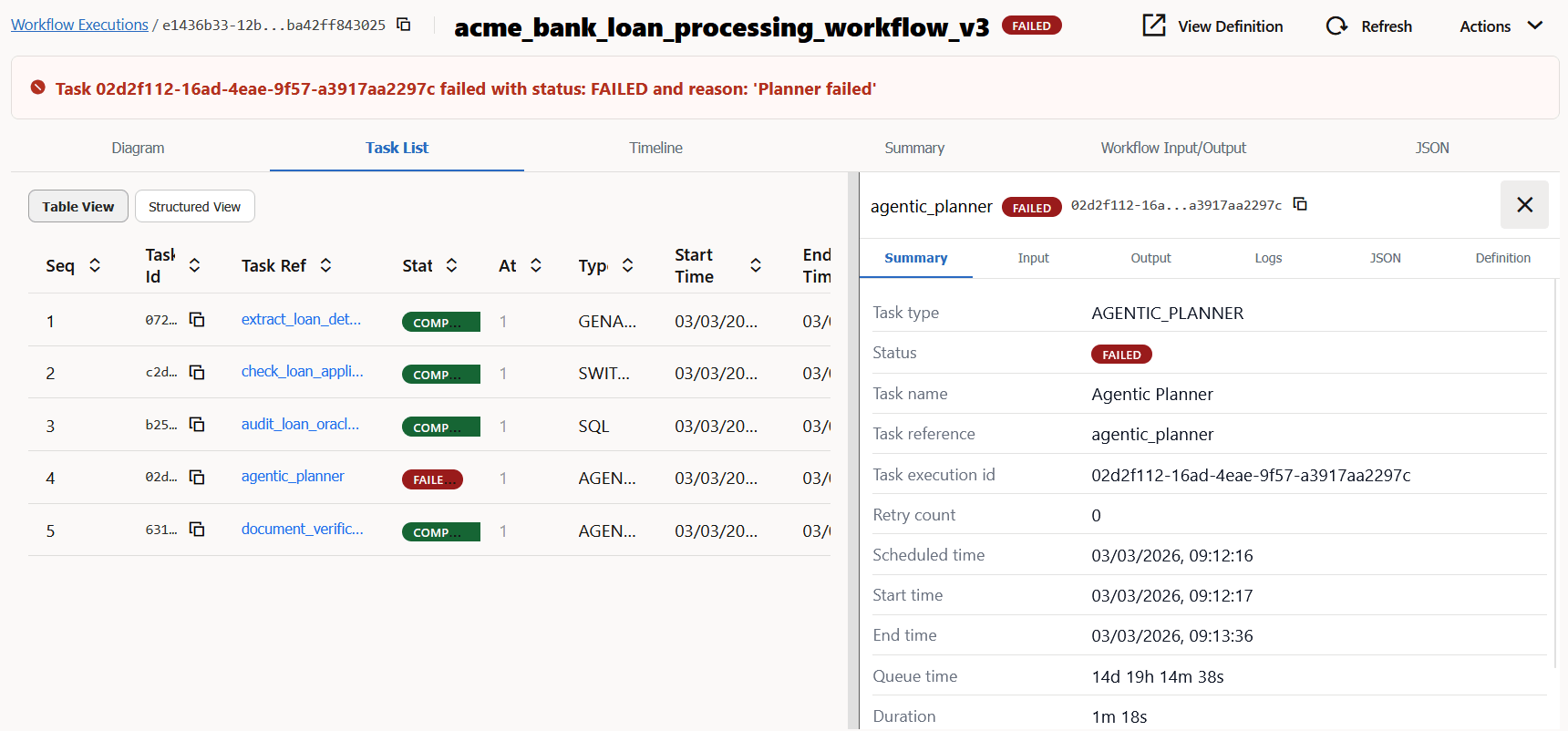
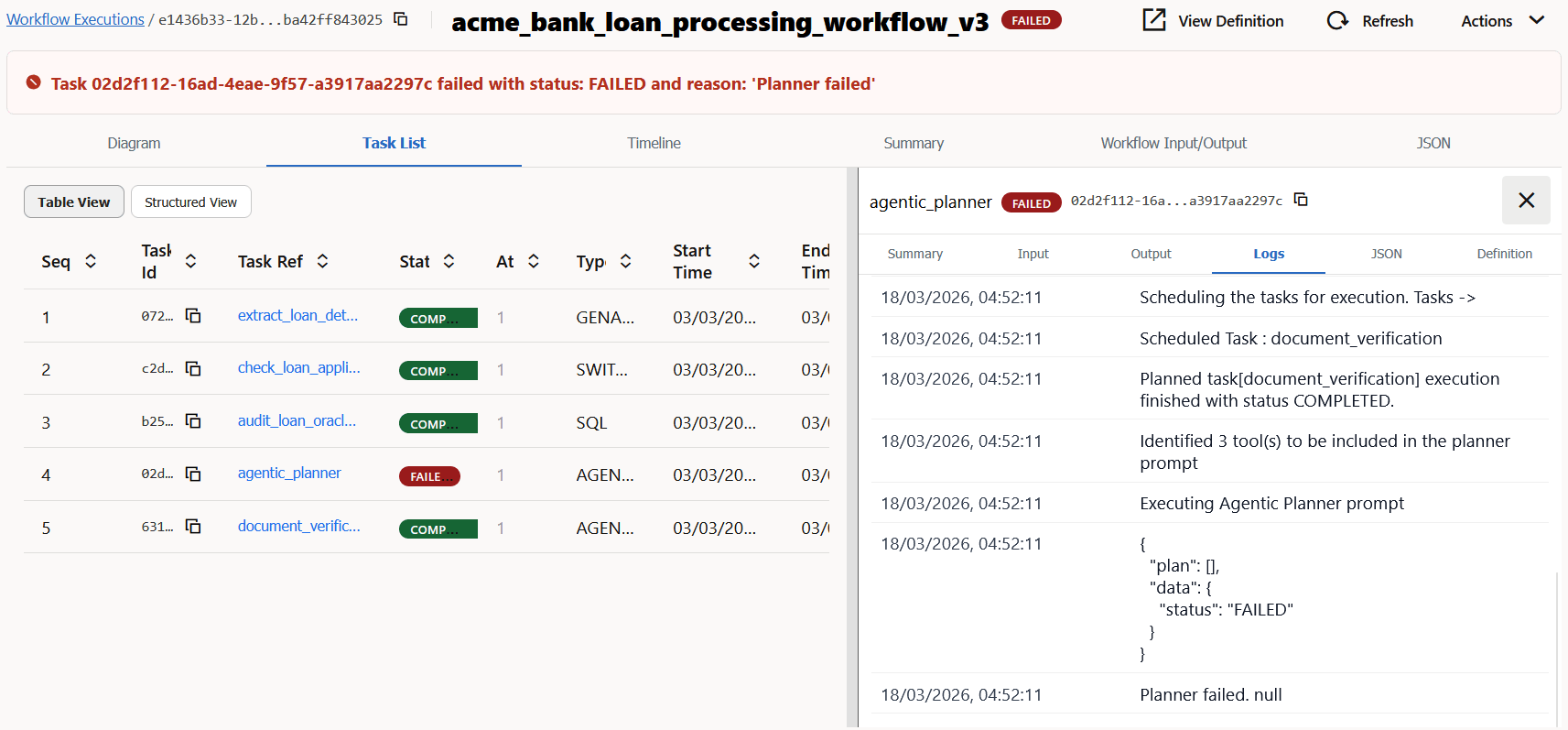
- Click the Logs tab in the right pane to view additional
details that can help you troubleshoot as shown in the following image.
Parent topic: Handle Workflow Execution Failures