2.2.5 View Details of a Workflow Execution
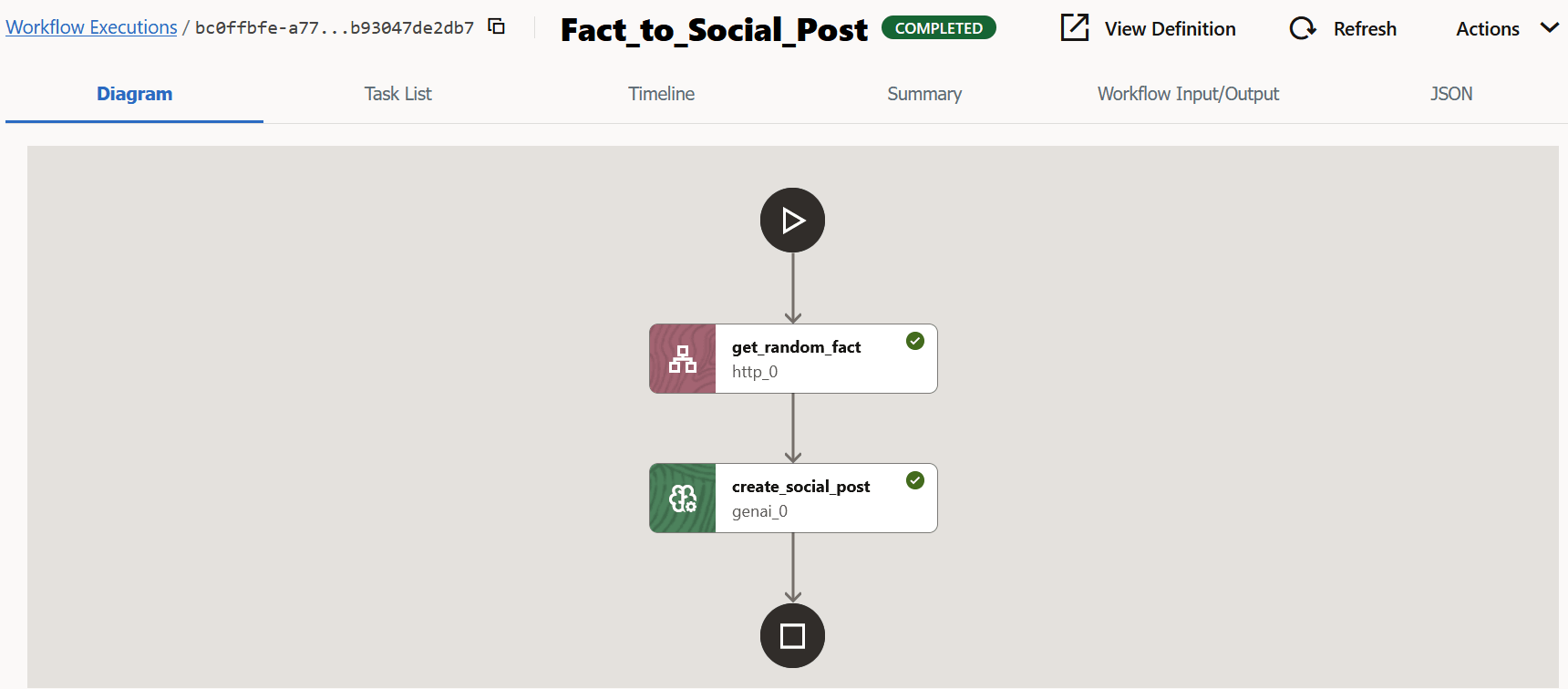
- The Diagram tab visually depicts all the components of a
workflow. A green check mark indicates that a task has been executed
successfully.
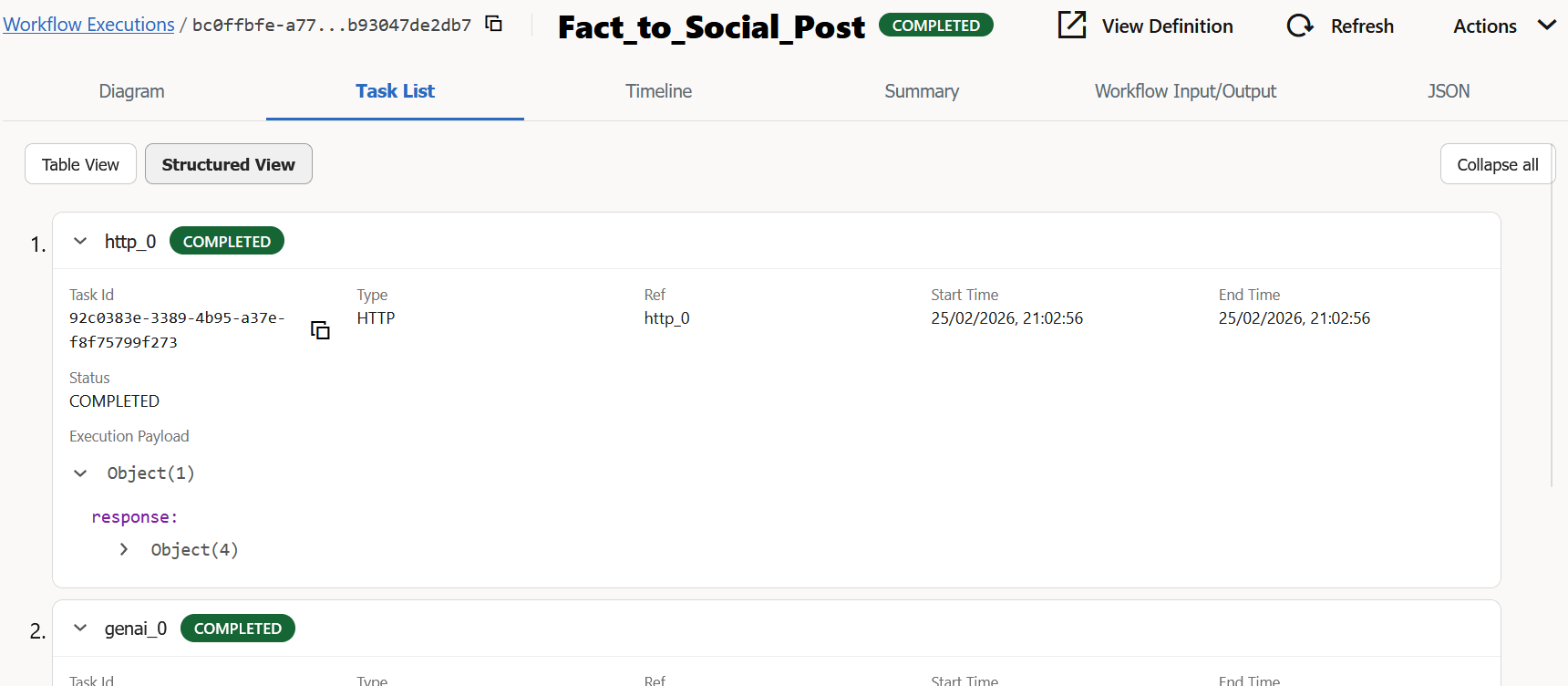
- Click the Task List tab to view a list of all tasks and
their details as shown in the following image.
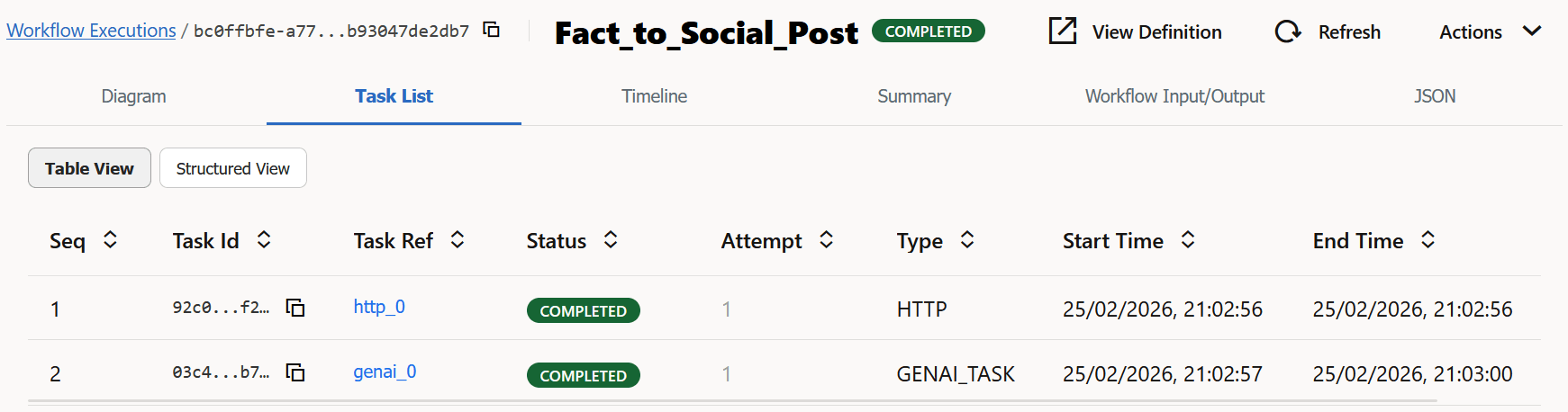
- Seq: Sequence in which the tasks were executed.
- Task ID: A unique value. Inside a workflow execution, task ID is created as a unique identifier for each task that runs inside a workflow execution boundary.
- Task Ref: A unique value that is used to refer to the task within a workflow.
- Status: Status of the task.
- Attempt: Number of retries, if any. 1 indicates that the task was executed successfully in the first attempt.
- Type: The type of task, such as Agentic Planner or GenAI.
- Start Time: The time at which the
task execution was started in the format,
dd/MM/yyyy,
                                HH:mm:ss
. For example,29/11/2025 17:40:56. - End Time: The time at which the task
execution was completed in the format,
dd/MM/yyyy,
                                HH:mm:ss
. For example,30/11/2025 13:07:03.
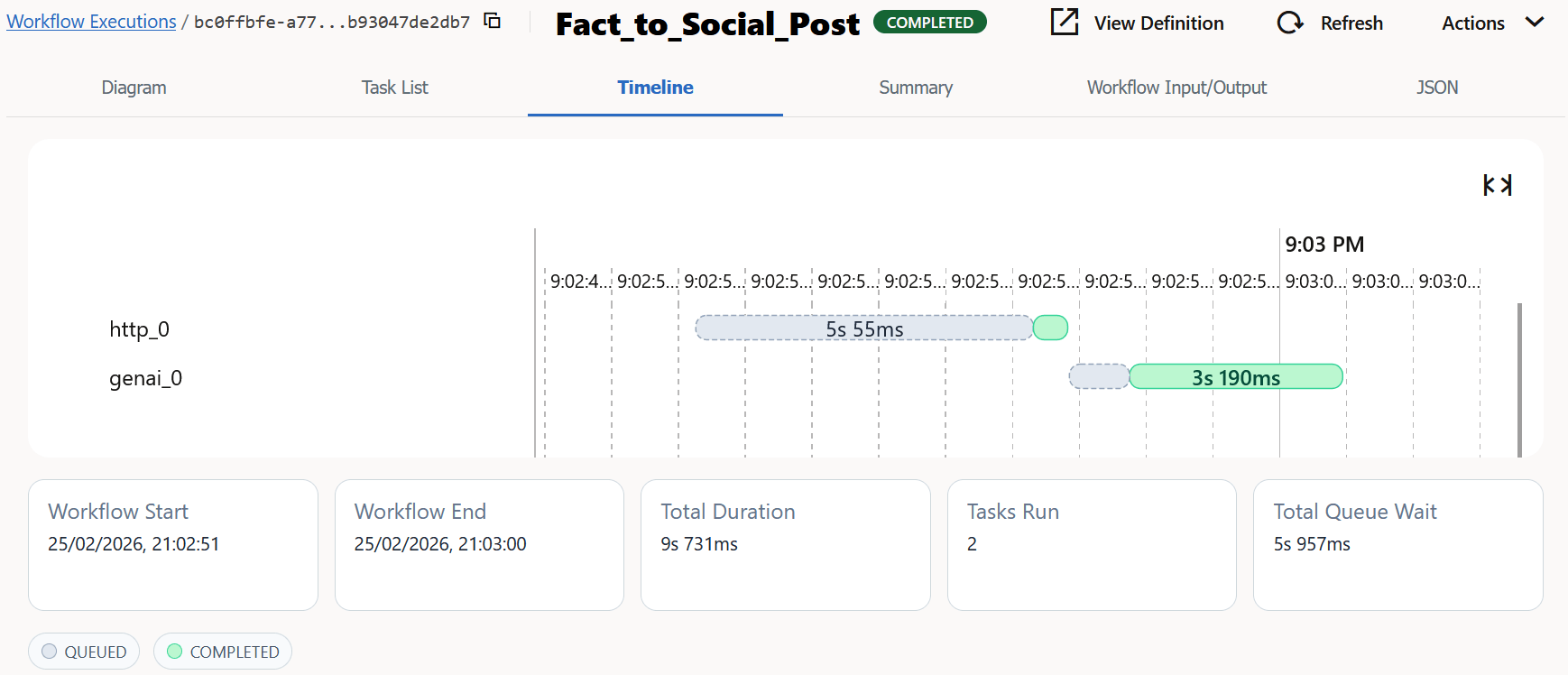
- Click the Timeline tab to see a visual representation on
a timeline about the time period taken to execute a workflow, when each task was
executed, how much time it took to run the task, and for how long the task had
to wait in queue. It also provides information about whether tasks were executed
in parallel or in sequence. Tasks are highlighted in different colors to
indicate whether the tasks were executed successfully.
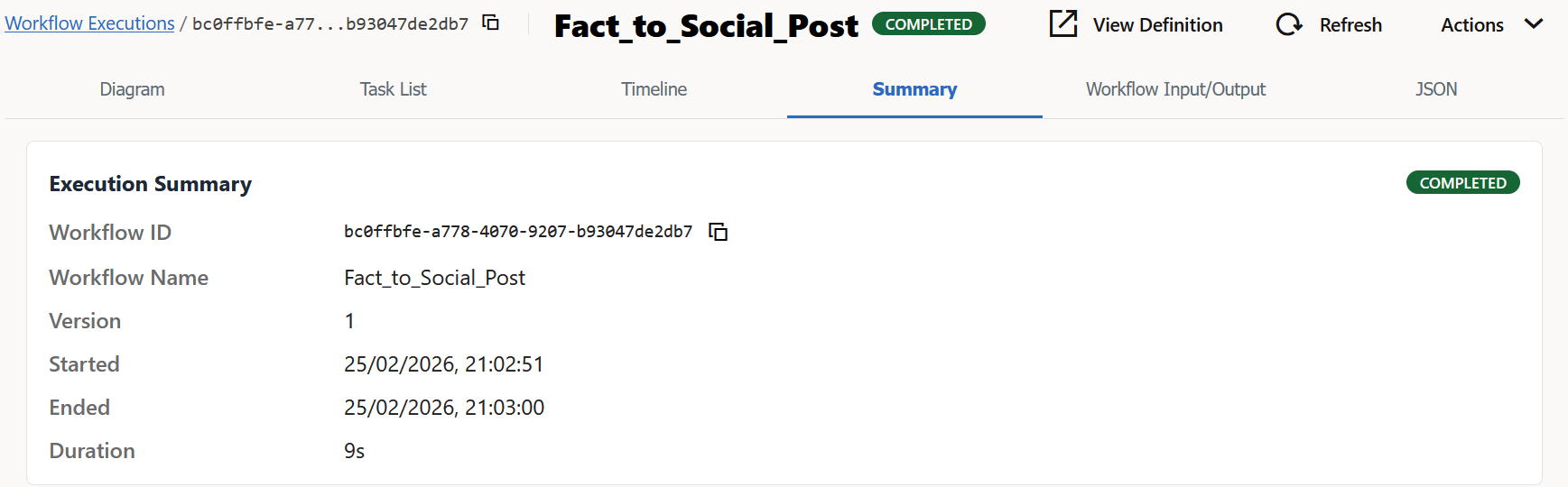
- Click the Summary tab to view details about the
workflow. If a workflow fails, refer to the information provided in the
Reason field to troubleshoot the workflow.
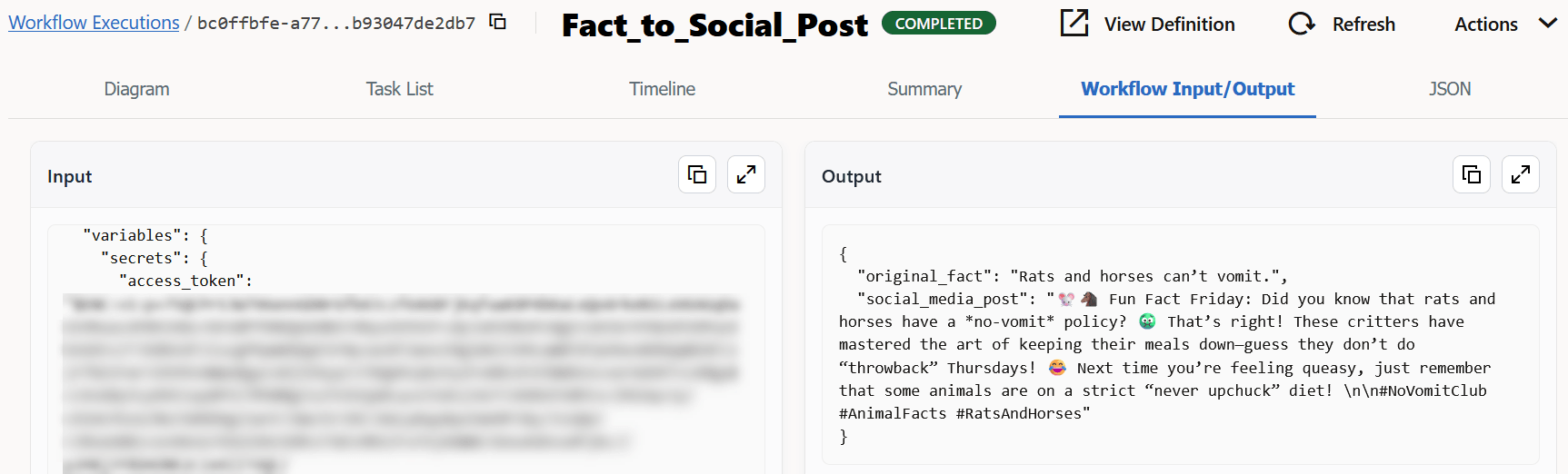
- Click the Workflow Input/Output tab to view the input
and output parameters of a workflow in JSON format.
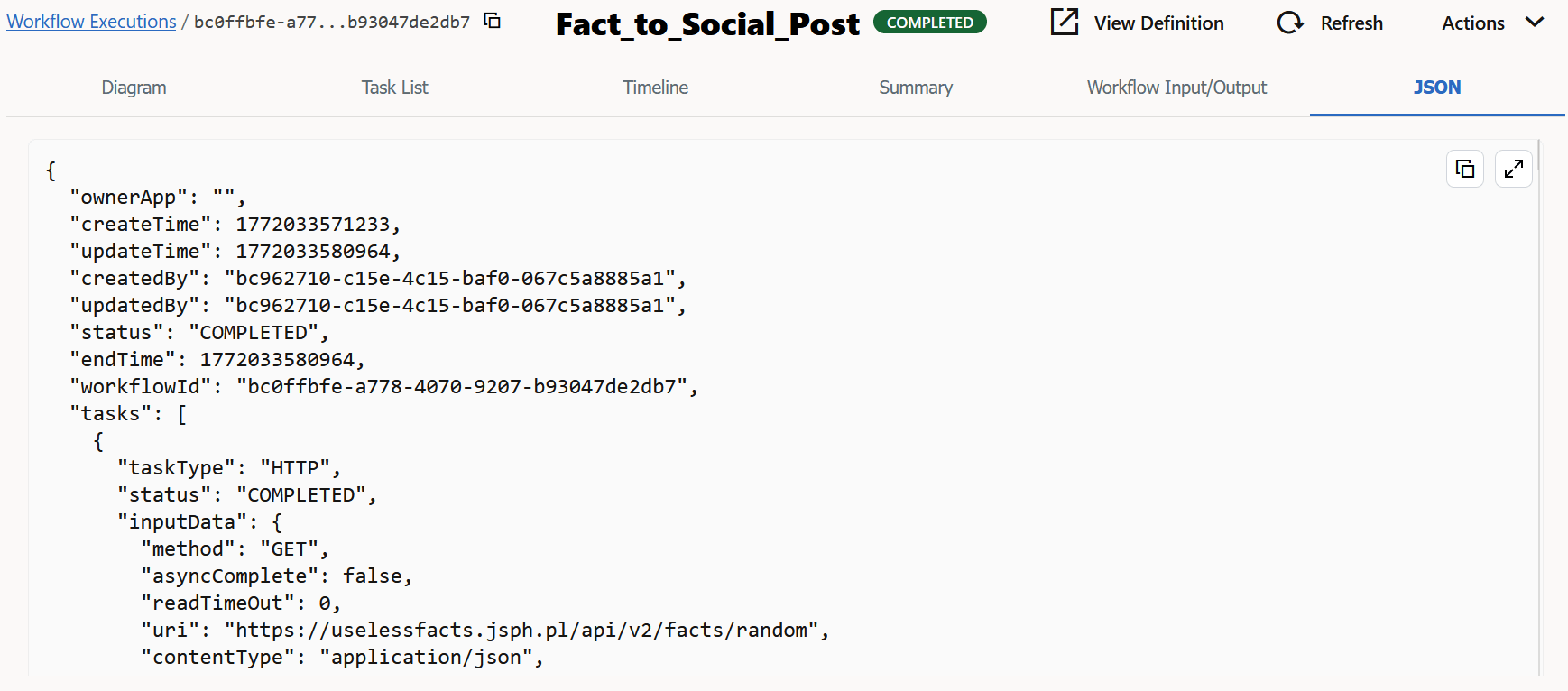
- Click the JSON tab to view the JSON code of the entire
workflow execution.
Parent topic: Manage Workflow Executions