2.1.1 Specify Values for Workflow Definition Options

Specify the workflow definition options before you add tasks and save the workflow.

A workflow definition describes how a workflow behaves when it runs. It includes the workflow name, version, task list, task reference names, input parameters, output parameters, timeout configuration, failure handling, owner details, and other execution metadata.

A workflow definition must include at least one task. If the workflow definition includes a collection of tasks, the definition determines the order in which the workflow executes tasks. A workflow definition may also define how to pass data and state from one task to another using input and output parameters.

You can create a workflow definition visually with Workflow Builder or by providing JSON. MicroTx Workflows validates workflow names, task names, and task reference names before creating or updating a definition.

To specify the workflow definition options before you add tasks and save the workflow:
  1. Open the navigation menu and click Definitions.
  2. Click the Workflows tab.

    The Workflows list page opens and displays the workflow definitions that have been created.

  3. Click add a new building block (Add New Workflow).
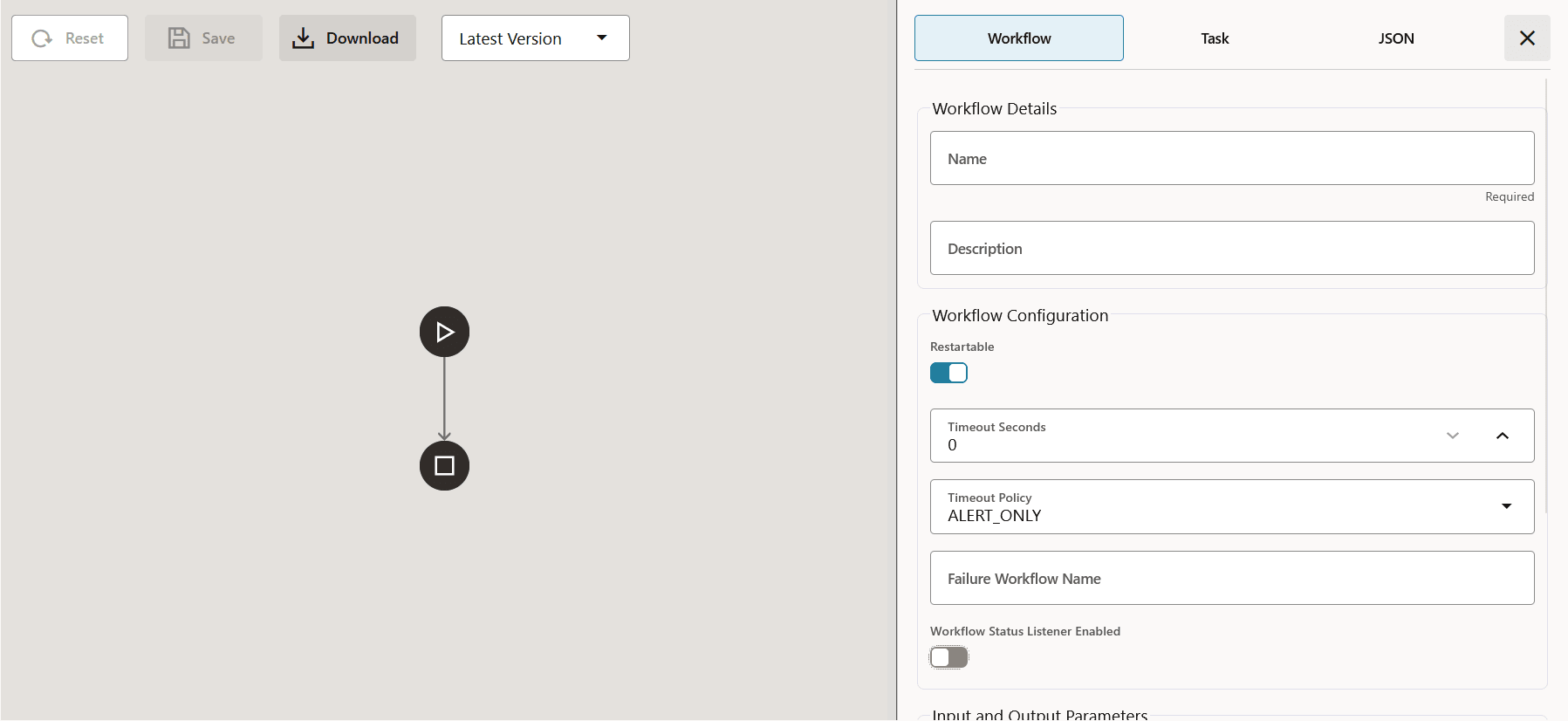
    The Workflow Builder opens and shows a visual depiction of all the components of the workflow. The Workflow tab displays the workflow definition options.
    Default workflow JSON

  4. In the Workflow Details group, enter the following information.
    • Name: Mandatory. Enter a unique name for the workflow definition. The name can be up to 128-characters long. Use only letters, numbers, underscores (_), and hyphens (-). Spaces and other special characters are not supported. You cannot change this name later.
    • Description: Optional. Enter a description for the workflow definition. The description can be up to 2048-characters long.
  5. In the Workflow Configuration group, enter the following information.
    • Restartable: Optional. Select this option to allow the workflow execution to be restarted. This option is enabled by default. When enabled, you can start restart workflows in COMPLETED, TERMINATED, FAILED, or TIMED_OUT state. When disabled, you cannot restart workflows.
    • Timeout Seconds: Optional. Enter a time period in seconds. The default value is 0, which means that there is no timeout and the workflow runs as long it takes to reach a final state, which may be days, weeks, or months.
    • Timeout Policy: Optional. Select the action performed when the workflow does not move to a final state within the specified timeout.
      • TIME_OUT_WF: Terminates the workflow execution and changes the workflow status to TIMED_OUT. For example, let's consider that you specify the timeout value as 30s. If the workflow does not reach its final state in 30s, the workflow status changes to TIMED_OUT and the associated task gets canceled.
      • ALERT_ONLY: Records the timeout condition for monitoring but does not terminate the workflow execution. This is the default timeout policy.
    • Failure Workflow Name: Optional. Enter the name of the workflow that you want to start if this workflow fails. Use failure workflows for cleanup, compensation, notification, or other failure-handling actions.
    • Workflow Status Listener Enabled: Optional. Enable this option only when your environment uses a workflow status listener. When enabled, MicroTx Workflows invokes the listener for workflow-lifecycle events such as started, paused, resumed, retried, restarted, completed, terminated, and finalized.
  6. In the Input and Output Parameters group, click Add Parameter to add an input or an output parameter.
    • Input Parameters: Optional. Add the names of input values that callers can pass when starting the workflow. Tasks can reference these values using workflow input expressions.
    • Output Parameters: Optional. Add output mappings that define the values returned or exposed by the workflow. Output values can reference workflow inputs, workflow variables, or task outputs.
Next: A workflow must have at least one task. Add a task to the workflow and save it. See Define a Workflow Using Workflow Builder.