2.1.2 Define a Workflow Using Workflow Builder
Use Workflow Builder to create a workflow definition visually. You can add tasks, arrange the flow, configure task properties, and define how tasks interact without writing the full JSON manually.
The builder generates the workflow definition in JSON. Review the generated workflow JSON before saving the workflow definition. After creating and saving the workflow definition, you can use it to start workflow executions.
A workflow definition contains the workflow metadata and the list of tasks that make up the workflow. Each task that you add to the canvas becomes part of the workflow definition. Worker tasks are based on task definitions, while system tasks and operators use built-in task types.
- Click
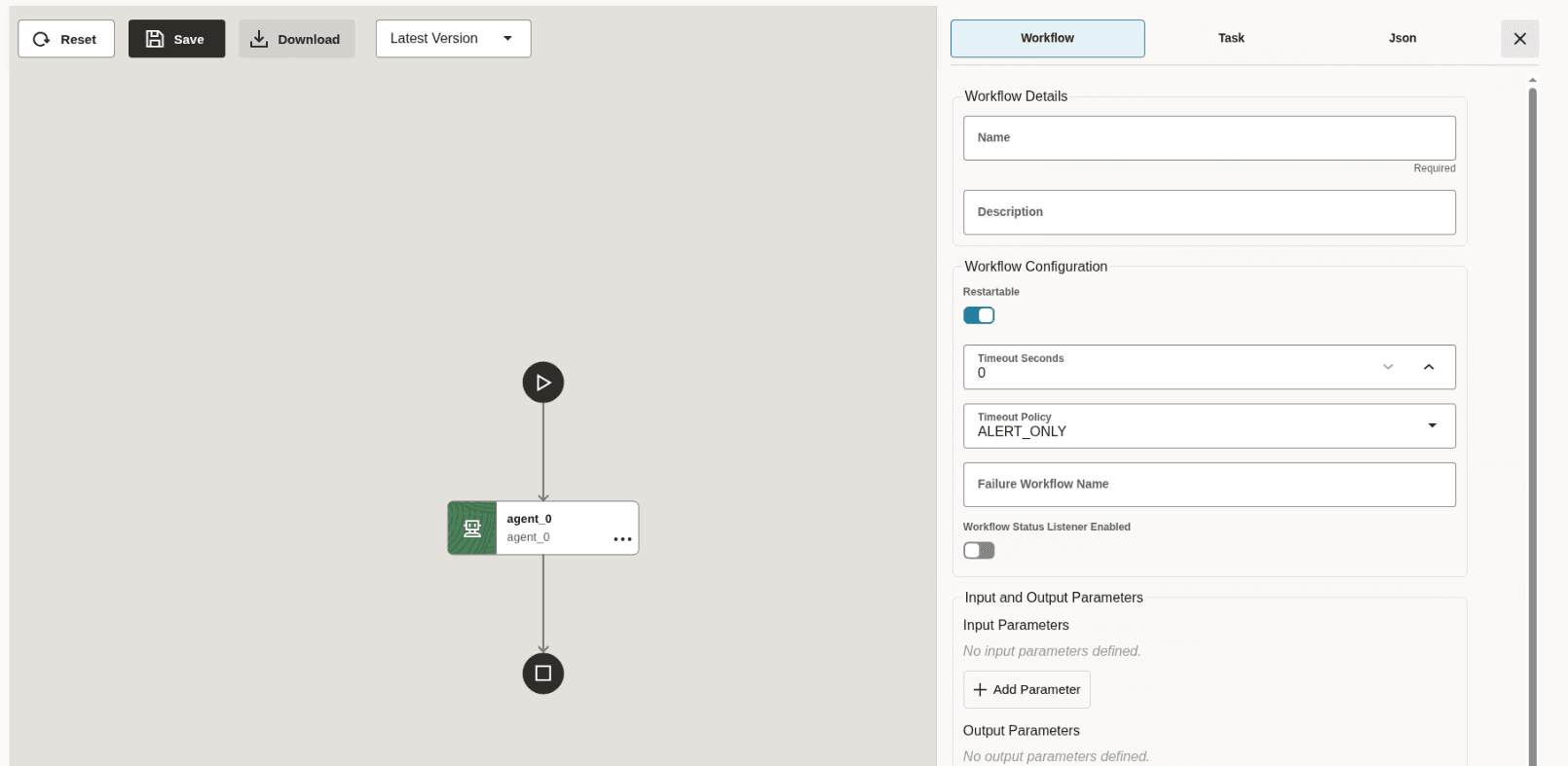
 .The Workflow Builder is displayed. On the right pane, the Workflow tab displays all the details of the workflow as shown in the following figure. On the left pane, the components of the workflow are depicted visually.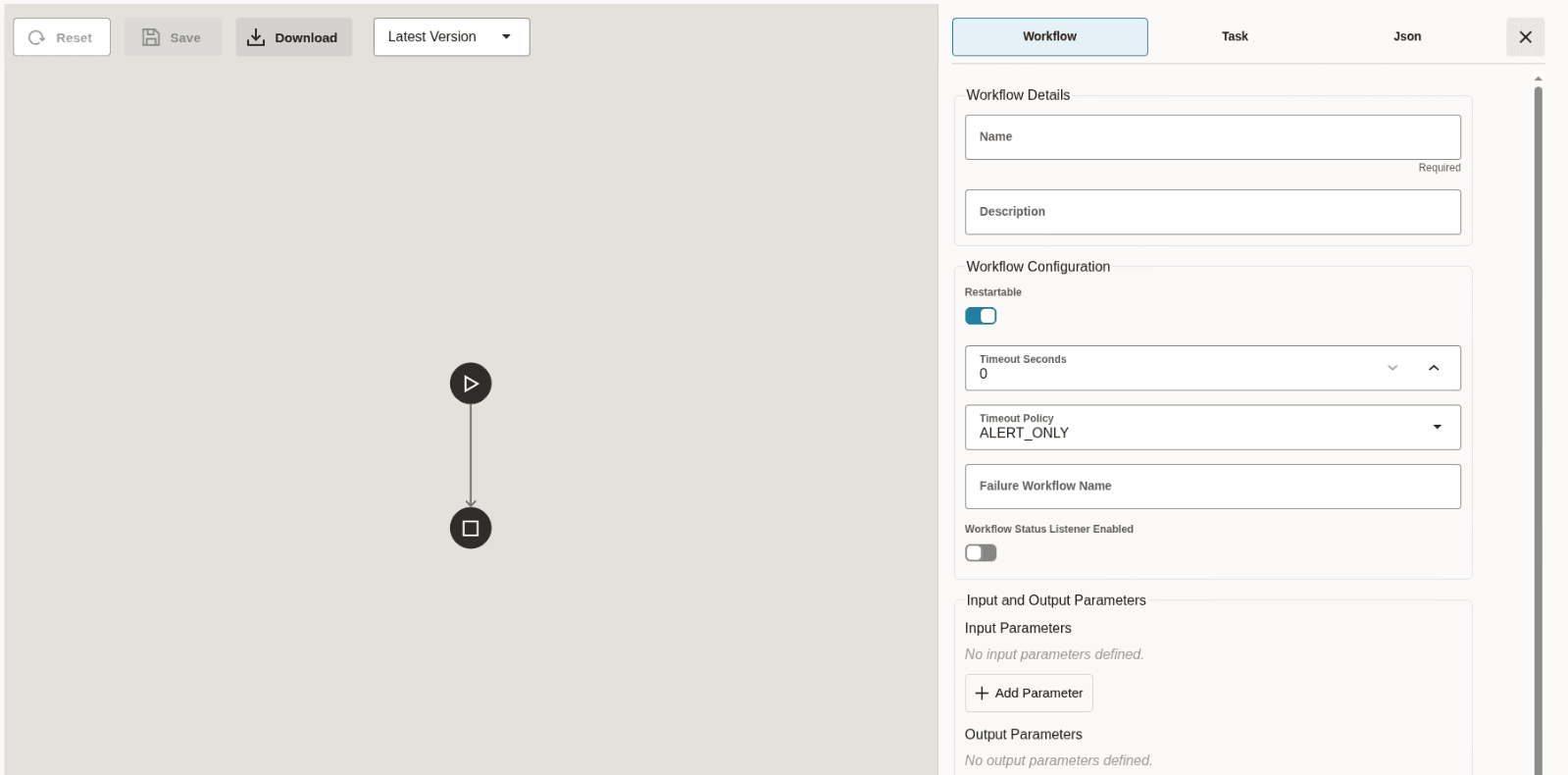
- To add a task in your workflow using the builder, place your cursor on the
arrow mark. A plus sign appears as shown in the following image.
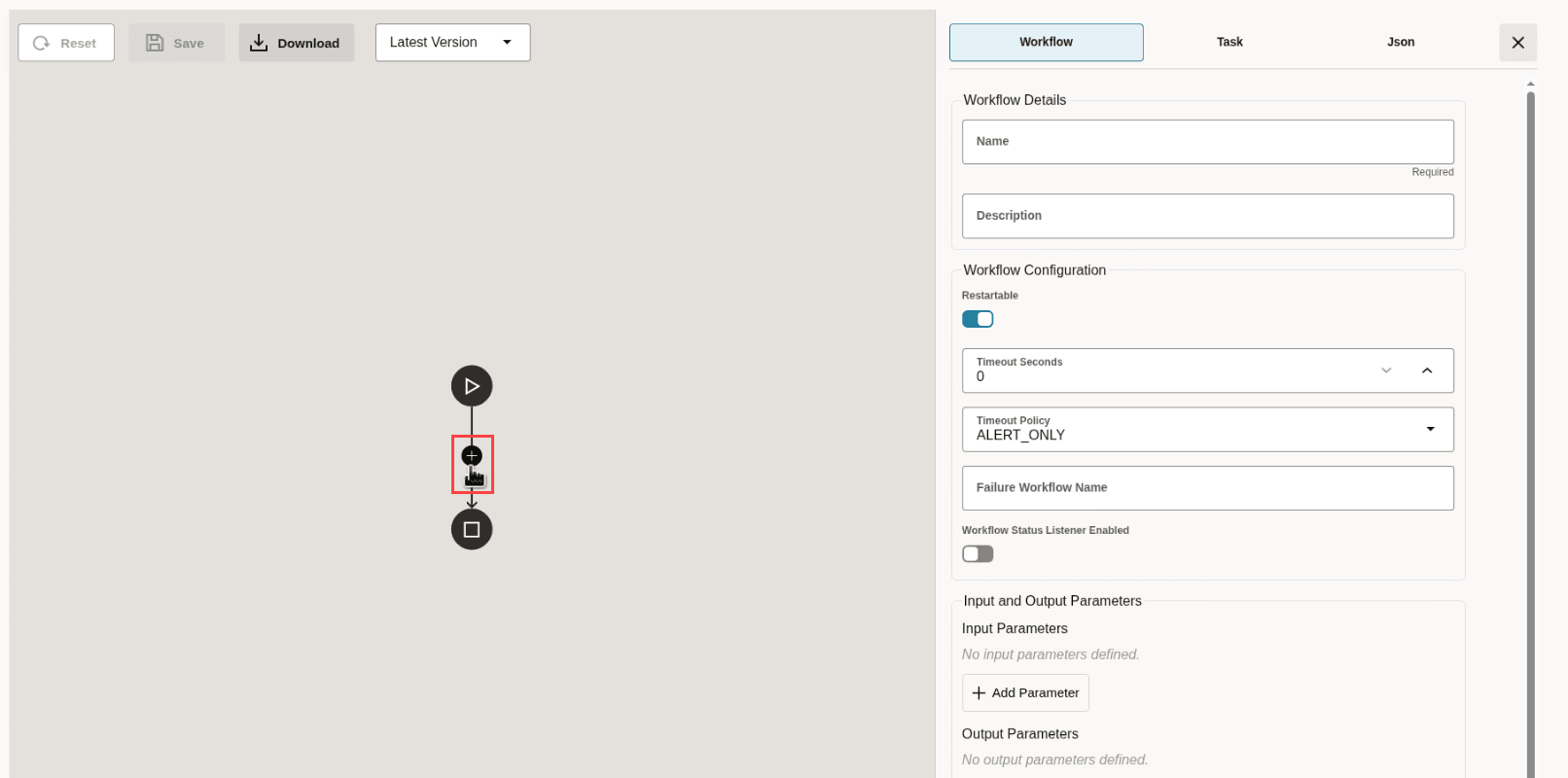
- Click the plus icon. Many tasks are displayed.
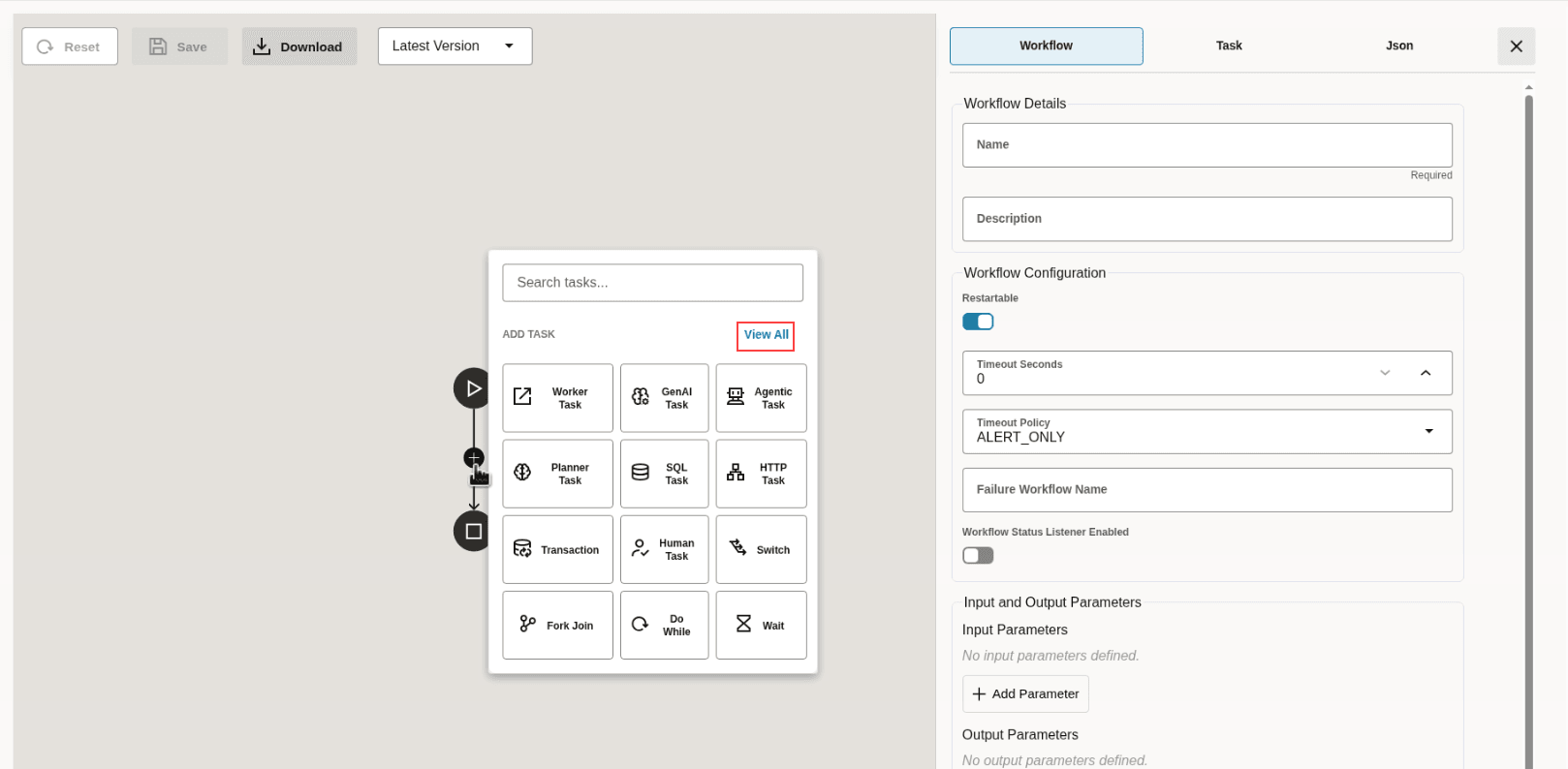
- Click View All to view all the tasks that you can add
using the Workflow Builder.
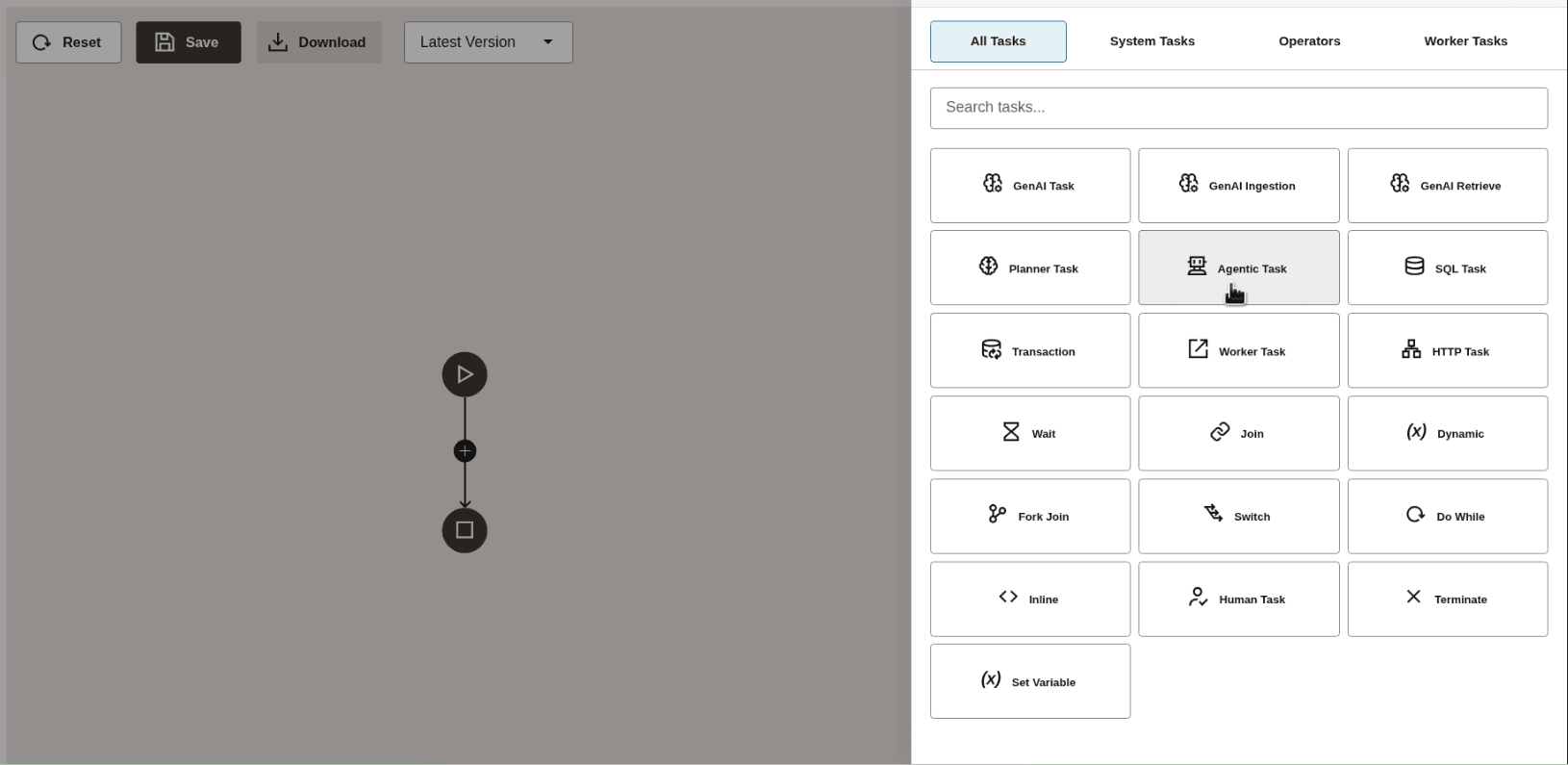
- Click a task that you want to add to the workflow. The following image shows an
agentic task is added to the workflow.
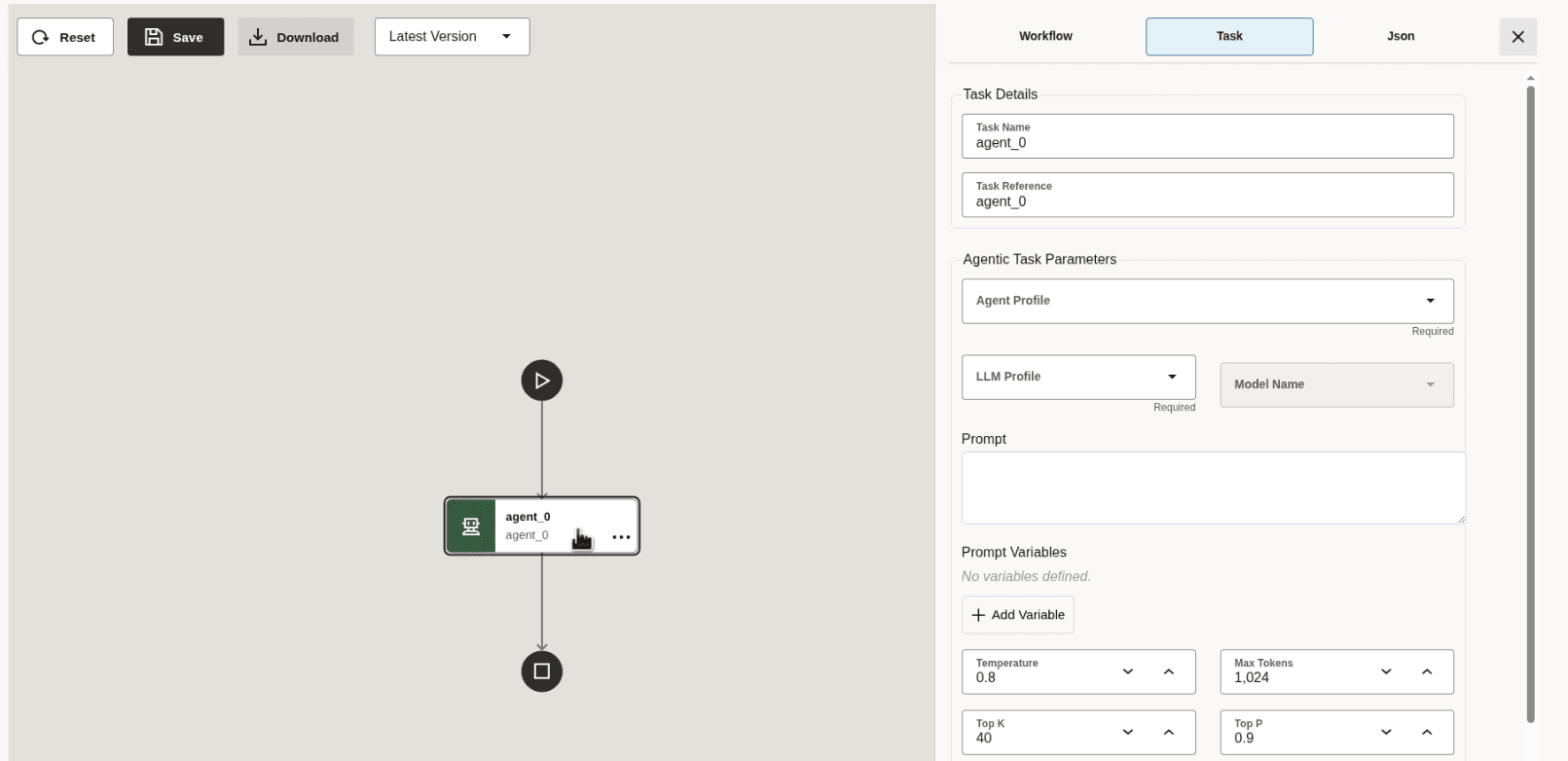
- Click the task on the canvas and enter the task details in the
Task tab.
Configure values such as the task name, task reference name, input parameters, optional behavior, timeout settings, and other task-specific parameters. The task reference name must be unique within a workflow definition. For information about each task and its parameters, see Create System Tasks and Operator Tasks.
The new workflow is displayed on the Workflows list page.
Parent topic: Manage Workflow Definitions