2.1.3 Define a Workflow Using JSON
Define a workflow by providing its JSON definition directly. Use this option when you want precise control over workflow metadata, task configuration, versions, inputs, and flow behavior. You can validate the JSON definition before saving the workflow definition.
A workflow definition must include a unique workflow name and at least one task. You can also specify optional values such as description, version, input parameters, output parameters, timeout configuration, failure workflow, variables, input template, and metadata. For information about optional parameters of a workflow definition, see Specify Values for Workflow Definition Options.
To define a workflow using JSON:
- Click
 .The Workflow Builder is displayed. On the right pane, the Workflow tab displays all the details of the workflow as shown in the following figure. On the left pane, the components of the workflow are depicted visually.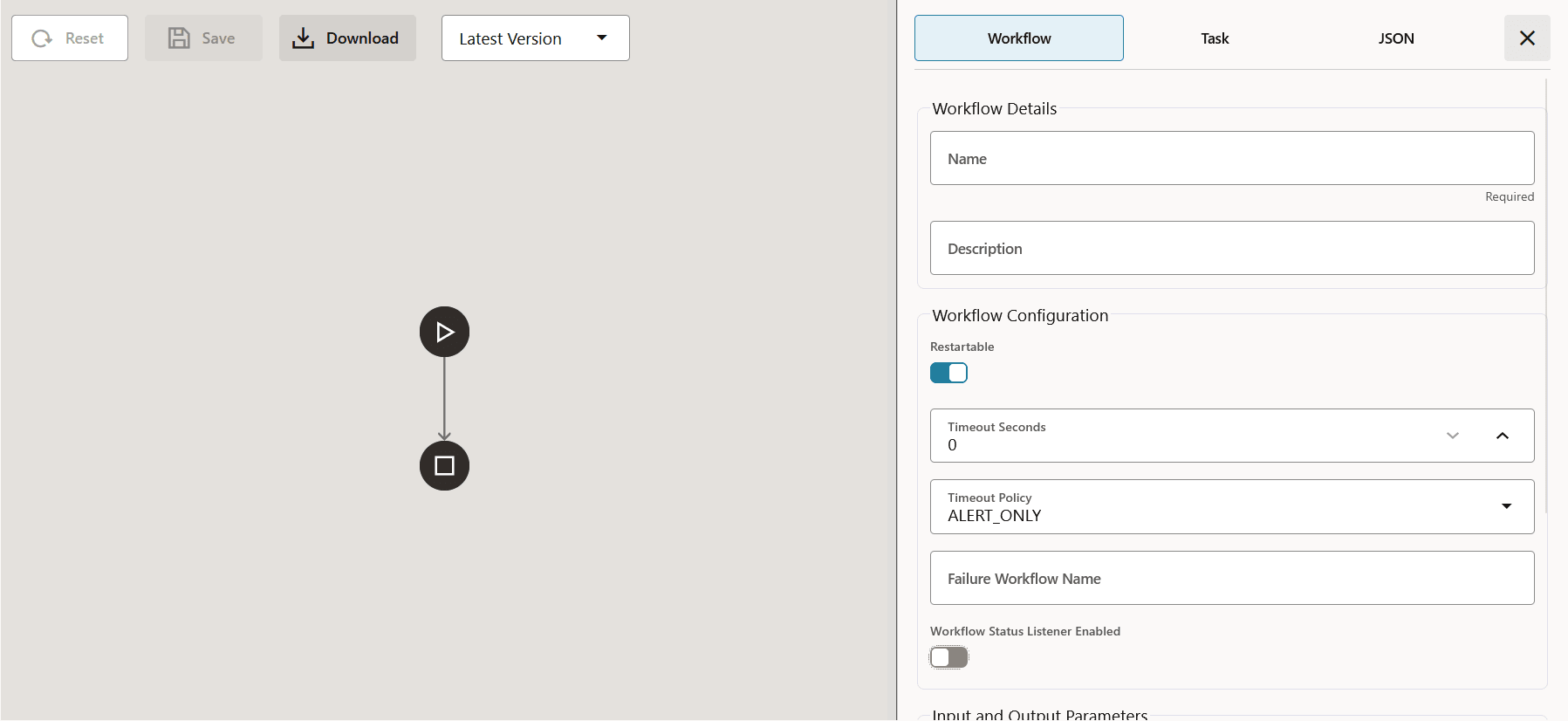
- Delete the default JSON, if required, and paste the JSON code for your workflow
definition. A sample workflow code is provided below for your reference.
Example JSON code
This sample workflow summarizes the text provided by a user. The workflow contains one GenAI task. The GenAI task uses the
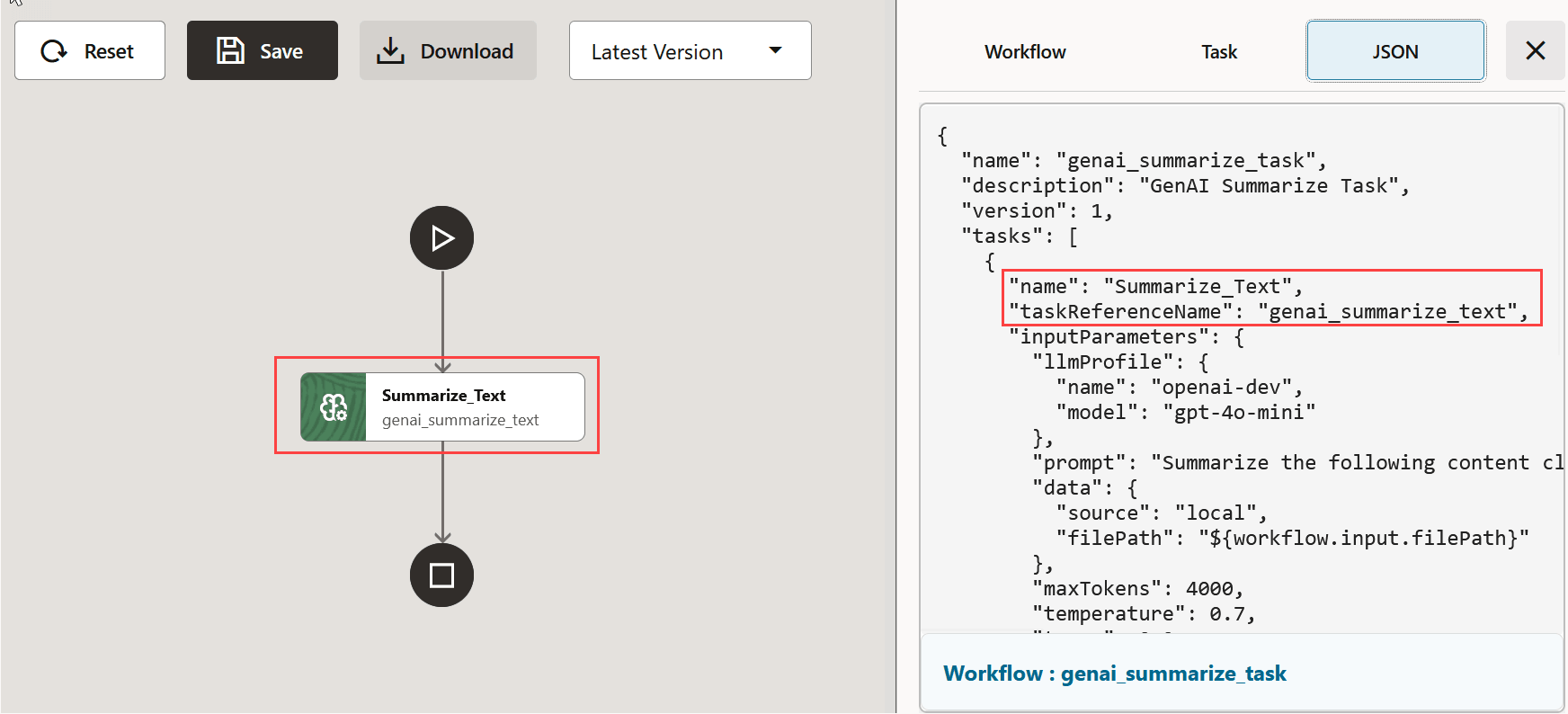
filePathvalue from the workflow input by referencing${workflow.input.filePath}.{ "name": "genai_summarize_task", "description": "GenAI Summarize Task", "version": 1, "tasks": [ { "name": "Summarize_Text", "taskReferenceName": "genai_summarize_text", "inputParameters": { "llmProfile": { "name": "openai-dev", "model": "gpt-4o-mini" }, "prompt": "Summarize the following content clearly and concisely, highlighting the key points, main ideas, and any important conclusions or actions. Avoid unnecessary details, but preserve the original meaning and intent.", "data": { "source": "local", "filePath": "${workflow.input.filePath}" }, "maxTokens": 4000, "temperature": 0.7, "top_p": 0.9, "top_k": 50 }, "type": "GENAI_TASK" } ], "inputParameters": [], "outputParameters": {}, "schemaVersion": 2, "restartable": true, "workflowStatusListenerEnabled": false, "ownerEmail": "example@email.com", "timeoutPolicy": "ALERT_ONLY", "timeoutSeconds": 0, "variables": {}, "inputTemplate": {}, "enforceSchema": true, "metadata": {} }MicroTx Workflows validates the JSON before rendering the workflow visually on the canvas, as shown in the following image, or saving the workflow definition. The workflow name is required, the workflow must contain at least one task, and each task must include a task name and a unique task reference name. If the JSON contains invalid syntax, missing required fields, an invalid workflow name, or invalid task configuration, correct the errors before saving. Since the sample workflow has a single task, the visual canvas displays one task block.
- Click the Workflow tab.
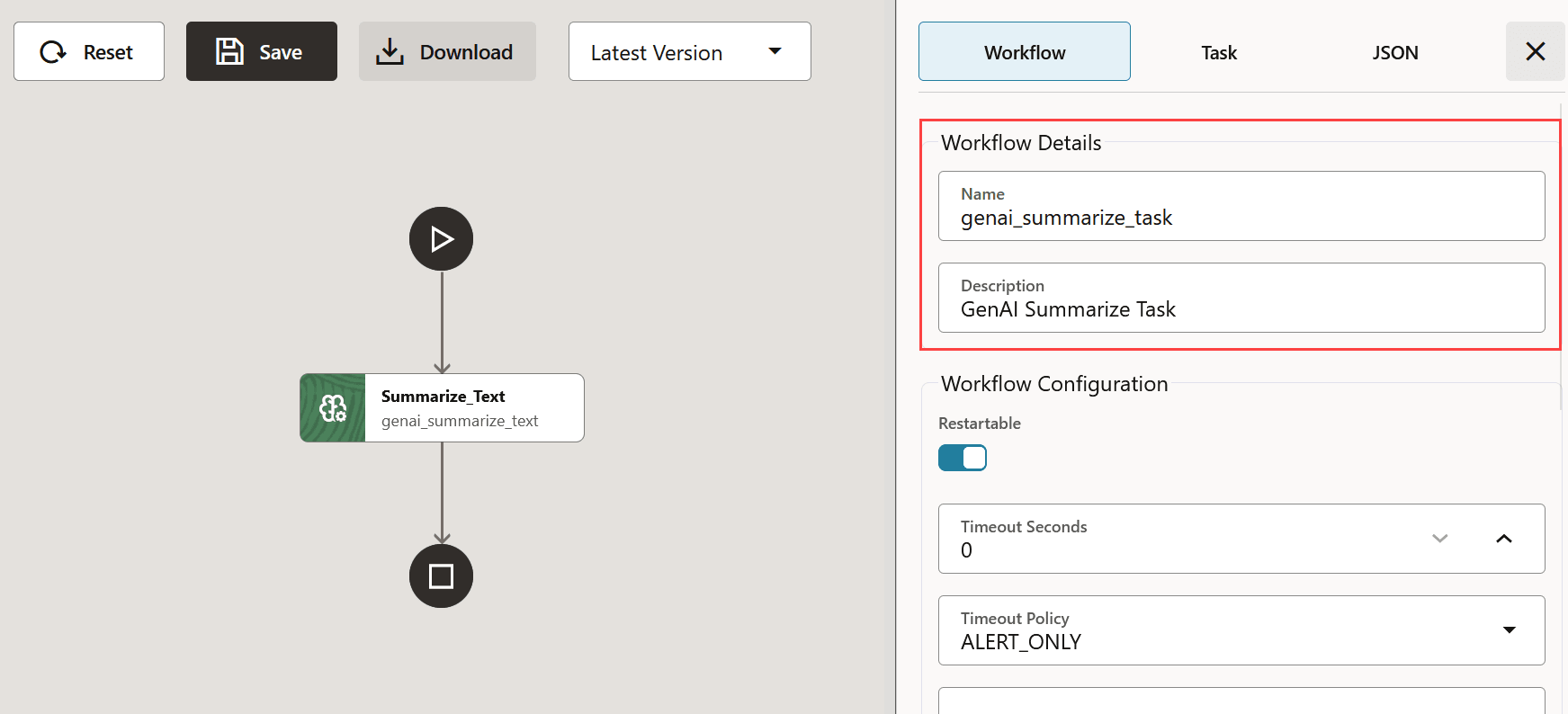
As shown in the following image, MicroTx Workflows automatically populates the details in the Workflow tab from the JSON code that you enter.
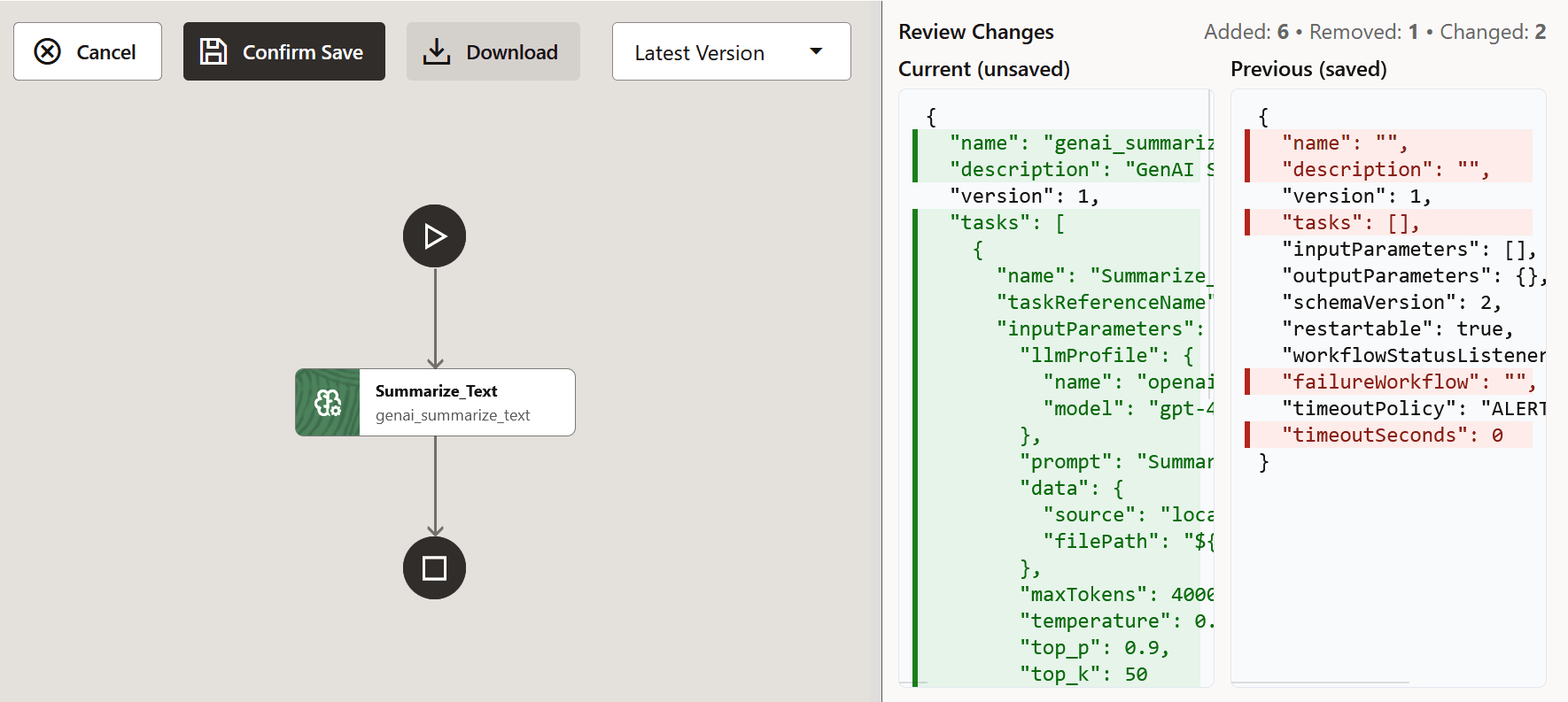
- MicroTx Workflows displays the changes in JSON code
as shown in the following figure. Review all the changes.
The new workflow is saved successfully. You can view the new workflow on the Workflows list page.
Parent topic: Manage Workflow Definitions