2.1.4 View a Workflow Definition
View a workflow definition by name and, optionally, by version. You can also list all workflow definitions, search definitions, view only the latest versions, or retrieve workflow names and versions without loading the full definition body.
The definition can be viewed as JSON and, where supported by the UI, as a
visual workflow diagram. The visual diagram shows the tasks, operators, decision paths,
and other building blocks that make up the workflow. Use this view to understand the
workflow structure, task order, and how tasks are connected.
To view a workflow definition:
- Click
 (Workflow Info) under
Actions.
(Workflow Info) under
Actions.The Workflow Builder is displayed.
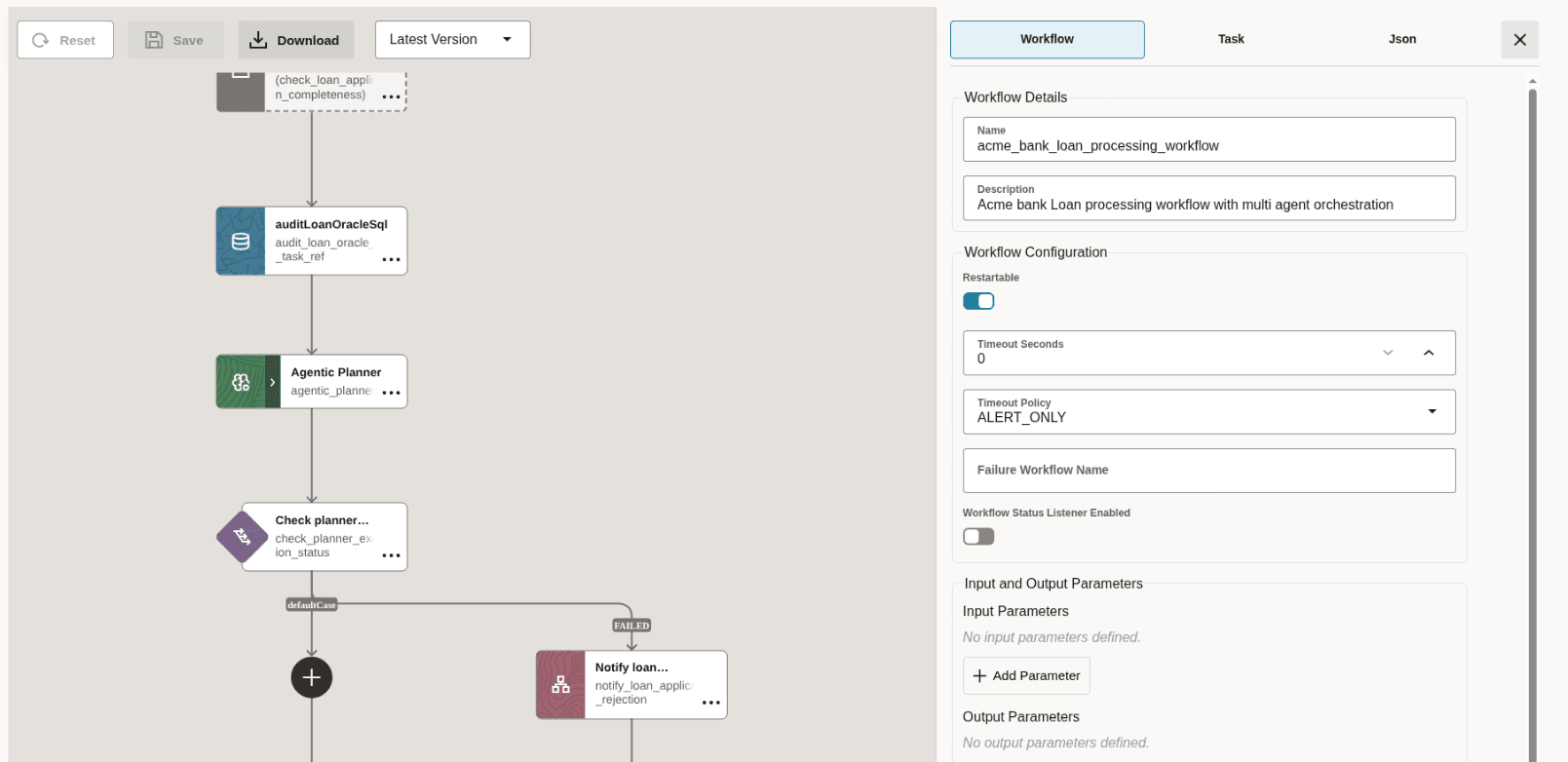
- As shown in the following image, the Workflow Builder visually depicts all the
components of the workflow, such as tasks, operators, and decision boxes in the
left pane. Scroll to view all the components of the workflow to understand the
different components of the workflow and how the workflow is executed. The
Workflow tab displays all the details of the
workflow.
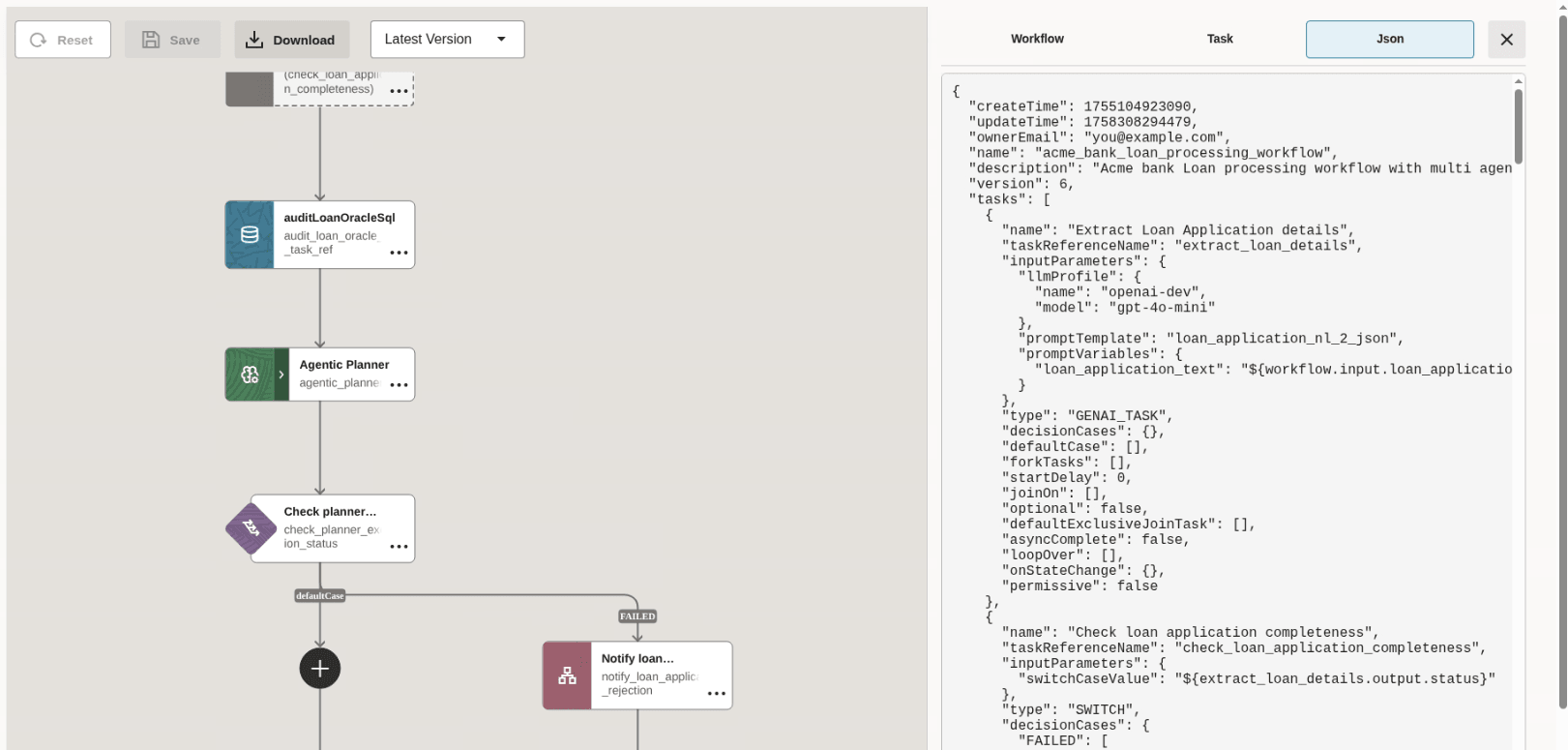
- Click the JSON tab to view the workflow definition in JSON format as
shown in the following image. Scroll to view the entire JSON.
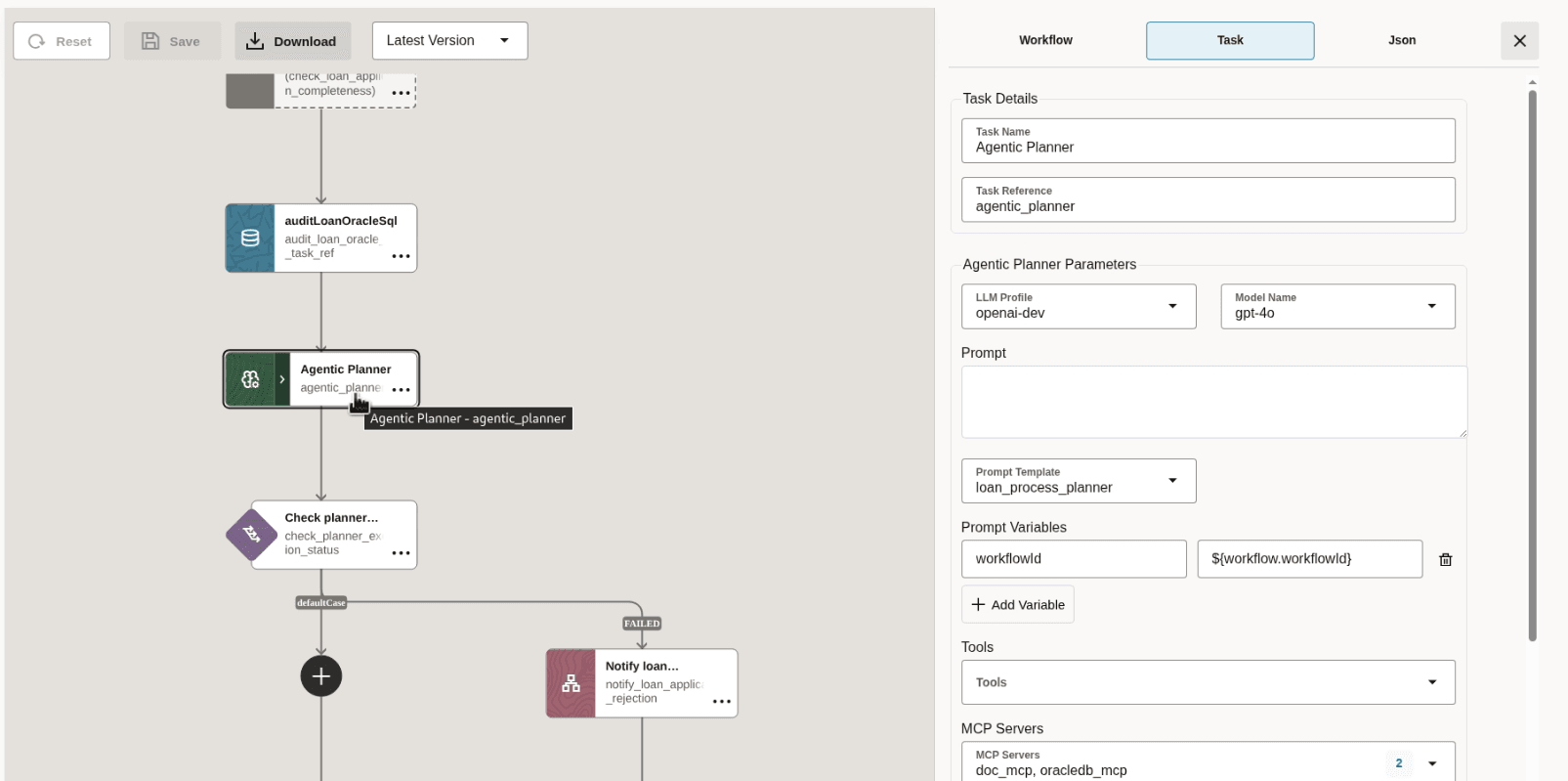
- Click a task in the left pane to view more details about the task. The
following figure shows the details of an Agentic Planner task in the
Task tab in the right pane.
Parent topic: Manage Workflow Definitions