2.1.5 Update a Workflow Definition

Update an existing workflow definition when you need to change its task configuration, metadata, inputs, or flow behavior. The update operation supports one or more workflow definitions. To rename a workflow, create a new workflow definition with the new name instead of changing the existing workflow name.

Before you begin, decide if you want to update an existing version of a workflow definition or create a new version. You can create a new version of a workflow definition when you don't want to disrupt ongoing executions that use the current workflow definition. For more information about the impact of creating a new version or updating a current version of workflow definition, see Versioning Workflows in open-source Conductor documentation.
  1. Open the navigation menu and click Definitions.
  2. Click the Workflows tab.

    The Workflows list page opens and displays the workflow definitions that have been created.

  3. Identify the workflow definition that you want to update.
  4. Click edit(Edit).
  5. Select the version of the workflow definition that you want to update from the Version drop-down list. By default the latest version of the workflow definition is displayed.
  6. You can update all the configuration values you specified when creating a workflow definition, except the workflow name. To update a value, perform one or more of the following tasks depending on the value that you want to update.
    • To edit the workflow definition properties, click the Workflow tab, and then update the value.
    • To edit the details for a task, click a task in the left pane. Details of the selected task appear in the right pane. Click the Task tab, and then update a value.
    • To directly edit the JSON code, click the JSON tab and then update the code.
  7. Skip this step if you do not want to save the updated workflow definition as a new version and you want to overwrite the selected version of the workflow definition. To save the updated workflow definition as a new version, you must explicitly update the value of the version field in the JSON tab with the new version number. For example, if you update version 5 of a workflow definition, all changes that you make overwrite version 5. However, if you want to retain the current code of version 5 and save the new changes in another version, change the value in the version field to 6 to save the changes in version 6 of a workflow definition.
  8. Click Save.
  9. MicroTx Workflows displays the changes in JSON code as shown in the following figure. Review all the changes.
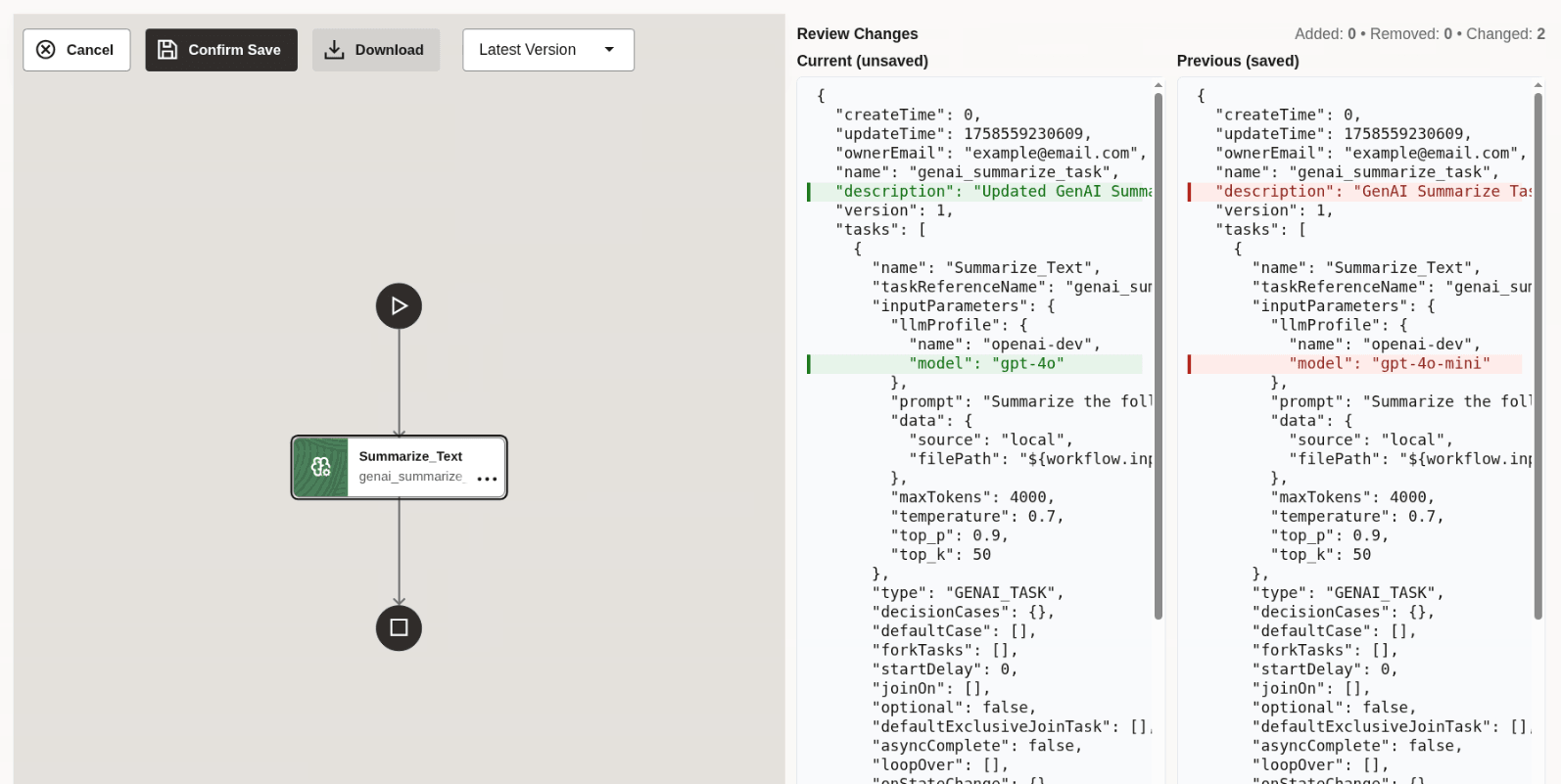
    updated workflow definition

  10. Click Confirm Save to save the changes.

    If you do not want to save the changes, click Cancel, and then click Reset to undo all the changes that you have made since the workflow definition was last saved.