2.2.1 Run or Execute a Workflow

Use Workbench to run a workflow from the MicroTx Workflows console. It is useful for testing workflow definitions, validating input, and inspecting execution results.

You can also use Workbench to run production workflows, although production applications typically invoke workflows through REST APIs or SDKs. Workflow executions started from Workbench, REST APIs, or SDKs are stored and can be viewed in workflow execution history.

Before running a workflow, review the workflow definition and identify the input parameters that the workflow requires.

To run a workflow from Workbench:

  1. Open the navigation menu and click Workbench.
  2. Select the name of the workflow that you want to run from the Workflow Name drop-down list.
  3. Select the version of the workflow that you want to run in the Workflow Version drop-down list.

    If you do not select a version, MicroTx Workflows uses the configured default or the latest version of the selected workflow.

  4. In the Input Parameters group, provide values for the required input parameters of the workflow. You can either provide all the input parameters in JSON format or select Form to provide input parameters as a key-value pair.
    • Select JSON to enter a valid JSON object that contains the input values required by the workflow. For example, if the workflow definition references ${workflow.input.filePath}, include filePath in the input JSON.
    • Select Form, and then click Add Parameter. Enter each input parameter as a key-value pair and specify the data type, such as string or number.
  5. Optional. In the Correlation ID field, enter an ID to logically group related workflow executions. For example, you can use correlation ID to group executions related to the same business request, order, transaction, or customer.
    Unlike the workflow ID, which uniquely identifies one execution, you can use the same correlation ID across multiple workflow executions.
  6. Optional. In the Idempotency Key field, enter a unique key for the workflow execution request.

    Use an idempotency key to prevent duplicate workflow executions when the same request is submitted more than once, such as during retries caused by network failures or client timeouts. If another execution already exists for the same workflow and idempotency key, MicroTx Workflows uses that key to detect the duplicate request instead of starting an unintended duplicate execution.

    If you do not enter a value, MicroTx Workflows creates a unique value because every workflow execution is mapped to a unique idempotent key.

  7. Optional. In the Task to Domain (JSON) field, enter the names of the domains in which you want to run a task.
    For more information, see Task Domains.
  8. Click execute workflow(Execute) to run the selected workflow. The following image displays sample data as input parameters for a selected workflow.
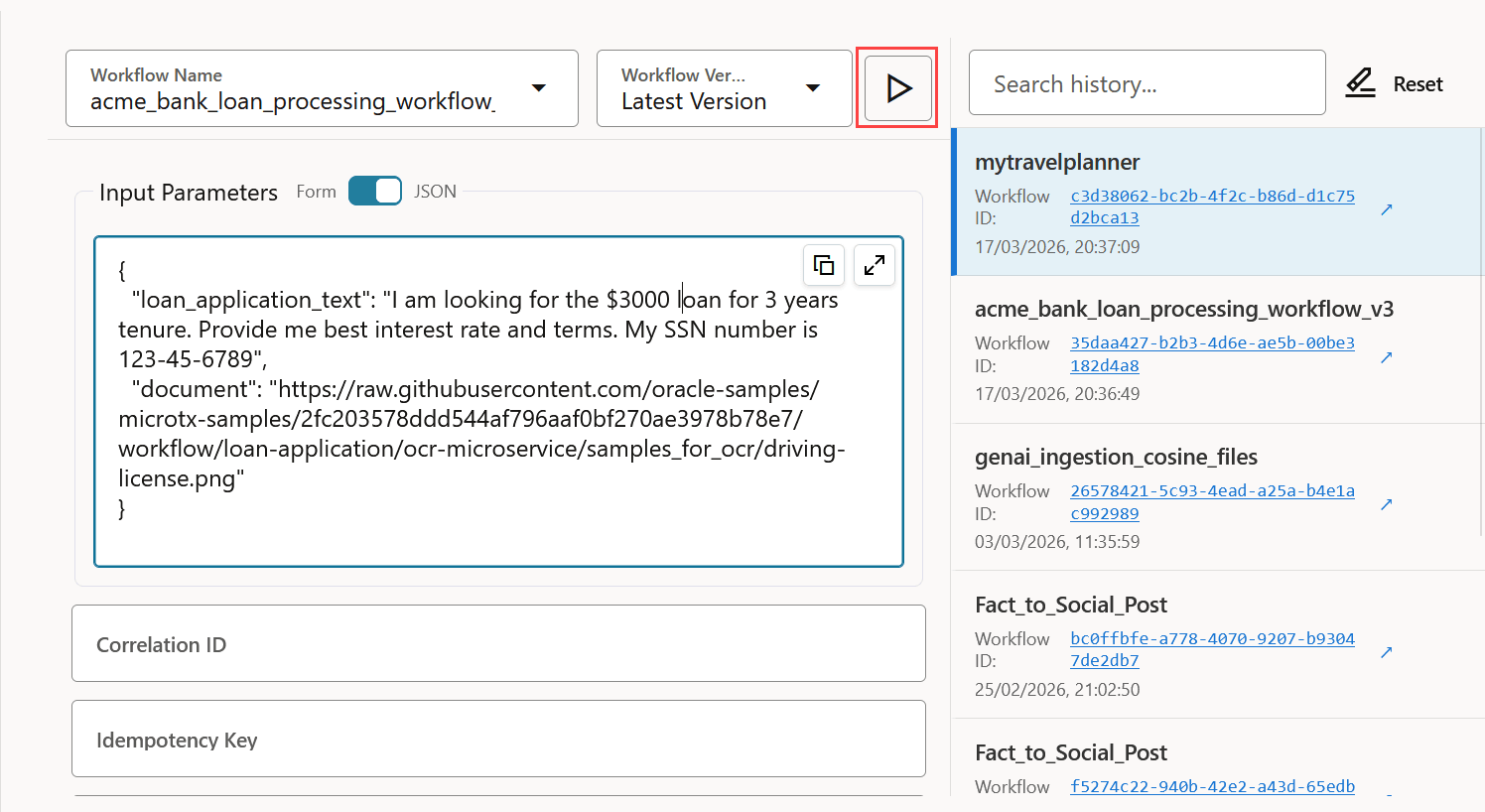
    Sample workflow with input parameters.

    In the pane on the right side of the window, a new workflow execution ID is displayed.
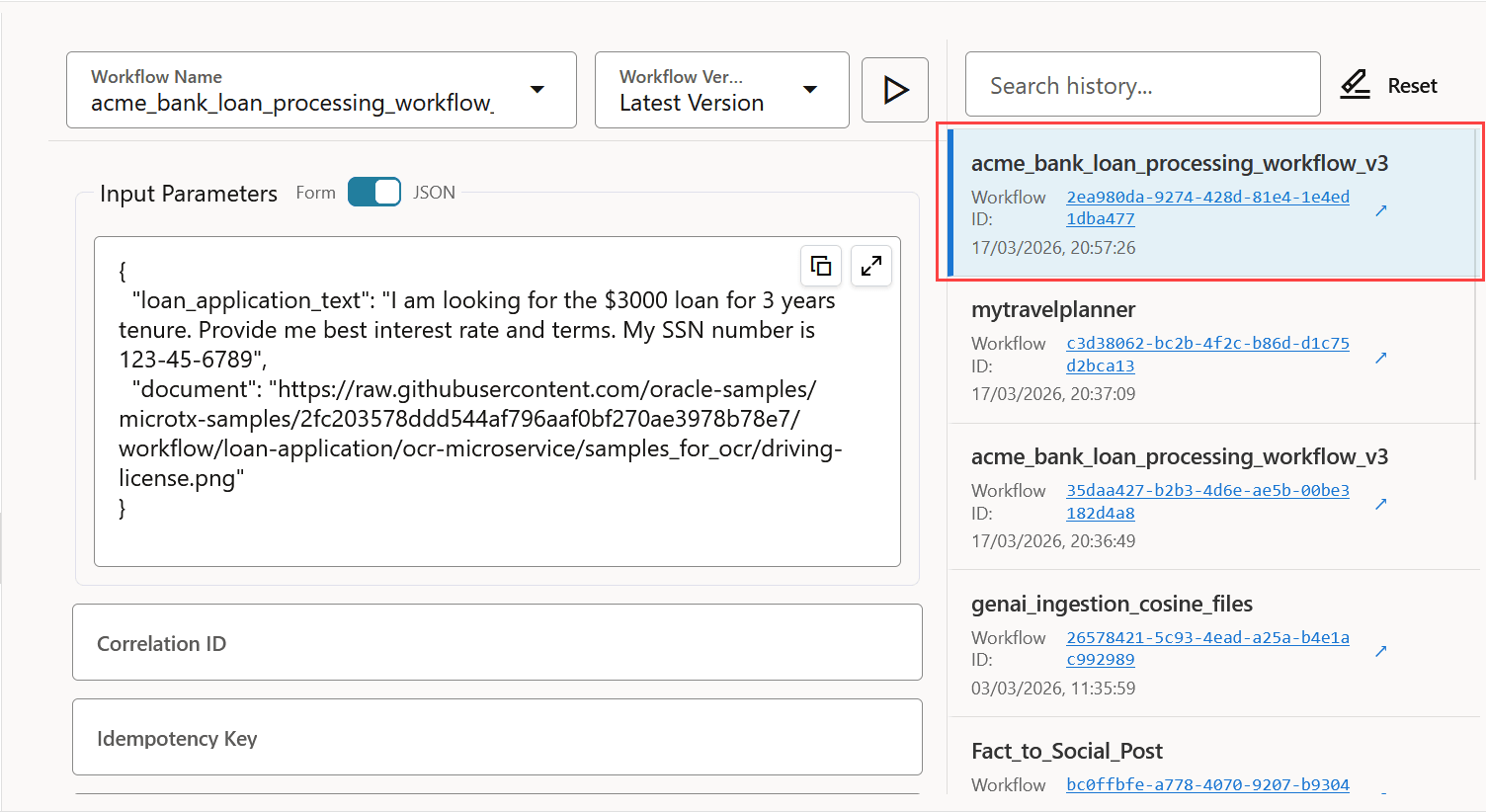

    Workflow execution ID

  9. Click the workflow execution ID. The status of the workflow execution is displayed as shown in the following image for a sample workflow. Click the Diagram tab see a visual depiction of all the components of a workflow.
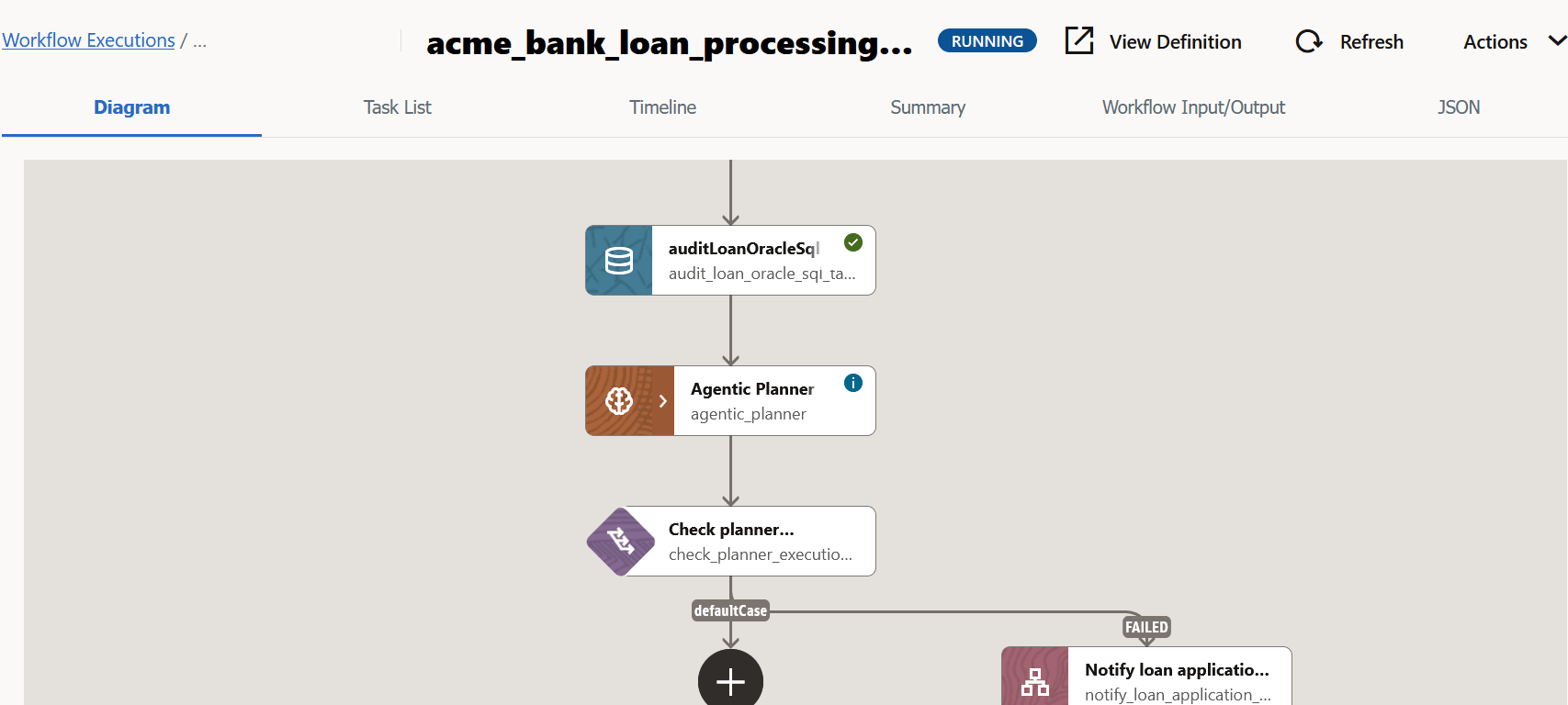
    Status of the workflow execution

  10. Click Refresh to view the updated status of the workflow after a few seconds. The time taken to run a workflow depends on the complexity of the workflow. A green check mark indicates that a task has been executed successfully. For more details, see View Details of a Workflow Execution.
  11. When the workflow is executed successfully, the status of the workflow changes to Completed.