Create a Transparent Partition
Create a transparent partition if you need to provide access to data from a source Essbase cube as if it were in the current (target) cube. The source cube can be on the same Essbase instance or a remote instance.
- Enter your User name and Password, then click
 to Validate User.
 - Click
 to Refresh Applications, then select the source application and database (cube), and enter an optional description.
 - In the Target Information, enter your User name and Password, then click to Validate User.
- (Optional) Click Open Source Area
 to open a larger work area.
 - If you have enabled member selection in step 9, click Edit source area
 and provide at least one source area definition. If you have not enabled member selection, type directly in the source work area. For example, add a source area of some
 valid upper-level member specifications, and add the same matching target area. If the same member doesn’t exist in both cubes, create an area mapping as described below.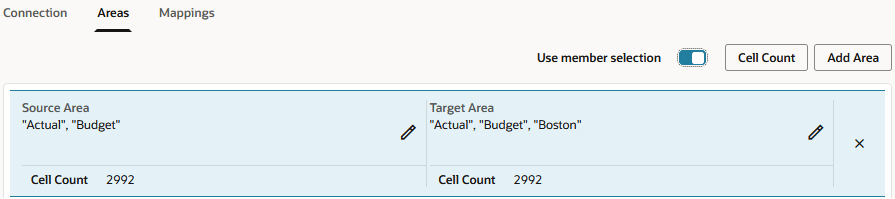
- Optionally, you can map member names between the target and source cubes within a specific area, using the Areas tab, or for multiple areas, using the Mappings tab. See Mapping Members in Partitions.
