Design Drill Through Reports
If you are an Essbase Database Manager or higher, you can create drill through report definitions to enable user access to more data that is stored in an external, relational source. Design factors include column mappings, drillable regions, and optionally, parameterization, if you want to add the flexibility of variables.
General Considerations for Designing Drill Through Reports
Drill through reports pull data from an external source system or a file, or link to web applications. To create a drill through report definition, you must be a Database Manager or higher. Create it in the the database's Scripts section, in the Essbase web interface.
Every drill through report definition must include a column mapping and a drillable region. Optionally, you can define a mapping for runtime parameters, if there is a parameterized query in the Datasource that supplies external source data connectivity for your drill through reports.
Note:
If the Datasource for the drill through report is connected to Oracle Database, you can check the Use Temporary Tables option to improve performance for queries that have a large number of values in the SQL “IN” clause.You can also design drill through reports to access Web URLs.
Define Column Mappings for Drill Through Reports
The column mapping part of an Essbase drill through report definition defines which external source columns should be included in the report, which Essbase dimensions those columns map to, and (optionally) a generation/level filter condition indicating how much depth of access to provide.
To understand column mappings in depth, see Drill Through Report Definition.
To define column mappings,
-
On the Home page, open the application and open the cube.
-
Select Scripts in the left hand panel.
-
Click Drill Through Reports.
-
Click Create and select Datasource from the menu.
-
In the Name field, add a name for the report.
-
In the Datasource field, select the Datasource you want to use.
-
Create column mappings:
-
Select the columns from the external Datasource that you want to include in the report.
-
Select the dimension to which you want to map each column.
-
Select a filter conditions for the mappings; for example, Level 0, Generation, or None (for dimension mapping).

-
When you are finished, click Drillable Regions. You cannot save the drill through report definition without defining a region, as described in Define Drillable Regions for Drill Through Reports.
-
-
On the Applications page, expand the application.
-
From the Actions menu, to the right of the cube name, click Inspect.
-
In the application inspector, select the Scripts tab.
-
Select Drill Through Reports.
-
Click Create and select Datasource from the drop down menu.
-
In the Name field, add a name for the report.
-
In the Datasource field, select the Datasource you want to use.
-
Create column mappings:
-
Select the columns from the external Datasource that you want to include in the report.
-
Select the dimension to which you want to map each column.
-
Select a filter conditions for the mappings; for example, Level 0, Generation, or None (for dimension mapping).

-
-
When you are finished, click Drillable Regions. You cannot save the drill through report definition without defining a region, as described in Define Drillable Regions for Drill Through Reports.
Define Drillable Regions for Drill Through Reports
The "drillable region" part of an Essbase drill through report definition is where you specify one or more areas / data intersections in the Essbase cube from which you want to provide drill through access to additional detail that is available in the external source of data.
To specify the drillable region using the Essbase web interface,
-
After you complete the column mappings of your drill through report, click Drillable Regions.
- Click the plus sign and choose one of the following methods:
- Double click in the empty row and define the region using calculation syntax: member names and member set functions.
- Click the pencil icon to open the Drillable Region Selector, select the member you want to add, right click, and choose from the menu options to define the region.

-
Click Save. A message is displayed indicating if the drill through report was updated successfully.

Drillable Region Examples
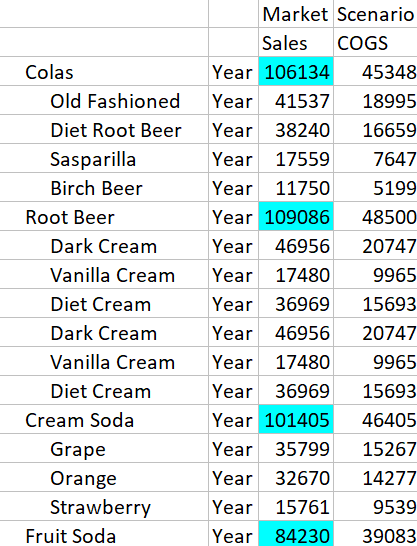
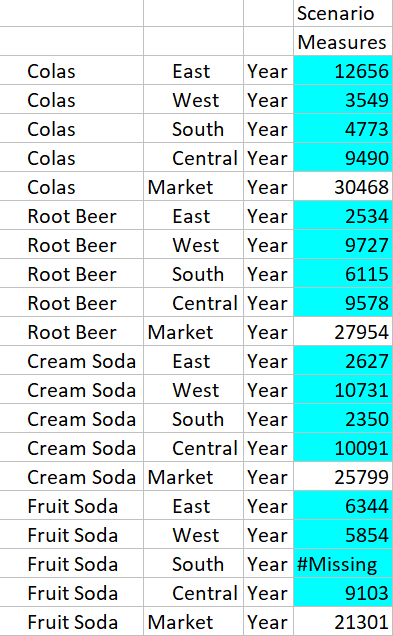
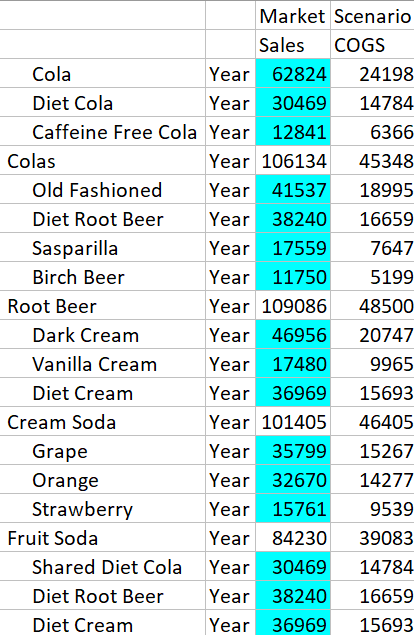
The following examples show drillable regions in Smart View, highlighted in blue.
Example 1
To define a drillable region at the top of the Market, Year, and Scenario dimensions, the member Sales, and all level 1 members of the product dimension, use:
Market,Year,Scenario,Sales,@LEVMBRS(Product,1)
When you drill into a Smart View sheet, the resulting grid looks like this:
Example 2
To define a drillable region for the descendants of Market, use:
@DESCENDANTS(Market)
When you drill into a Smart View sheet, the resulting grid looks like this:
Example 3
To define a drillable region for the members of generation 3 in the Product dimension, at the top of the Market, Year, Scenario dimensions and the member, Sales, use:
Market,Year,Scenario,Sales,@GENMBRS(Product,3)
When you drill into a Smart View sheet, the resulting grid looks like this:
Implement Parameters for Drill Through Reports
To make drill through reports to external source data more flexible, you can implement parameters, enabling Essbase to dynamically build drill through reports based on variables you pass into the SQL query.
If you are a Database Manager or higher, you can implement parameterized Datasource queries in drill through reports.
Prerequisite: an Application Manager or higher has provided you access to a Datasource that uses a fixed (default) value, a substitution variable, or an external user-defined function as a parameter.
Essbase discerns the value of parameters at runtime, inserting their current value into the query that Essbase generates when a drill through is performed.
In the drill through report definition, you can optionally add dimension, generation, and level mapping for runtime parameters. This enables you to further customize the results of drill through reports based on the current variable context.
If you want Essbase to dynamically build drill through reports based on variables, follow this workflow:
-
Implement parameters in the underlying Datasource query. This must be done by an Application Manager or higher.
-
Create a drill through report definition associated with the Datasource.
-
Optionally, provide runtime customizations to parameter use, within the drill through report definition. An example is provided below.
-
Test and validate expected behavior by running drill through reports and checking the platform log.
Runtime Parameters and User Defined Functions
The following example use cases are based on prerequisite assumptions:
-
A user defined function, getMonths, is defined in the external source system. The function returns a comma-separated list of months.
-
The Datasource used for the drill through report definition is defined using a query that calls the getMonths function, as follows:
select * from SampleBasic where month in (getMonths(?))
Level 0 (Recursive) Mapping of Runtime Parameter
In the drill through report definition, when the runtime parameter is bound to Year at Level 0,
![Runtime Parameters tab of drill through report definition. Parameter: Param1. Variable: checked. Value: Sample.mnth. Dimension: Year. Generation Binding: Level0 [Level]](img/drill_through_param_level0.jpg "Runtime Parameters tab of drill through report definition. Parameter: Param1. Variable: checked. Value: Sample.mnth. Dimension: Year. Generation Binding: Level0 [Level]")
then if a Smart View user drills through on Qtr1 of the Year dimension, the drill through report will include Jan, Feb, Mar. If a Smart View user drills through on Year, the drill through report will include Jan, Feb, Mar, Apr, May, Jun, Jul, Aug, Sep, Oct, Nov, Dec.
Generation Mapping of Runtime Parameter
In the drill through report definition, when the runtime parameter is bound to Year at the Quarter generation,
![Runtime Parameters tab of drill through report definition. Parameter: Param1. Variable: checked. Value: Sample.mnth. Dimension: Year. Generation Binding: Quarter [Generation]](img/drill_through_param_quargen.jpg "Runtime Parameters tab of drill through report definition. Parameter: Param1. Variable: checked. Value: Sample.mnth. Dimension: Year. Generation Binding: Quarter [Generation]")
then if a Smart View user drills through on Year dimension member, the drill through report will include Qtr1, Qtr2, Qtr3, Qtr4.
Note:
It is invalid to set a runtime parameter's Dimension/Generation Binding that overlaps with a column mapping. The generated query in this case is always a null set.