New Features in the Essbase Web Interface
The following new features add to the usability of the Essbase web interface.
Note:
Redwood, the default Essbase web interface is Oracle’s standard interface with a modern look and feel. Starting in 21.8, the older Classic interface is unavailable.
The updated interface features a new Redwood look and feel, with enhanced functionality in many areas:
- You work in the context of the application or cube instead of working in the application and cube inspectors.
- Objects such as scripts or the outline are opened in tabs, so you can easily toggle between them.
- Functionality for adding members is enhanced. You can provide, in one dialog, all the general properties like storage type, dimension type, solve order, formulas, attributes, and UDAs. You can also add the multiple members consecutively using the shortcut ‘Ctrl + Enter’ or by clicking the Add button without closing the dialog.
- Search capability is enhanced, with improved performance and access to the following operations in the Search dialog: Locate, Member inspector, and Hierarchy (Shows the hierarchy of the member in a tree view, where you can locate, launch the member inspector, or add a sibling or a child, if the outline is in Edit mode).
- Compare two outlines side-by-side. See Compare Outlines.
- Copy and Paste Members Within and Between Outlines. This can be between two different outlines, shown on different browser tabs, or from a source to a target outline when using outline compare.
- View notifications from your active session. See View and Manage Notifications in the Essbase Web Interface.
- Write and edit Essbase scripts using enhanced script editing capabilities in the Redwood Interface. See Write and Edit Scripts.
Quick Access to Open a Cube, Open an Outline, or Analyze Data
In the Essbase web interface, you now have quick access to open a cube, open an outline, or analyze data.
- On the Home page, find the application.
- Select the Actions menu for that application
 .
.
- Choose Databases > database_name.
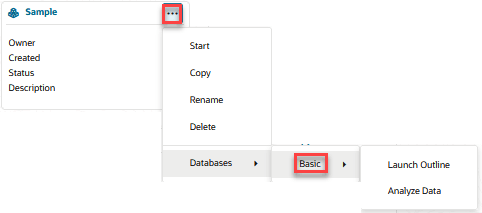
You can open an outline or analyze data in the Essbase web interface in two ways. You can open outlines or analyze data from within the cube,
- Open the application.
- Open the cube.
- Click Launch Outline or Analyze Data.
Now you can also open them from the Home page.
To open an outline from the Home page.
- On the Home page, find the application.
- Select the Actions menu for that application.
- Choose Databases > database_name > Launch Outline.
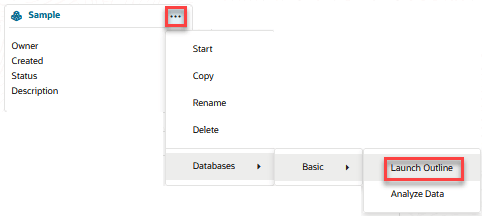
To open analyze data from the Home page.
- On the applications page, find the application.
- Select the Actions menu for that application.
- Choose Databases > database_name > Analyze Data.
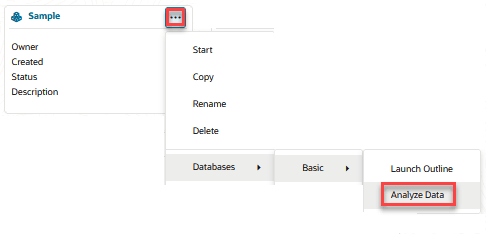
Bookmark an Active Browser Tab for Quick Access
Using your browser's bookmark feature, you can bookmark specific applications, cubes, scripts, or any active browser tab in Essbase to quickly return to that location.
Simply bookmark the browser tab you want to save, and use the bookmark to return there. This allows you to return to the specific application, database, script, or any active browser tab without going through all of the steps to navigate there in the Essbase web interface.
Open Artifacts in a New Browser Tab or in an Editor
You can open certain Essbase files in a new browser tab or in an editor. This works for files that have dedicated editors in the Essbase web interface.
.csc– calculation scripts.rul– rule files.rep– report scripts.msh– MaxL scripts.mdx– MDX scripts.dtr– drill-through reports
- On the Home page, select the application.
- Select the cube.
- Click Files.
- Go to the Actions menu for a file .
- Select Open in New Browser or Open in
Editor.
Note:
Some file types, such as .txt and .xml cannot be opened in this way. You can, however, download .txt and .xml files using the Actions menu to the right of the file.
To open a file in an editor, from within the application,
- From the Home page, click Files.
- Navigate to the cube directory, Applications > application name > cube name.
- Click the name of the file you want to open in an editor.
Note:
Some file types, such as .txt and .xml cannot be opened in this way. You can, however, download .txt and .xml files using the Actions menu to the right of the file.