Access
1. How do I request a lab environment?
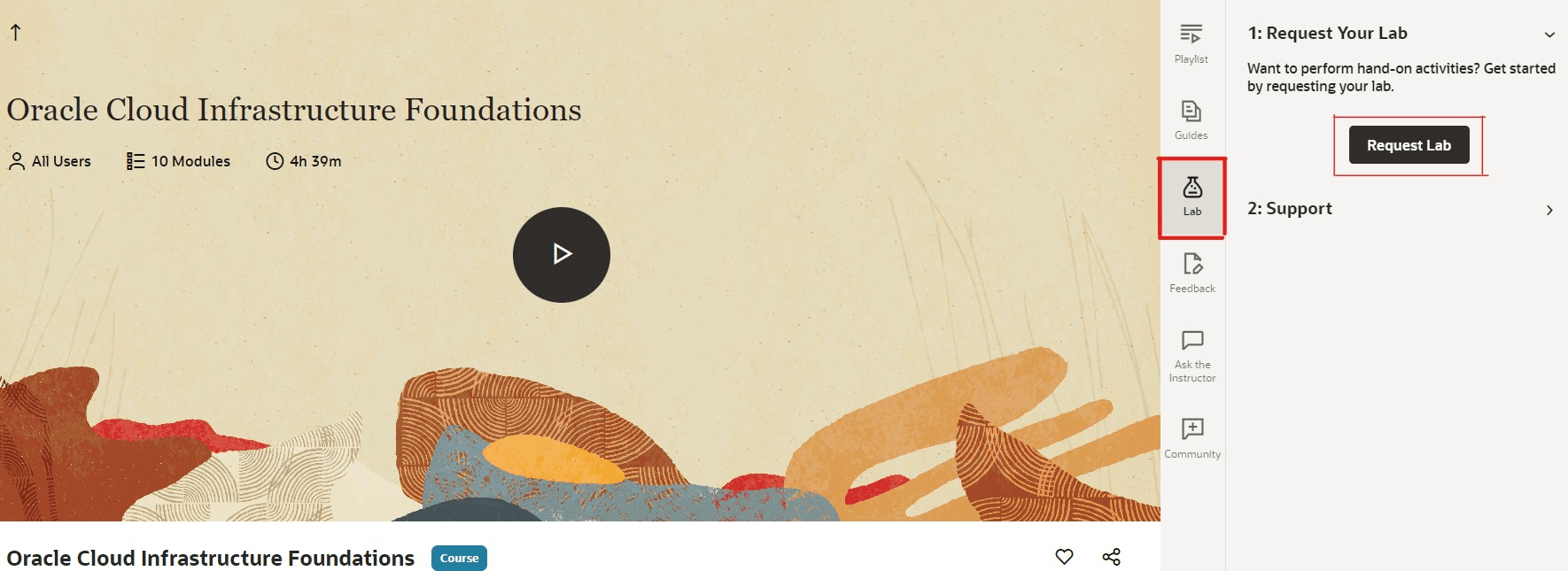
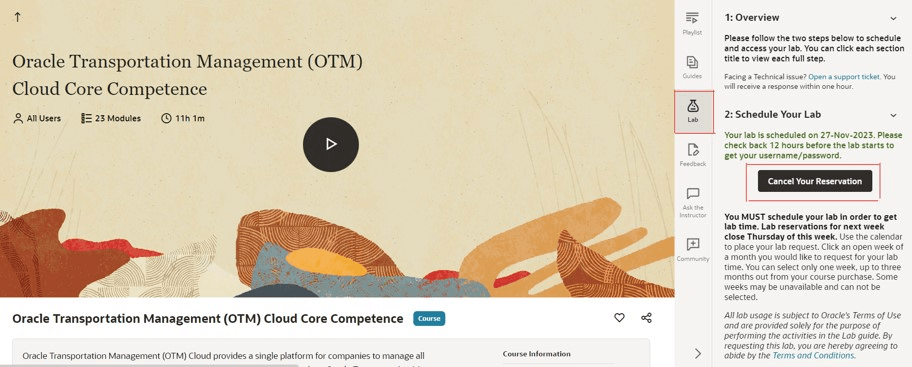
- Navigate to the course for which you need the lab environment and click the Lab icon on the right panel.
- If you see the Request Lab button, click on it and follow the on-screen instructions.
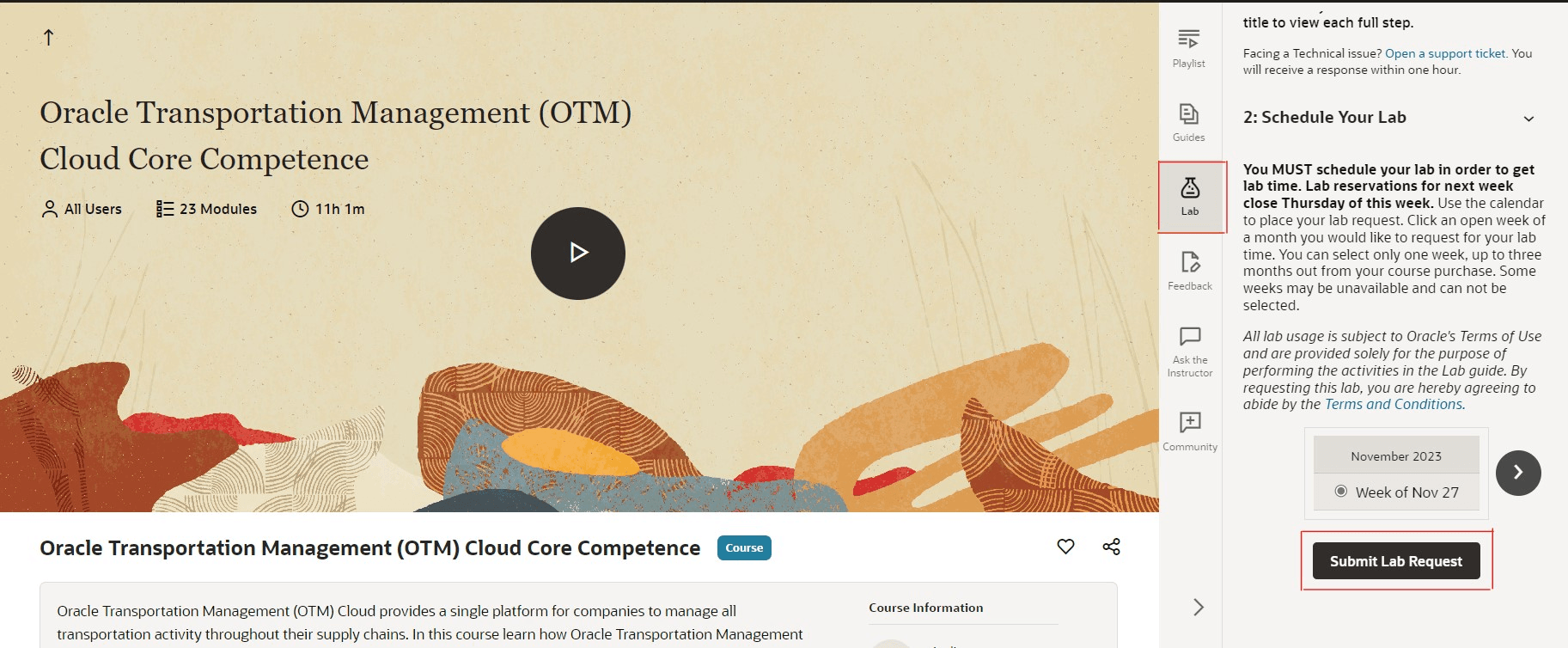
- If you see a calendar, select the week-start date and click the Submit Lab Request button. The cut-off to request your lab time for the upcoming week is Thursday 23:59 PST.
If you are unable to request a lab (Requires Oracle Login):
2. How can I extend my lab environment?
If your lab is eligible for extension, you will see the Extend Lab button in the Lab section on the last day of the lab. Click on it and the lab will be extended.
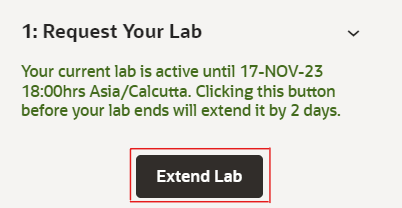
If your lab is not eligible for extension, you will NOT see the Extend Lab button on the last day of the lab.
Click the button below and raise a support ticket requesting an extension (Requires Oracle Login):
3. How do I cancel or reschedule my lab environment?
- If your lab is eligible for cancellation, you will see the Release Lab button in the Lab section after your lab is ready. Click on it and the lab will be released. Book your new lab.
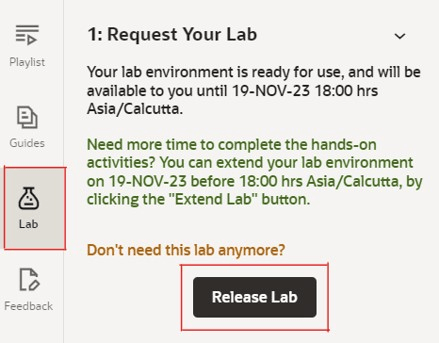
- If you see a Cancel Your Reservation button on the Lab section, click on it and your lab request will be canceled. Book your new lab. Note that this button is not visible after your lab is ready.
If your issue remains unresolved (Requires Oracle Login):
4. Why are all the weeks shown on the lab booking page disabled?
Lab registration may be disabled in the following cases:
- You have already blocked future weeks by scheduling a lab via the calendar for a different course.
- Your subscription is close to expiring.
If the above-mentioned reasons are NOT the case, click the button below and raise a support ticket (Requires Oracle Login):
5. Where do I find the lab login details or connection information? I can’t find them under the Lab tab in MyLearn
The way you connect to the lab environment has changed for some courses. You need to access the lab using the Launch Lab option and refer to the Lab Details / Connection Info provided inside the lab window.
- Open your course on MyLearn.
- Go to the Lab section.
- Under Access Your Lab, click the Launch Lab button. (Make sure pop-ups are enabled in your browser.)
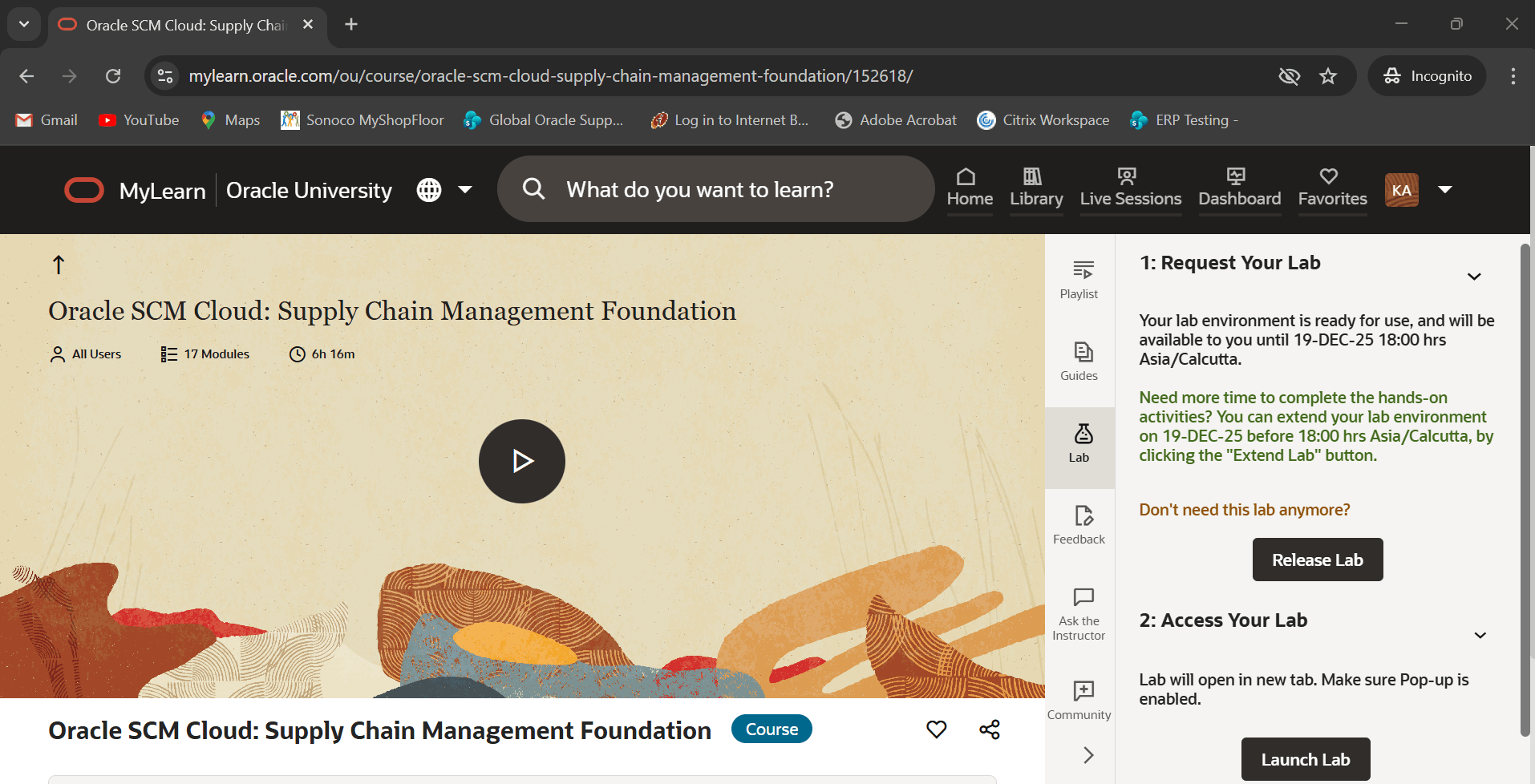
- Once the lab launches, a new window opens with two panels:
- Left Panel contains lab instructions and includes a drop-down menu at the top.
- Right Panel is your actual lab environment where you perform hands-on activities.
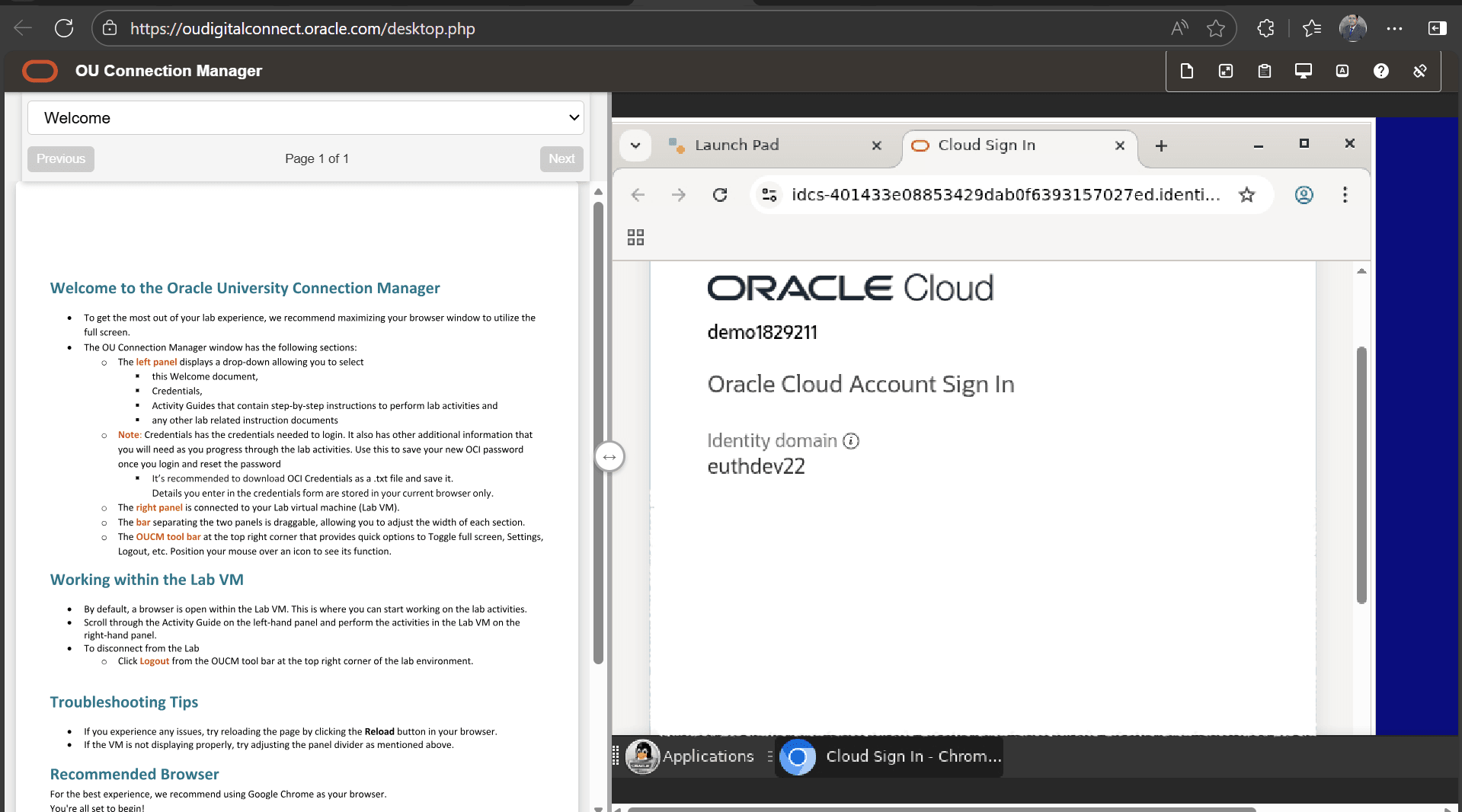
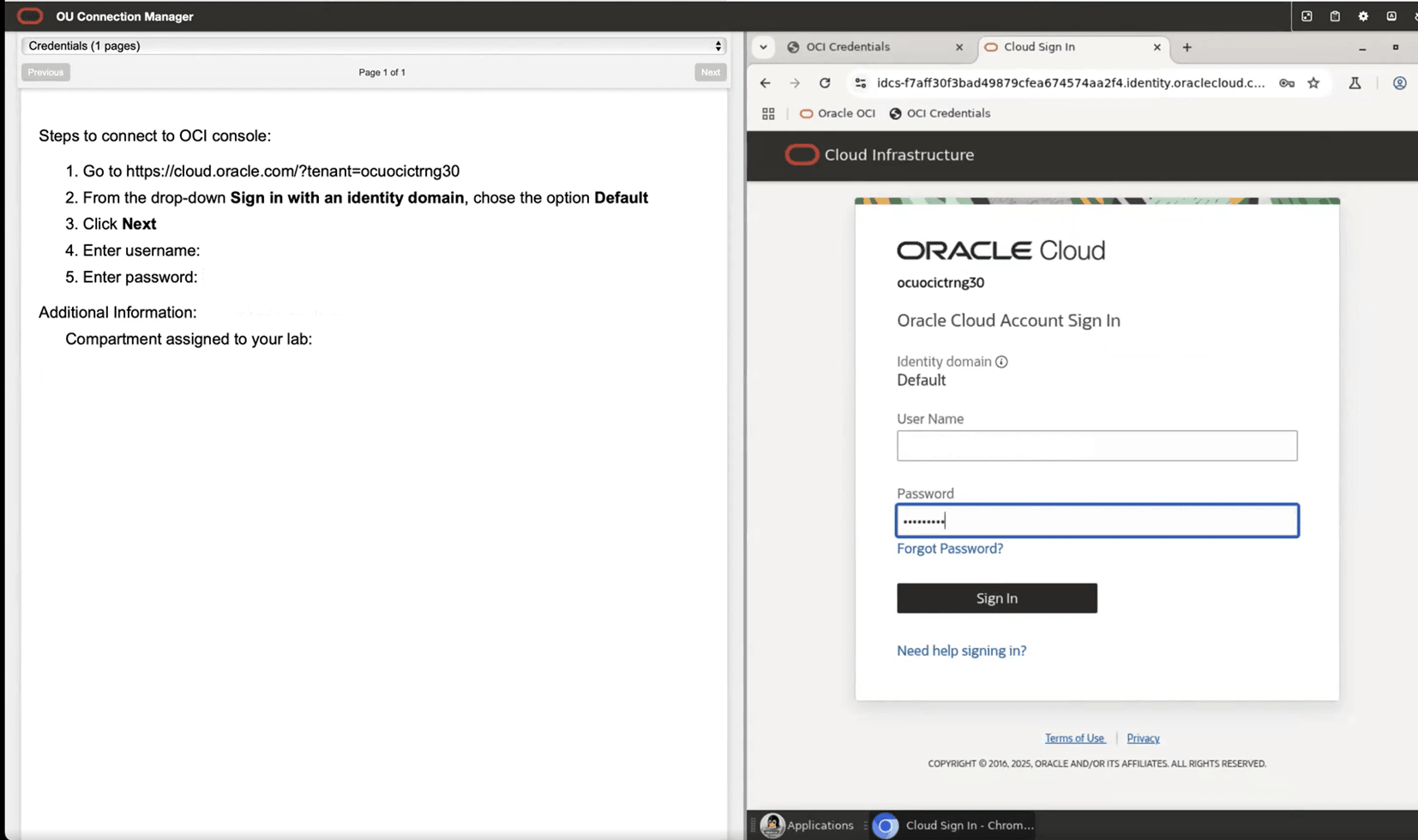
- In the left panel, click the drop-down menu.
- Select Credentials or Connection Info (you can copy these details directly from this page).
If your issue remains unresolved (Requires Oracle Login):