Advance from Multiple Actions
In some cases you need to advance a step two ways. For example, when searching a user can both click Search or press Enter on their keyboard. In some cases, this is required for guides to pass SOX and legal compliance.
To account for both types of interaction, you can add an invisible step that listens for the second way to advance the guide. These instructions describe how to manage a situation where you need to add an invisible step that listens for the user to press enter. However, this same approach can be applied to other interactions. Instead of creating a splash tip as these instructions state, you'd actually tie the invisible tip to an element.
Step-by-Step Instructions
To add an invisible tip that advances when a user presses the Enter key.
- In the OGL Full Editor, go to the step/tip where you need to add the second interaction, and then click the Edit Tip icon to open Step Settings.
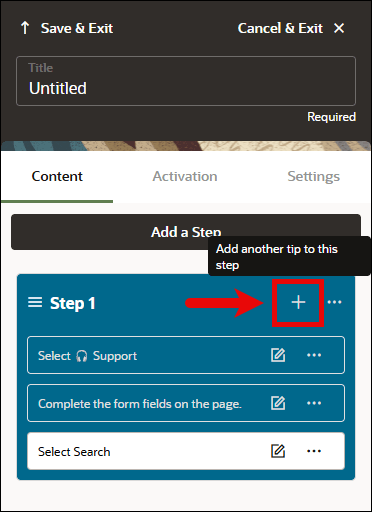
- Click the Add another tip to this step ( + ) button to add another tip to the end of the step.
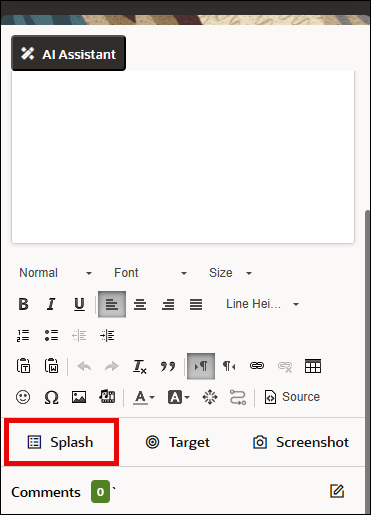
- Click the Splash button near the bottom of the editor panel.
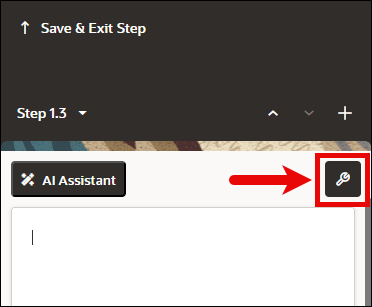
- Select the Step Settings button to open the Settings panel:
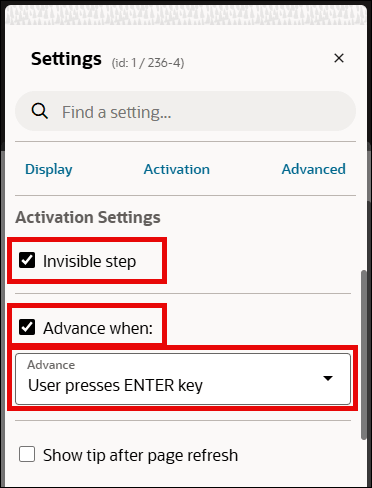
- In the Activation Settings, select Invisible Step.
- Select Advance when: and then select the Advance dropdown menu and choose User presses ENTER key.
That's it! The step will now advance either when the user clicks a button or when they press 'Enter'.