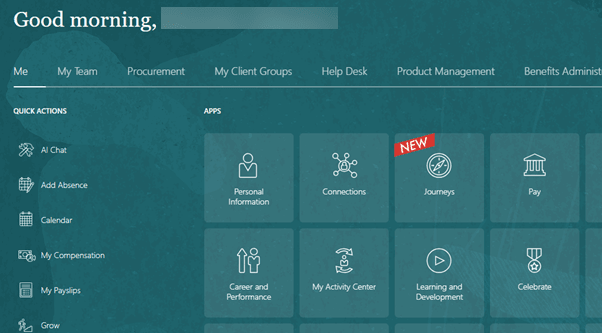
Custom Classes – Adding a New Label to a Tile
Adding a New Banner to a tile using OGL
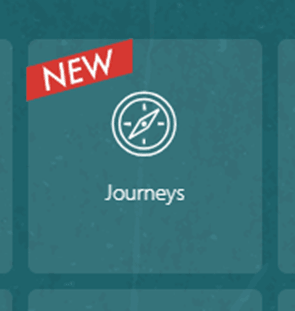
Add the below code to your design kit, Available to export in Settings/ Theme. You will need to open the Theme with a source code editor to add the code anywhere within the /*IRIDIZE_CUSTOM_THEME_START*/ and /*IRIDIZE_CUSTOM_THEME_END*/ section.
Note:
Alternatively, raise a Support ticket in the OGL console and the Team will do it for you.
div.NewStyle.ir-marker {
background: url(https://guidedlearning.oracle.com/player/latest/api/app/hTYVFIuISsO081oFLtO5xg/upload_content_image/9nehkca/image/content_image);
background-repeat: no-repeat;
background-position: center;
border: none;
border-radius: 0%;
background-size: contain;
padding: 24px;
display: inline-block;
}
div.NewStyle.ir-marker:after {
content: none;
display: none;
}
Create a Smart Tip and select the tile you would like to show the banner on as Target and apply the below settings:
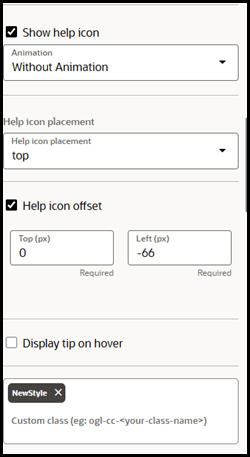
Once the above settings have been added, click on Invisible Tip
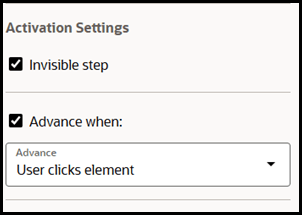
You are good to go!