Form Field Validation
An IDC (International Data Corporation) study shared that 80% of errors reported to service desks are derived from user-related mistakes or data entry errors. Validation is real-time feedback that can help to minimize data entry errors in form fields before submitting them. The validation process plays a critical role in ensuring accurate and consistent data input; however, with the current guide editing experience, it can be challenging for content developers to research and employ Regex codes.
The form field validation feature within the OGL guide editor provides alternative, user-friendly approaches to configure validation rules to ensure more accurate data entry within specified form fields. To address this, we have added settings to the Step Conditions panel that allow for date, character, numerical, and password conditions on a field. This approach involves the integration of several intuitive operators, designed to be easily understood and utilized by content developers, offering a more user-friendly alternative to working with regex codes. This feature complements the use of an element blocker and Smart Tips + Activation Conditions to create a Validation solution.
Benefits of Form Field Validation
Form field data validation can help ensure that the data you collect from end-users is accurate and consistent, which provides substantial business value across various dimensions. Here are key areas where the validation feature can contribute value:
- Data Accuracy and Integrity: Ensuring data accuracy through robust validation rules enhances the integrity of information within applications.
- Operational Efficiency: Reduced manual intervention, quicker issue resolution, and streamlined operational workflows contribute to overall operational efficiency and resource optimization.
- Proactive Issue Resolution: The ability to trigger automated responses based on validation outcomes enables proactive issue resolution.
- User Empowerment and Self-Service: Increased user autonomy and self-service capabilities contribute to a more agile and responsive organization, reducing dependency on additional resources.
IMPORTANT NOTE:
With OGL 25C, we are releasing the Form Field Validation feature in the OGL Editor to allow early adopters to begin exploring the form field validation functionality.
The additional form field validation options will become fully functional for end-users in Fusion applications beginning in Fusion 25D release, beginning in November 2025 (depending upon your Fusion cohort). Please consult with your Fusion administrator for information about when you will receive your Fusion 25D update.
During this time, Fusion customers may implement form field validation using Regex codes.
Use Cases:
Accurate numerical ranges - When typing in an expense for a laptop claim – ensuring the dollar figure input is between $0-3000
Prior necessary field inputs - When applying for Jury Duty, adding the comments (e.g. Character >1) in before submitting for approval
Temporary downtime of process - When there is no availability to access Self-Serve Documentation help due to maintenance and users need to submit an enquiry through an inbox instead.
Marking a field as mandatory - While performing procurement transactions, there are certain fields (Agreement/Supplier) which aren't marked as mandatory but is one of the required data to complete a transaction.
Validating numeric data - Verifying that the "Quantity" field, when selecting the line type as Goods, only accepts whole numbers and not decimals.
Restricting character length - Limiting users to input data of a particular length, such as requiring the "Bank account" field to have a specific length of characters, for example, 8 characters.
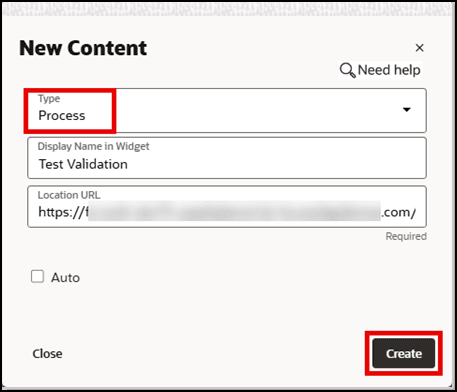
- From the OGL console, select the Create button and select the guide type
as Process.
Enter a Display name and Location URL, as required.
Select Create.
- The host application is loaded alongside the OGL full editor.
Navigate to the relevant page.
Select Add a Step and choose a target selector.
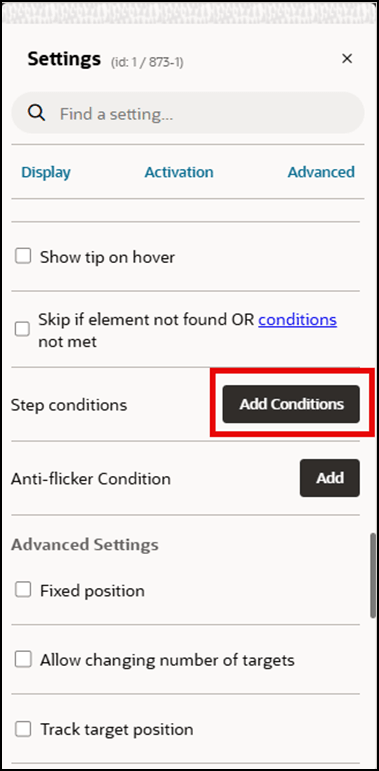
- Select the Step settings ( ) button.
(Apply Display and Activation settings, as desired.)
In the Step conditions setting, select the Add Conditions.
-
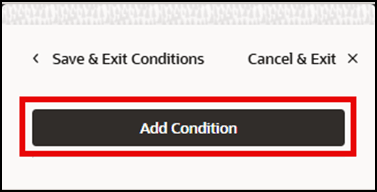
In the Step Conditions panel, select the Add Condition.
- In the Create condition settings panel, set the following:
Type = ‘Page’
Connector = ‘has’ or ‘has not’
Subtype = ‘form field’
Selector = <pick an available target selector in the host application> (i.e, data field)

- In the Operator dropdown menu, you can choose from the following validation
operators:
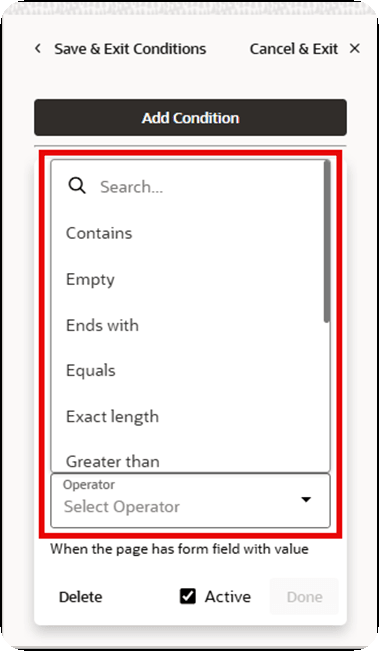
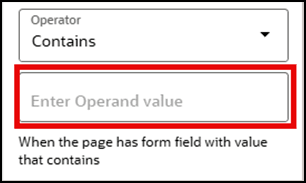
- Based on the operator selected, you may need to enter an Operand
value:
How to Apply ‘Form Field – Date’ Formats and Operators
To apply a form field validation rule that restricts the format and value of a date entry, you can use the “form field – date” subtype and operators:
- In the Create condition settings panel, set the following:
Type = ‘Page’
Connector = ‘has’ or ‘has not’
Subtype = ‘form field - date’
Selector = <pick an available target selector in the host application> (i.e, data field)
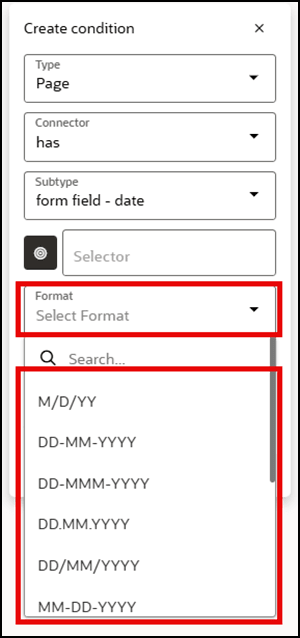
- Select the Format menu and choose a desired date format (e.g., M/D/Y, DD-MM-YYYY,
etc.)
- Select the Operator menu and choose a desired operator (e.g., After custom time, At
custom time, etc.)
If prompted, select the calendar button and choose a desired date from the pop-out calendar.
Note:
The ‘form field – date’ formats and operators will not be fully functional to Fusion end-users until the Fusion 25D release, beginning in November, depending upon your Fusion cohort. Please check with your Fusion administrator for details about when you will receive this update.How to Apply Validation to a Form Field using a Regular Expression (Regex code)
Regular expressions are used in many software applications, so you may be familiar with them from working in other Oracle software solutions. In addition, you can typically search for an applicable Regex code via web browser or AI search engine.
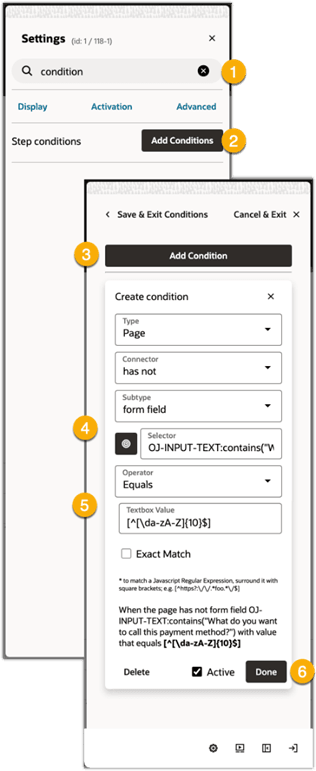
- Open your Step Settings and locate Step conditions.
- Select Add Conditions (or Edit Conditions if there are already items entered).
- Select Add Condition and then choose:
- Type: Page
- Connector: Has or has not, as applicable
- Subtype: form field
- Next, use the target Selector to identify the field where you want to apply validation
- Choose the Operator of Equals from the drop-down list, and then enter the
regular expression surrounded by square brackets in the textbox:
Example: If the regular expression for a field 10 alphanumeric characters in length is ^[\da-zA-Z]{10}$, the textbox value would be [^[\da-zA-Z]{10}$]
- Select Done and then Save and Exit the step.
Known Issues/Expected Behavior
- When creating a Validation Step Condition like Form Field or Form Field - date step condition, etc, the feature works fine when we create the conditions by selecting values for all the available selections in the order they appear. However, if we jumble the order and select the drop-down option first, then try selecting the selector for example, the step condition is breaking.