Guide Appears in Help Widget after Updates
This is most commonly an issue when creating a Smart Tip guide designed to auto launch, but you not intended to show up in the Help Widget. If Activation Settings are done correctly, the guide will not appear in the Help Widget. However, if the guide is updated, the Activation Settings will automatically update to display the guide in the Help Widget. To avoid this issue with existing guides or new guides, follow the steps below.
New Guides
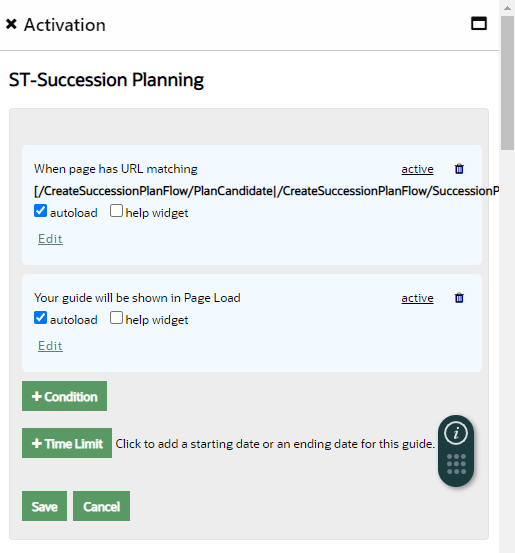
- After you initially create the guide and select the "Done" button, you are brought to the Activation Settings window. Here you will see something similar to the following settings:
- Assuming you want the smart tip to autoload and NOT show in the Help Widget, adjust the settings as shown below (change the "When page has URL matching..." condition to "Inactive" and the "Your guide will be shown..." Condition to autoload):
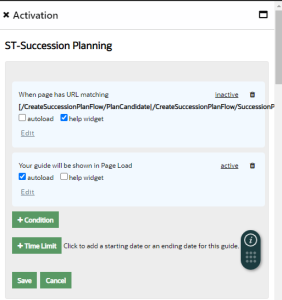
- If you go in and make edits to this guide (add a new Smart Tip, for example, or edit the text in the existing Smart Tip), the Guide Activation Settings will not change.
Existing Guides
- Go to guide that was previously created and examine the Activation Conditions.
-
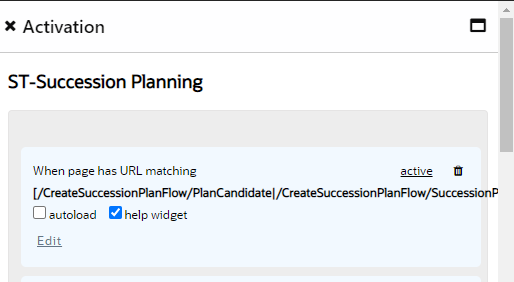
There should be at least a segmentation condition with "URL matching" and help me checked. The segmentation condition will usually have a fairly long string defining the routes. If it is a small guide, there the URL matching condition may be relatively short.
-
- Set the segmentation condition to autoload
- Open the guide, edit it ((add a new Smart Tip, for example, or edit the text in the existing Smart Tip), and select Done
- Review Activation Conditions
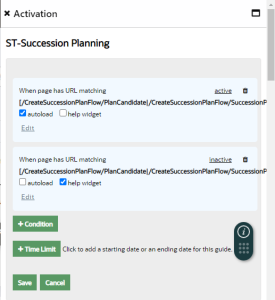
- You should now see an additional help widget activation condition, like this:
- You should now see an additional help widget activation condition, like this:
- Set this additional help widget activation condition to inactive
- Save settings
- The next time you edit the guide, there should be no changes to the Activation Settings