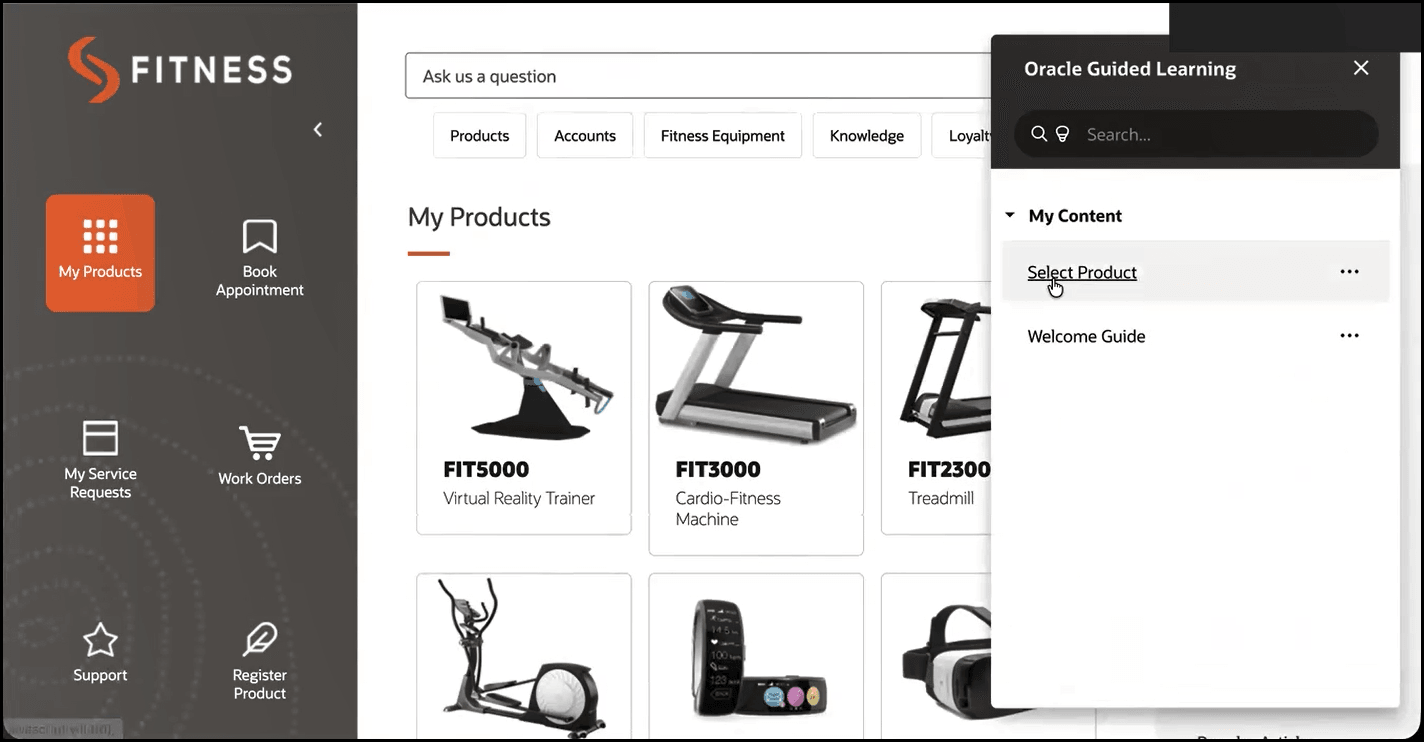
How to Enable OGL in Visual Builder Cloud Service (VBCS) Applications
The following article provides step-by-step instructions on how to embed OGL in a Visual Builder Cloud Service (VBCS) application within the application development environment. The screenshots provided are for instructional purposes and may differ slightly from your application configuration.
- Open the Oracle Visual Builder cloud service application development environment.
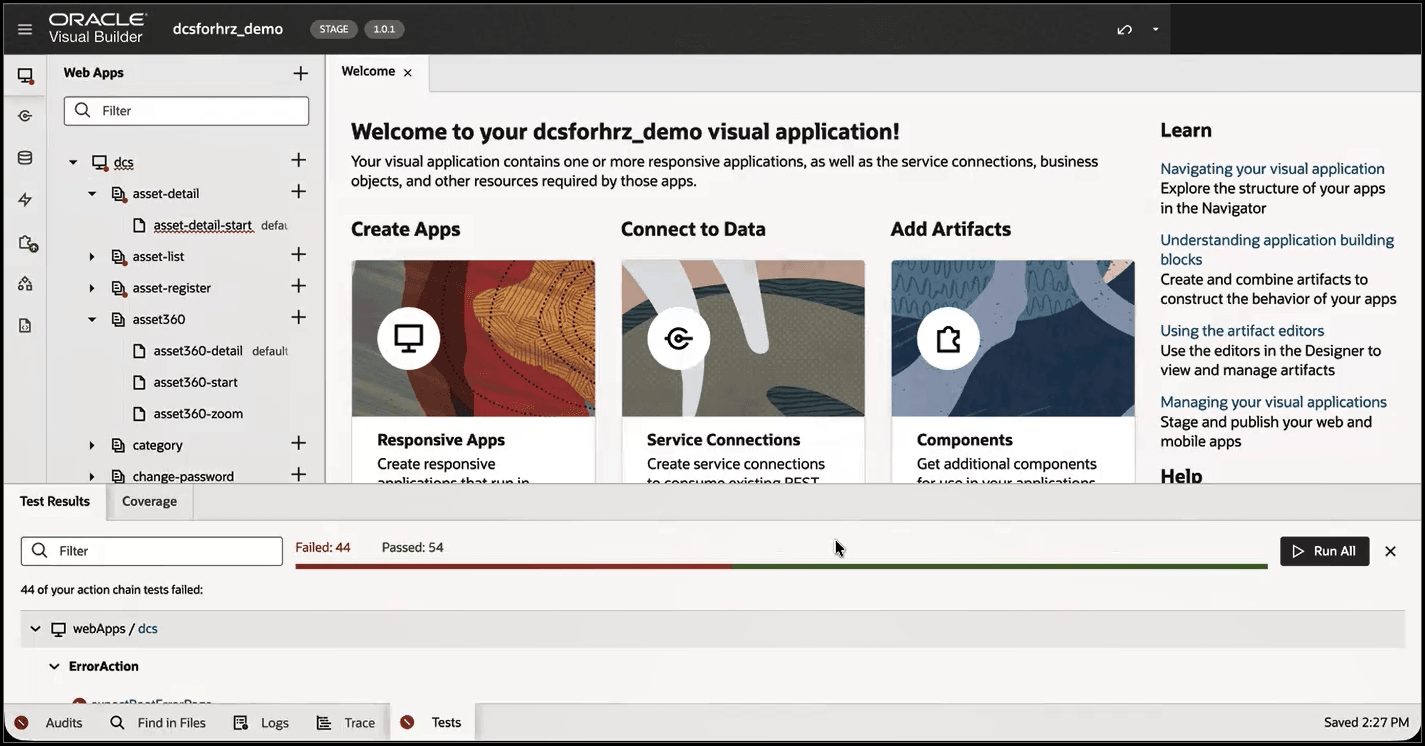
- Select the top-level element in the Web Apps panel on the left side of the screen.
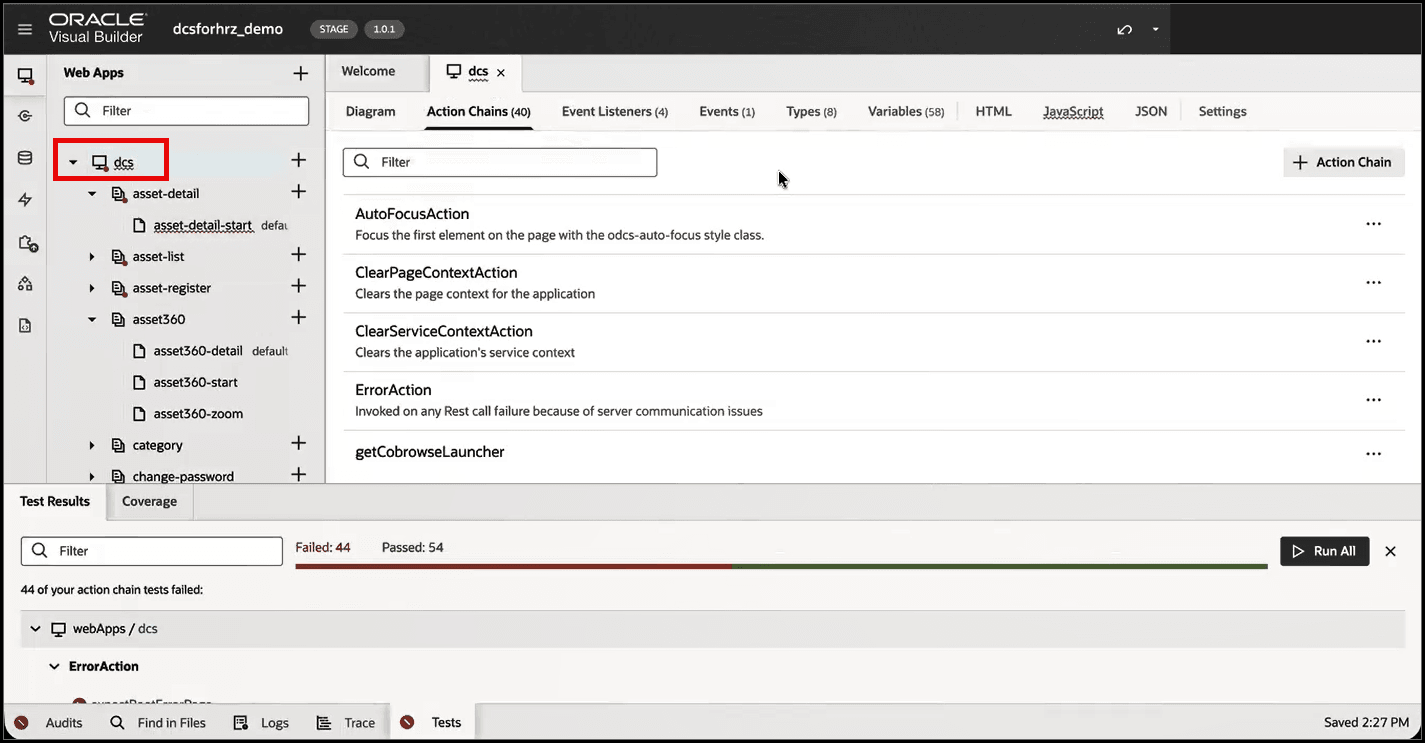
- Select the JavaScript tab and review the existing JavaScript definition file.
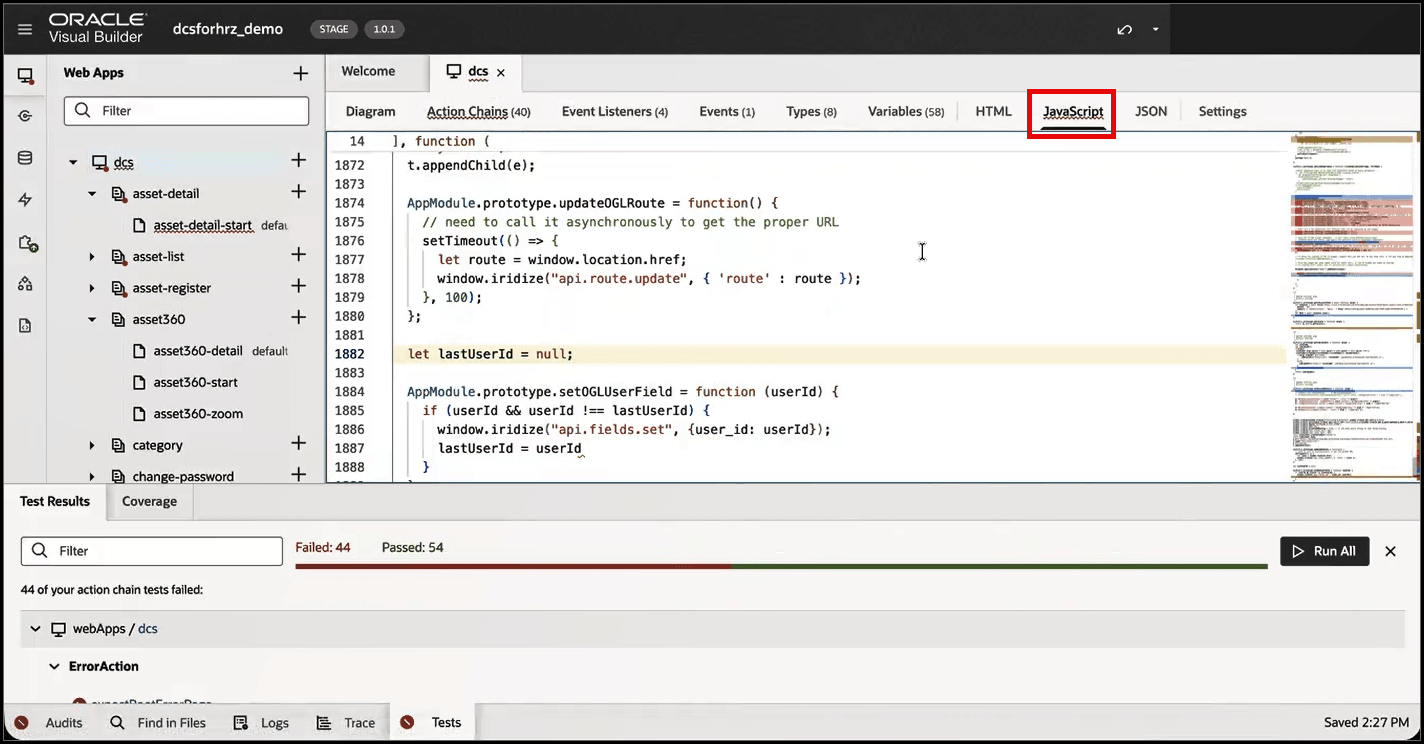
- Within the JavaScript definition file, you will need to copy and paste the following OGL Embed Code for VBCS Applications to the end of the JS code.
Note:
You will need to replace the appID value with your specific OGL appID and also update the Guided Learning URL to match your specific OGL tenancy - i.e., "guidedlearning.oracle.com/player/latest/static/js/iridizeLoader.min.js").OGL Embed Code for VBCS applicationswindow.iridize = window.iridize || function (e, t, n) { return window.iridize.api.call(e, t, n); }; window.iridize.api = window.iridize.api || {q: [], call: function (e, t, n) {window.iridize.api.q.push({ method: e, data: t, callback: n });}}; window.iridize.appId = "XXXXXXXXXXXXXXXXXXXXXX"; window.iridize.env = "dev"; // uncomment for prod window.iridize.disableVBRouting = true;// if you have query string or hash based routing window.iridize("api.fields.set", {}); window.iridize("api.route.wait", {}); const e = document.createElement("script"); const t = document.body; e.src = "https://guidedlearning-dev.oraclecorp.com/player/latest/static/js/iridizeLoader.min.js"; e.type = "text/javascript"; e.async = true; t.appendChild(e); AppModule.prototype.updateOGLRoute = function () { // need to call it asynchronously to get the proper URL setTimeout(() => { let route = window.location.href; window.iridize("api.route.update", { 'route': route }); }, 100); }; let lastUserId = null; AppModule.prototype.setOGLUserField = function (userId) { if (userId && userId !== lastUserId) { window.iridize("api.fields.set",{ user_id: userId }); lastUserId = userId } }; - Because this is a Single Page Application (SPA), you may need to ensure that the user field and route are setup at the startup as these fields will be updated later in the application booster process. For now, you can leave these values blank as we will address these later in the process.
window.iridize("api.route.wait", {});
window.iridize("api.fields.set",{});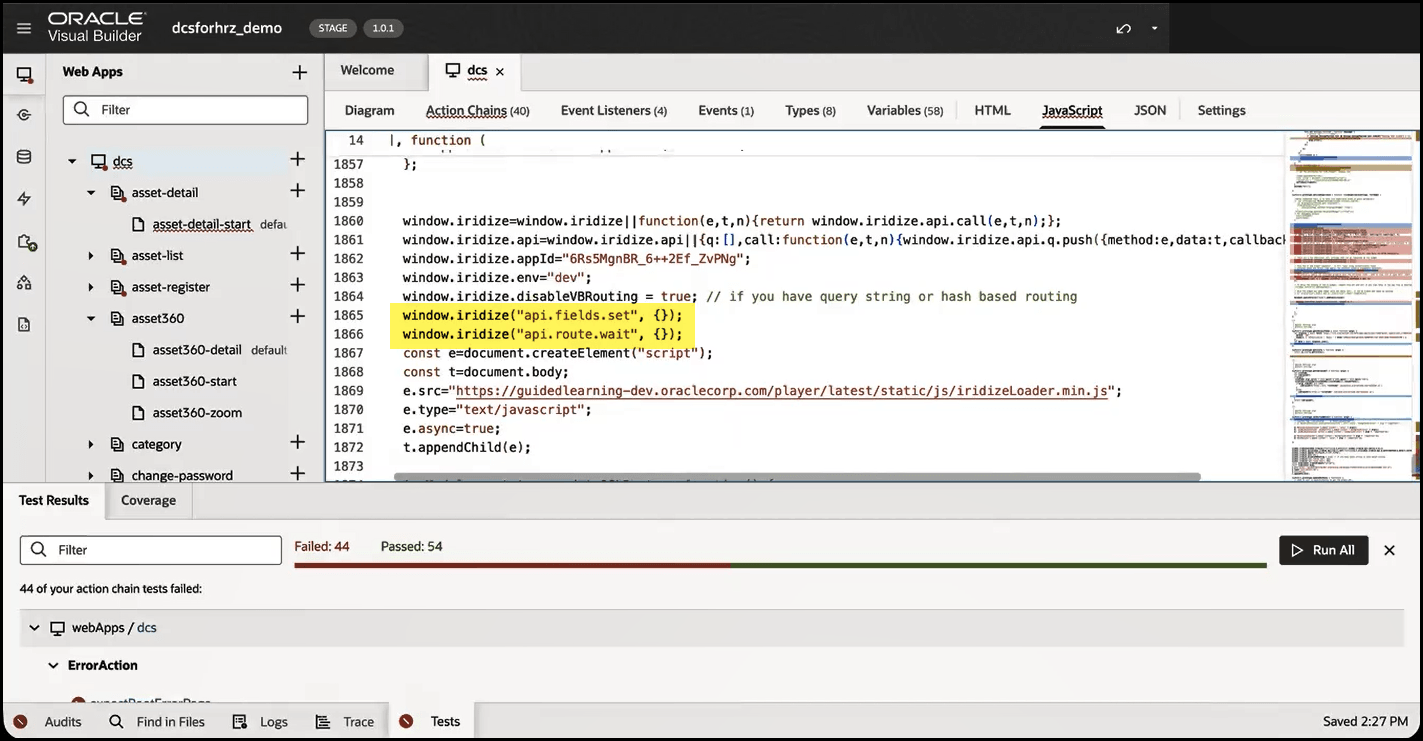
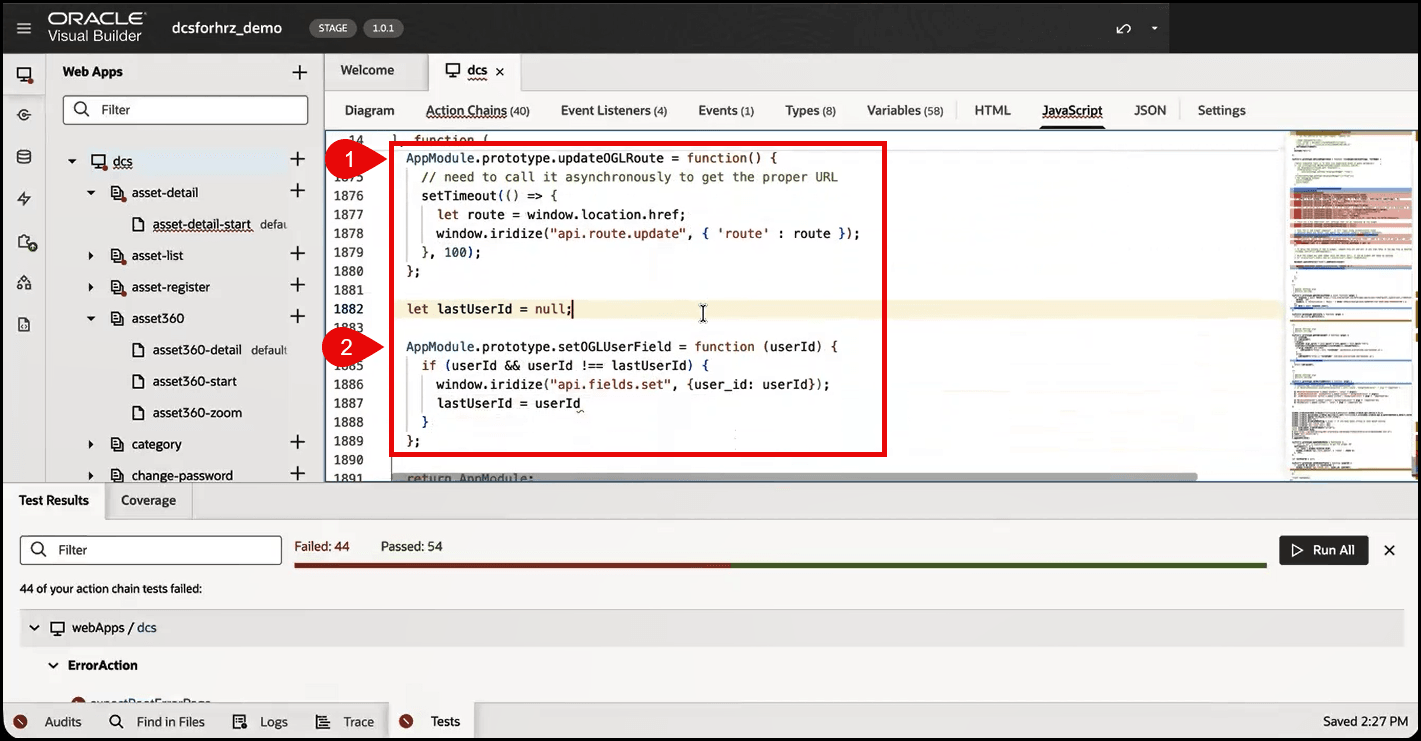
- For this example, we have created two separate functions to:
- Set the OGL route based on the window location and
- Set the OGL user field.
This will ensure that the application updates the route correctly and stores the current user information before moving to the Action Chain. You will need to configure Visual Builder to call these functions at the right moment with the correct information.
Notice that the 'setOGLUserField' call function (#2 below) requires a parameter. In the following steps, we will walk through how to set the parameter for this function to call the correct user information.
- Next, you will need to create an Action Chain for each function call. First, we will set the OGL route.
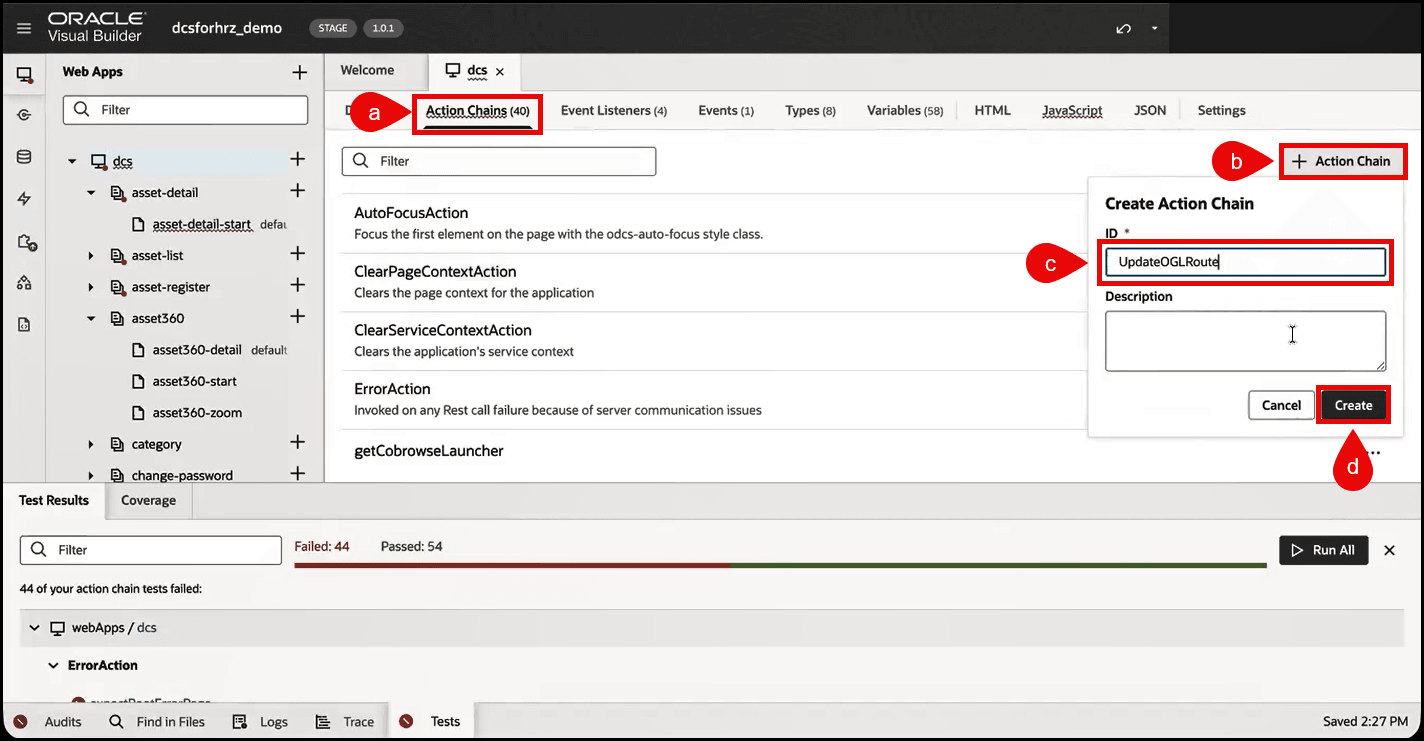
- Select the Action Chains tab.
- Then select the +Action Chain button.
- In the ID field, enter "UpdateOGLRoute". (We will reference this Action Chain ID later in the process.)
- Then select Create.
- Since we are trying to call a JavaScript function, you will need to add a Call Function action. This is the step where the workflow starts wiring the chain to a reusable function. Click and drag the Call Function action onto the canvas.
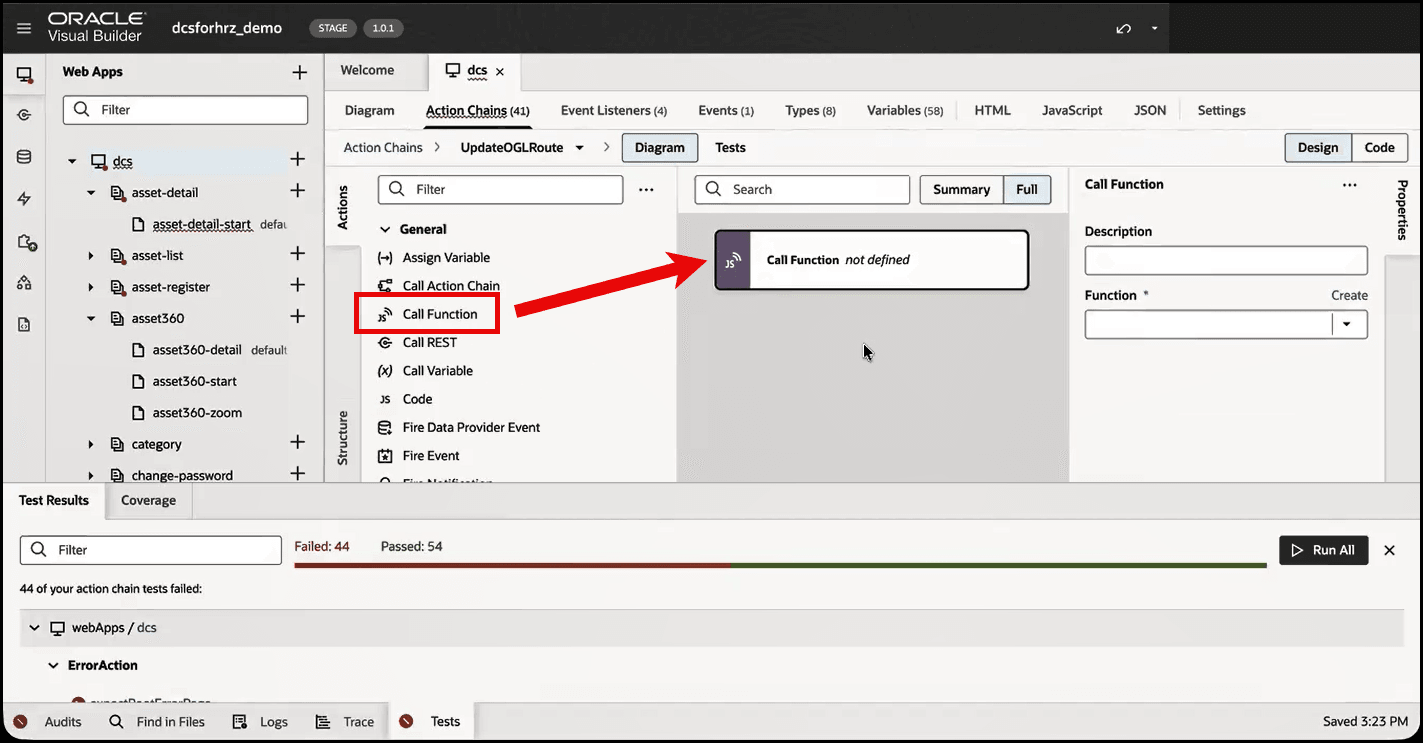
- In the Function dropdown menu, select the function that you intend to call.
Note:
You can filter the list of available application functions by entering a keyword, like "ogl".) Select 'updateOGLRoute'.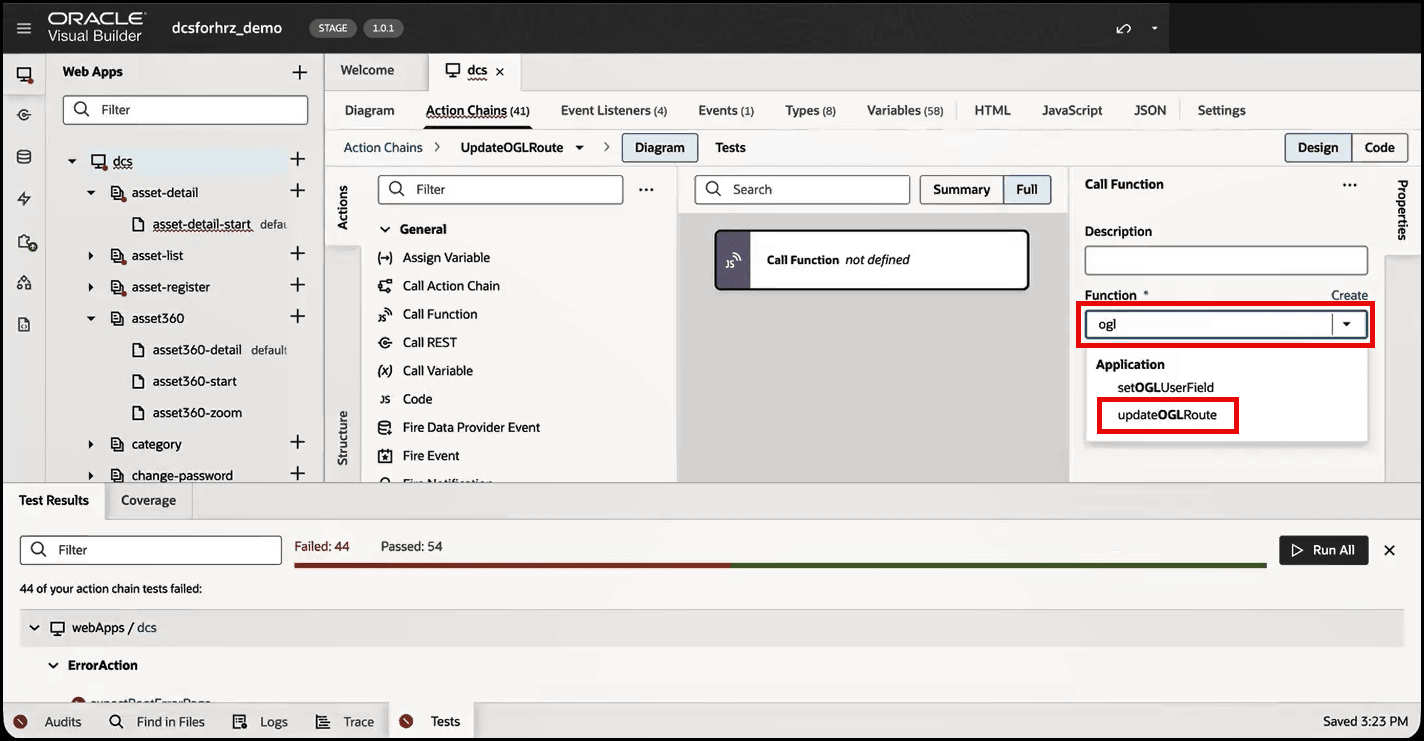
- Now that your Action Chain is ready, you will need to configure Visual Builder to call it.
- Select the Event Listeners tab.
- Locate the 'vbAfterNavigate' event listener and select Add Action Chain.
Note:
The 'vbAfterNavigate' event listener is the appropriate option in this case because it is called after the user navigates to the page.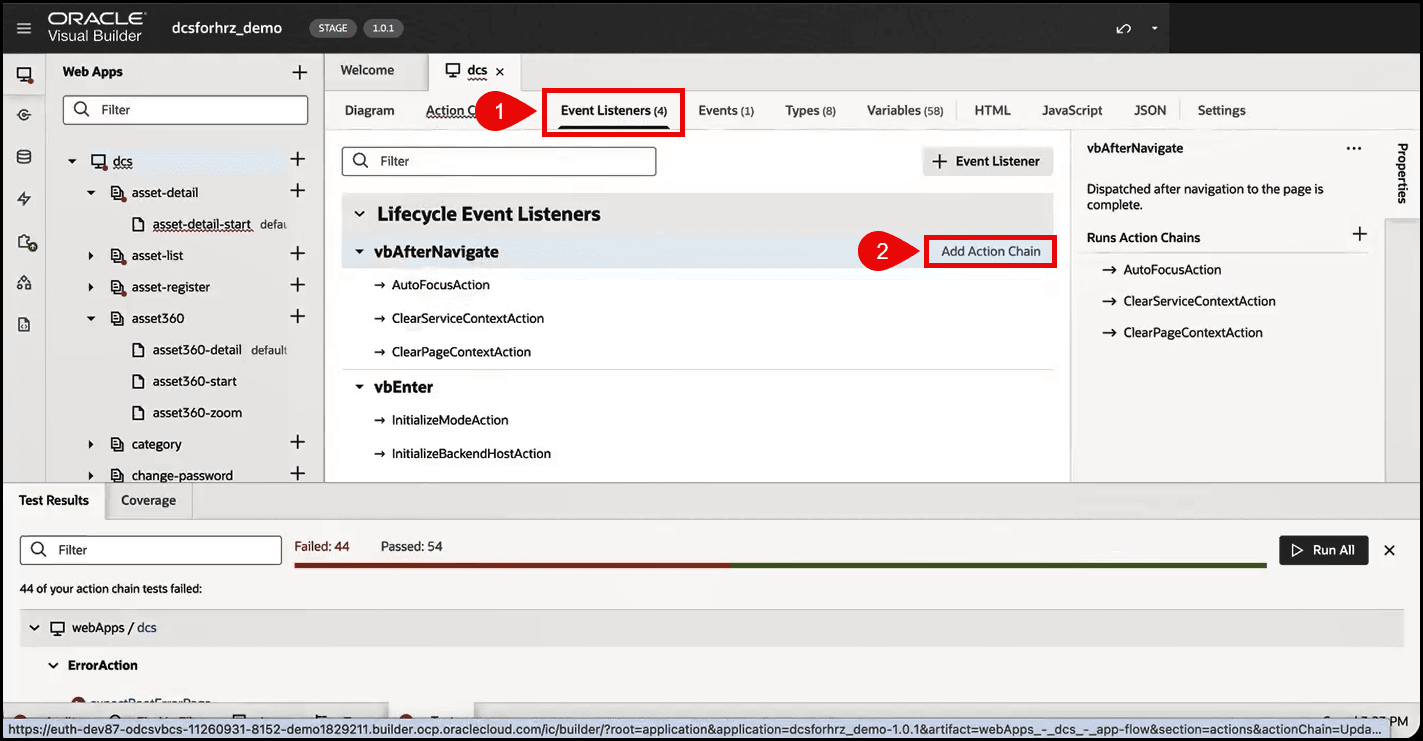
- The Select Action Chain modal opens.
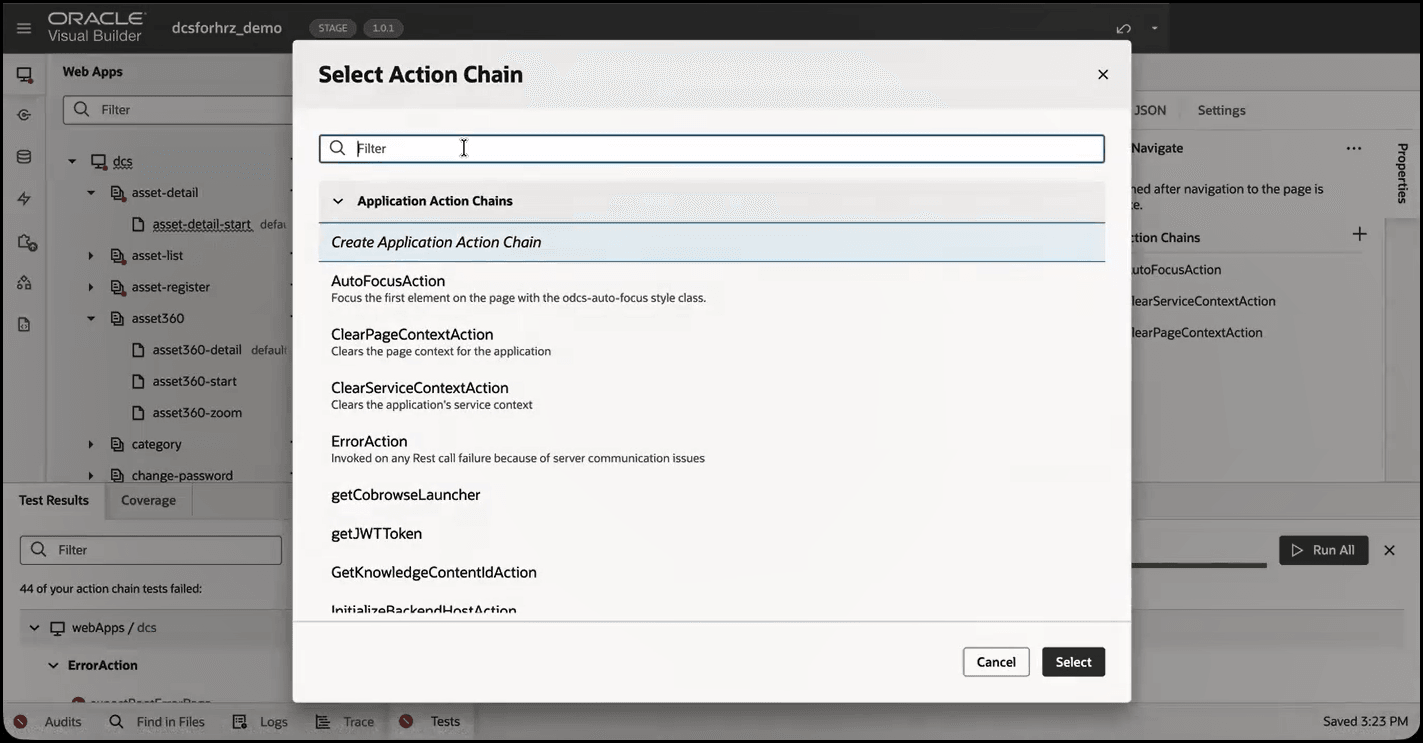
- Enter 'ogl' into the Filter field and look for the Action Chain ID that you created earlier (i.e., 'UpdateOGLRoute'). Then click 'Select'.
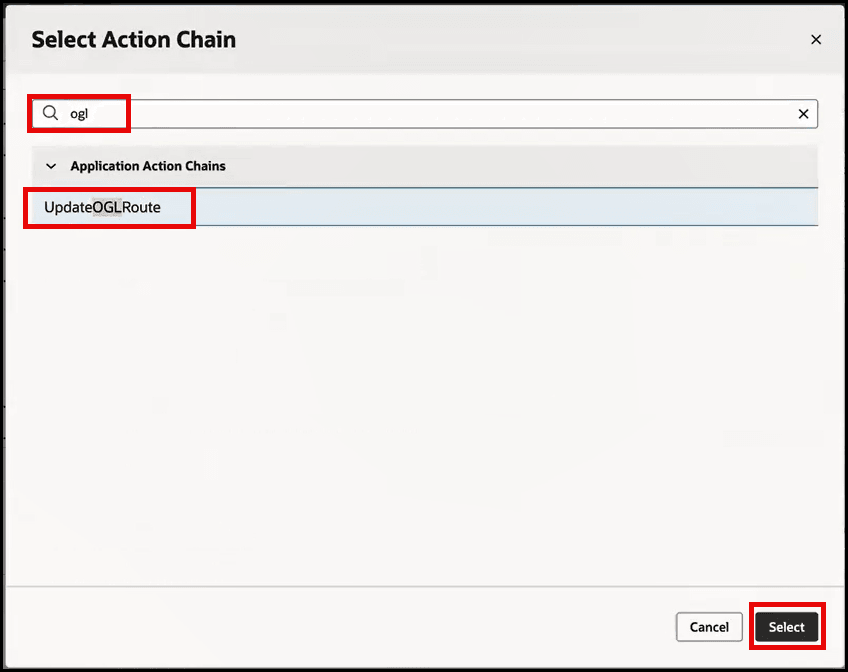
You have successfully set the OGL Route Action Chain.
- Select the Action Chains tab and then select Action Chains in the submenu.
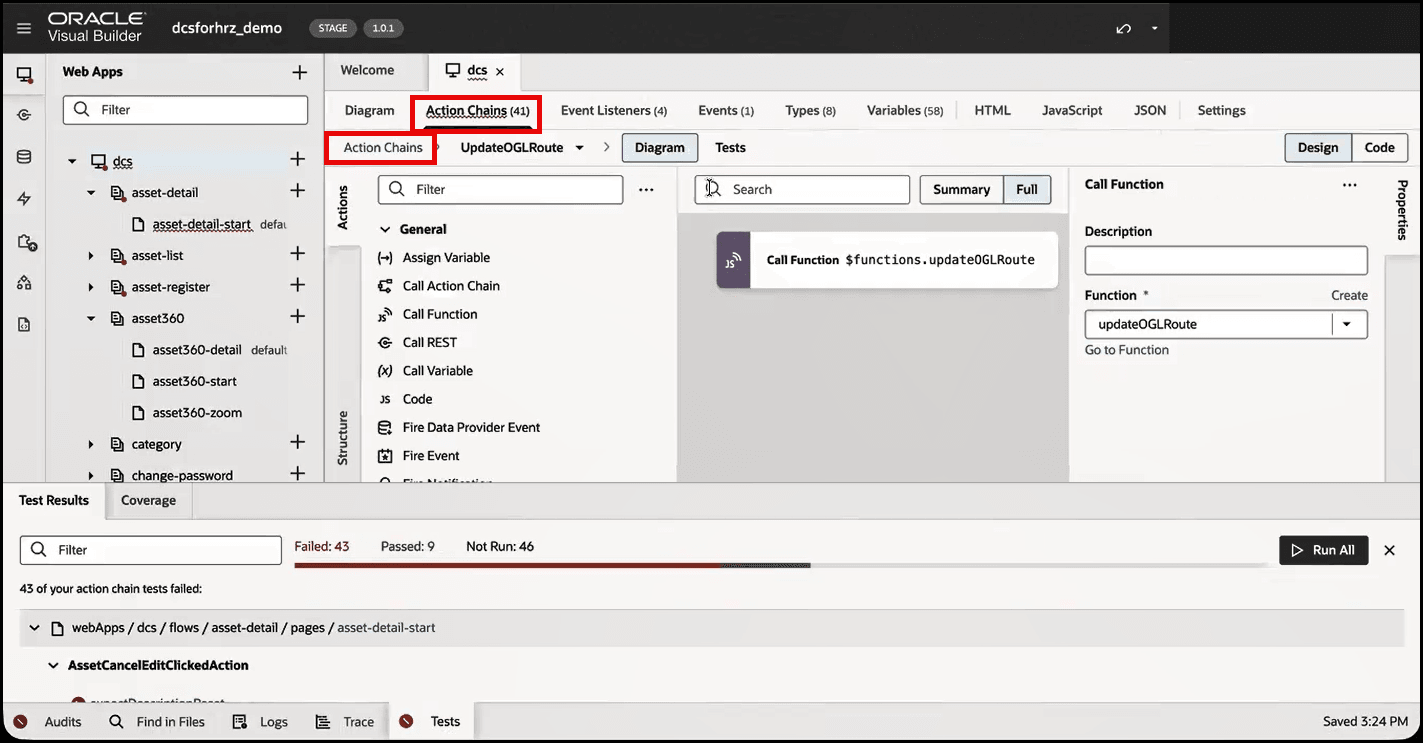
- Now you will need to create a new Action Chain to call the 'setOGLUserField' function.
- Select the +Action Chain button.
- In the ID field, enter 'SetOGLUser'. (We will reference this Action Chain ID later in the process.)
- Then select Create.
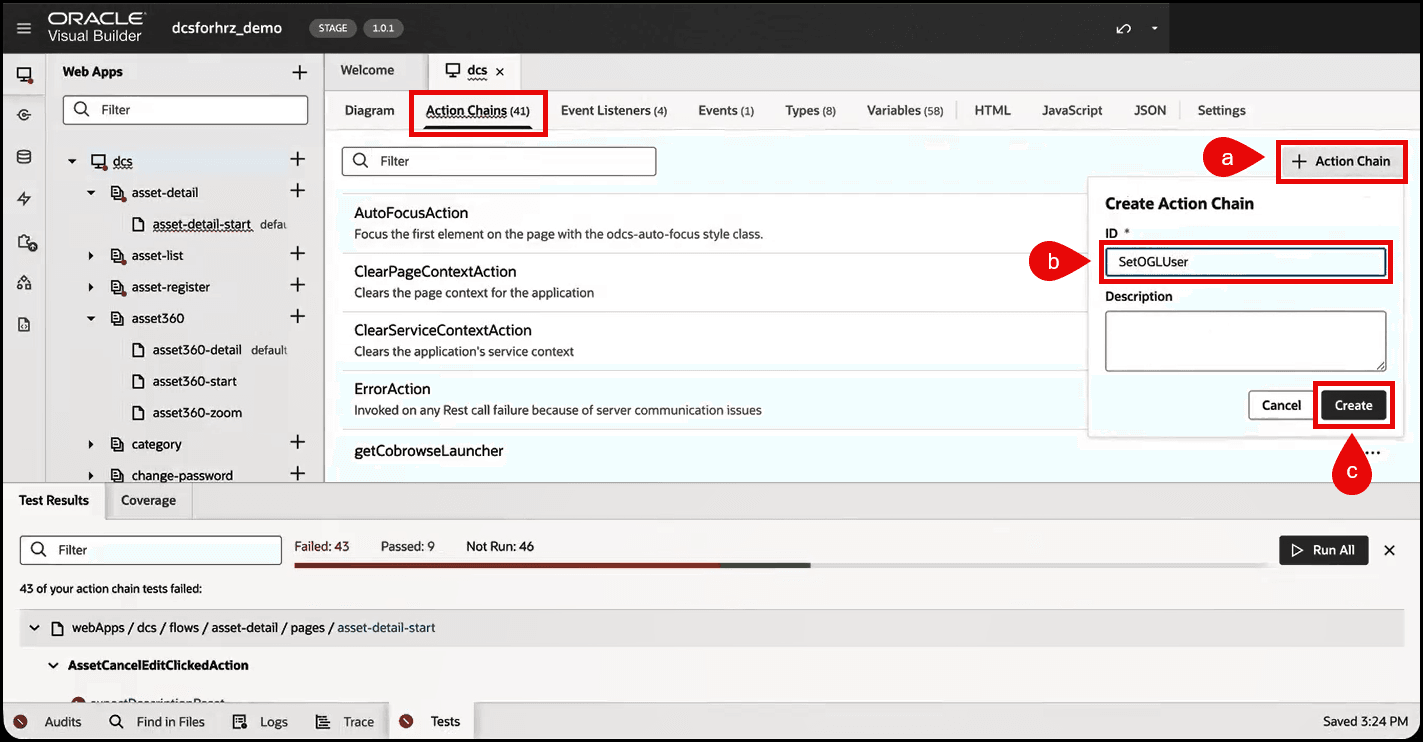
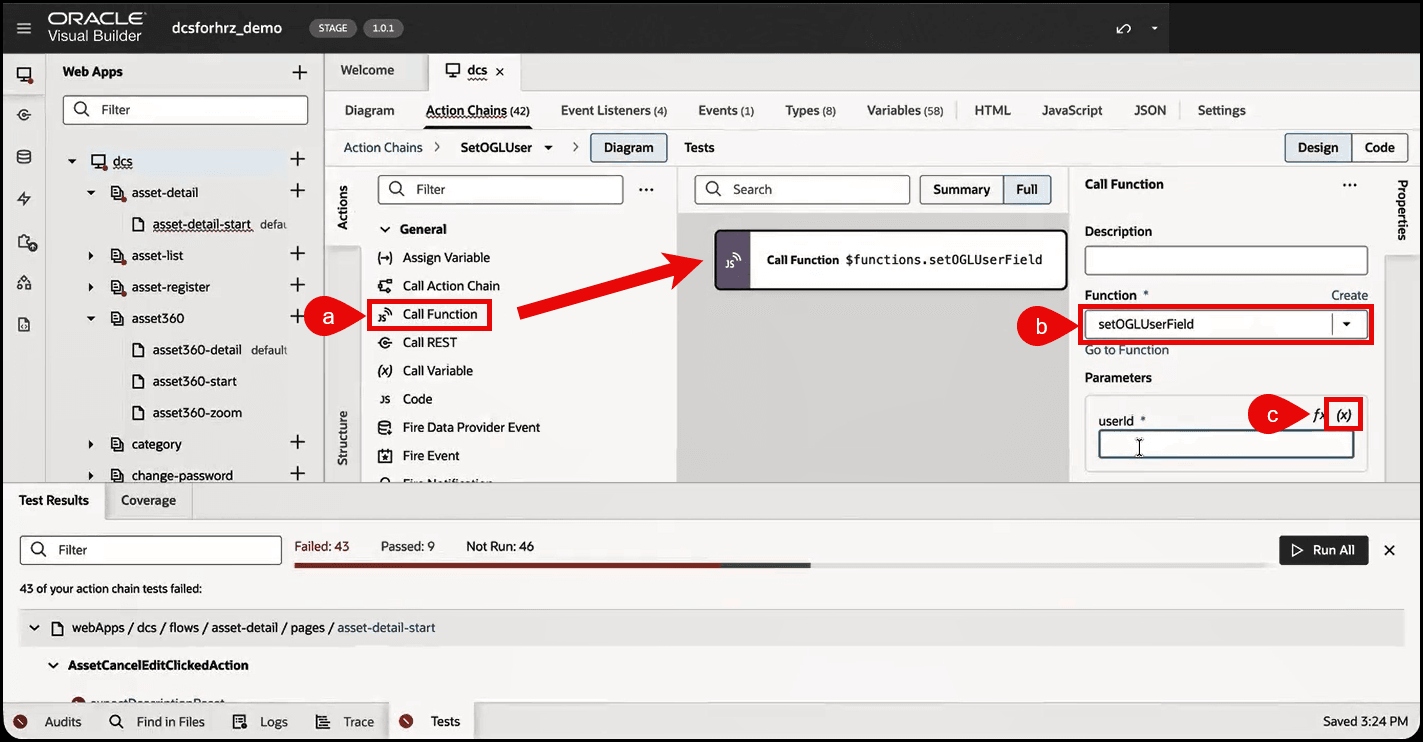
- In the Diagram subtab:
- Click and drag the Call Function action into the canvas.
- Click the 'setOGLUserField' function from the list of available functions.
Note:
You can enter 'setOGLUserField' into the Function field to quickly find and select it. - Since the 'setOGLUserField' function requires a parameter, you will need to provide a variable. Click the Select Variable (x) button to open the Variables picker.
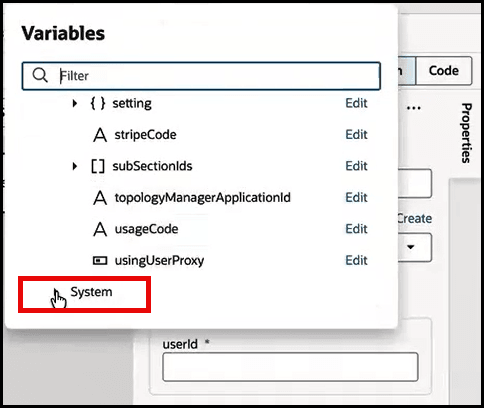
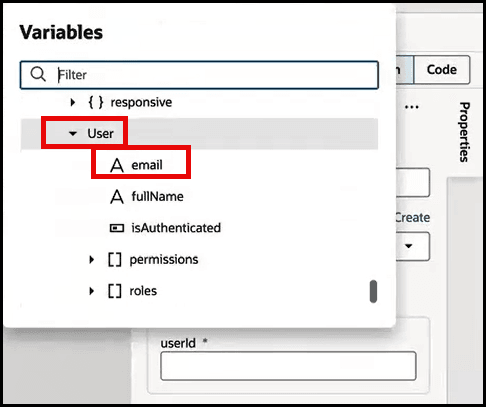
- From the Variables picker, scroll down and select System > User > then select from the list of available properties to return. For this example, select 'email'.
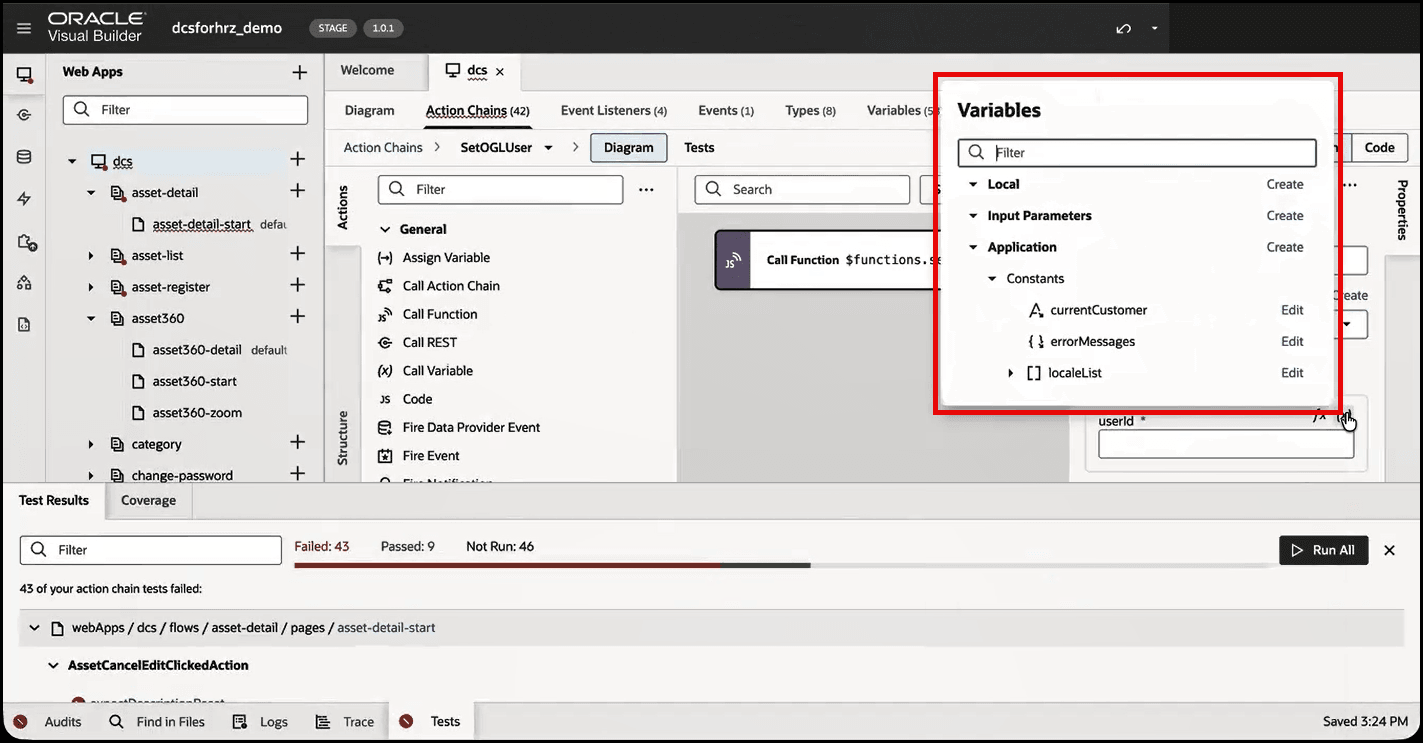
Select System to expand.
Scroll down and select email.
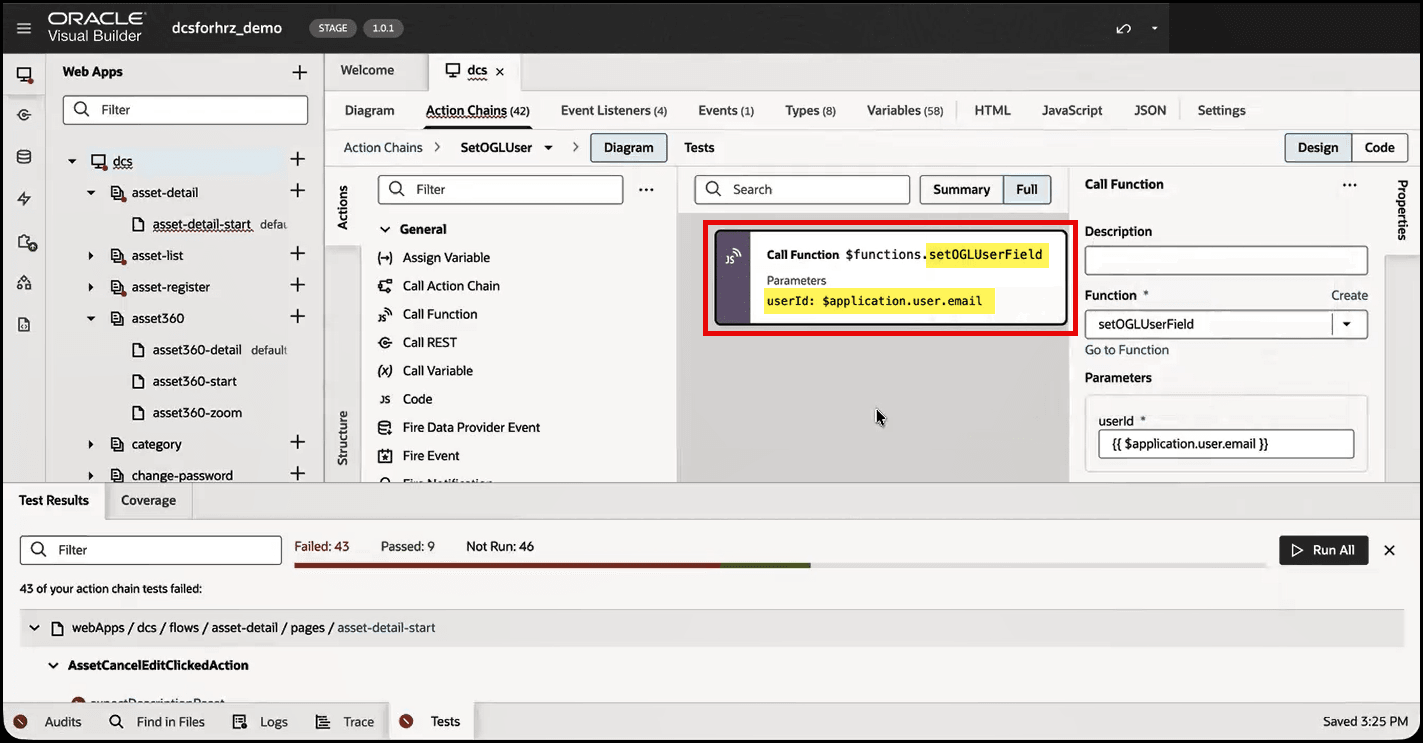
- The Call Function should now be updated with the email parameter (i.e., 'userID: $application.user.email'), as shown below.
- Next, you will need to bind the Action Chain to the 'vbAfterNavigate' Event Listener. Select the Event Listeners tab and then select Add Action Chain.
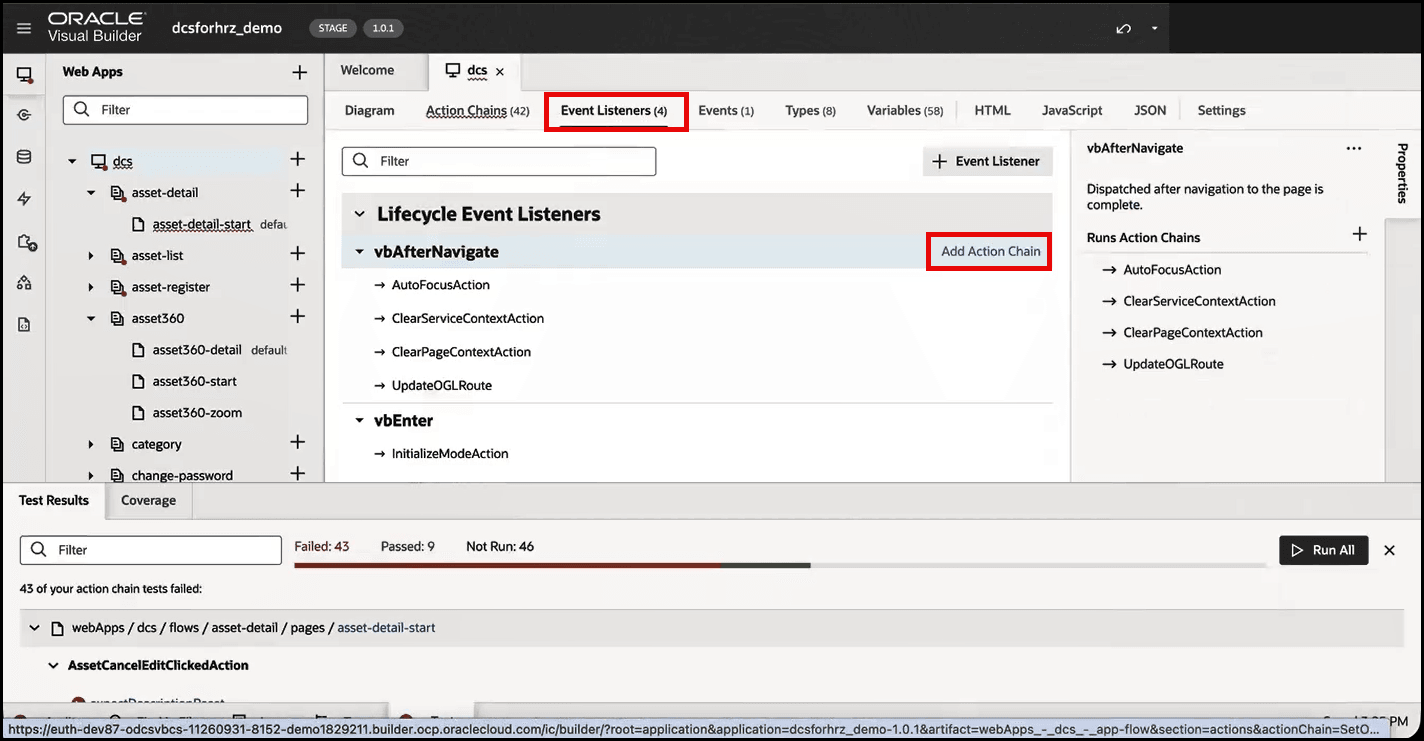
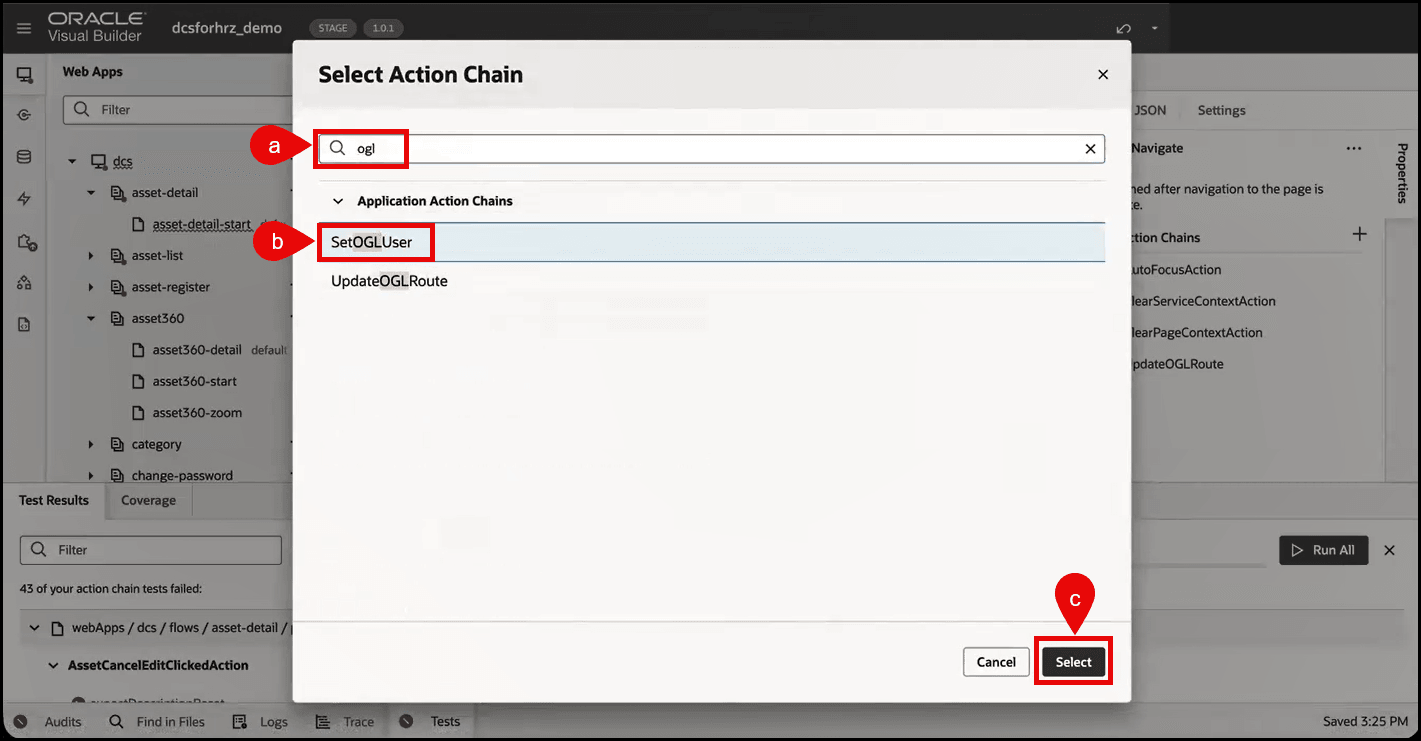
- In the Select Action Chain modal:
- Enter 'ogl' into the Filter field to narrow the list.
- Select 'SetOGLUser' from the list of Application Action Chains.
- Then click the Select button.
- To verify that OGL is embedded in your VBCS application, select the Preview button or open your application in another browser tab. Check to see that the OGL Launch Widget appears.
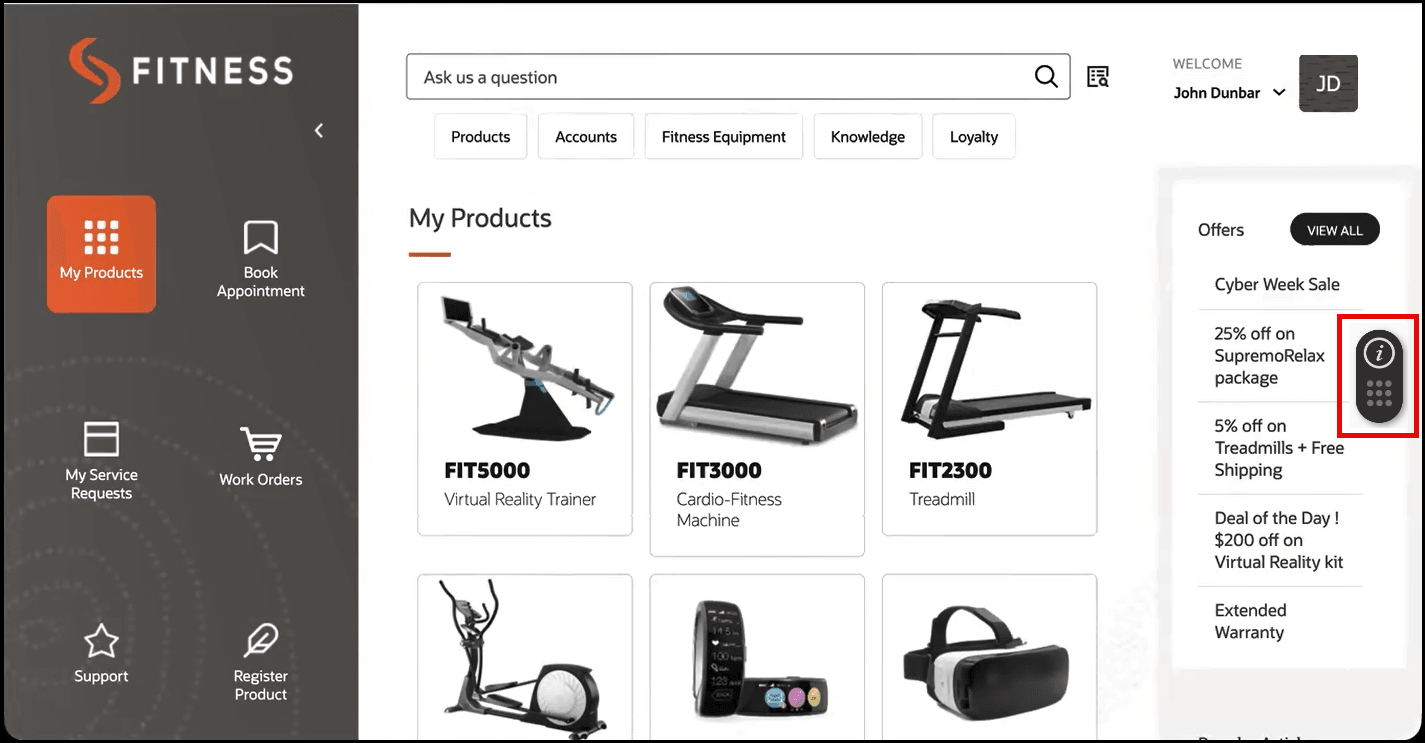
- Click the OGL Launch Widget to open the Help Panel and test any guides that you have created in the OGL console are displaying correctly in your application.