Configuring Oracle Guided Learning for JD Edwards EnterpriseOne
Note:
Starting with Tools Release 9.2.7.3, OGL is integrated with the JD Edwards EnterpriseOne applicationThis knowledge article explains how a JD Edwards EnterpriseOne administrator creates the Oracle Guided Learning (OGL) connection used by the EnterpriseOne application. It focuses on the Soft Coding Records (P954000) configuration and the validation steps required before broader rollout.
Note:
The procedure applies to an OGL connection configured for a JD Edwards EnterpriseOne environment using the OGL_CONNECTION template. The user/role scope can be set to an individual EnterpriseOne user, a role, or *PUBLIC.7Prerequisites
Confirm that the following information is available before starting the configuration:
- Target JD Edwards EnterpriseOne environment name.
- JD Edwards application URL for the target environment.
- OGL Application ID for the target application.
- Approved OGL loader endpoint for the target environment.
- Access to the relevant OGL Console so the Application ID can be verified.
Create the OGL connection in P954000
Use the Soft Coding Records (P954000) application to create the OGL connection for the target EnterpriseOne environment.
Open Web Service Soft Coding Records
- In JD Edwards EnterpriseOne, select the Navigator icon.
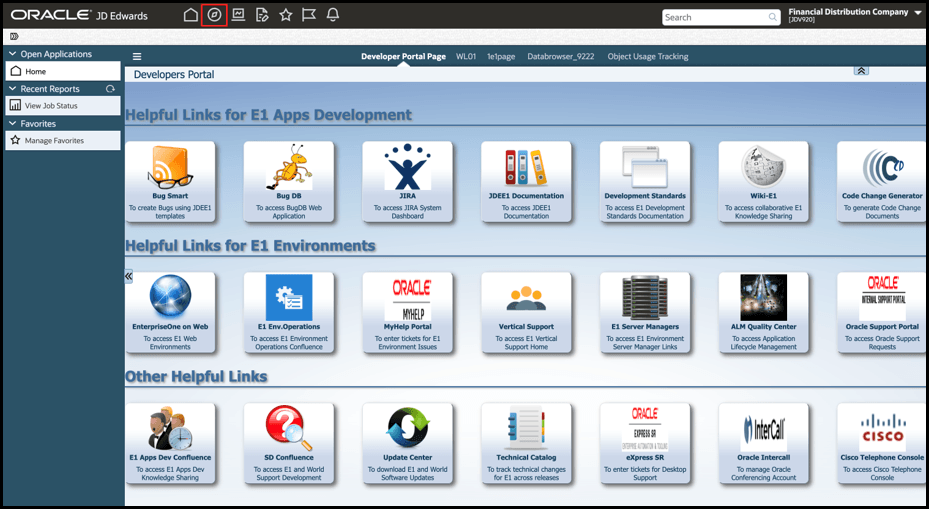
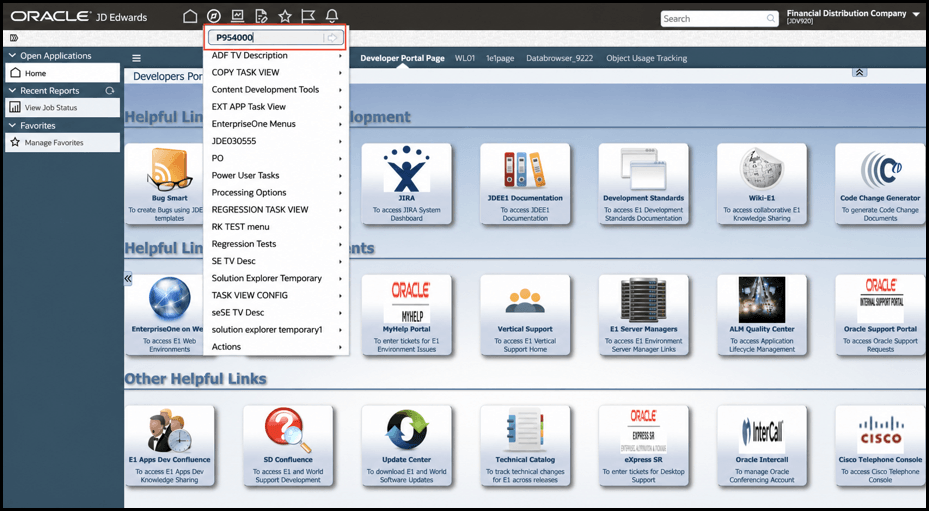
- In the Navigator or Fast Path field, enter P954000 and open Web Service Soft Coding Records.
- Select Add. The Add Web Service Soft Coding Record form opens.
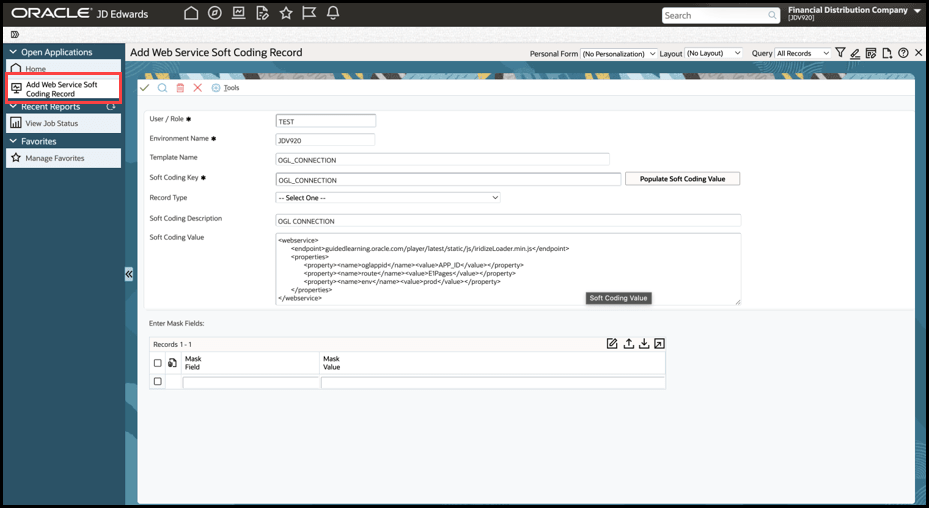
Enter the soft-coding record details
- In the User/Role field, enter the - EnterpriseOne user, role, or *PUBLIC that should receive the OGL connection.
- In the Environment Name field, enter the exact EnterpriseOne environment for which the OGL connection is being created.
- In the Template Name field, enter OGL_CONNECTION. You can use Visual Assist (Search) to locate and select the OGL_CONNECTION template.
- In the Soft Coding Key field, enter OGL_CONNECTION.
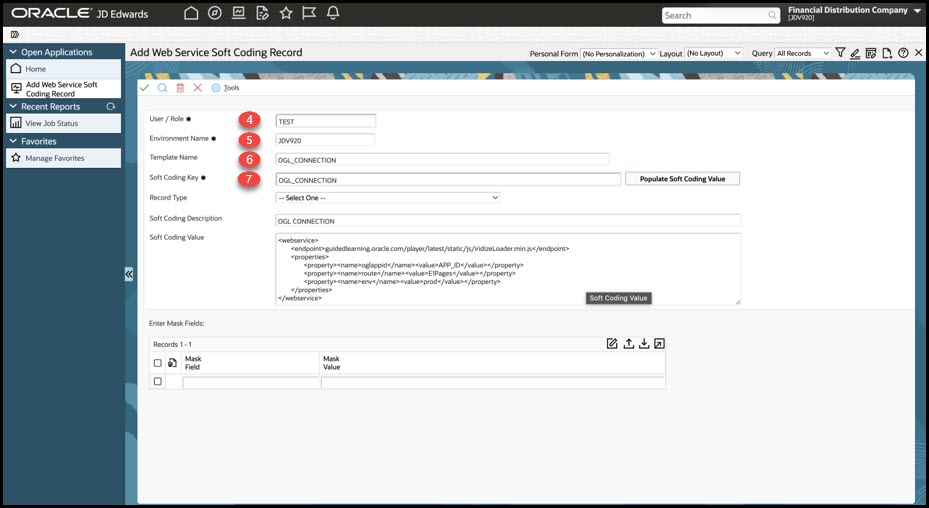
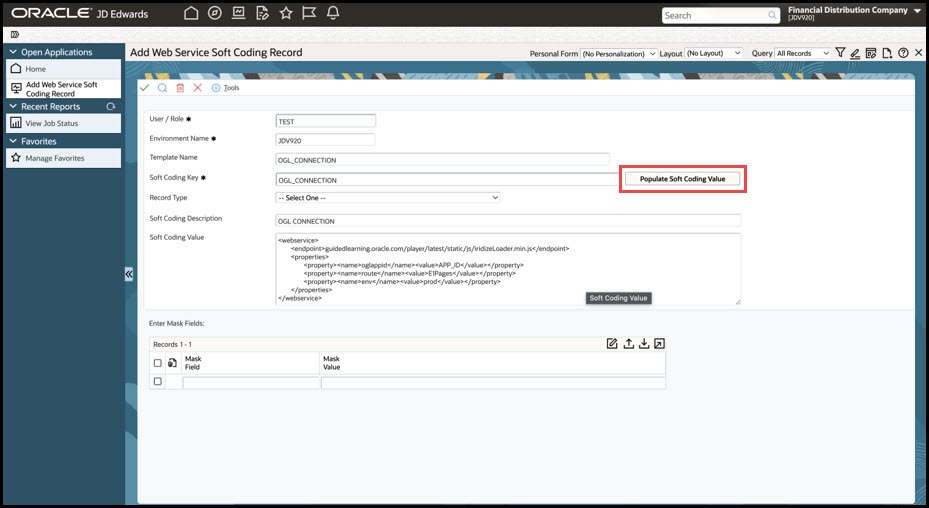
- Select Populate Soft Coding Value. JD Edwards populates the Soft Coding Description and Soft Coding Value fields from the OGL_CONNECTION template.
- In the Soft Coding Value field, replace the Application ID placeholder with the OGL Application ID for the target application. Verify that the endpoint is valid and approved for the target environment.
<webservice>
    <endpoint>guidedlearning.oracle.com/player/latest/static/js/iridizeLoader.min.js</endpoint>
    <properties>
        <property><name>oglappid</name><value>Application ID</value></property>
        <property><name>route</name><value>E1Pages</value></property>
        <property><name>env</name><value>prod</value></property>
    </properties>
</webservice>
Note:
Application ID - The Application ID is unique for an OGL account. It can be obtained from the OGL provisioning information or from the Setup tab of the OGL Console.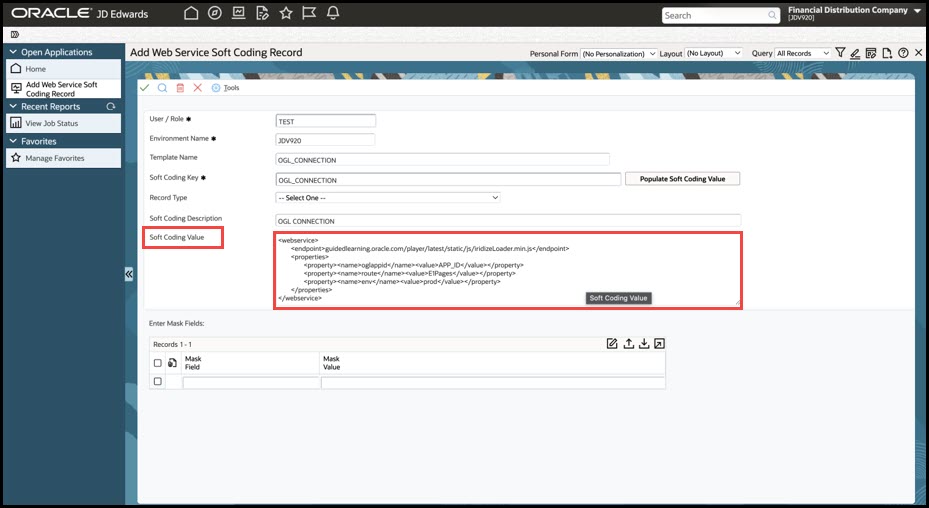
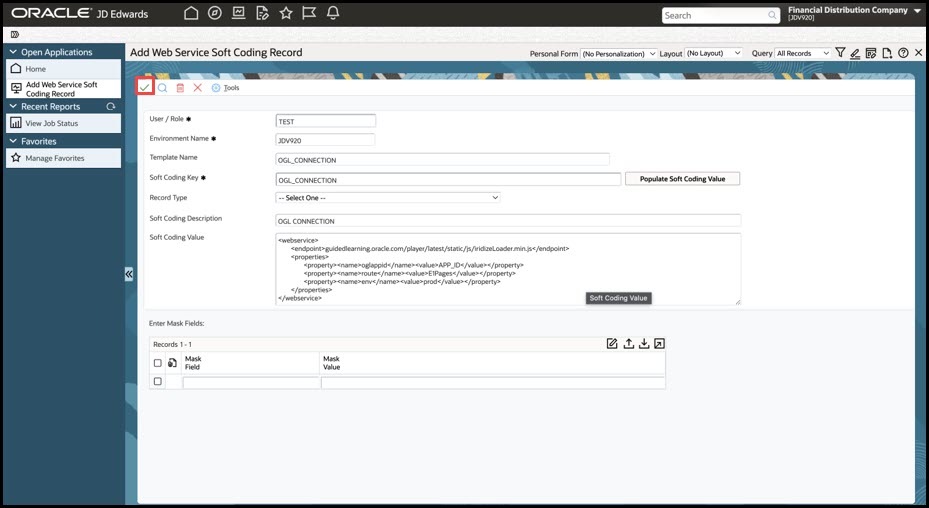
- Select OK to save the soft-coding record.
- Log out of JD Edwards EnterpriseOne and sign in again before testing the OGL connection.
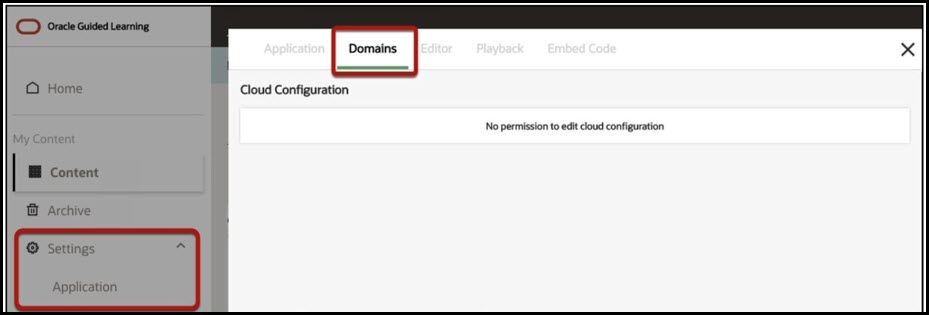
Set Up your OGL Account to Connect to your JD Edwards Domain
- Set Up Your OGL Account to Connect to Your JD Edwards Domain.
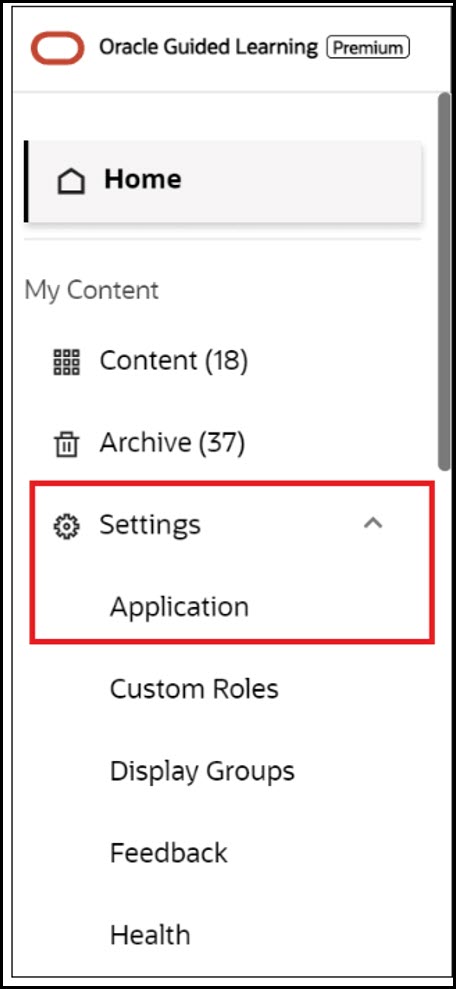
- Select Domains.
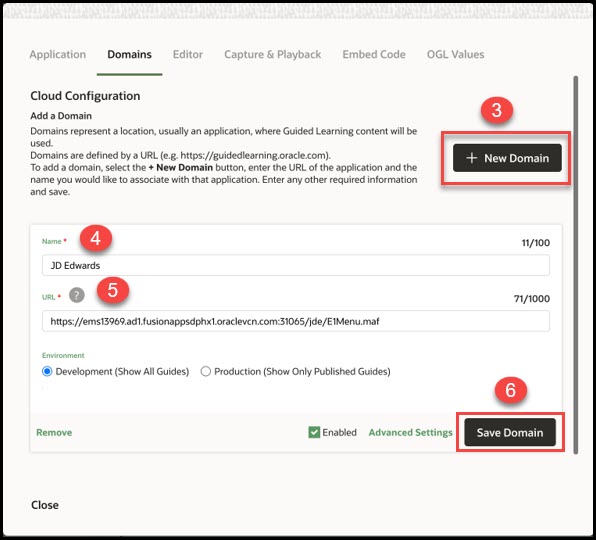
- Select + New Domain.
- In the Name field, enter the desired domain name. For example, enter JD Edwards.
- In the URL field, enter the URL for the JD Edwards domain.
- Select Save Domain.
Configuration Summary
| Field | Required Value | Purpose |
|---|---|---|
| Environment Name | Target EnterpriseOne environment | Associates the connection with the correct environment. |
| Soft Coding Key | OGL_CONNECTION | Identifies the soft-coding record. |
| Soft Coding Value | Approved endpoint + OGL Application ID | Provides the loader configuration used by EnterpriseOne. |
| Template Name | OGL_CONNECTION | Selects the OGL connection template. |
| User/Role | User, role, or *PUBLIC | Defines who receives the OGL connection. |
Verify the OGL Connection
After signing back in
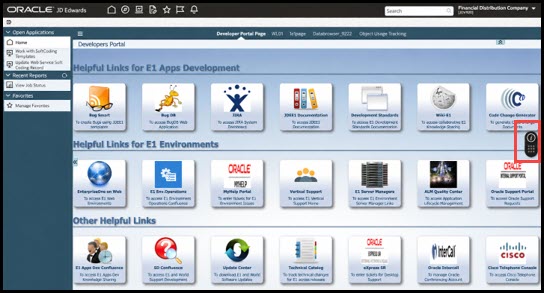
- Verify that OGL loads from the approved host in the target EnterpriseOne environment.
- Confirm that the OGL widget is visible and that an applicable guide can be launched.
Troubleshooting
If OGL does not appear or the guide does not load, review the following configuration points in P954000:
- OGL Application ID is correct for the target OGL account.
- Environment Name matches the EnterpriseOne environment exactly.
- Template Name and Soft Coding Key are both OGL_CONNECTION.
- Soft Coding Value contains the approved endpoint and the correct Application ID.
- The User/Role scope matches the user testing the connection.
- The user has signed out and signed back in after the record was saved.
Note:
Important: Do not modify the endpoint unless the system or OGL administrator has confirmed the correct endpoint for the target environment.Completion Checklist
- ☐ P954000 record saved successfully.
- ☐ OGL Application ID verified in OGL Console.
- ☐ Approved OGL endpoint confirmed.
- ☐ Connection validated with the intended test user or role.
- ☐ OGL widget and at least one guide launch successfully.
References
- JD Edwards — Creating an OGL Connection https://docs.oracle.com/en/applications/jd-edwards/cross-product/9.2/eotfo/creating-an-ogl-connection.html
- JD Edwards Foundation Guide — OGL integration https://docs.oracle.com/en/applications/jd-edwards/cross-product/9.2/eotfo/toc.htm
- Oracle Guided Learning User Guide — Your OGL App ID https://docs.oracle.com/en/education/customer-success/guided-learning/user-guide/getting-started.html