How to Install, Extract, and Package the OGL Editor Extension from the Chrome Web Store
This article covers the following procedures:
- Installing the OGL editor extension for Google Chrome.
- Extracting the OGL Editor Extension.
- Packing the extension CRX files.
Installing the OGL editor extension for Google Chrome
Prerequisites
- Google Chrome browser.
Instructions
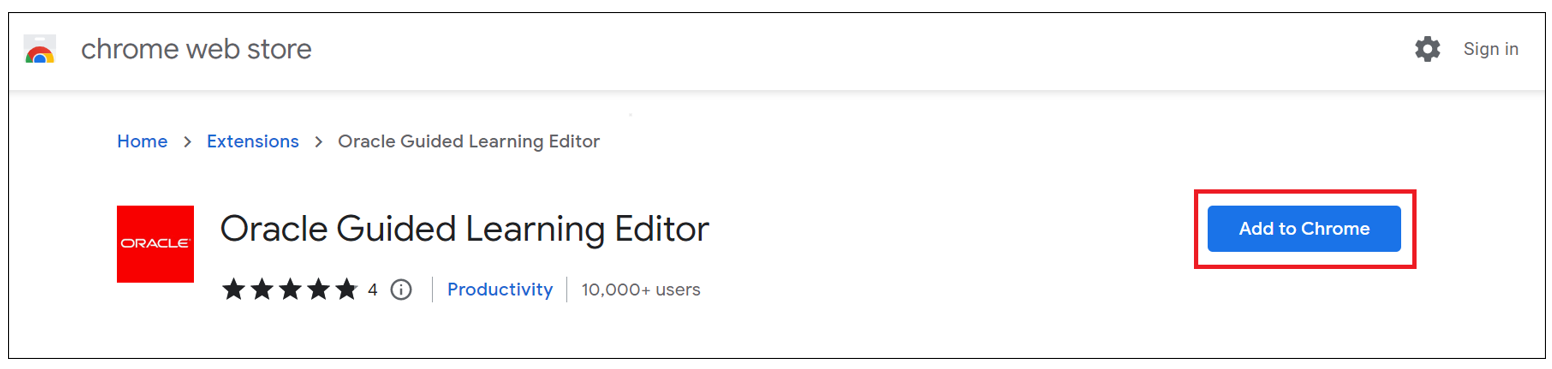
- Go to the Chrome Web Store.
The page below opens; select Add to Chrome.
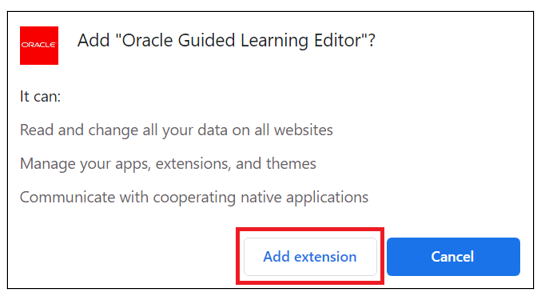
A confirmation dialog box opens.
- Select Add extension.
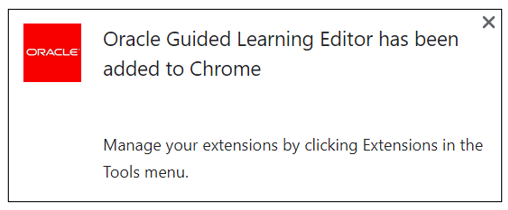
- A confirmation message is displayed once the setup is
completed.
Extracting the OGL Editor Extension
Prerequisites
- Google Chrome browser.
- Oracle Guided Learning (Iridize) extension added to Chrome.
Instructions
- Open the Google Chrome browser.
- At the top right, select the Extensions icon(
 )and then select Manage extensions.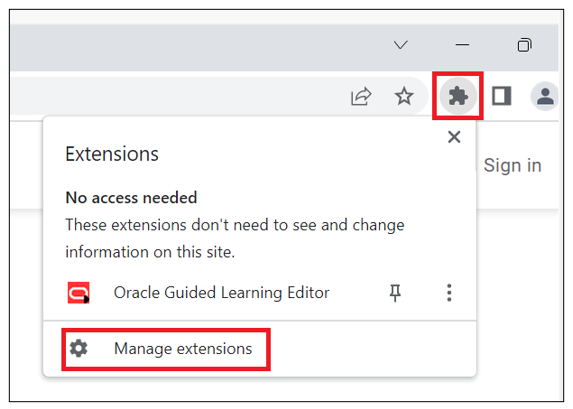
The Manage extensions window appears with the list of extensions installed on the Chrome browser.
- On the Oracle Guided Learning Editor extension card, select
Details.
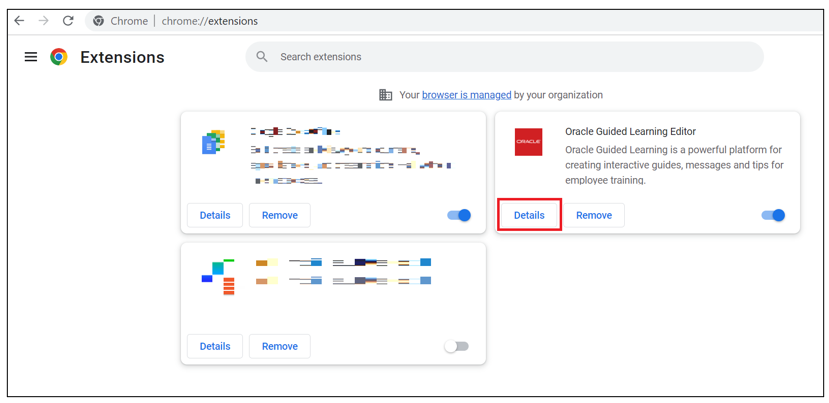
The details of the OGL Editor extension are displayed now.
- Look at the URL. The Extension ID is the long string of
characters at the end of the URL.
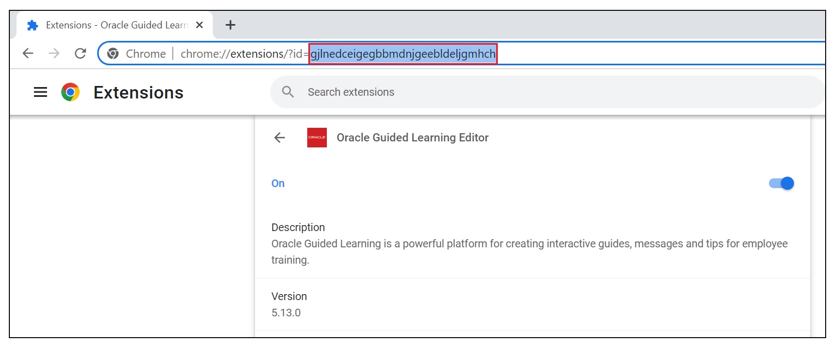
- Identify the Extension ID and copy it.
- On your PC's local drive, navigate to the extensions folder, where
all the extensions are stored.
Your default directory may look like this:
C:\Users\<Your_User_Name>\AppData\Local\Google\Chrome\User Data\Default\Extensions
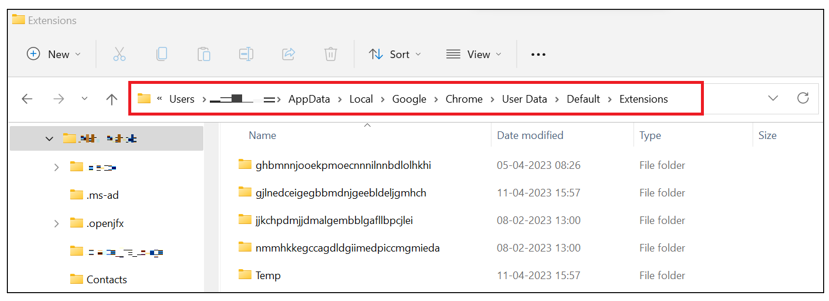
Note:
You might have to enable visibility for hidden files. - Find the folder matching the OGL Editor's Extension ID. Then
copy and paste it to a new directory (i.e.,
C:\Users\<Your_User_Name>\Documents\OGL Editor extension\).
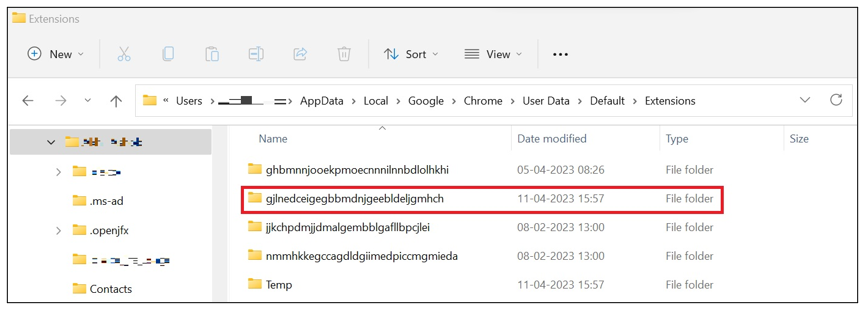
You have now successfully extracted the OGL Editor extension files. To create a .crx file, please see the next section.
Packaging The Extension CRX Files
Prerequisites
- Google Chrome browser.
- An extracted OGL Editor extension.
Instructions
- Open the Google Chrome browser.
- At the top right, select the Extensions icon()and then select Manage extensions
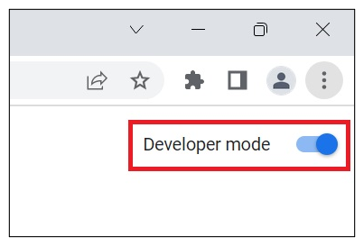
- Use the toggle button on the Manage extensions window to
enable the Developer mode.
- Select Pack extension.
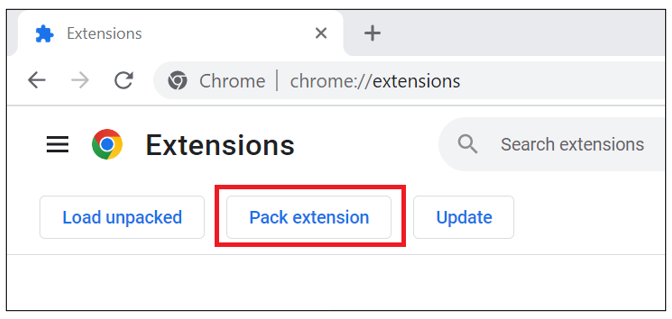
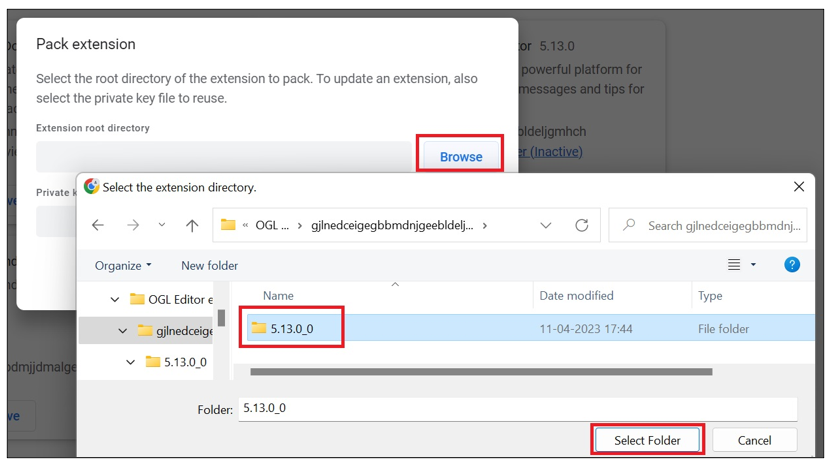
The Pack extension modal window is displayed.
- Browse the Extension root directory and select the folder in
which the OGL Editor extension is present.
Your root directory should be similar to C:\Users\<Your_User_Name>\Documents\OGL Editor extension\gjlnedceigegbbmdnjgeebldeljgmhch\5.13.0_0
- Select Pack extension.
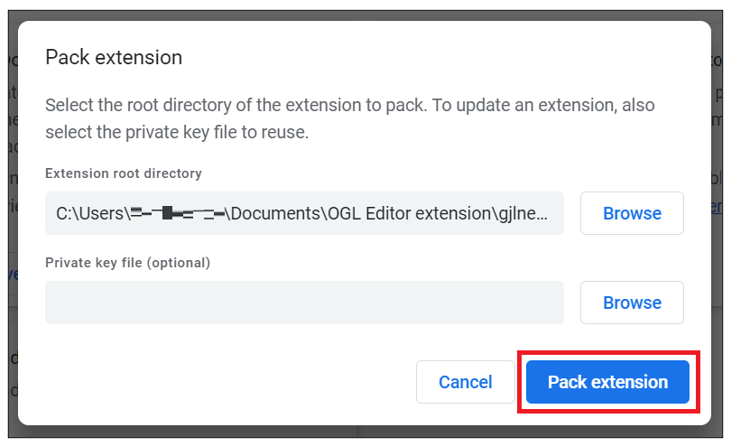
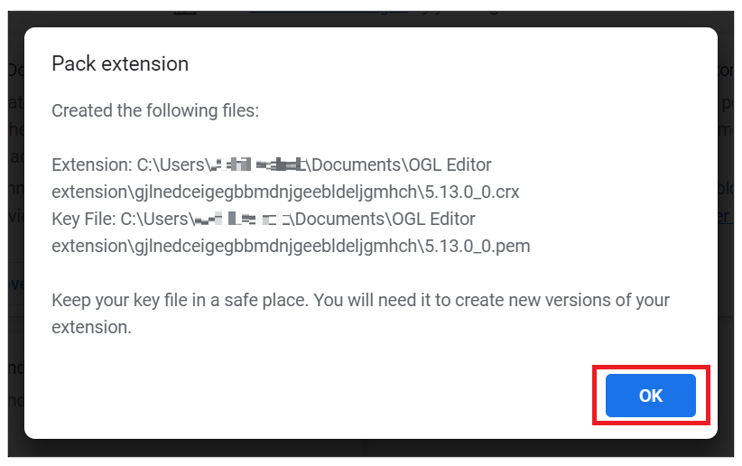
A confirmation message is displayed. Select OK to close the confirmation window.
- On your PC's local drive, navigate to the extension directory to
verify.
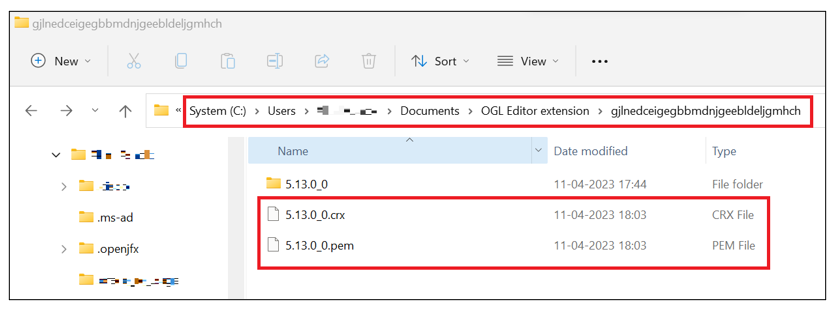
The .crx file has now been successfully created.