How to Enable Oracle Guided Learning (OGL) in the OTM Application
This article outlines the necessary steps to enable Oracle Guided Learning (OGL) within the Oracle Transportation Management (OTM) application using a Runtime browser extension and appropriate domain configuration in the OGL Console.
Enabling OGL in OTM Using a Browser Extension
One of method for enabling Oracle Guided Learning (OGL) within the Oracle Transportation Management (OTM) application is through the use of a browser extension. This extension injects the required OGL JavaScript into relevant OTM pages to provide guided learning functionality.
When enabling OGL via a browser extension, the extension must be configured to load the OGL JavaScript on any OTM page where OGL functionality is required. As extension architectures vary across browsers and implementation methods, it is not feasible to provide detailed step-by-step instructions for every extension framework. However, the general approach is as follows:
The extension should include a content script or similar mechanism that automatically injects the OGL JavaScript into the designated OTM pages.
- A content script that executes on all specified OTM URLs and loads the appropriate iridize_app_settings based on the current URL mapping.
- A background script that dynamically injects the OGL/Iridize script into the page when an OTM URL matches an entry in iridize_url_mapping.
Once configured, the extension will seamlessly load the OGL JavaScript whenever the user accesses the OTM application, thereby enabling OGL features within the OTM UI.
OGL Extension Configuration
To enable OGL loading within OTM, the extension uses URL mapping and application settings configuration. These settings allow the extension to recognize the correct OTM environment and inject the required OGL runtime automatically.
Below is the configuration code for the Runtime extension: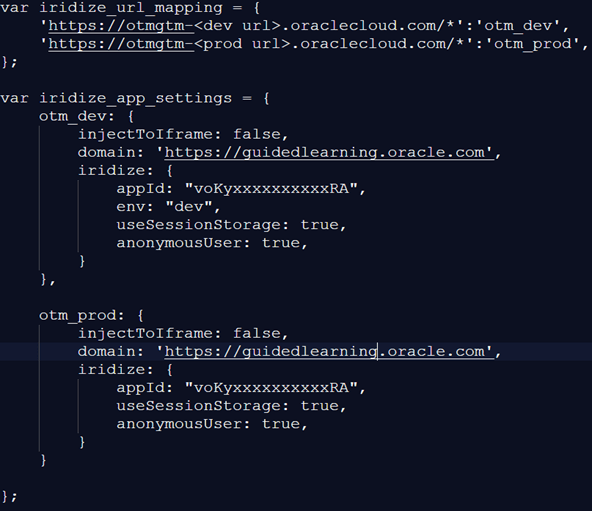
Configurations Specifications
- iridize_url_mapping- Maps each OTM environment URL to a corresponding configuration key. The extension checks the active URL and loads the appropriate OGL configuration automatically.
- otm_dev configuration- Defines OGL settings for the Development environment, including the environment identifier (env: "dev").
- otm_prod configuration- Defines OGL settings for the Production environment using the production OGL domain.
How it Works
- The extension compares the current URL with entries in iridize_url_mapping.
- The matching environment configuration is selected from iridize_app_settings.
- The OGL runtime is injected automatically, enabling guided learning features in the OTM application.
Note:
<dev url> and <prod url> will be replaced with the actual OTM instance URLs provided for your environment.Procedure to get the Runtime Extension:
Before installing the Runtime extension, it must be configured specifically for your OTM environment. This configuration is performed by the Oracle product team.
- Submit a request to the Oracle product team.
- Oracle product team will provide a Runtime extension tailored to your environment.
- To submit the request, contact your OGL representative (Oracle Guided Learning Enablement Lead or Tech Lead) associated with your project.
- The OGL representative will raise an internal Jira ticket with the OGL product team to get the Runtime Extension configured and delivered.
Note:
If you are a self-service user, you can directly raise a Service Request (SR) with the OGL product team to obtain the Runtime Extension.How to add the extension:
- Open your preferred browser (Chrome or Edge).
- Go to the browser’s Extensions or Add-ons.
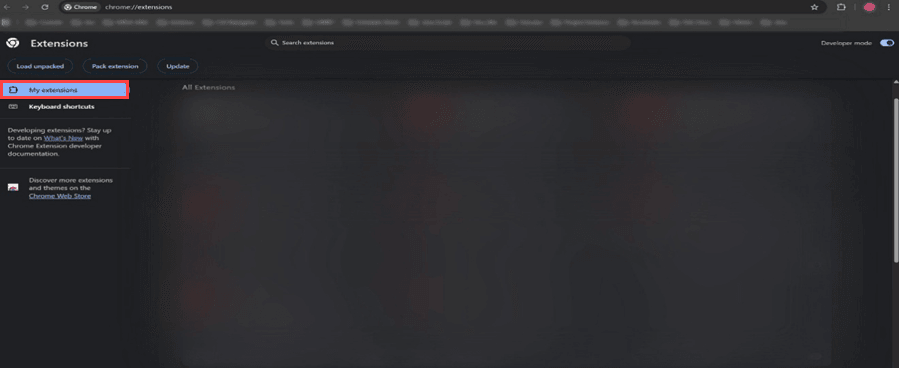
- Select Add Extension, Load Unpacked, or Install, and choose the Runtime extension file provided by the Oracle product team.
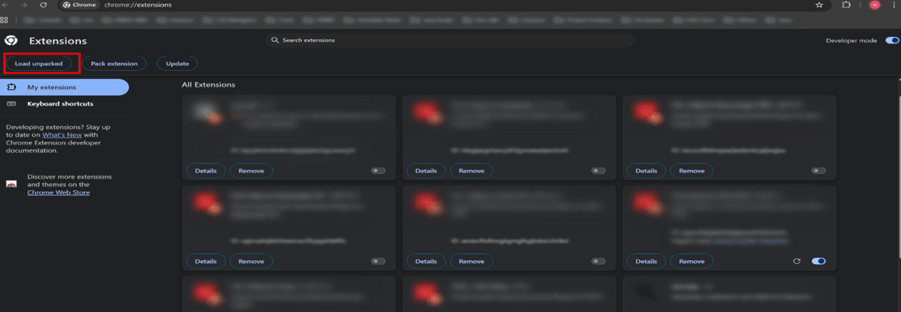
- After installation, ensure that the extension is enabled.
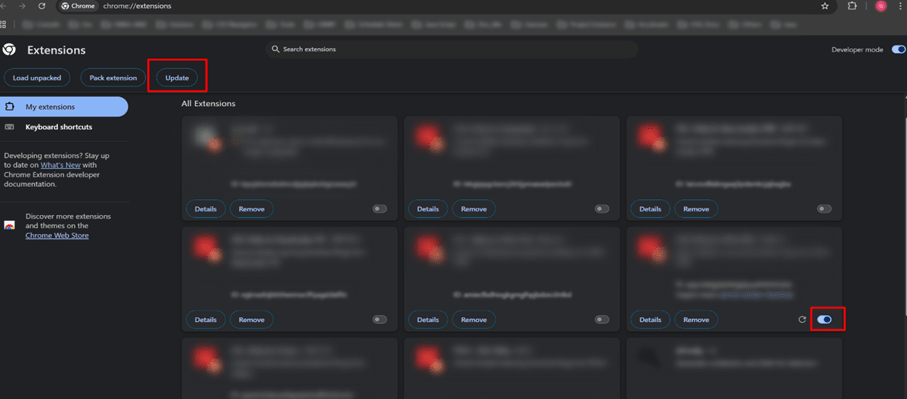
Note:
Make sure to use the same OTM instance that was shared and configured in the Runtime extension.Once all the extensions are loaded into our environment to enable OGL, we need to add the OGL configuration. Please follow the steps below:
How to Set the OGL Domain to Enable OGL in the OTM Application:
- Identify the OTM Application Domain.
Obtain the exact domain (URL) of your OTM environment where OGL needs to be enabled.
Example: https://<your-otm-environment>/
- Access the OGL Console.
Log in to the OGL Console using your OGL credentials.

- Navigate to Domain Management:
In the OGL console, go to: Settings →Application→ Domains.
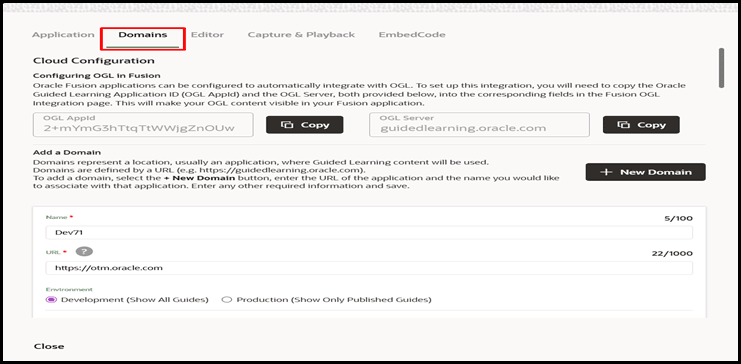
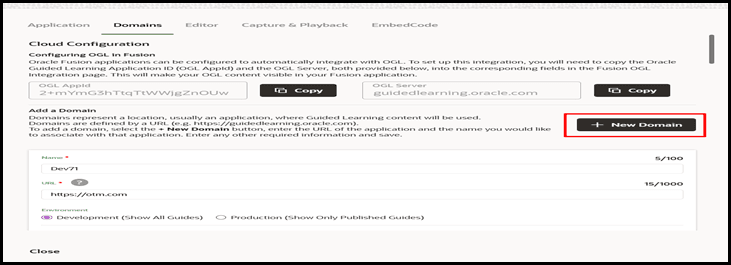
- Add the OTM Domain.
- Click Add Domain.
- Enter your OTM environment domain exactly as it appears.
- Ensure you include the correct protocol (https://) and avoid trailing slashes.
- Save the configuration.
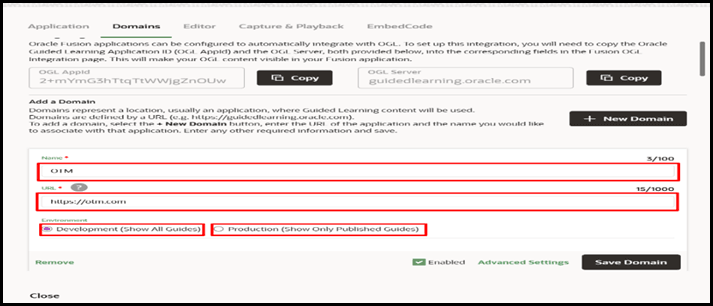
- Map the Domain to the Correct Application.
- Select the newly added domain.
- Add the Enter a reference name for the URL.
- Add the OTM URL in the URL field and select the Dev and Prod checkboxes as required.
- Verify Browser Extension or Script Injection.
If you are using:
- OGL Browser Extension → make sure the domain is included in the extension configuration.
- Runtime Script Injection → ensure the script is loading for the mapped OTM domain.
- Test the Configuration.
- Open your OTM application in the browser.
- Make sure the OGL launcher or widget appears.
Troubleshooting Widget Visibility Issues in the Environment
- Content Security Policy (CSP) Error.
- This is the most common issue encountered while integrating OGL into the OTM application. If the CSP is not configured correctly, the OGL will be blocked from loading.
- To resolve this issue, please refer to the following documentation and follow the steps provided to update the CSP settings accordingly - Oracle Transportation Management (OTM) – Oracle Guided Learning Integration: CSP Error Analysis and Resolution
Oracle Guided Learning Integration: CSP Error Analysis and Resolution
- Browser Cache Issue.
- Browser cache can sometimes prevent the widget from displaying correctly. Cached files may block the latest updates required for the widget to load.
- To resolve this, clear the browser cache and refresh the application. This should allow the widget to be displayed properly.