User Feedback
Guided Learning allows you to collect user feedback about the guides that you created.
With this feature enabled, whenever a user completes a guide or closes it in the middle a feedback widget like the one below will be displayed allowing the user to rate the experience and provide feedback.

In order to balance between your need to get as much feedback as possible from your users with not wanting to display the feedback widget too often thus affecting the user experience we have put in place two safety precautions:
- The feedback widget will never display twice for the same guide
- The feedback widget will never display more than once in 10 minutes. So if your user is running 3 guides within a 10 minute time frame s/he will only see the widget after the first guide.
Setup - Enabling User Feedback
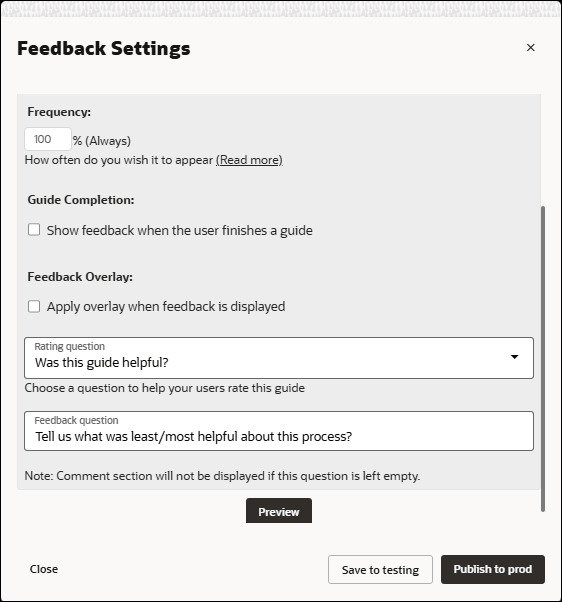
- Open the Feedback link on the left side of your OGL Console under the Settings option.
- Set your parameters and save your settings. You can enable the Feedback in your dev or test instance before enabling it in Production
Analyzing the Feedback
Guided Learning collects all feedback and attaches it to both the relevant guide and the user who provided it.
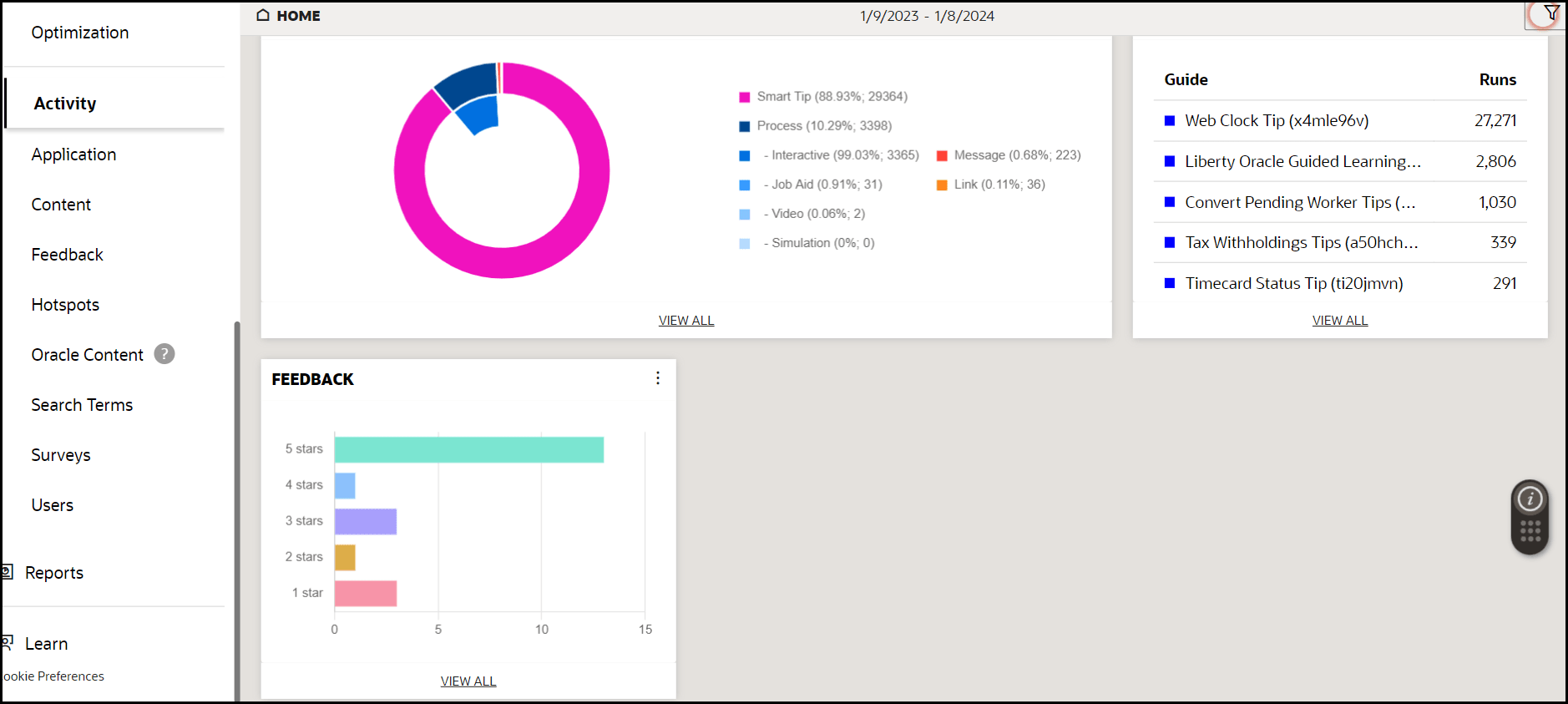
The image above shows a visual representation of the feedback provided by the users.
Reports
You can download complete reports customized to meet your unique specifications.
Reports are accessed from the three dot ellipses at the top of each page:

Reports Types
There are 4 main types of Reports that can be downloaded:
- Guide
- User
- Feedback
- Bulk
| Guide | User | Feedback | Bulk |
|---|---|---|---|
 |
 |
 |
 |
|
Notes:
|
Note:
|
||
Once the options are selected, preview the data set by clicking on the Update Preview button in the main section of the window:
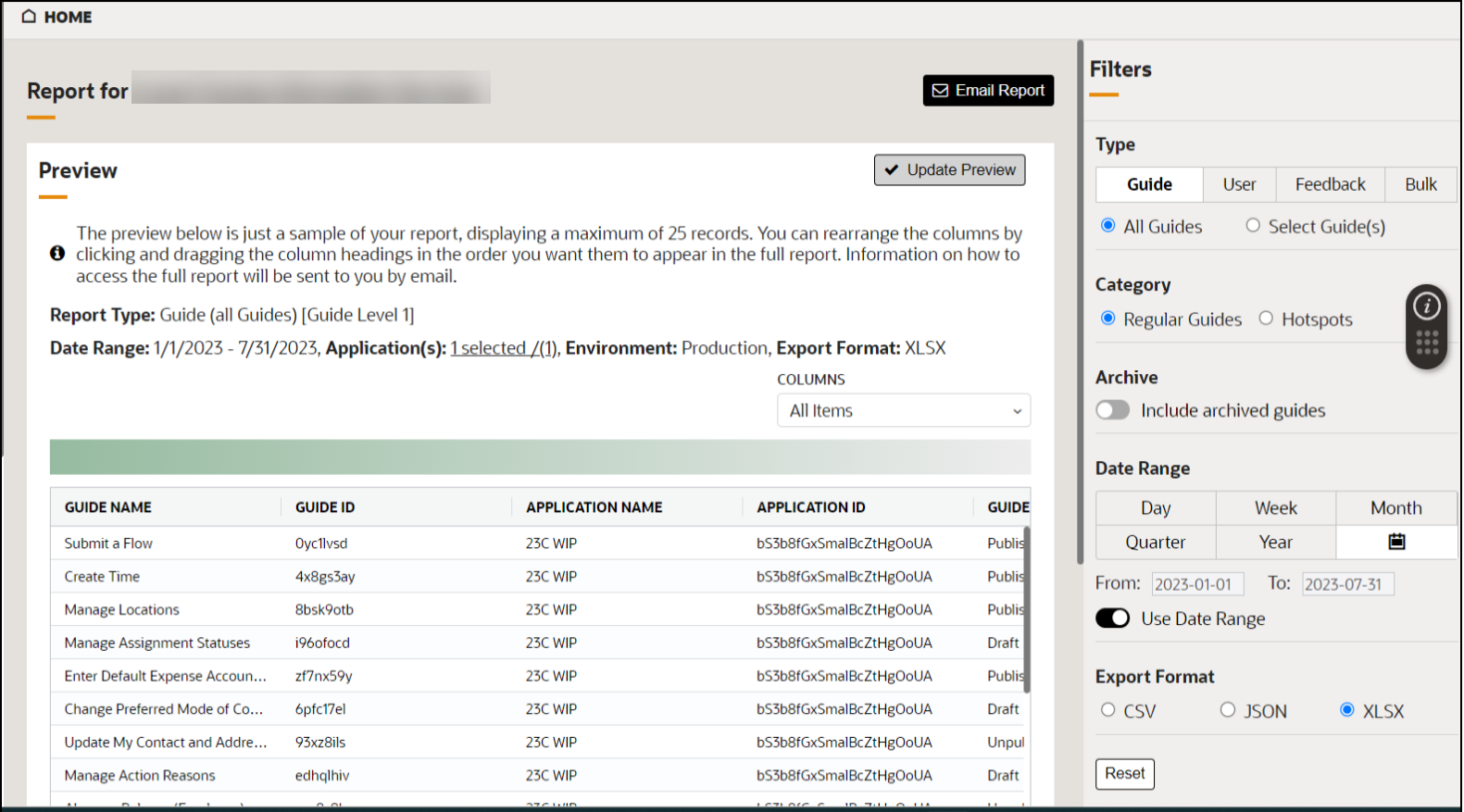
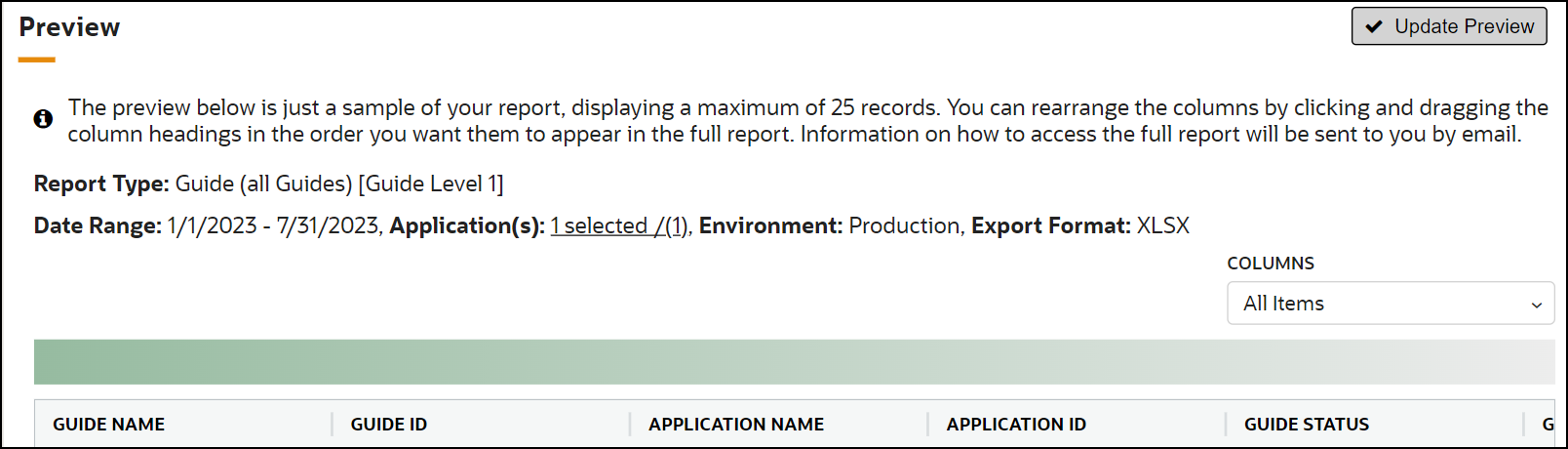
A summary of the criteria used for the report is presented above the preview table:
Select the Email Report button to request the required data report to be sent to your email address.