Application
Accessing the Interface
To access the Application settings modal:
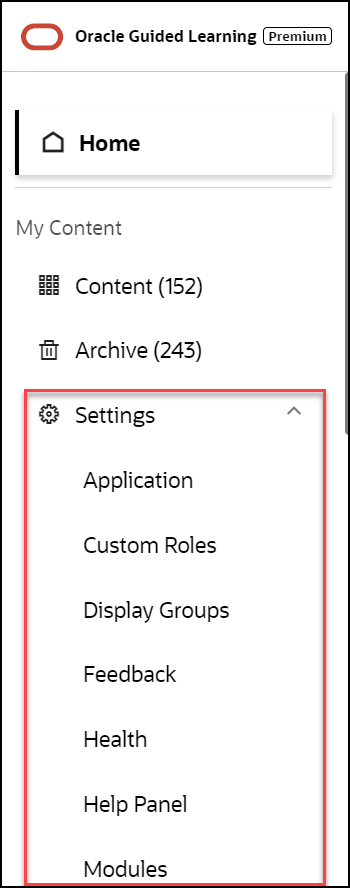
- On the OGL Console homepage, go to the left navigation panel.
- Click on Settings, then select Application.
Understanding the Application Settings Interface
The Application tab:
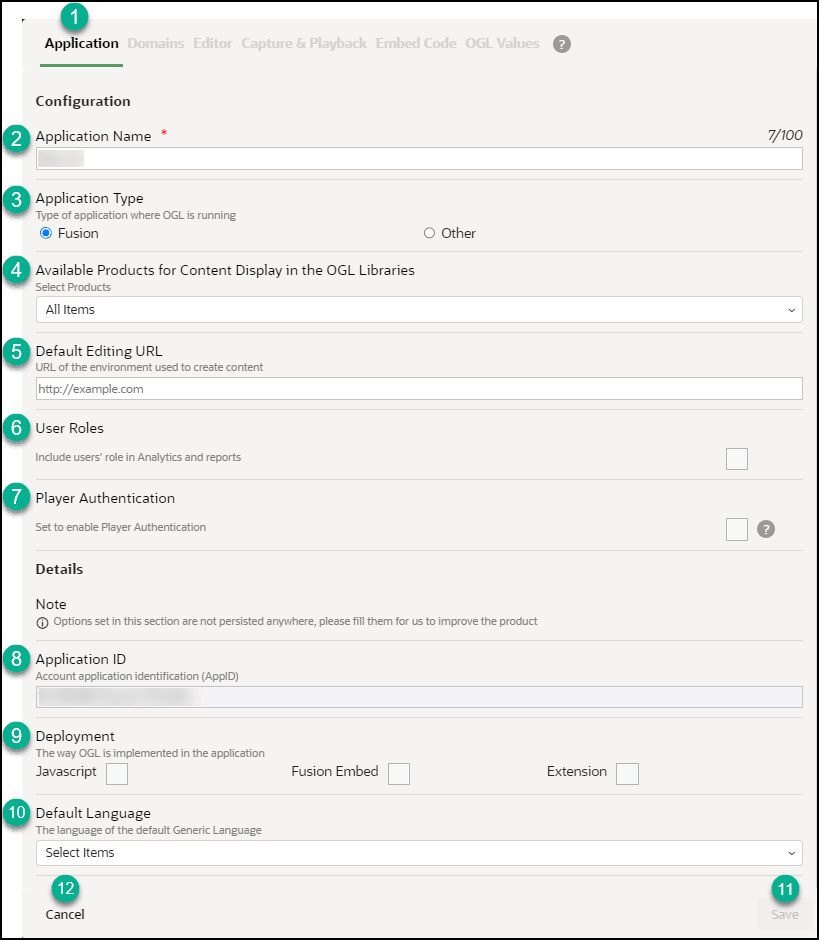
| Legend | Description | Additional Information |
|---|---|---|
| 1 | Application tab | n/a |
| 2 | Application Name | This is the application name, displayed next to the
account name |
| 3 | Application type | Fusion = This appID is linked to a Fusion
application
Other = Any application that is not Fusion (i.e. Salesforce) |
| 4 | Available Products for Content Display in the OGL Libraries | The products selected in this list will determine which content items will display in the content libraries, including Uses Cases, Base Guides, and Business Process Training libraries. |
| 5 | Default Editing URL | This is the default editing URL for new item creation. Note, setting the URL in this field does not replace/update the editing URL for existing items. |
| 6 | User Roles | Indicates if the user roles are being collected by OGL for reporting in analytics. To have identifiable usernames enabled for your organization (subject to legal requirements being met), please create a service request on My Oracle Support. |
| 7 | Player Authentication | This setting allows administrators to restrict OGL
content to only display for end-users who are properly authenticated
in the host application. If enabled, end-users must be authenticated
in the host application in order to see OGL content.
Note: For NetSuite applications, enabling this setting may cause a Content Security Policy (CSP) error and the OGL launch widget will not display.Note: For Player Authentication to be properly enabled on your OGL account, a one-time configuration will need to be performed by the OGL product team to connect your OGL account to your organization’s Single Sign-On (SSO). This configuration allows OGL to validate whether end-users have been properly authenticated by your SSO before displaying any OGL content, including the Widget. To request player authentication to be configured with your organization's SSO, please contact your Oracle account manager or reach out to OGL Support to submit a service request for “Player Authentication Setup”. |
| 8 | Application ID | This is the unique application ID for the account. |
| 9 | Deployment | Indicates OGL deployment methods. Please select only the applicable options for the appID |
| 10 | Default Language | Indicates the set default language for the appID.
(i.e. if the default content language is French, and French has been
selected in the field, this indicates to OGL that French = Generic
Language (fr = --))
Note: This is not the language of the OGL Console, but that that of the content items in the application |
| 11 | Save button |
Allows you to save the changes made to the configuration. Note: The Save action applies to the Application, Editor, and Playback tabs. The Save button on the Domains tab only applies to that and not the previously mentioned tabs |
The Domains tab - General
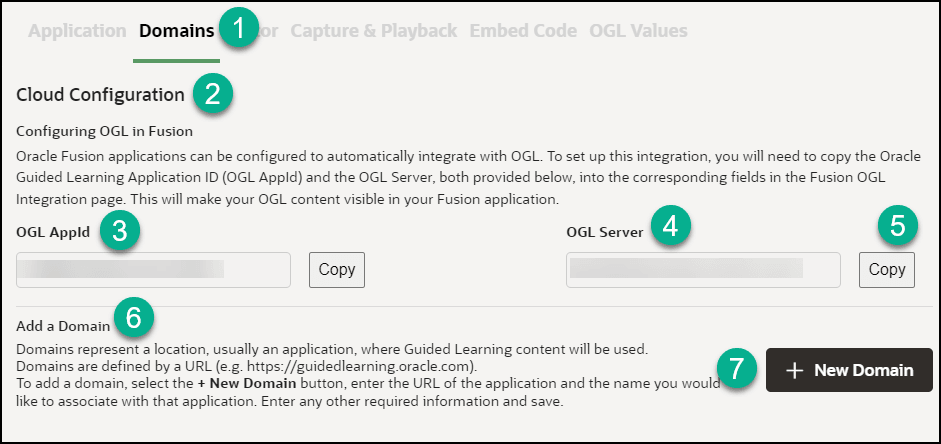
| Legend | Description | Additional Information |
|---|---|---|
| 1 | Domains tab | The Domains tab contains OGL configuration settings for Fusion. |
| 2 | Configuring OGL in Fusion | Description: Oracle Fusion applications can be configured to automatically integrate with OGL. To set up this integration, you will need to copy the Oracle Guided Learning Application ID (OGL AppId) and the OGL Server URL, both provided below, into the corresponding fields in the Fusion OGL Integration page. This will make your OGL content visible in your Fusion application. |
| 3 | OGL App ID | Identifies the application ID for use in OGL configuration, enter the ID into the Application ID field in Fusion |
| 4 | OGL Server URL | Identifies the server URL for the application ID, enter the URL into the relevant field in Fusion |
| 5 | Copy button | Allows you to easily copy the application ID or the server URL to the clipboard. |
| 6 | Add a Domain | Domains represent a location, usually an application, where Guided Learning content will be used. Domains are defined by a URL (e.g. https://guidedlearning.oracle.com). To add a domain, select the + New Domain button, enter the URL of the application and the name you would like to associate with that application. Enter any other required information and save. |
| 7 | New Domain button | Allows you to define a new domain where OGL will be enabled |
| 8 | Hosts section | If there are domains defined, they will all be listed in the hosts' section in the Domains tab |
The Domains tab - Add/Edit a Domain
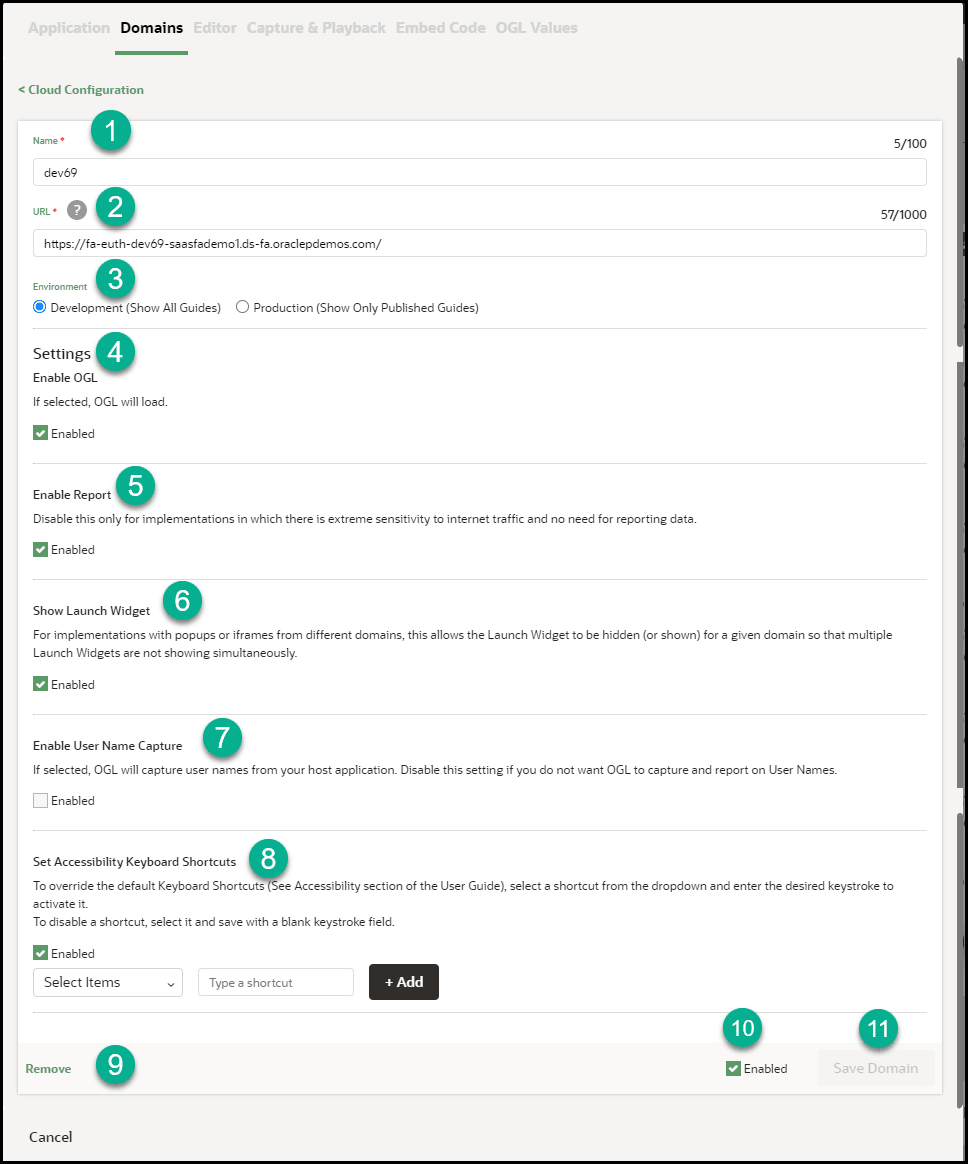
Table 5-1 Domains General Tab
| Legend | Description | Additional Information |
|---|---|---|
| 1 | Name | Defines the name of the domain (.i.e. Development / Testing / User Acceptence Testing / Production ) |
| 2 | URL | Identifies the domain URL (i.e. www.myapp-uat.com) |
| 3 | Environment | Determines if OGL will show in Development mode (shows all guides) or Production mode (shows published guides only) |
| 4 | Settings - Enable OGL | Determines if OGL will be enabled/disabled for the domain. |
| 5 | Settings - Enable Report | Determines if analytics reporting is enabled/disabled for the domain. Disable this only for implementations in which there is extreme sensitivity to internet traffic and no need for reporting data. |
| 6 | Settings - Show Launch Widget | Determines if the OGL help Widget will be shown on the domain or hidden. For implementations with popups or iframes from different domains, this allows the Launch Widget to be hidden (or shown) for a given domain so that multiple Launch Widgets are not showing simultaneously. |
| 7 | Enable User Name Capture | Determines whether OGL will capture user names
from the host application to be displayed in analytics and
reports.
Note: Please check with your regional/local user privacy laws and/or regulations and your organization's policies on user privacy before enabling this setting. |
| 8 | Set Accessibility Shortcuts | To override the default Keyboard Shortcuts (See Accessibility section of the User Guide), select a shortcut from the dropdown and enter the desired keystroke to activate it.To disable a shortcut, select it and save it with a blank keystroke field. |
| 9 | Remove | Removes the domain and associated settings |
| 10 | Enabled | Determines if the domain is enabled/disabled |
| 11 | Save Domain | Saves the domain configuration
Note: The Save Domain button only applies to the domains tab. The Save action on the Application, Editor, and Playback tabs applies only to the Application, Editor, and Playback tabs. |
Note:
The screen below indicates that there is a lack of sufficient privileges to Edit Cloud Configuration, request your OGL Admin for access or to make the necessary updatesThe Editor tab:
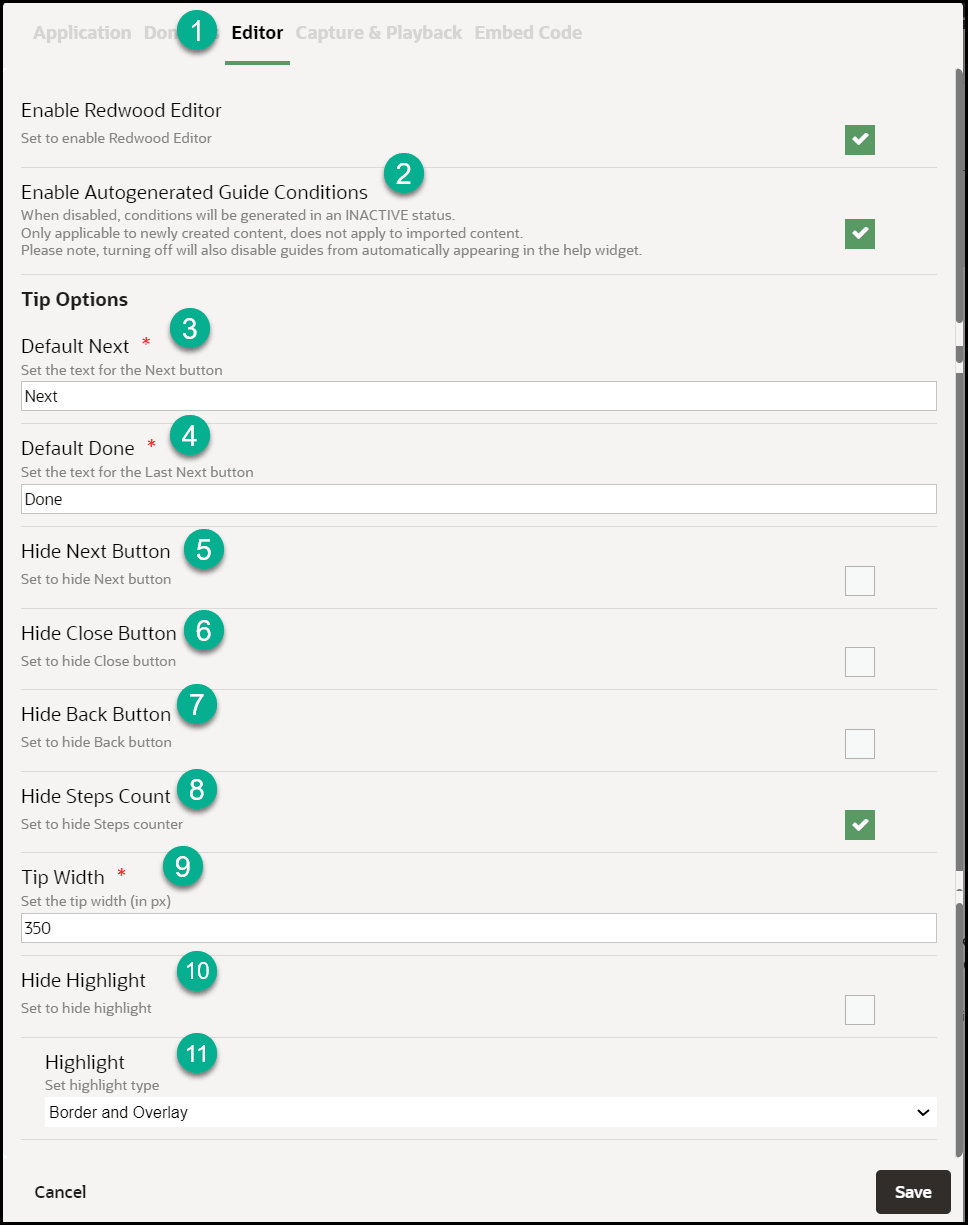
| Legend | Description | Additional Information |
|---|---|---|
| 1 | Editor tab | The Editor tab contains settings that can be set for
the editor at the application level. You can override these settings
at item level through the OGL Full Editor.
Note: Set these preferences per your governance and style guide. |
| 2 | Enable Auto Generated Guide Conditions |
When disabled, conditions will be generated in
Inactive status. This is applicable to only newly created
content and does not apply to imported content.
Note: Turning off this option will also disable guides from automatically appearing in the help widget. |
| 3 | Next Button Text | Sets the custom text to display for Next button (i.e.
Proceed / OK)
|
| 4 | Last Next Button Text | Sets the custom text to display on the button on the
last step of the guide (i.e. Close / Finish!)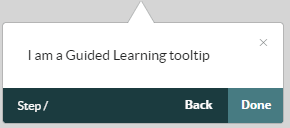 |
| 5 | Hide Next Button | Sets the Next button to hidden by default.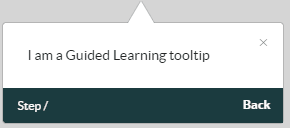 |
| 6 | Hide Close Button | Sets the Close X button to hidden by
default.
|
| 7 | Hide back Button | Sets the Back button to hidden by default.
|
| 8 | Hide Steps Count |
Sets the Step Count label to hidden by default.
|
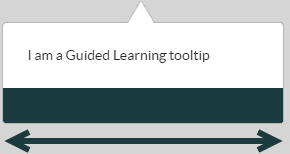
| 9 | Tip Width |
Sets the default Tip Width in pixels (i.e. 280.
|
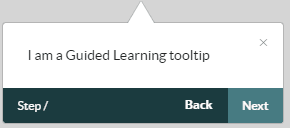
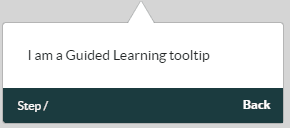
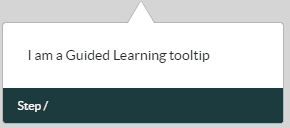
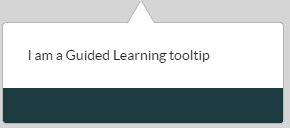
| 10 | Hide Highlight | Sets the default Highlight setting for all item
tooltips to Hidden.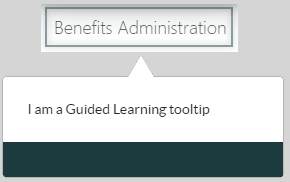 |
| 11 | Highlight | Sets the Highlight for tooltips, available options
are:
|
| Legend | Description | Additional Information |
|---|---|---|
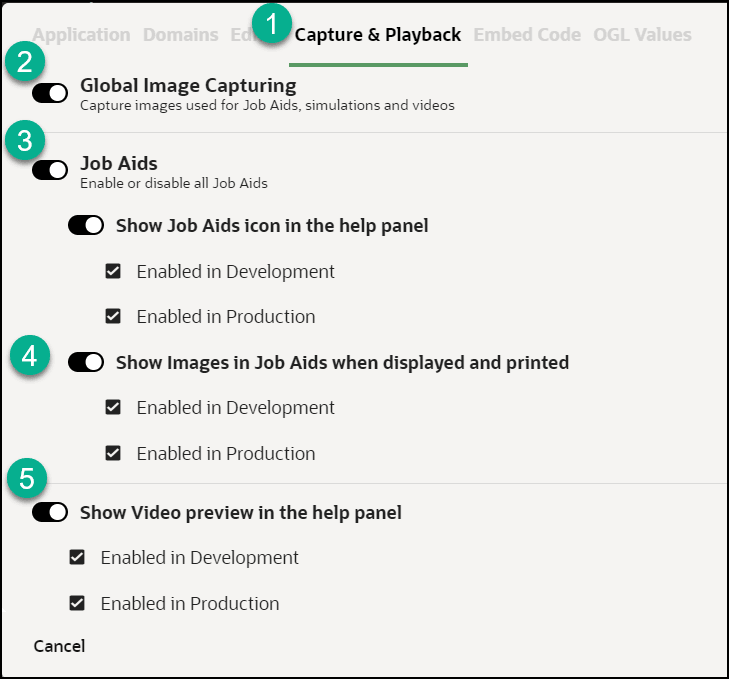
| 1 | Playback tab |
The Playback tab contains the OGL Help Widget settings for both development and production. Note: Development would have the same settings as Production by default, in case you need different settings in Development, override the Production settings. If you change only Production settings that would be defaulted to Development as well. |
| 2 | Global Image Capturing | Enable or disable the Global Image Capturing which helps in capturing the images used for Job Aids, Simulations and Videos. |
| 3 | Job Aids (Development/Production) | Enable or disable the job aids (step guide) icon in the help widget. |
| 4 | Show Images (Production) | Display images in step guides (if step guide is enabled) and in PDF files or in guide export. |
| 5 | Step Guide (Development/Production) | Display video presentations (video preview of a guide) in job aids (if job aids is enabled) and in guide export. |
The Embed Code tab:
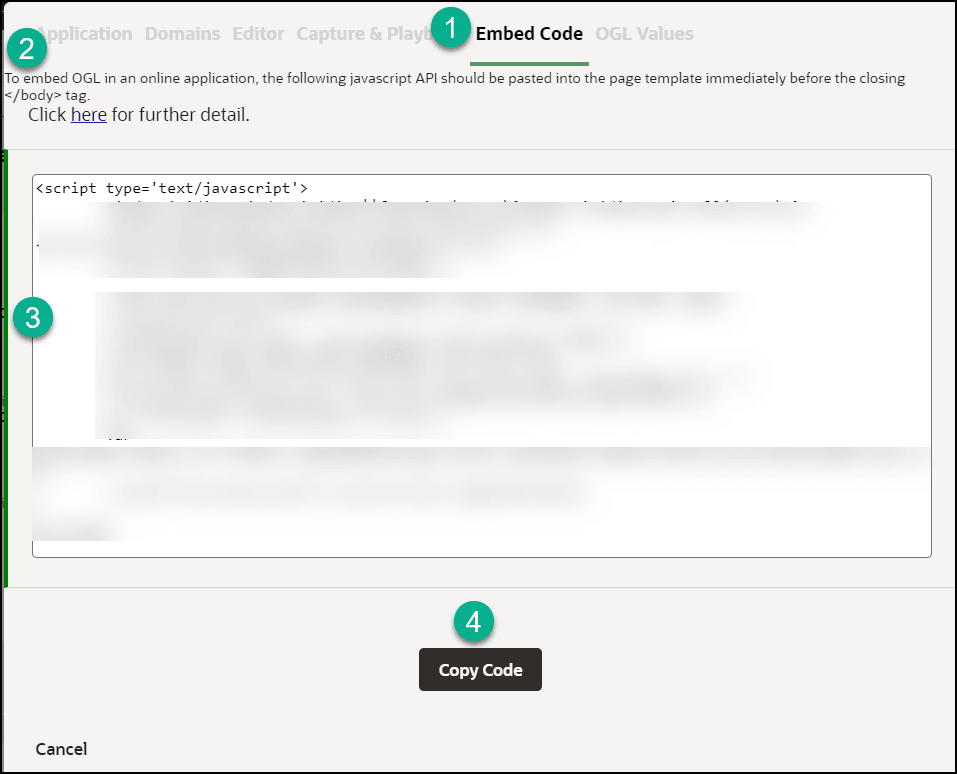
| Legend | Description | Additional Information |
|---|---|---|
| 1 | Embed Code tab | n/a |
| 2 | JavaScript API Documentation Reference | https://docs.oracle.com/en/education/oracle-university/guided-learning/ogl-faq/administration.html#GUID-9059C5AB-B0D4-4A0B-B049-28B6274AD54C |
| 3 | Guided Learning JavaScript Embed Code | n/a |
| 4 | Copy Code | n/a |
