Custom Roles
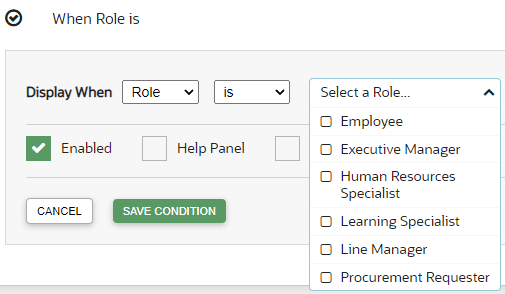
To work with Simple Conditions, OGL now utilizes the Custom Roles setting in the OGL console. The OGL roles must be set up as per the roles set in your OGL Fusion embed or Javascript.
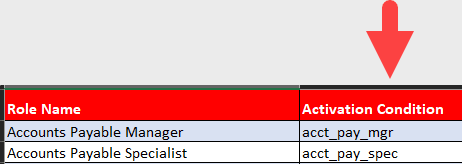
Click here to download a list of Role mappings.
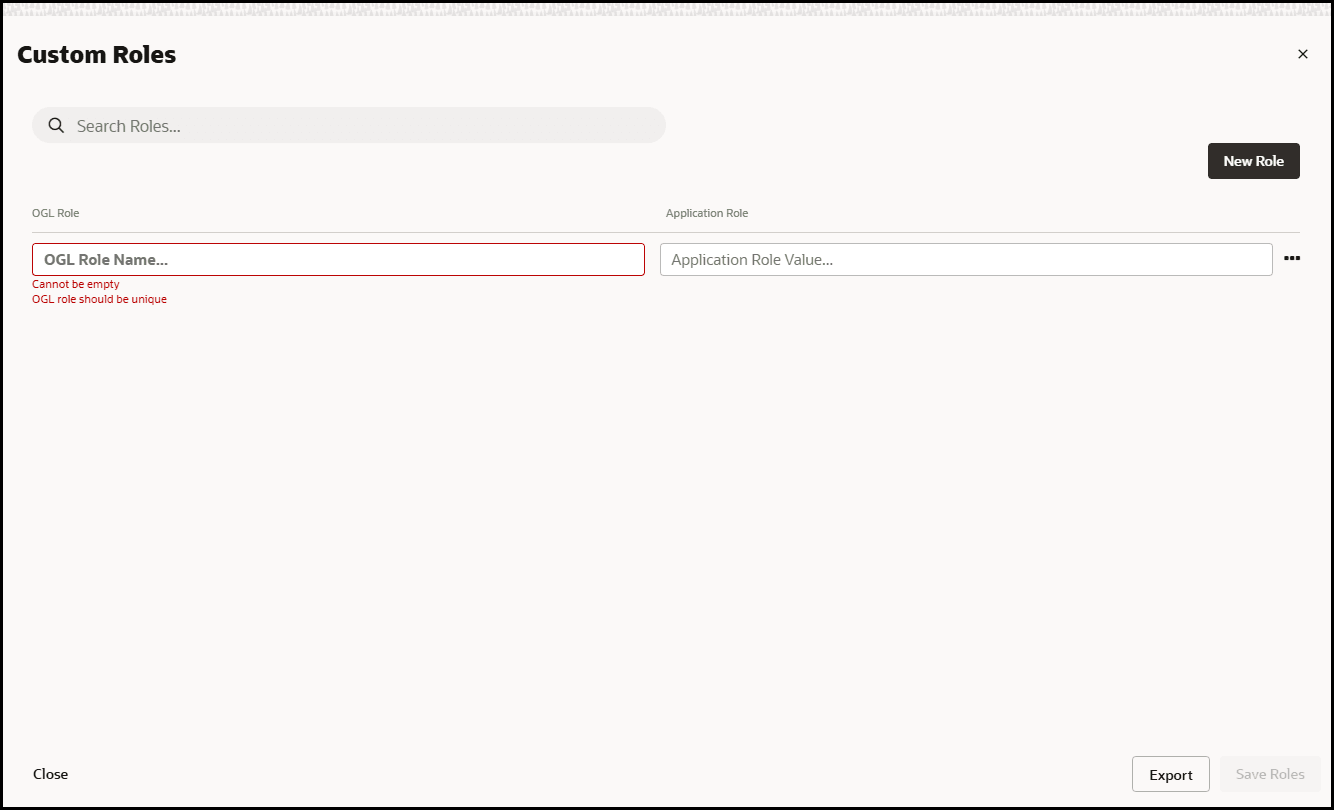
In the OGL Role Name field, enter the Role Name.
In the Application Role Value field, enter the Role Value.
Accessing the Interface
- Go to the OGL console.
- On the Main Navigation Menu, select Settings > Custom Roles.
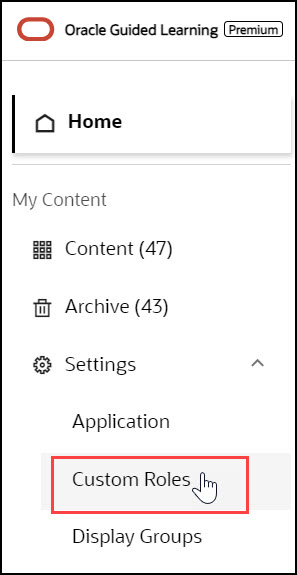
The Custom Roles interface is now displayed.
Understanding the Interface
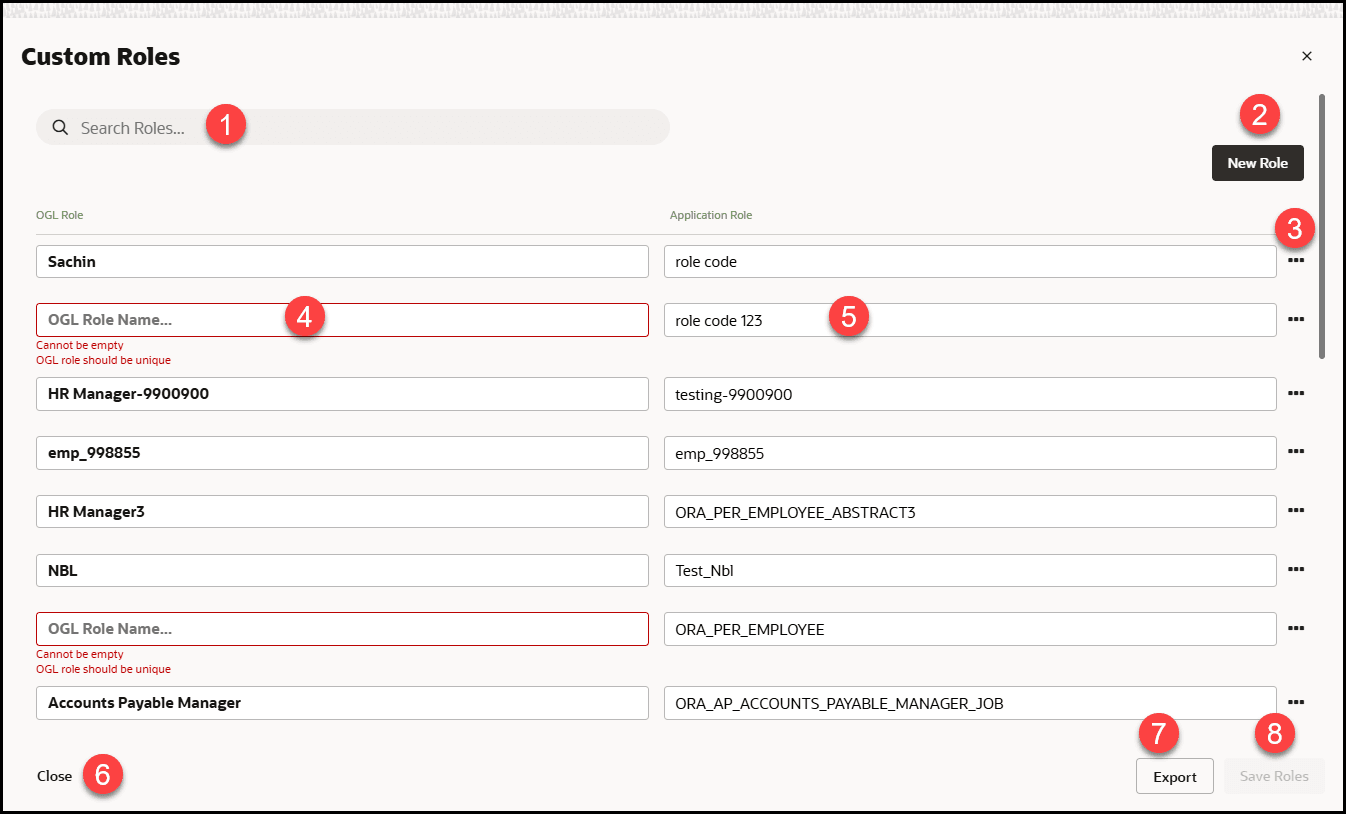
| Legend | Name | Comments |
|---|---|---|
| 1 | Search Box | Provides dynamic search functionality. |
| 2 | New Role button | Adds a new empty line to the list. |
| 3 | Ellipsis Icon | Gives further Custom Roles management options.
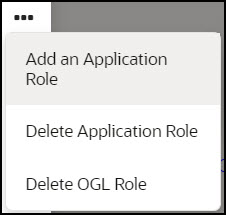
|
| 4 | OGL Role Name field | In the OGL Role Name field, enter the Role
Name.
(This is the Role name for your role and will be displayed in the item activation condition.) Note: The name field cannot be empty, and duplicate values and special characters are not allowed.
|
| 5 | Application Role Value field |
In the Application Role Value field, enter the Role Value. (This is the value of the role as defined in your OGL JavaScript, OGL Custom JavaScript for Fusion Embed, or in the OGL Standard Roles table.) Note: The value field cannot be empty; duplicate values and special characters are not allowed( i.e., whitespace).Lets say your JavaScript (including Custom) contains lines similar to the ones below: Lets say your JavaScript (including Custom) contains lines similar to the ones below: if(#{securityContext.userInRole['ORA_PER_EMPLOYEE_ABSTRACT']}){ user_role+='|emp|'; ORA_PER_EMPLOYEE_ABSTRACT is the role code in Fusion, emp is the OGL reference for that role code, and becomes the value you enter in the value field in the User Roles interface. If you have set up role mapping in Fusion Embed and have used the spreadsheet provided in the link above, then when defining roles, please enter the values in column D for your corresponding list of roles set up in Fusion Embed.
|
| 6 | Close | Select Close to close this confirmation dialog. |
| 7 | Export | Select Export to export the custom roles to an excel sheet. |
| 8 | Save Roles | Saves the changes made to the field. The Savebutton only becomes active when an acceptable value is entered in the field. |