Display Groups
Categorize and order the content in the Help Widget quickly and easily with the Display Group Manager.
Accessing the Interface
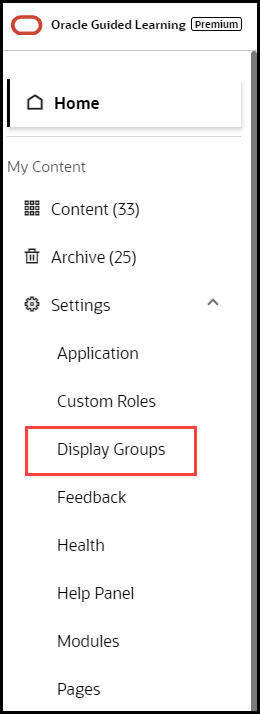
- On the OGL Console homepage, go to the left navigation panel.
You can see the Settings section in the navigation panel.
- Select the Display Groups from the dropdown menu.
Understanding the Interface
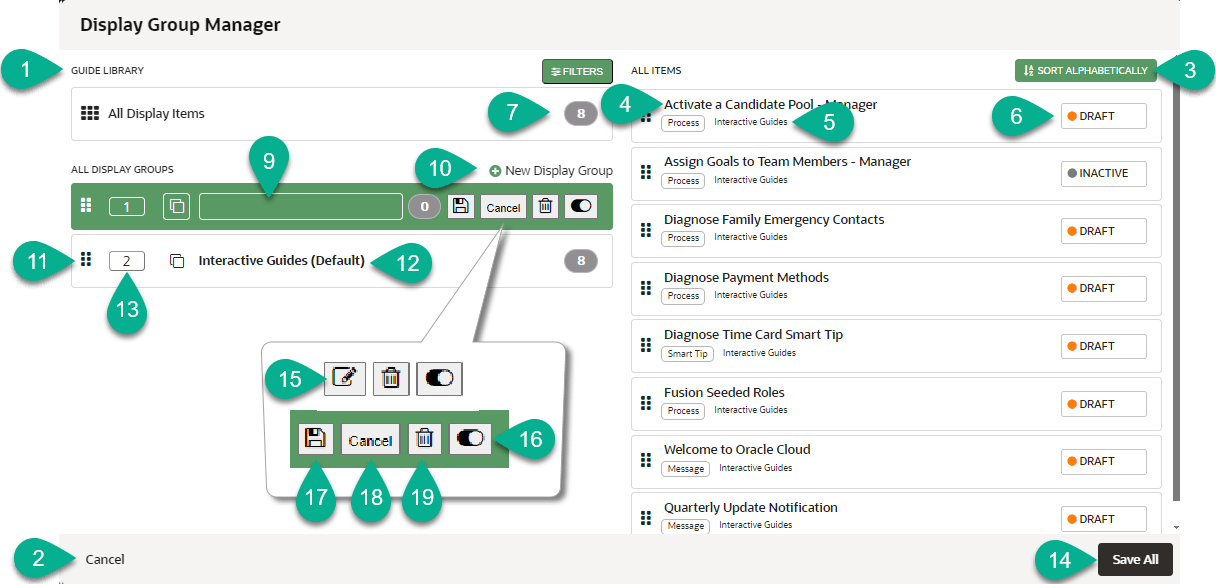
| Legend | Description | Additional information |
|---|---|---|
| 1 | Filters section | Filtering Content for Display Groups
Use filters to locate items to associate with a display group. Select the Filters button to show or hide the filters and search box. |
| 2 | Close button | Use to close the Display Group Manager. A warning is
displayed if there are unsaved changes.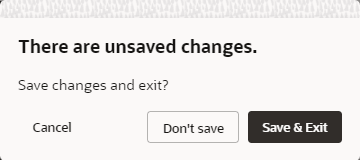 |
| 3 | Sort alphabetically | Use to sort items in alphabetical order (A→ Z). Note: Action cannot be undone. |
| 4 | Item name | Displays the item's name |
| 5 | Display group label | Displays the item's current display group association |
| 6 | Item status | Displays the item's status (i.e. Published) |
| 7 | Item count | Displays the total number of display items and the number of items per display group. |
| 9 | Display group name | Display group name field. Duplicate names are not allowed. |
| 10 | New display group button | Use the button to create new display groups. |
| 11 | Drag to reorder icon |
Use the icon to manually reorder the items and/or display groups using drag and drop, or you can specify the order by numbering them. To reorder, drag and drop each display group/item in the order of choice. |
| 12 | Display group name | Displays the display group's current name. |
| 13 | Display group/ order number | Identifies the display group's order number. To
reorder, edit the display group  and specify the order by entering the required number in
the number field. and specify the order by entering the required number in
the number field.
|
| 14 | Save all button | Saves all the changes made in the Display Group Manager. |
| 15 | Edit button | Use the Edit button to update the display group, this only includes the display group name, icon, and sequence numbering. |
| 16 | Toggle button |
Use the button to toggle the display group as active or inactive. If set to inactive, the items associated with the display group will not be visible in the OGL Help Widget but can be accessed by using the search functionality in the OGL Help Widget. This functionality is helpful when you need to make items available only by searching in the OGL Help Widget. |
| 17 | Save button | Use to save changes made to the display group, this includes changes made to the name, icon, and sequence numbering. |
| 18 | Cancel button | Use to discard changes made to the display group, this includes changes made to the name, icon, and sequence numbering. |
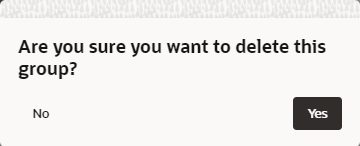
| 19 | Delete button | Deletes the display group. A warning dialog box is
displayed to confirm the action. This action cannot be undone. Items
that were assigned to the deleted group will be assigned to the
default display group.
Note: You can close the Display Group Manager and to chose to not save the changes. This will discard the changes made and revert to the display groups prior to the delete action. |