Creating Step Guides
With the help of Step Guides, you can create a job aid from an existing Process guide which includes all guide steps and associated screenshots, where applicable. Step Guides can then be printed or emailed.
To create a Step Guide from an existing Process guide, follow these steps:
From any Process guide in your My Content Library,
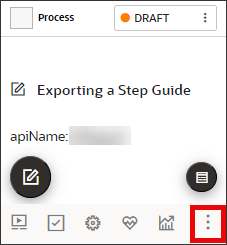
- Select the More

icon located at the bottom left of the guide title.
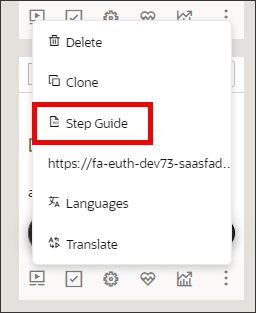
- Select Step Guide from the More actions menu.
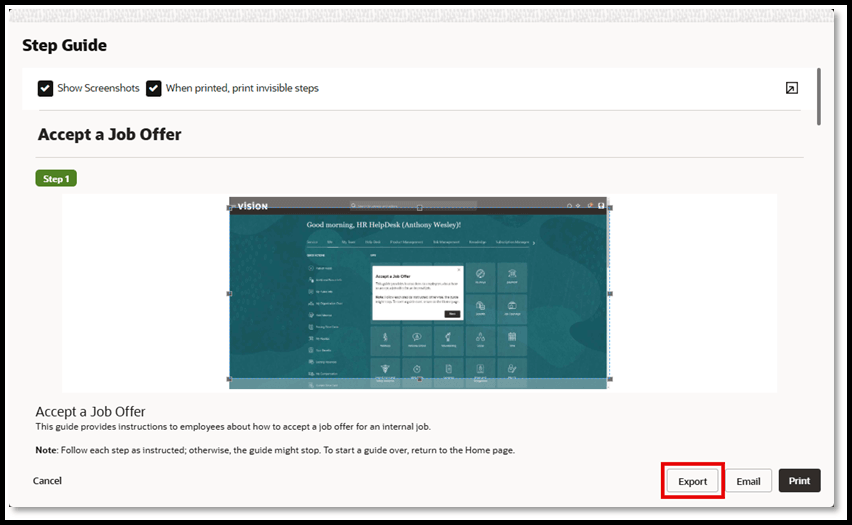
- The Step Guide modal will open. You can select from the following
options:
- Show Screenshots - Enable this setting if you want to include screenshots for each step (if available).
- When Printed, print invisible steps - Enable this setting if you want to include any invisible steps in the Step Guide.
- Print - Send the Step Guide to your available printer.
- Email - Send an email using your default email application. The email body will include a link from where the recipient can download the Step Guide.
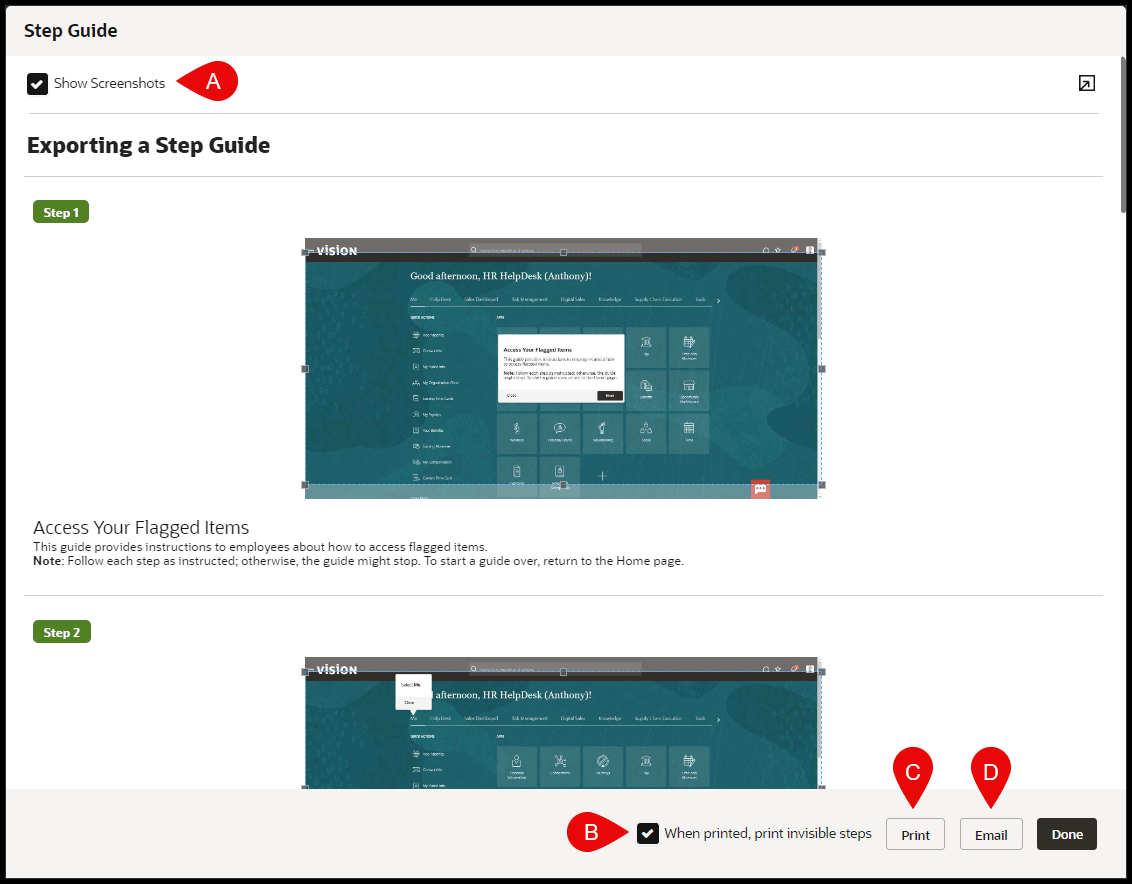
- Select Done, when finished.
Step Guides enhancement
Step Guides can now be exported in an editable PowerPoint (.pptx) file format as opposed to the previous un-editable PDF format. This enhancement allows OGL developers and administrators to edit and format the exported Step Guide using common PowerPoint tools, such as adding text boxes, colors, and images, to enhance the Step Guide.
Exported Step Guides will also include the following guide details in the exported slides:
- Guide name
- apiName
- APPID (first slide)
- Step ID
- Description of flow (first slide)
To export a Step Guide, select the More (…) button on the guide tile, then select Step Guide.
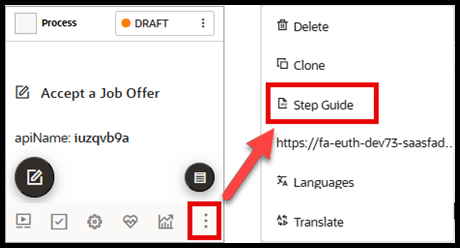
In the Step Guide modal, select Export to download the file to your Downloads folder:
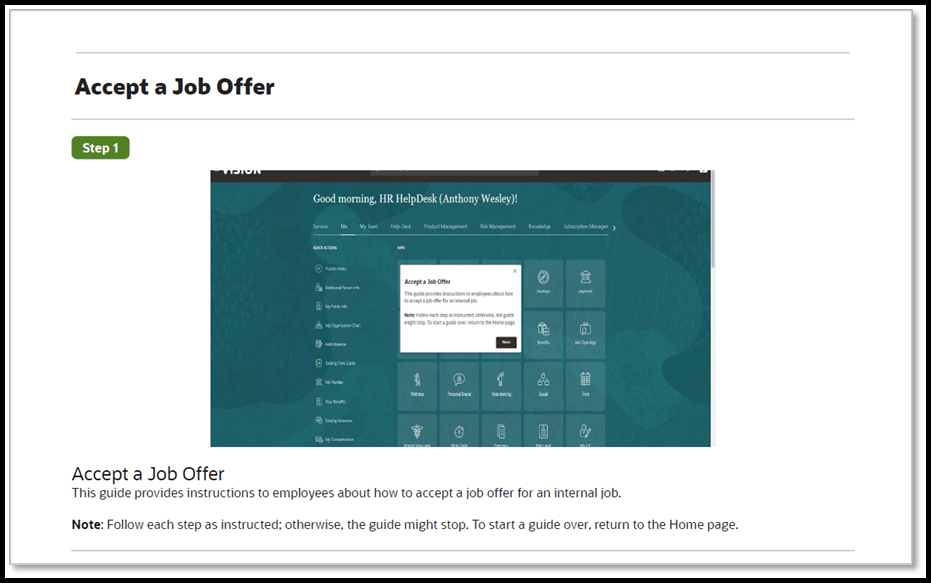
Example of legacy Step Guide export in PDF format (legacy):
Example of new Step Guide export in PPTX format (post 24D.1):
Slide 1

Slide 2
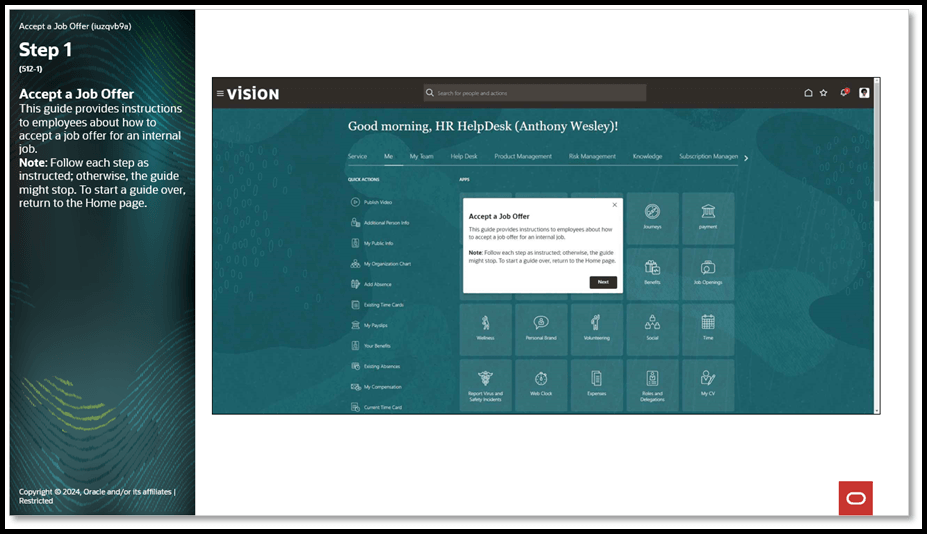
The Step Guide can now be edited in PowerPoint, as needed.
