Creating Link Guides
Creating Links
To create a new Link Guide:
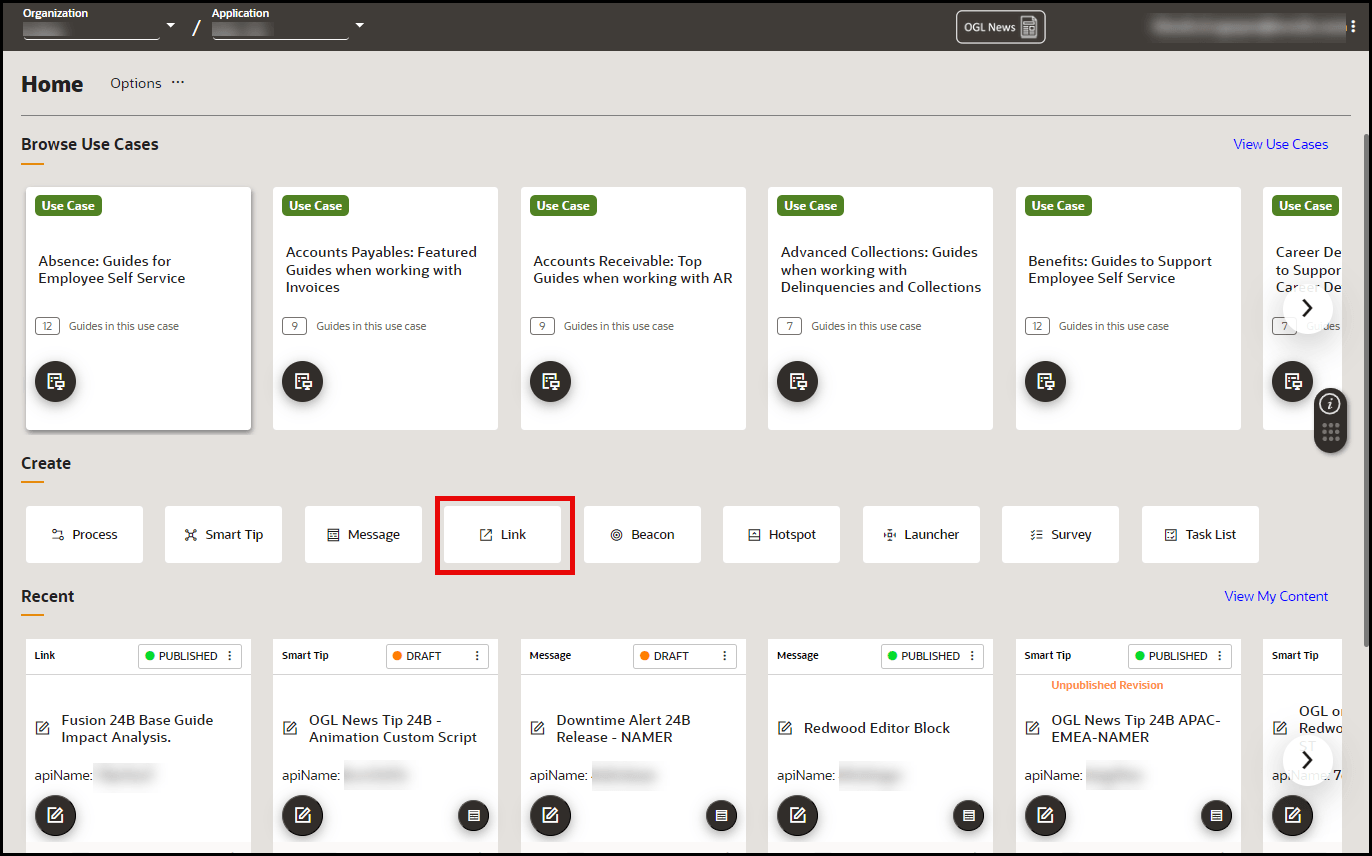
- On the OGL homepage, select Link button in the Create row. (You
can also select the
button from the Content page and select Link from the Type dropdown menu)
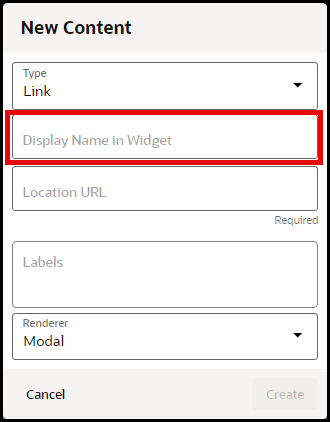
- In the Display Name in Widget field, enter the name of the link
as it should appear in the Help Panel (Widget). In the Location URL
field, enter the complete URL of the page you wish to reference.
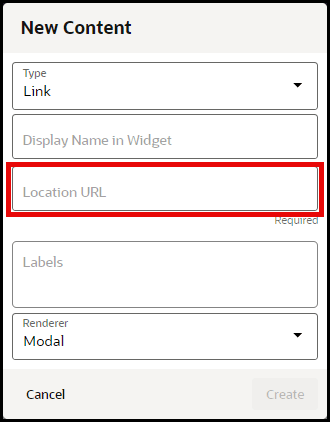
- In the Location URL field, enter the complete URL of the
page you wish to reference (For example:
https://education.oracle.com/oracle-cloud-guided-learning-premium).
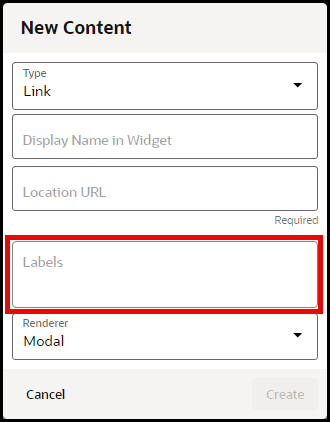
- (Optional) In the Labels field, enter or select any labels with which you
want to associate or tag the guide. You can also apply and manage labels in the
Guide Settings for the guide at anytime.
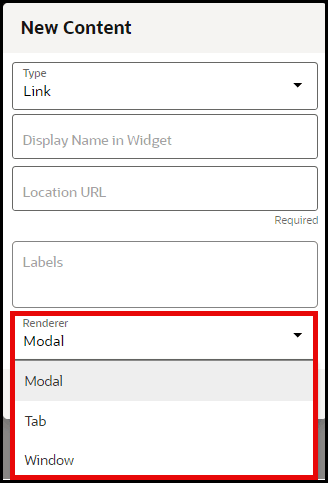
- Choose the desired Renderer for the link to determine whether
the content will open in a modal, a new tab, or a new browser window..
- Select Create button when finished.
Note:
Remember to set your activation conditions, refer to the Enabling Guide Activation Settings section