Enabling Guide Activation Settings
Introduction
Conditions allow you to determine where and/or when an OGL item is available/shown to the user in the application. These are called guide activation conditionsand are managed at the guide level. There also exist step conditions, these are set at the step/tooltip level within a guide.
This article focuses on guide activation conditions.
How to access the Guide Activation Settings Interface
From the OGL Console, select the check icon ( ) for the guide that you want to access.
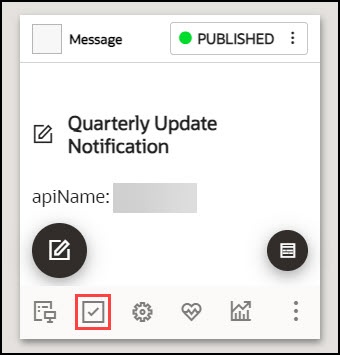
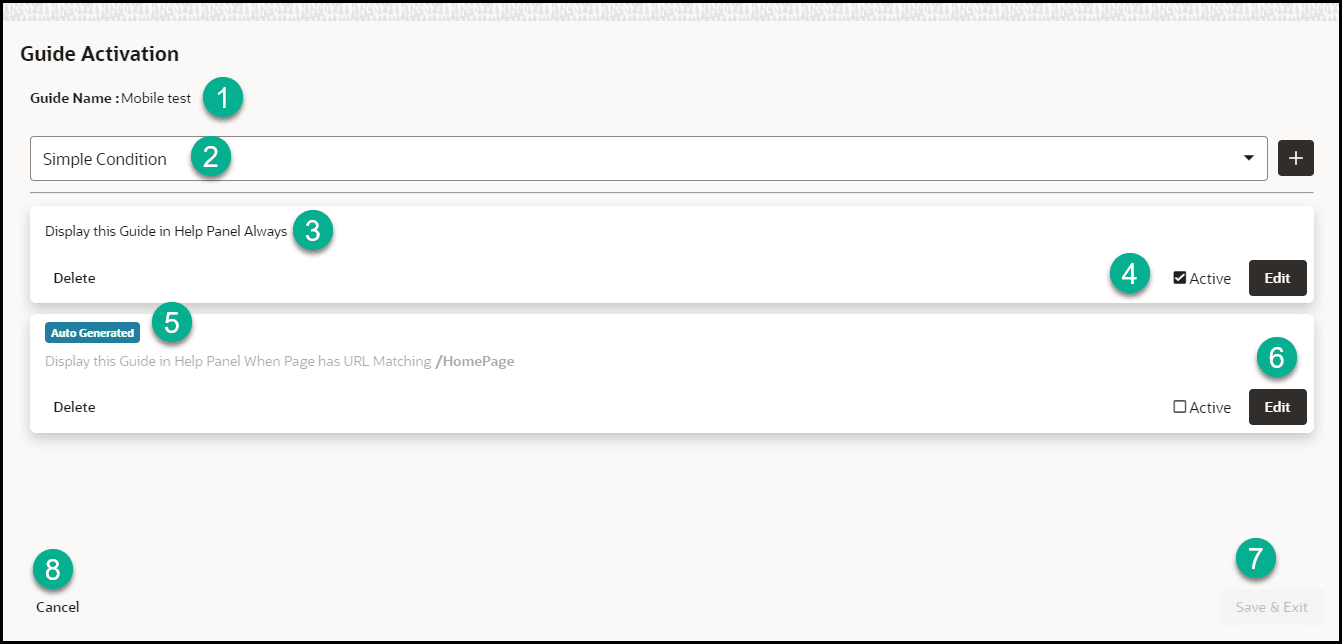
The below-pictured interface will be presented:
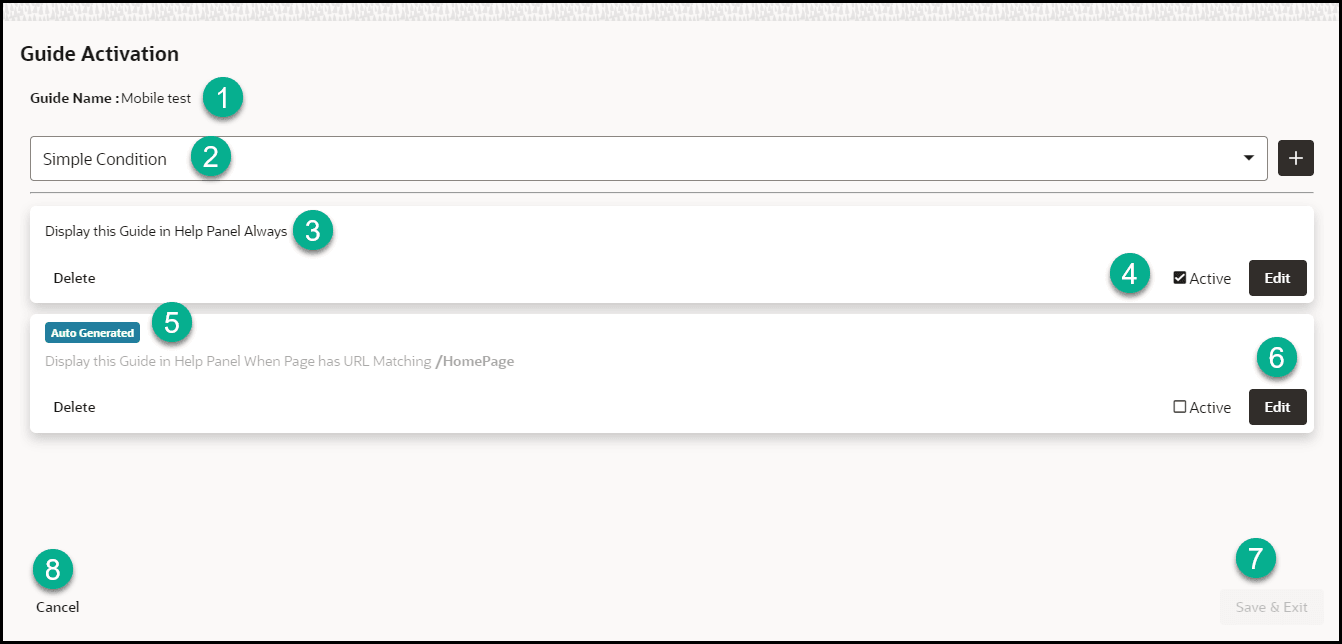
1 = Guide Name: This shows the name of the guide
2 = This dropdown is used to add new simple, advanced, and time conditions.
3 = A summary of the guide conditions
4 = The status of the is displayed. Active means the condition is set and active. Inactive means the condition is set but not active
5 = Auto-Generated tag, this identifies conditions that have been automatically generated.
6 = Edit condition button. Select the dropdown options and edit the condition accordingly.
7= Cancel the changes and exit.
8 = Save the changes and exit.
Note:
Guide Activation conditions are evaluated using the AND Boolean operator. A guide will display/autoload if all the active conditions (C1, C2,...Cn) are evaluated to TRUE. In the example above, the guide will be available in the widget only if all three conditions (Simple, Advanced, Time) are evaluated to TRUE. The OR operator (denoted by the pipe character "|") is only possible within an advanced condition (see advanced conditions).Guide Activation Options
Important:
These options are set at the guide level.When adding a new condition, there are three main settings:
- Enabled checkbox: Determines if the condition is active or inactive. If this is not checked, the condition will not be evaluated
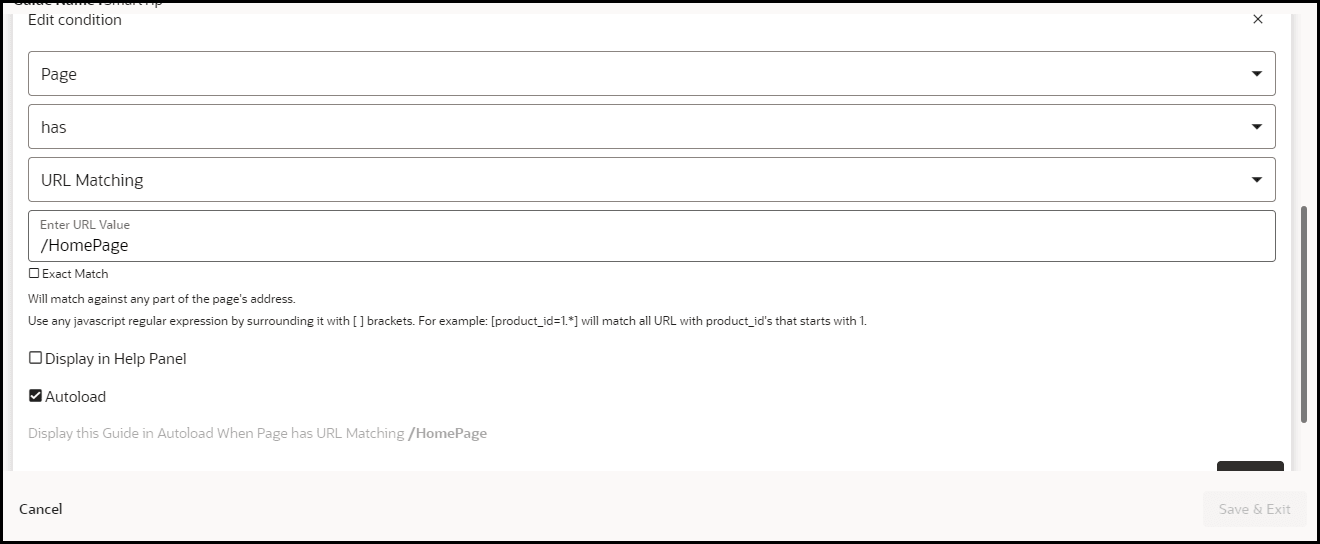
- Help Panel checkbox: Determines if the guide will be available from the OGL Help Widget
- Autoload checkbox: Determines if the guide should start automatically if the condition is met
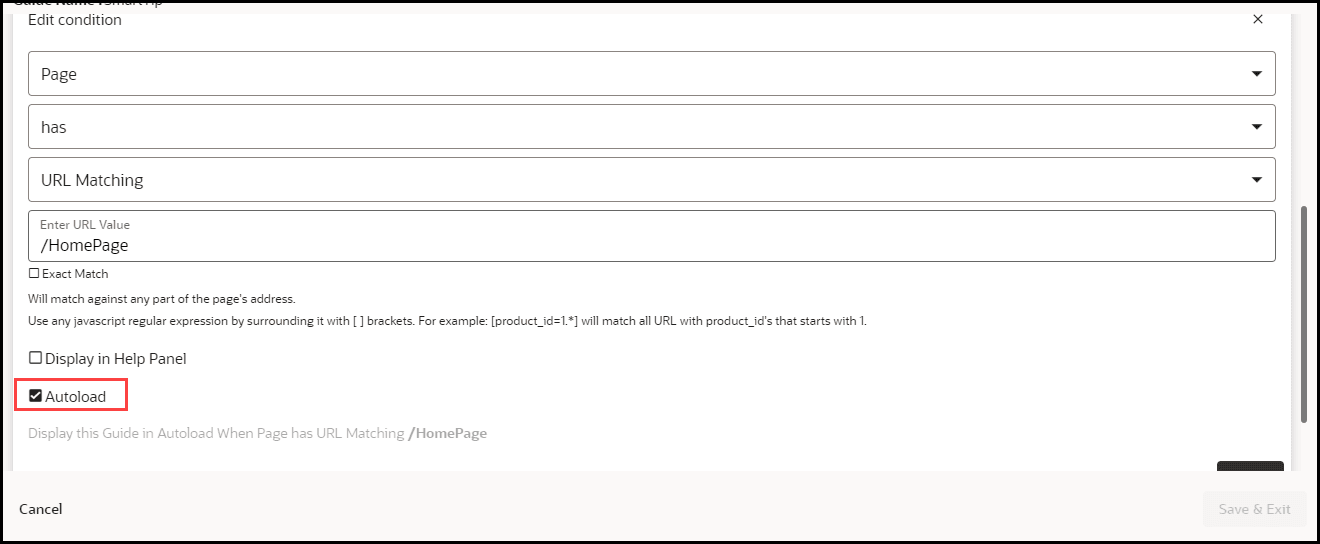
There are three types of conditions, these are:
- Simple conditions
- Advanced conditions
- Time conditions
Simple conditions offer a simplified process of setting activation conditions by leveraging predefined pages and user roles.
To set a new condition, select the Simple Condition button.
The below interface will be displayed.
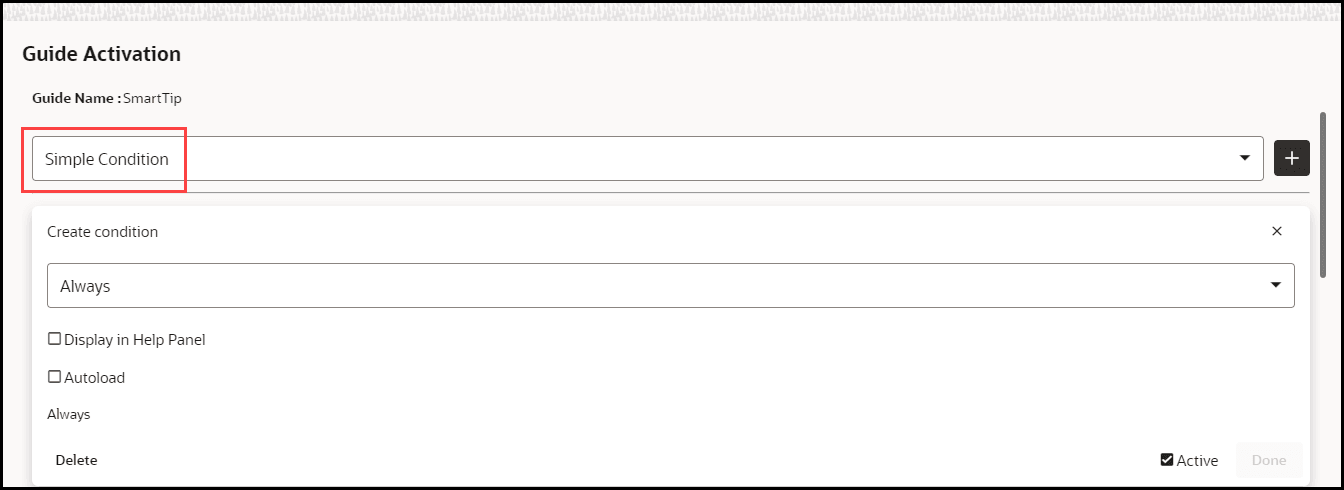
To set a new condition, click on the simple condition button, this will bring up the following interface:
There are five basic combinations in simple conditions, these are summarised in the table below:
| Display When | Description |
|---|---|
| Always |
Displays the guide in the widget, all the time. Note: We recommended NOT to use the Autoload option with this type of condition. |
| Page IS |
Displays the guide in the widget only when the user is on the Homepage Note: If the Autoload option is used, the recommendation is to add additional conditions to limit the number of times the guides will autoload (see advanced conditions). |
| Page IS NOT |
Displays the guide in the widget only when the user is not on the Homepage Note: We recommended NOT to use the Autoload option with this type of condition. |
| Role IS |
Displays the guide in the widget only when the user role is = Payables Specialist Note: Simple conditions (AND conditions) allow you to associate only one user group (i.e. Payables Specialists) to the guide. If you add multiple simple conditions to the same guide(i.e. a condition for Payables Specialists and another for Receivables Specialists), then all conditions will have to be met for the guide to be displayed in the widget or autoloaded (that is, a user will have to be both a Payables Specialist and a Receivables Specialist). Conditions (OR conditions) that allow the user to be either a Receivables Specialist or Payables Specialist are covered in advanced conditions. |
| Role IS NOT |
Displays the guide in the widget only when the user role is not = Payables Specialist |
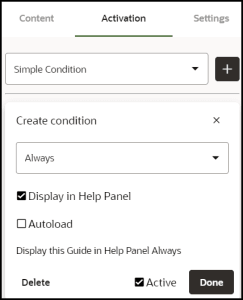
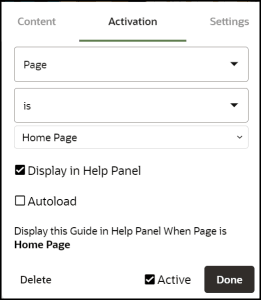
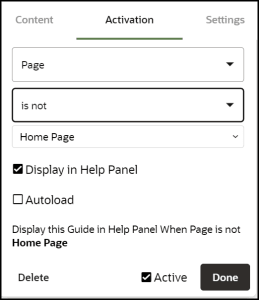
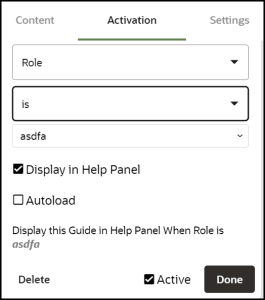
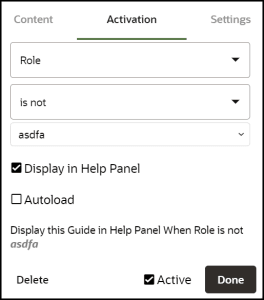
Remember: Multiple conditions are joined by the Boolean AND operator. All conditions have to be TRUE for the guide to be activated accordingly (help widget/autoload).
Advanced Conditions
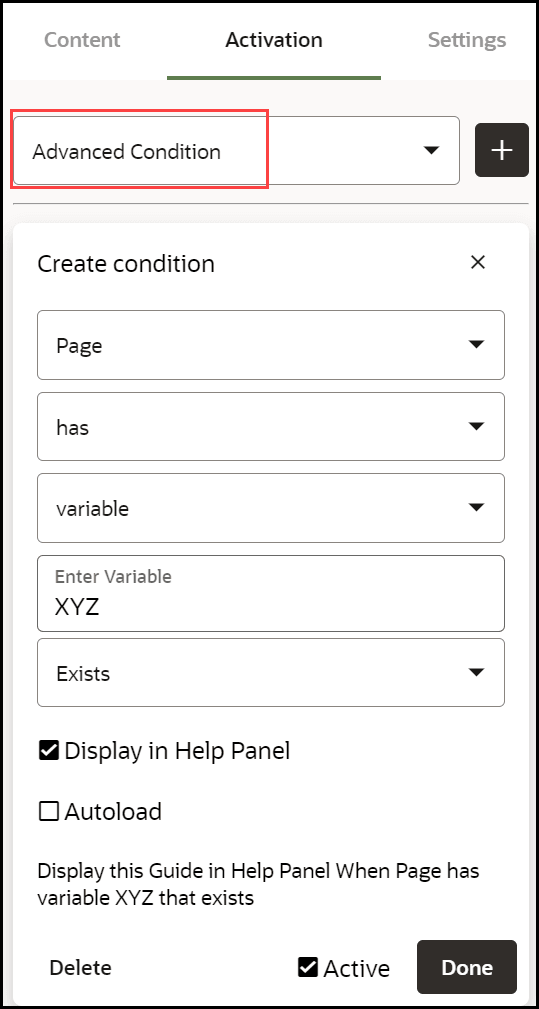
Advanced conditions offer a variety of options in setting activation conditions, this includes multiple user roles. To set a new condition, click on the advanced condition button, this will bring up the following interface:
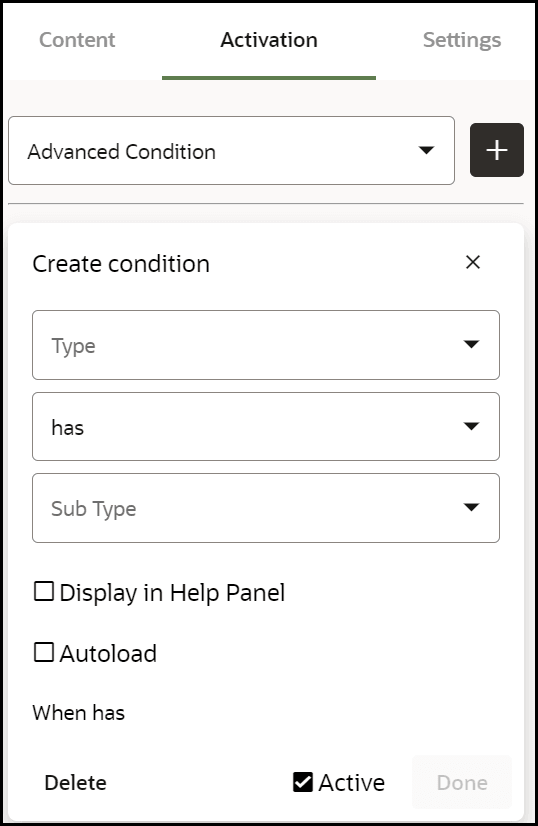
There are four basic combinations in advanced conditions, these are:
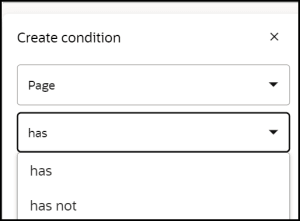
- Page has / Page has NOT
- User has / User has NOT
Options within Page HAS / Page HAS NOT:
| Display When Page has / Display When Page has NOT | Description |
|---|---|
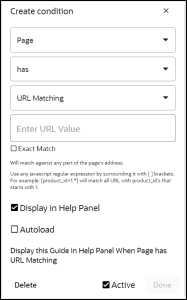
| URL matching |
Will match against any part of the page's address. You can use regular expressions as well. Use any
javascript regular expression by surrounding it with [ ]
brackets. For example: [product_id=1.*] will match all URL with
product_id's that starts with 1.
Note: Use the exact check box if you want the entire path to match exactly with the provided value. Note that the domain (e.g. http://www.your_app.com) will be ignored in this evaluation.
FUSION APPLICATIONS: Display Guide Only on Certain Pages
Note that if the Route is saved in Pages, OGL will automatically convert the condition to a Simple condition. |
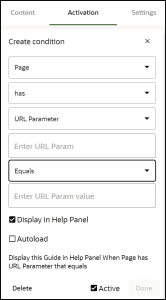
| URL parameter |
Will match against a specific URL parameter. You can either test that the specific URL parameter exists or evaluate its value. |
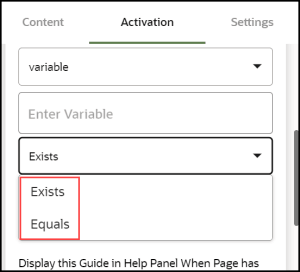
| variable |
Will match against a javascript variable. You can either test the existence of a variable or test its actual value. |
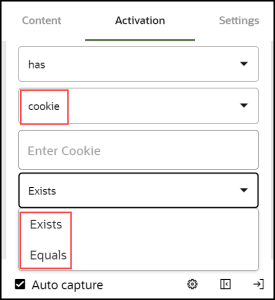
| cookie |
Will match against a browser cookie. You can either test the existence of a cookie or test its actual value. |
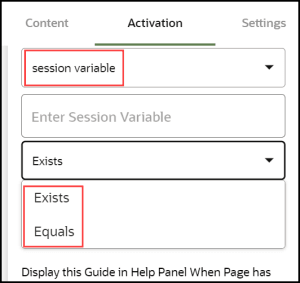
| session variable |
Will match against a special OGL variable. The OGL javascript API allows setting session variables that exist only throughout the duration of the currently logged in user. You can then condition your guides to display based on these variables. |
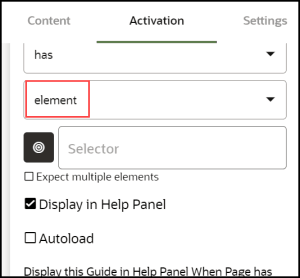
| element |
Will match against any element on the page's Document Object Model (DOM). You can also extend this condition by telling iridize to wait for multiple objects matching the provided selector. |
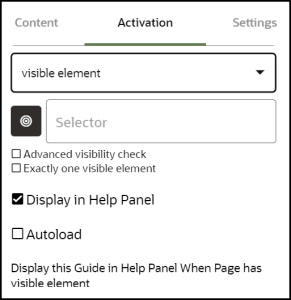
| visible element |
Will match against a visible element on the page's Document Object Model (DOM). This is more restrictive than an element condition because in HTML an element can be invisible. |

Options within User HAS / User HAS NOT:
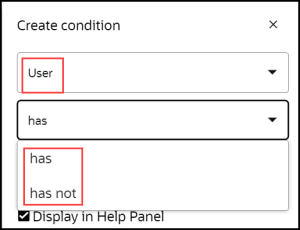
| Display When User has / Display When User has NOT | Description |
|---|---|
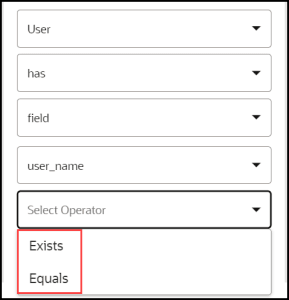
| field |
Will match against a user-specific field as it was relayed to OGL using the api.fields.set call. You can either test the existence of a user field or test its actual value. Use this to govern your guides based on user roles, permission level, or user country. Note: The required field has to be set/read in the OGL JavaScript. Please contact us for support. Multiple User Roles To set role conditions, the roles must be defined in JavaScript or in the Oracle Fusion configuration. Advanced conditions allow you to associate multiple user roles to a guide/a group of guides utilizing the OR operator. When you create a field (i.e. user_role) matching condition you can use a regular expression. To tell OGL that the string is a regular expression surround it with square brackets []. So, let's say you have the following roles in your application: Line Manager, HR Manager, Payroll Manager To show an OGL guide only if the user has or has NOT either of the three roles, the advanced activation condition would be as follows: 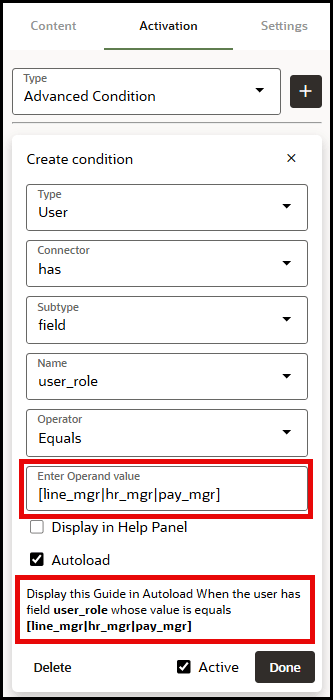 |
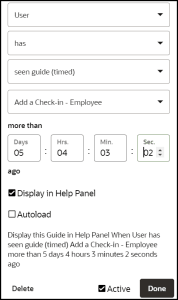
| seen guide |
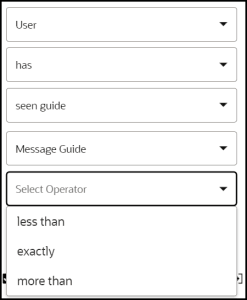
Will display the current OGL item (in the widget or autoload) if the user has seen the provided guide (i.e Create Requisition from Catalog) X number of times in the past. Note: If you have guides A, B, and C, you can set the condition such that: Guide A is displayed in the widget and/or autoloaded When the User has or has NOT seen guide A/B/C more than/less than/exactly X number of times. |
| seen guide (timed) |
This type of condition is similar in essence to the seen guide condition but it is based on how long ago the user last saw the provided guide (i.e Create Requisition from Catalog) instead of the number of times a user has seen the provided guide. Note: If you have guides A, B, and C, you can set the condition such that: Guide A is displayed in the widget and/or autoloaded When the User has or has NOT seen guide A/B/C more than X number of seconds ago. |
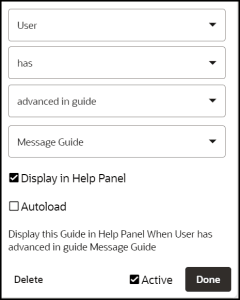
| advanced in guide |
Will match if the user has engaged with the guide at least once. A user is considered to have engaged with a guide if and only if s/he has advanced past the first step in the guide. Note: If you have guides A, B, and C, you can set the condition such that: Guide A is displayed in the widget and/or autoloaded When the User has or has NOT advanced in guide A/B/C |
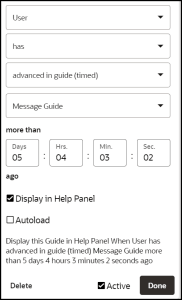
| advanced in guide (timed) |
This type of condition is similar in essence to the advanced in guide condition but it is based on how long ago the user last advanced past the first step in the provided guide (i.e Create Requisition from Catalog) instead of the number of times a user has advanced in the provided guide. Note: If you have guides A, B, and C, you can set the condition such that it is: Guide A is displayed in the widget and/or autoloaded When the User has or has NOT advanced in guide A/B/C more than 86400 seconds ago. |
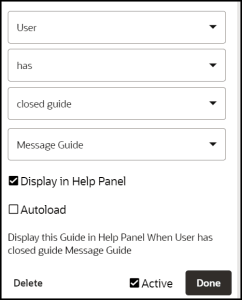
| closed guide |
Will match if the user has decided to manually close the guide by clicking on the 'X' button located at the top-right corner of one of the tooltips. |
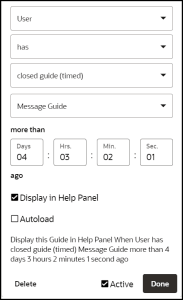
| closed guide (timed) |
This type of condition is similar in essence to the closed guide condition but it is based on how long ago the user last closed the guide. Note: If you have guides A, B, and C, you can set the condition such that it is: Guide A is displayed in the widget and/or autoloaded When the User has or has NOT closed guide A/B/C more than 86400 seconds ago. Clicking the Remind me later button does not count as closing the guide. |
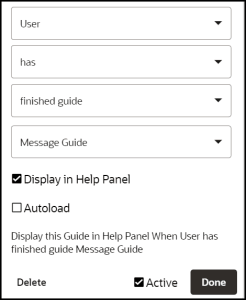
| finished guide |
Will match if the user has gone through the whole guide from start to finish. Note: If you have guides A, B, and C, you can set the condition such that it is: Guide A is displayed in the widget and/or autoloaded When the User has or has NOT finished guide A/B/C. |
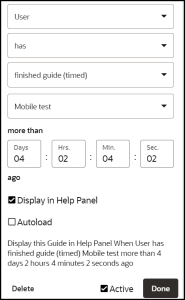
| finished guide(timed) |
This type of condition is similar in essence to the finished guide condition but it is based on how long ago the user last finished the guide. Note: If you have guides A, B, and C, you can set the condition such that it is: Guide A is displayed in the widget and/or autoloaded When the User has or has NOT finished guide A/B/C more than 86400 seconds ago. |
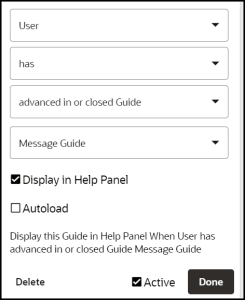
| advanced in or closed the guide |
This condition is a combination of the Advance in Guide and the Closed Guide conditions. It will match if the user has either engaged with the guide or closed it manually. Note: The Remind me later button does not count as closing the guide. So using this condition in combination with the Seen Guide condition "completes" the remind me later functionality. |
 Time Condition
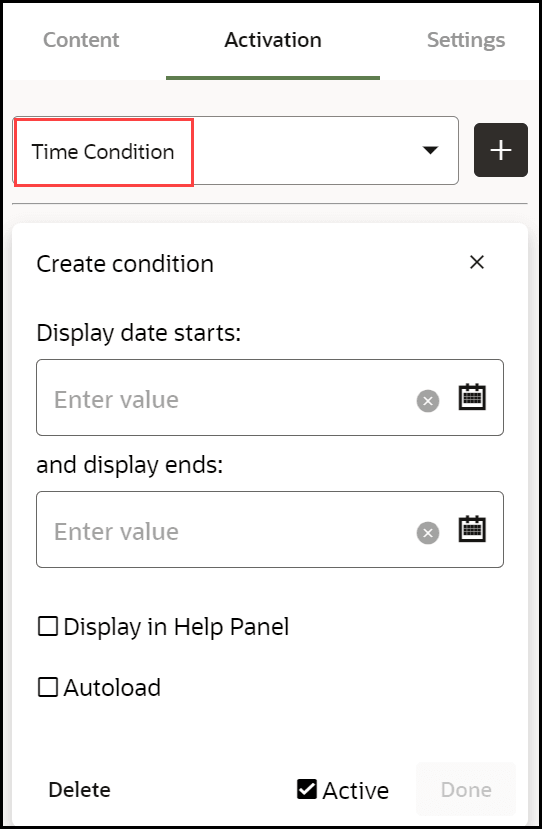
A time condition allows you to set when and for how long a guide should be displayed in the widget or autoloaded.
In the example below the guide is set to display for a period of seven days, commencing on March 15, 2024.
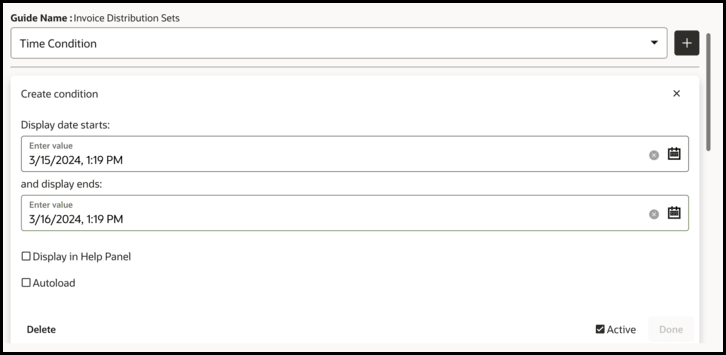
Important: The time condition does not auto-adjust for different time zones, if the target audience is in a different time-zone to the person setting the condition, the difference in time needs to be considered and where necessary, adjusted by the person setting the condition.
OGL Standard Roles
Click here to download a list of Role mappings.
Autosegmentation
AutoSegmentation works with any application that provides OGL with page information. AutoSegmentation also ensures that the widget displays only the guides relevant to the page the user is currently on. When selecting a guide from the widget, it will begin on the first step on the page that the user is on. In addition, the account and – if used, the embedded JavaScript-- must be configured for AutoSegmentation. Contact your Oracle/OGL account manager to verify that your account is properly configured. AutoSegmentation occurs automatically. OGL stores the page location (or Route) as you select elements while creating guides. OGL then uses those pages to build the default Activation Condition for the guide. The AutoSegmentation pages are used instead of a standard URL to identify the pages where the guide can be run. The following image shows the Activation Condition automatically created by AutoSegmentation (this condition is identifiable by the Auto-Generated tag):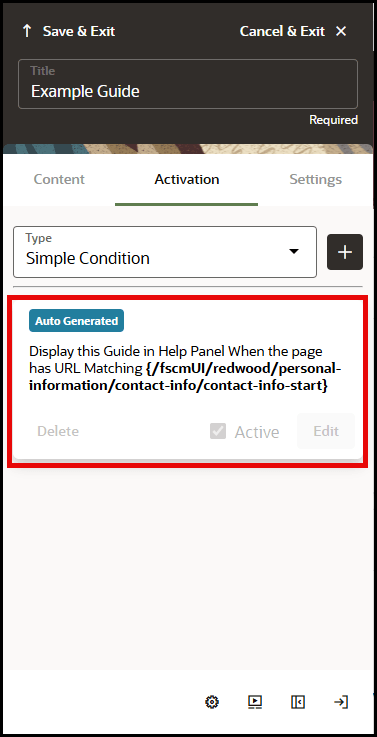
To ensure auto segmentation works as intended, we recommend you do not change the default activation condition.
Current status as of March 2024A brief explanation of the guide's condition summary (3):
- syntax:
-
{cond1 || cond2 || [cond3]}
- 'cond1', 'cond2', 'cond3' are placeholders for specific condition or url part
- '||' signifies the logical OR.
- '[]' brackets indicates that the enclosed condition ('cond3') is using regex matching
- Curly braces '{}' denote that the conditions inside them are of exact matching, implying that 'cond1' and 'cond2' are checking for exact values or matches without pattern
- inside the square brackets we can use '|' symbol within a regular expression
Guide Activation Enhancement
Guide Activation functionality has been enhanced to enable developers to target content more accurately to specific end-users for more content personalization. This enhancement allows content developers to create user-based advanced conditions based on the end-users’ actions; such as interacting with hotspots, completing task lists, or responding to surveys.
This enhancement includes an update to the UI/UX in both the Guide Activation modal and Full Editor within the Advanced Condition settings for user-based conditions:
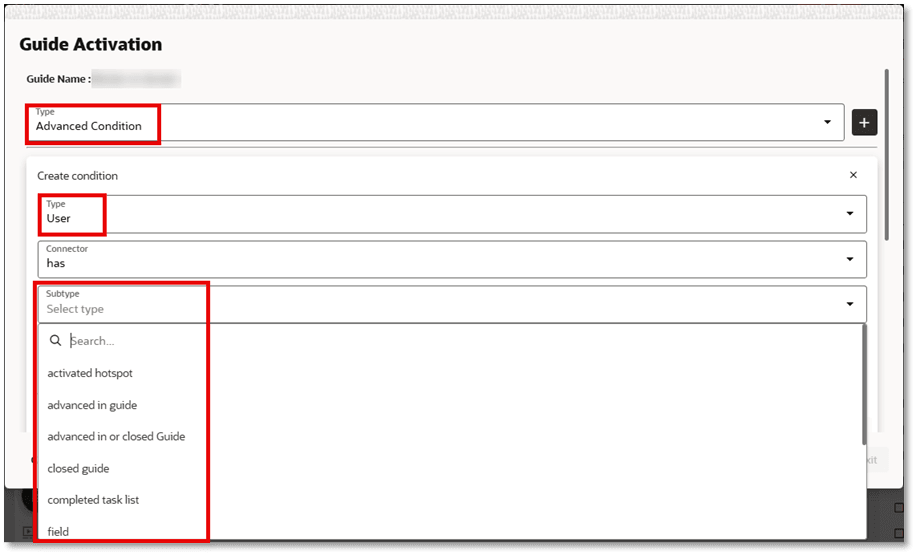
Newly added Subtypes:
- Activated hotspot – When a user interacts with and activates an active hotspot in the application.
- Completed task list – When a user completes all tasks in an active task list
-
Responded survey – When a user advances beyond the first step in an active survey guide
This enhancement also adds a Time Limit – more than # ago setting to the condition to allow developers to specify additional time-based settings to the condition:
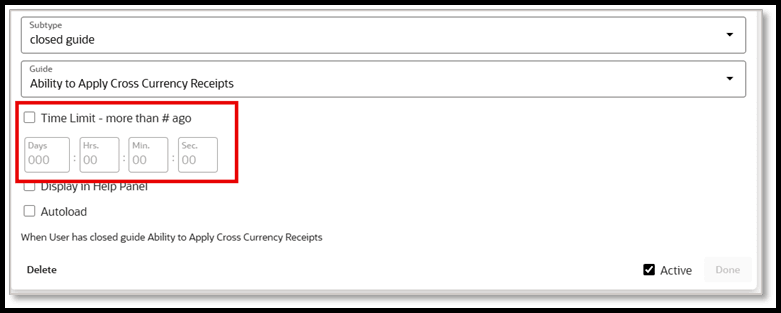
- Activated hotspot – When a user interacts with and activates an active hotspot in the application.
- Completed task list – When a user completes all tasks in an active task list
- Responded survey – When a user advances beyond the first step in an active survey guide
This enhancement also adds a Time Limit – more than # ago setting to the condition to allow developers to specify additional time-based settings to the condition:
