Creating Mobile Smart Tips
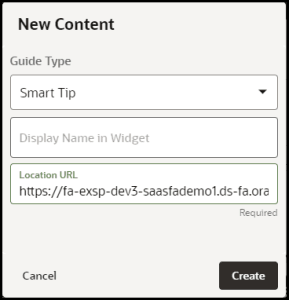
- Select the
 button on the OGL Console
- Select Smart Tip from the Guide Type list
- Enter the Mobile
URL in the Location URL field(see Creating a Mobile Guide).
Enter the title in Display Name in the Widget field
- Select Create Content
Note: The OGL Editor launches in a new tab, where you can start capturing the steps for the guide.
Adding the first Smart tip for your Mobile Smart Tip Collection
After you select Create Content, the OGL Editor appears over the URL you entered. You are prompted to select an element:
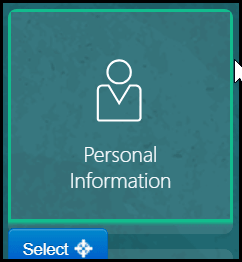
- To capture the screen element for your first smart tip, move the
mouse on the screen and right-click an element to select it, or click Select
- Enter the text in the Content Editor field.
Note: Limited to 50 characters.
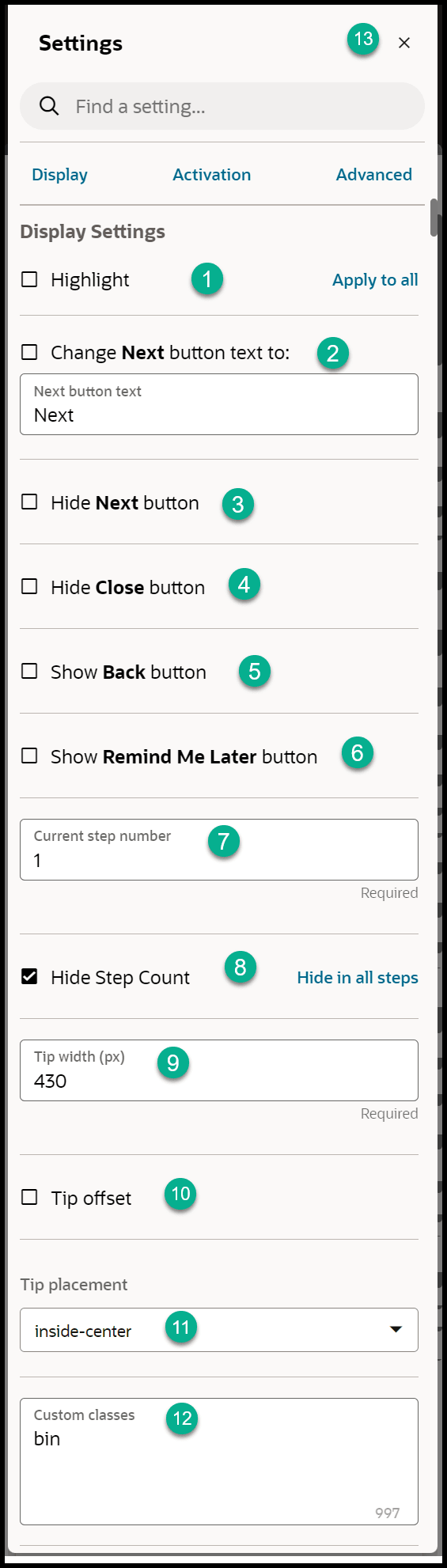
- Open the Step Settings

- Set the Display Settings as below
Note:
- By default, the tip placement is set at the bottom regardless of what is selected in the Display Settings
- The Tip Width is always fixed for Mobile Smart Tips
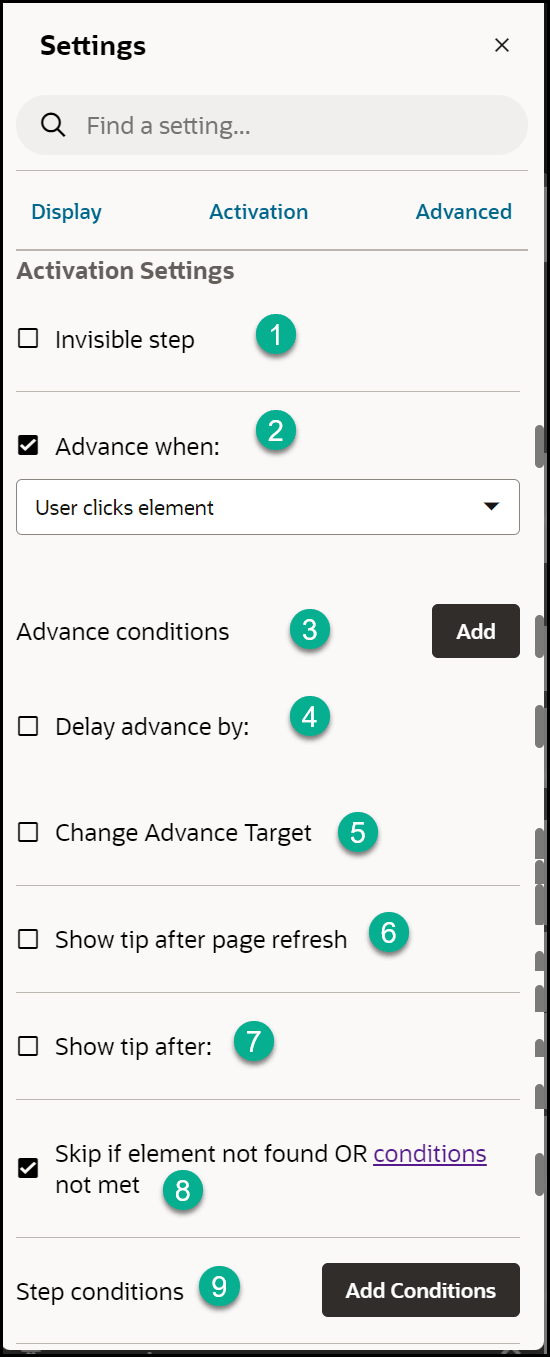
- Set the Activation Settings as shown below
- Set the Advanced Settings as shown below
- Repeat steps 1 to 6 for the subsequent steps, then select Save&
Exit.
IMPORTANT: Refer to Defining the Mobile Guide /Smart Tip Settings
Testing the Mobile Smart Tips
IMPORTANT: It is recommended that you test the smart tips on a mobile device for optimum results. Note steps 1 to 3 below are relevant only when not testing on a mobile device.
| Step | Example |
|---|---|
| 1. Open a new tab |  |
| 2. Open Developer Tools (Right-click > Select Inspect/ Inspect element) | 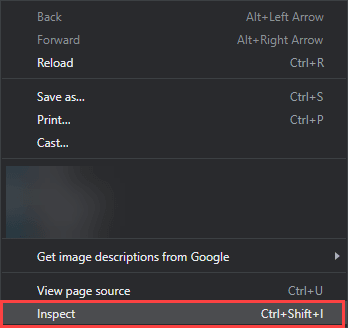 |
| 3. Go to Toggle Device Toolbar
(Ctrl+Shft+M)
1 = Toggle Device Toolbar indicator 2 = Device selector 3 = Page |
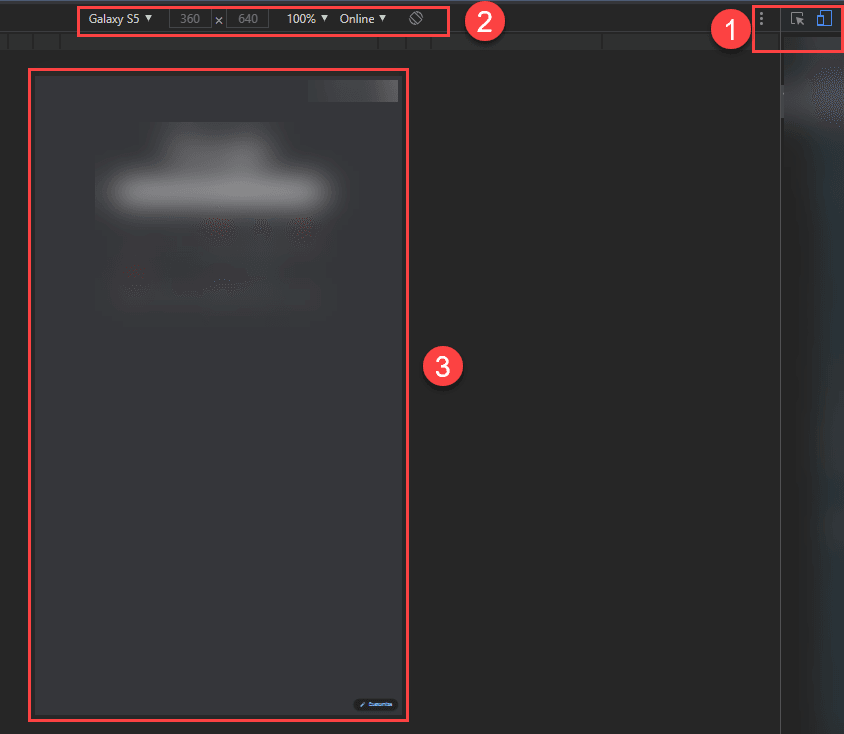 |
| 4. Log in to the application |
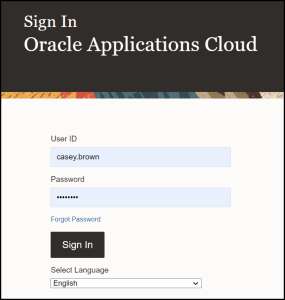 |
| 5. Navigate to the page where the Smart tip is intended to display. i.e. About Me > Goals and Performance > Goals | 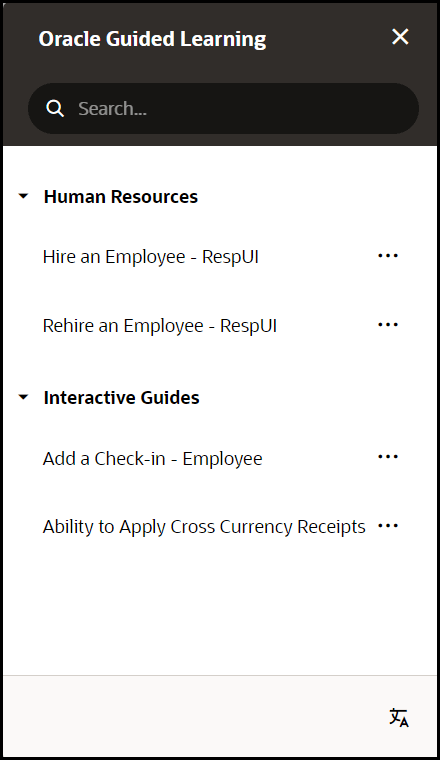 |
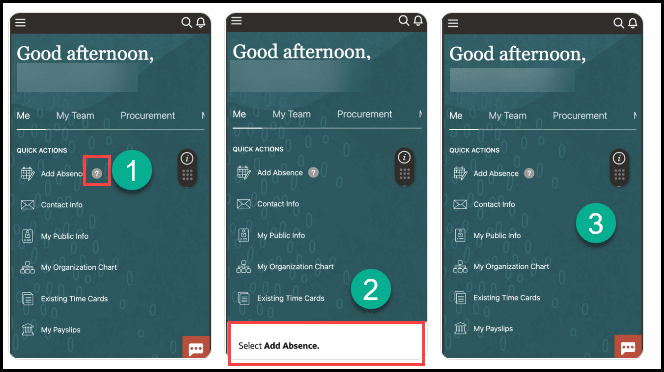
| 6. Tap on the Smart tip icon (1) to display the
information
Note: The information will display at the bottom of the screen (2) and tapping any area outside the tip (3) will close the tooltip. |
 |
